
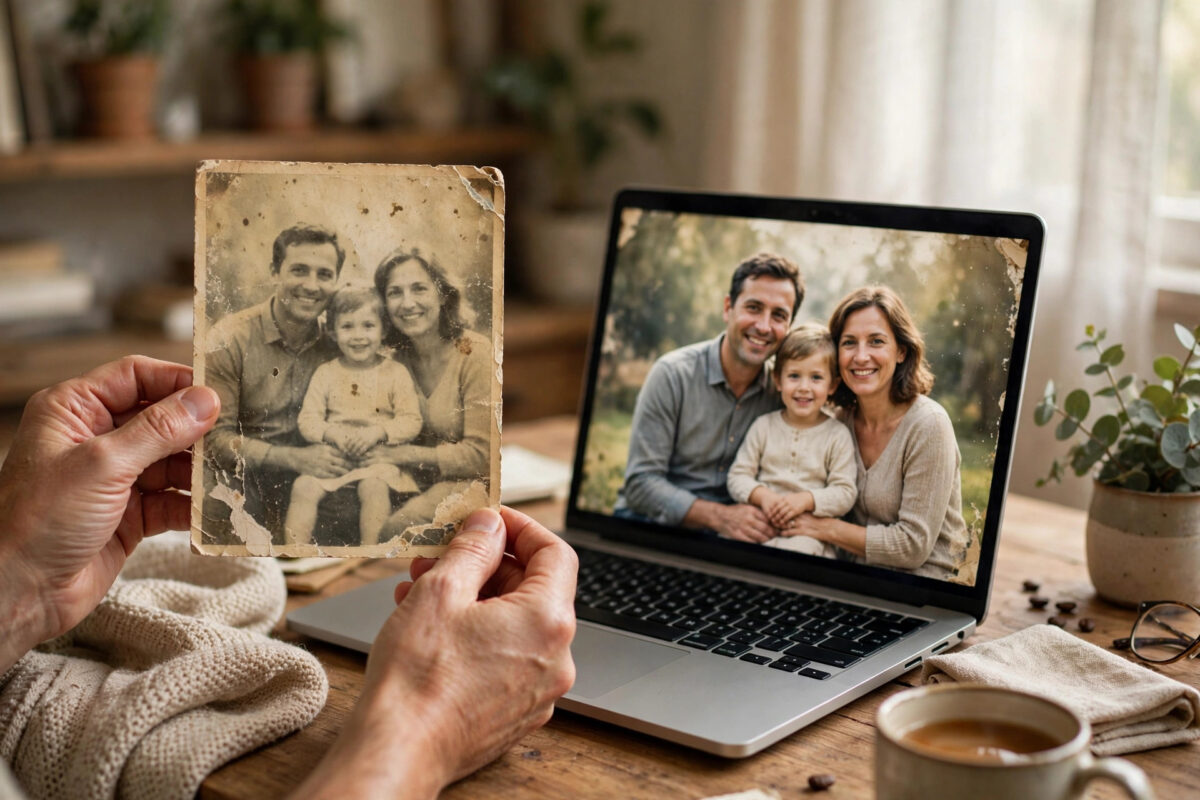
Everyone has one: a photo that matters, trapped at a tiny size or softened by blur. A grandparent’s only portrait, a product shot a client sent as a thumbnail, a screenshot you need to print. Resizing it bigger the normal way only makes a larger blurry photo. That is why the question keeps coming up: How can I upscale a blurry photo with a free AI image upscaler? Modern AI does something traditional resizing cannot — it predicts and rebuilds plausible detail instead of just stretching pixels.
This guide explains what AI upscaling can and cannot rescue, walks you through the process step by step with free tools, and shows you how to fix the specific problems — faces, text, and noise — that decide whether the result looks restored or just strange. Set honest expectations first, and you will be pleasantly surprised by how much can be recovered.
What AI Upscaling Can and Cannot Do
How AI Upscalers Rebuild Detail
A traditional resize invents nothing; it spreads existing pixels over a bigger grid, so edges stay soft. An AI upscaler, as explained in overviews of image scaling and super-resolution techniques, has learned what sharp eyes, hair, brickwork, and fabric look like from millions of examples. It uses that knowledge to generate new, believable detail at two or four times the original size. The result is not the original truth recovered — it is an intelligent reconstruction, which is why it works beautifully on some photos and invents odd details on others.
Setting Realistic Expectations
Mild blur, small size, and compression artefacts respond very well. A 500-pixel portrait from an old phone can become a clean, printable image that looks genuinely sharp. Severe motion blur, completely blown-out faces, and photos where eyes are closed or merged into smudges cannot be fully rescued, because the information simply is not there. AI will still try, and its guesses can distort a loved one’s likeness. For precious family photos, always compare the upscaled face carefully with the original and keep both versions.
The Best Free AI Upscalers to Start With
Upscayl — Best Free Desktop Option
Upscayl is a free, open-source desktop upscaler you install on your computer. Because processing happens locally, your photos are not uploaded anywhere, there are no per-image credits, and batch upscaling a folder of old scans is practical. It offers several models tuned for photos, digital art, and general images, with two-times and four-times scaling. For anyone restoring a whole album, this privacy and lack of limits make it the strongest free starting point.
Online Upscalers — Best for One-Off Images
Web-based tools from major image platforms let you upload a photo, choose a scale factor, and download the result in minutes with no installation. Free tiers usually limit image size, the number of free upscales, or add a queue, with paid tiers raising those limits. They are ideal for a single product image or social graphic. Check each service’s privacy terms before uploading sensitive personal photos, and prefer tools that state how long uploads are stored.
Built-In and Editor-Based Options
Some photo editors and phone galleries now include AI enhance or super-resolution features. If you already edit in a particular app, its built-in upscaler keeps everything in one workflow and may combine upscaling with denoising and sharpening automatically. Results vary by app, so test on a copy. You can explore more restoration and editing workflows in Network Ustad’s AI photo guides.
Step-by-Step: Upscaling a Blurry Photo
Step 1: Prepare and Protect the Original
Work on a copy, never the only original. If the photo is a scan, scan it at the highest quality available before upscaling; more real information at the start means less guessing later. Note the original dimensions so you can choose a sensible target size: two-times upscaling is the safest default, while four-times suits very small but otherwise decent images.
Step 2: Clean Before You Enlarge
If your tool offers denoise or deblur controls, apply gentle noise reduction first. Upscaling amplifies everything in the image, including grain and compression blocks, so cleaning first prevents the AI from turning noise into fake texture. Avoid heavy sharpening before upscaling for the same reason — the upscaler does its own detail work and doubled sharpening creates harsh halos.
Step 3: Upscale With the Right Model
Choose the model that matches your image: a photo or realistic model for portraits and landscapes, a separate face-enhancement option if the tool provides one and faces are the priority, and an art or illustration model for graphics and cartoons. Run the upscale, then inspect the result at full size before downloading or printing.
Step 4: Inspect Faces, Text, and Textures Closely
Zoom into the areas AI finds hardest. Eyes should be symmetrical and natural, teeth should not merge into a single white block, and any text, logos, or jewellery should be readable rather than melted into invented shapes. Check repeating textures like bricks, knits, and foliage for strange patterns. If one area fails, some tools let you blend: keep the upscaled image overall but paint the original detail back in problem spots using an editor’s layers and a soft brush.
Step 5: Final Sharpen, Resize for Purpose, and Save
Upscaled images often benefit from a very light final sharpen — much less than you would apply to a normal photo. Then size the image for its actual purpose: screen use needs far fewer pixels than a large print. Save the master as a high-quality PNG or maximum-quality JPG, and export smaller copies for sharing so the master stays untouched.
Common Mistakes and How to Avoid Them
The most common mistake is upscaling repeatedly — running an already upscaled image through again hoping for more detail. Each pass invents more, faces drift further from reality, and textures turn waxy. One good pass from the best original beats three passes every time. A second mistake is choosing the maximum scale automatically. A modest two-times enlargement that looks natural is better than a four-times result full of artefacts.
Third, do not trust the preview thumbnail. Upscaling problems hide at thumbnail size and appear at print size, so always judge at one hundred percent. Finally, be thoughtful with historical or evidence-like photos. An AI reconstruction is an interpretation, not the original record, so label restored versions clearly when accuracy matters and never present an upscaled image as unaltered proof of anything.
Conclusion
So, how can you upscale a blurry photo with a free AI image upscaler? Protect the original, clean noise gently, upscale once with the right model at a sensible scale, and inspect faces and text at full size before saving. Free tools like Upscayl for desktop work and reputable online upscalers for quick jobs make this process available to anyone, with no budget and no expertise required. The technology cannot perform miracles on a photo where the detail never existed, but for the mildly blurry, the small, and the compressed images that fill our phones and archives, it comes remarkably close.
Frequently Asked Questions
Can AI upscaling fix a very blurry photo completely?
It can dramatically improve mild to moderate blur and small images, but severe blur cannot be fully reversed because the original detail was never captured. AI reconstructs plausible detail, which looks convincing for casual viewing but may alter fine features, especially faces.
Is Upscayl really free and private?
Yes. Upscayl is free and open source, and it processes images on your own computer rather than uploading them to a server. That makes it a strong choice for personal photos and large batches where online credits or privacy would be a concern.
Should I upscale by 2x or 4x?
Start with 2x for most photos. It delivers a clear improvement with the fewest artefacts. Use 4x when the original is very small and you need print size, and inspect the result closely, since larger scales require the AI to invent more detail.
Why does the upscaled face look slightly different?
Because the upscaler is generating detail it predicts, small features like eye shape, skin texture, and teeth can shift. If likeness matters, use face-specific enhancement at a moderate strength and compare side by side with the original before sharing or printing.
What is the best format to save an upscaled photo?
Keep a master copy in PNG or the highest quality JPG your editor offers to avoid further compression loss. For sharing online, export a separate JPG sized for its destination, since platforms will compress uploads anyway and a right-sized file keeps more quality.



Leave a Reply