
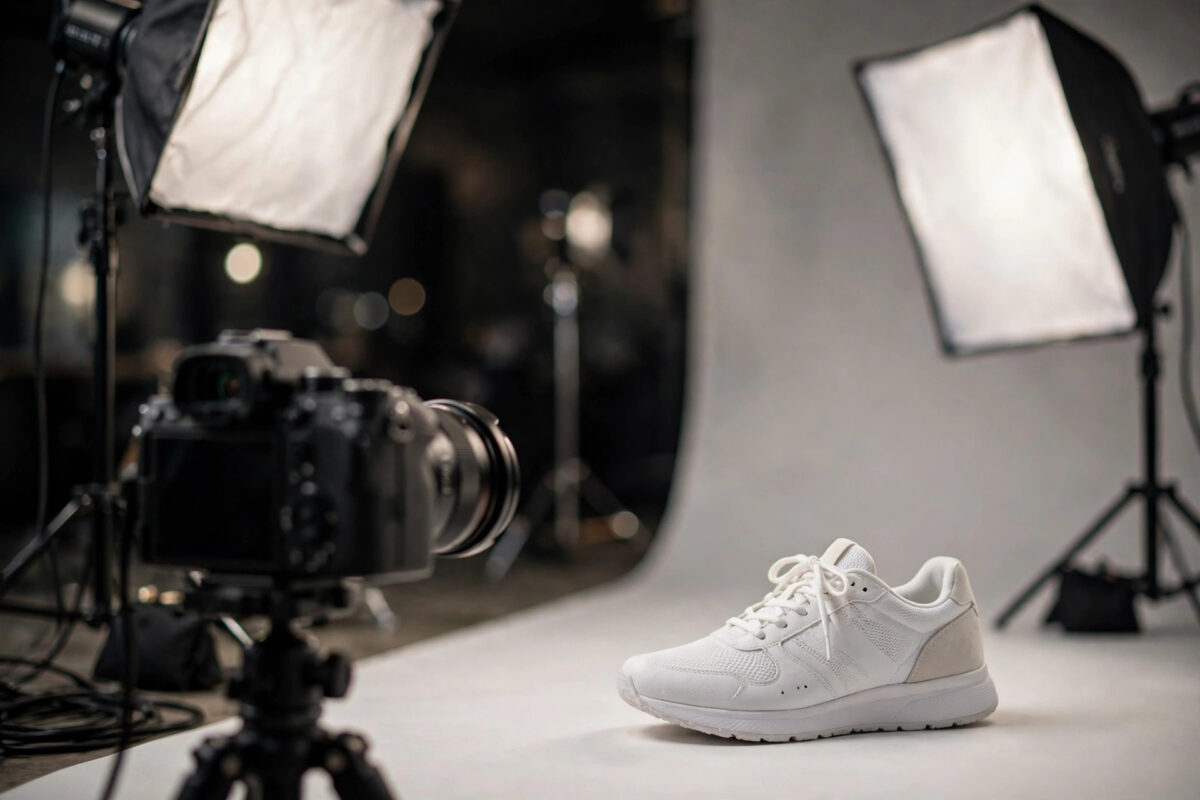
A clean product photo on a transparent background looks professional. The same photo with a cluttered room behind it looks like an afterthought. Removing backgrounds used to mean an hour of careful masking in photo editing software. Now creators ask a simpler question: What are the best free AI tools to remove an image background automatically? The good news is that free AI has become genuinely excellent at this job, often finishing in under five seconds.
This guide compares the best free options honestly — what each does well, where each cuts corners on its free tier, and which suits products, portraits, logos, and social media content. You will also learn the workflow and fixes that matter when AI struggles with hair, glass, and busy edges, so your first attempt looks like your tenth.
How AI Background Removal Actually Works
Subject Detection and Edge Refinement
Modern removers use segmentation models trained on millions of images. The AI identifies the main subject, separates it from everything else, and then refines the boundary pixel by pixel. Quality is decided at the edges. A tool that handles a hard product edge perfectly may still chew up flyaway hair or turn a glass bottle into a grey ghost, because transparent and fine details are genuinely hard problems. Understanding this helps you pick the right tool for the right image type instead of expecting one tool to win at everything.
What “Free” Usually Means
Almost every tool here is free with limits rather than free without conditions. Common limits include lower resolution downloads on the free tier, a small number of full-quality credits, or previews that are free while high-resolution exports sit on paid tiers. None of that makes the tools useless. For social media, marketplace thumbnails, presentations, and most web use, free-tier output is often already good enough. The trick is knowing each limit before you build a workflow around a tool.
The Best Free AI Background Removers Compared
remove.bg — Best All-Rounder
remove.bg’s background removal service is the name most people meet first, and it earned that position. Upload a photo and it returns a clean cutout with strong edge handling, including respectable results on hair. It also offers a simple editor to add a new background colour or scene. The free tier typically provides low-resolution previews and a limited taste of full quality, with paid tiers for high-resolution downloads. For occasional use and quick social graphics, it is hard to beat for reliability.
Adobe Express Background Remover — Best for Adobe Users
Adobe’s free remover benefits from the same imaging research behind Photoshop’s selection tools. Results on portraits and products are clean, and the result flows naturally into Adobe Express for adding text, resizing for different platforms, and finishing a design in one place. You will need an Adobe account, and the wider design features promote paid upgrades, but the remover itself is a strong free option when your end goal is a finished social post rather than just a transparent file.
Canva Background Remover Alternatives and Free Tools in Canva
Canva’s one-click background remover sits in its paid tier, which is worth knowing before you design an entire project around it. However, Canva’s free ecosystem still helps: you can upload a cutout made elsewhere and finish your design free. Meanwhile, several fully free web tools — including options from Photoroom-style editors and open web utilities — offer generous free removal with watermarks only on premium extras. Photoroom itself is excellent for product photos, with free exports at useful sizes for marketplace sellers, plus batch-friendly workflows on its app.
Microsoft Designer and Built-In Phone Tools
Do not overlook tools you already have. Microsoft’s image tools, Samsung and Google phone editors, and Apple’s subject lift feature on recent devices all remove or isolate subjects surprisingly well, completely free. Lifting a subject from a photo on your phone and pasting it into a story or document takes seconds. These built-in options lack fine controls, but for quick content they are often the fastest path. If your image is destined for a marketplace listing, compare the edge quality at full zoom before trusting them with a whole catalogue.
Step-by-Step: Getting a Clean Cutout
Step 1: Start With the Best Source Photo
AI works best when the subject is clearly separated by colour, light, or focus from the background. Shoot products against a plain, contrasting surface, keep portraits evenly lit, and avoid shadows falling across the subject. A better source photo improves results more than switching tools ever will.
Step 2: Upload, Remove, and Inspect at Full Zoom
Run the removal, then zoom to one hundred percent and check the classic trouble spots: between fingers, around hair, under chins, around chair legs, and along any edge where subject and background colours are similar. A cutout that looks perfect as a thumbnail can hide jagged or eaten edges that show badly on a white product page.
Step 3: Refine, Replace, and Export Correctly
Use the tool’s erase and restore brushes to fix mistakes manually; thirty seconds of brushing beats regenerating repeatedly. Export as PNG when you need transparency, because JPG cannot store it and will fill the background with white. If you are placing the subject on a new scene, match lighting direction and add a soft, subtle shadow under the subject — a floating cutout with no shadow is the fastest way to make a composite look fake. More image-editing walkthroughs are available in Network Ustad’s AI image guides.
Common Mistakes and Tips for Difficult Images
The most common mistake is removing the background from a low-quality, blurry photo and expecting a professional result. The AI cannot invent edge detail that is not there; sharpen or upscale first, then remove. Second, white products on white backgrounds will lose edges on almost every tool. Photograph them on a mid-tone background and replace it with white afterwards for far cleaner results.
For hair, choose tools known for fine-edge handling and avoid over-smoothing, which creates a helmet look. For glass and transparent objects, expect partial success: the AI may keep the shape but lose the see-through quality, so a manual approach or a reshoot on a solid background may be better. Finally, keep your original file untouched. Always save the cutout as a new file so you can return to the source when a marketplace or client asks for a different background.
Conclusion
So, what are the best free AI tools to remove an image background automatically? remove.bg is the dependable all-rounder, Adobe Express suits anyone finishing designs in Adobe’s ecosystem, Photoroom-style tools shine for product sellers, and the subject tools built into your phone are unbeatable for speed. All of them share the same secret: the source photo decides the result. Give the AI contrast, light, and sharpness to work with, inspect edges at full zoom, and export in PNG, and your free cutouts will look like they came from a paid studio workflow.
Frequently Asked Questions
Are free background removers really free?
The removal itself is free on the tools listed, but most limit free downloads to lower resolutions or a small number of full-quality credits. For web and social media sizes, free output is usually sufficient. Regular high-resolution commercial work is where paid tiers make sense.
Which file format should I save after removing a background?
Save as PNG to keep the transparent background. JPG does not support transparency and will replace it with white. If a marketplace requires a white background, export a JPG copy with white added deliberately, and keep the transparent PNG as your master file.
Why does the tool cut off parts of my subject?
This happens when the subject and background share colours or when edges are blurry. Improve contrast in the source photo, use the restore brush to paint back missing areas, or try a second tool, since different models handle difficult edges differently.
Can AI remove backgrounds from group photos and complex scenes?
Yes, but results vary. Tools can keep multiple people and remove the scene behind them, yet overlapping subjects, tangled hair, and similar clothing colours increase errors. Inspect carefully at full zoom and expect some manual brush cleanup on busy images.
Is it legal to use these cutouts commercially?
Generally yes for photos you own or have rights to use, subject to each tool’s terms. The background removal process does not change the copyright of your photo. Always respect the terms of stock photos and the specific licence of the tool you used.



Leave a Reply