
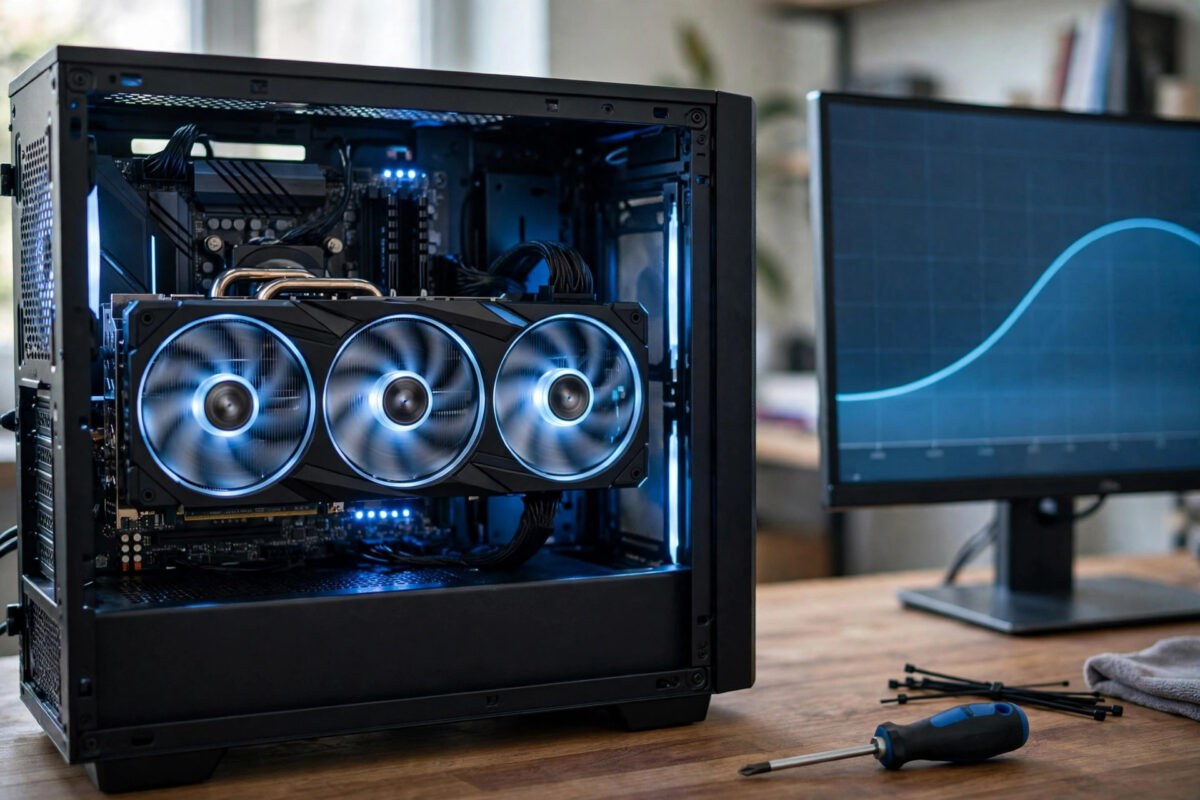
A loud graphics card can ruin a good gaming session. The fans spin faster and faster, the heat builds up, and in a small room the whole PC starts to feel like a heater. The good news is that many graphics cards are given more voltage than they really need. Lowering that voltage a little can cut heat and noise without giving up much performance.
That process is called undervolting. This guide explains it in plain language, walks you through the steps for modern NVIDIA and AMD cards, and shows you how to test that your settings are stable before you trust them.
Quick Answer
Use MSI Afterburner or AMD Software to lower your GPU voltage in small steps while keeping the clock speed close to stock. Test each step in a demanding game or benchmark for stability. A good undervolt typically lowers temperatures by 5 to 15 degrees and makes the fans noticeably quieter, with little or no loss in frame rate.
What Undervolting Means
Your graphics card uses electrical power to do its work. More voltage usually means more heat. From the factory, card makers set one voltage profile that must work for every single chip they sell, including the weakest ones. That means most individual cards receive a safety margin of extra voltage they do not actually need.
Undervolting removes part of that extra margin. You ask the card to run at its normal speed, or close to it, but with less voltage. Less voltage means less power used, less heat produced, and slower, quieter fans. In some cases the card can even perform slightly better, because cooler chips are better at holding their boost speeds for longer.
Undervolting is not the opposite of gaming performance. It is a tuning process. Done patiently, in small steps, it is one of the safest tweaks you can make, because lowering voltage does not stress the chip the way raising voltage can.
Undervolting Is Not Underclocking
Underclocking means lowering speed, which lowers performance on purpose. Undervolting lowers voltage first. You only reduce speed a little if you need to for stability. Many good undervolts keep almost all of the original performance while still running much cooler.
Before You Start: Prepare Properly
- Note your starting point. Play a demanding game for 20 minutes. Write down the GPU temperature, fan speed, frame rate, and power use shown by your overlay.
- Clean and check airflow first. Dusty filters and blocked fans cause heat that no setting can fully fix. Our guide on how to improve GPU cooling and airflow in a gaming PC covers the physical side of the problem.
- Update your driver. Install the latest official driver and restart the PC before tuning.
- Save a return path. Learn where the reset button is in your tuning tool. If anything goes wrong, one reset returns the card to factory settings.
- Close other tuning tools. Running two tools that fight over the same settings causes confusion and crashes.
How to Undervolt an NVIDIA GPU With MSI Afterburner
MSI Afterburner works with most NVIDIA cards, and many AMD cards too, no matter which brand made the card. You can get it from the official MSI Afterburner page for graphics card tuning and monitoring. Download it only from there, not from random mirror sites.
- Install Afterburner and restart your PC if asked.
- Open Afterburner and press Ctrl and F together. This opens the voltage and frequency curve editor.
- Look at the curve. The bottom axis shows voltage and the side axis shows clock speed. Each point is a speed the card will run at a given voltage.
- Run a game or benchmark briefly and note the clock speed your card normally boosts to, for example around 1900 MHz.
- Choose a lower voltage point to aim for, such as 900 millivolts instead of the usual 1050 or more. This is a starting example, not a promise for every card.
- Drag the point at your chosen voltage up to your target clock speed.
- Select every point to the right of it and drag them down below that level, so the curve becomes flat after your chosen point. This stops the card from using higher voltages.
- Click Apply in Afterburner. The flat part of the curve is your new limit.
- Test in a demanding game for at least 30 minutes. Watch for crashes, flickering, or strange shapes on screen.
- If it is stable and you want more savings, repeat with a slightly lower voltage. If it crashes, raise the voltage one small step or lower the clock slightly, then test again.
- Once fully stable, save the settings to a profile in Afterburner and set it to apply at Windows startup.
Take your time with this. Small steps and long tests give a result you can trust every day. Rushing leads to a setting that survives a menu screen but crashes an hour into a real game.
How to Undervolt an AMD GPU With AMD Software
AMD builds tuning tools directly into its driver software, so no extra program is needed.
- Right-click the desktop and open AMD Software.
- Go to the Performance tab, then the Tuning section.
- Enable manual tuning for the GPU and accept the warning message.
- Find the voltage control. Lower it by a small amount, such as 25 millivolts.
- Leave the maximum clock speed at its normal value for your first test.
- Apply the settings and play a demanding game for at least 30 minutes.
- If everything is stable, lower the voltage by another small step and test again.
- If a game crashes or the driver resets, raise the voltage back one step. That last stable value is your result.
- Save your finished settings as a tuning profile so you can reload them after a driver update.
AMD describes its own performance controls on the official AMD Software Adrenalin Edition page for performance and tuning features, which is worth reading if your menus look slightly different.
How to Test Stability the Right Way
A quick benchmark pass is not enough. Some unstable settings only fail after the card gets fully hot, or in one particular game that stresses it in a different way.
Test with at least two different demanding games and one long session of an hour or more. Watch for driver crashes, black screens, flickering textures, coloured dots, or the game closing to the desktop. Any of these means the voltage is too low for that speed. Raise it slightly and test again.
After testing, compare your new numbers with your starting notes. Check the temperature drop, the fan speed drop, and the frame rate. A great result is a card that runs several degrees cooler, clearly quieter, and within a frame or two of its original performance.
Keep an Eye on Hotspot Temperature
Many tools show two temperatures. The main GPU temperature is an average, while the hotspot is the warmest point on the chip. A gap of around 10 to 20 degrees between them is common. If the hotspot is extremely high while the main number looks fine, the card may need new thermal paste or professional servicing rather than more tuning.
Common Mistakes to Avoid
- Copying someone else’s exact settings. Every chip is slightly different. A voltage that is stable for a streamer may crash your identical-looking card. Use shared settings only as a rough starting point.
- Dropping voltage in huge steps. Big jumps make it impossible to know where stability ends. Small steps are slower but far more reliable.
- Testing for only five minutes. Heat builds over time. Short tests miss failures that appear after half an hour.
- Forgetting to save the profile. If you do not save and set it to load at startup, your work disappears at the next restart.
- Undervolting to fix a dust or airflow problem. Tuning helps, but a choked, dusty case will still run hot. Fix the physical problem first.
- Using downloads from unofficial sites. Fake tuning tools are a common source of malware. Only use the maker’s own page.
Conclusion
Undervolting is patient work with a rewarding payoff. By trimming voltage your card never needed, you get lower temperatures, quieter fans, and often almost identical frame rates. Work in small steps, test for longer than feels necessary, and save your stable profile. Your ears, and your graphics card, will thank you during every long session.
Frequently Asked Questions
Is undervolting safe for my graphics card?
Yes, when done in small steps. Lowering voltage does not push extra stress through the chip. The worst normal outcome is a crash or driver reset, which tells you to raise the voltage slightly. Factory settings can always be restored with one reset.
Will undervolting reduce my FPS?
A careful undervolt usually costs little or nothing, often zero to three percent. Because the card runs cooler, it may hold boost speeds better in long sessions, so some games can even feel smoother than before despite the lower voltage.
How much cooler should my GPU get?
Results vary by card and case, but a drop of 5 to 15 degrees under load is a common, realistic range. Fan noise often improves even more noticeably, because fans can run at a much lower speed for the same temperature.
Does undervolting work on laptops?
Many gaming laptops limit or lock GPU tuning, and their cooling has less spare room. Some allow it through the maker’s own software. If your laptop gives no voltage controls, do not force it with unofficial tools. Better airflow from a stand and clean vents will help more.
Do I need to undervolt again after a driver update?
Sometimes. Driver updates can reset tuning profiles, especially on AMD software. Keep your saved profile and your notes, check your settings after a big update, and reapply them if they have returned to default.



Leave a Reply