
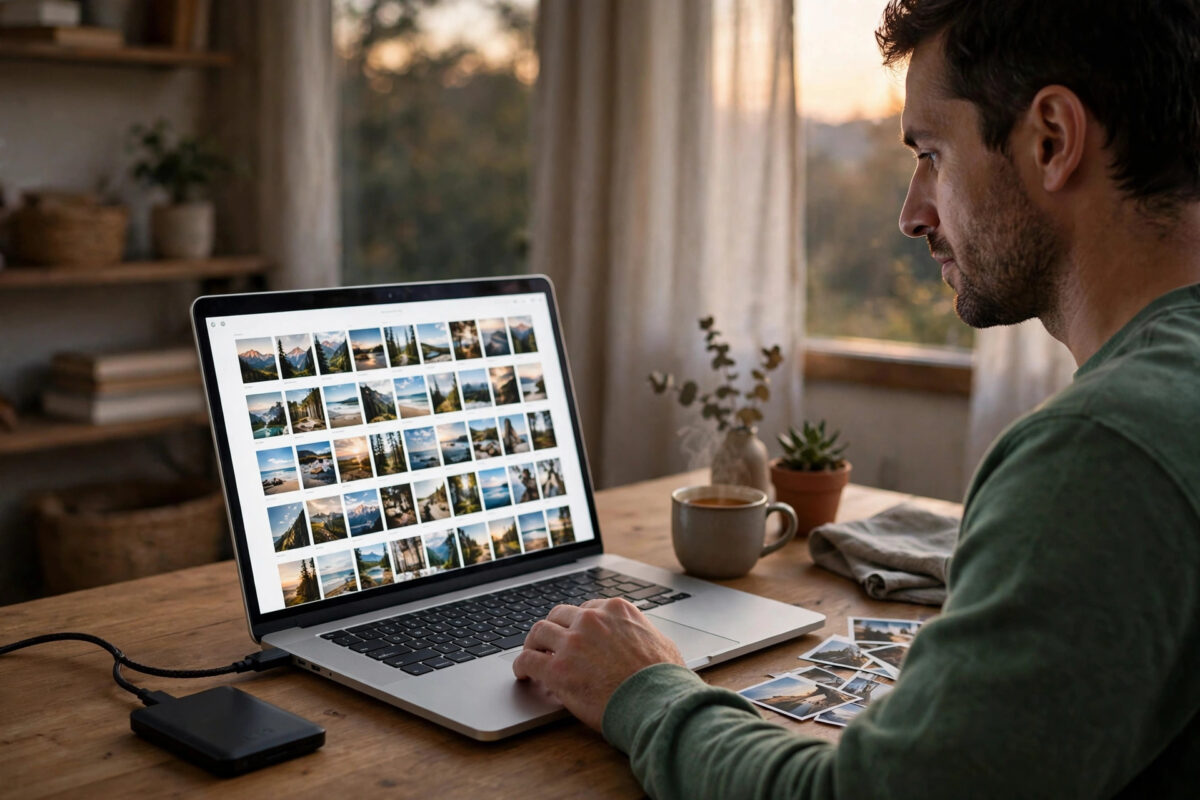
Turning off iCloud Photos is one of those settings that can go badly wrong if you tap first and think later. Done carelessly, photos can vanish from your phone; done in the right order — download the full originals first, confirm they are on your device or computer, then switch iCloud Photos off — it is completely safe. People do it to escape iCloud storage fees, to move to another service, or to keep photos purely on their own devices.
This guide explains the two settings people confuse, the safe sequence for iPhone and Mac, and how to reclaim your iCloud storage afterwards.
Quick Answer
First make sure full originals are on your device: on iPhone go to Settings → [your name] → iCloud → Photos and select Download and Keep Originals, then wait until the download finishes (check at the bottom of the Photos library). Only then switch iCloud Photos off in the same screen. On Mac, in Photos settings choose Download Originals to this Mac, wait, then untick iCloud Photos. Turning it off stops syncing; photos already downloaded stay on the device, and the iCloud copies remain online for 30 days in case you change your mind.
The Two Settings People Confuse
“Optimise Storage” vs “Download and Keep Originals”
With Optimise Storage on, your phone keeps small versions and the full originals live only in iCloud. If that is your current setting, your device does not hold your real library yet. Switching to Download and Keep Originals makes the device fetch every full-size photo and video. For a big library this takes time, Wi-Fi, and enough free space on the device — check that your phone can actually hold the library before starting.
iCloud Photos On/Off vs Deleting From iCloud
Turning iCloud Photos off on one device only stops that device syncing. The library remains in iCloud and on your other devices. Deleting photos while sync is on deletes them everywhere. Keep those ideas separate: this guide is about switching sync off safely, not deleting the cloud library — that comes later, deliberately, if you want the storage back.
Safe Sequence on iPhone or iPad
- Connect to Wi-Fi and plug the phone in.
- Go to Settings → [your name] → iCloud → Photos.
- Select Download and Keep Originals.
- Open the Photos app, go to Library, scroll to the very bottom. It shows progress such as “Downloading…”. Wait until it shows your full item count with no download activity.
- Now return to the iCloud Photos settings and switch iCloud Photos off.
- If asked about photos not yet downloaded, do not proceed until step 4 truly finished — cancel and wait instead.
Safe Sequence on Mac
- Open the Photos app and go to Settings (Preferences) → iCloud.
- Select Download Originals to this Mac and wait for the library to fully download (the bottom of the Photos window shows status).
- Optionally, copy the Photos Library file to an external drive now — a real, independent backup.
- Untick iCloud Photos in the same settings panel.
Apple’s own iCloud Photos setup and settings support page describes these options and what happens to your library when you switch the service off.
What Happens After You Turn It Off
- On the device: Everything you downloaded stays. New photos you take are no longer uploaded.
- In iCloud: The stored library stays available for 30 days. If you turn iCloud Photos back on within that window, syncing resumes.
- On other devices still using iCloud Photos: They keep syncing with iCloud among themselves, but this device is out of the loop — edits and deletions no longer cross over.
- Storage billing: Your iCloud storage stays occupied (and paid) until the 30 days pass or you delete the library and downgrade the plan yourself.
Reclaiming iCloud Storage Afterwards
Once you have a verified local library (and ideally a second copy — an external drive or another cloud, as covered in our guide on moving photos from iCloud to Google Photos), you can delete the iCloud photo library through Settings → [your name] → iCloud → Manage Account Storage → Photos → “Turn Off and Delete from iCloud”. The 30-day grace period still applies before the space is fully released. After that, downgrade your storage plan if you no longer need the higher tier.
What If Your Device Cannot Hold the Whole Library?
Many phones run Optimise Storage precisely because the full library is bigger than the device. In that case, do not try to download originals to the phone at all. Make a computer the library’s home instead: on a Mac, the Photos app with “Download Originals to this Mac” holds the full library, and you can copy the whole Photos Library file to an external drive as a second copy. On a Windows PC, download your library from iCloud.com in batches or through iCloud for Windows’ Photos sync, again ideally onto a drive with room to spare. Only once a complete full-resolution copy exists somewhere you control should you turn iCloud Photos off on the phone — the phone’s role becomes simply one viewer of a library that safely lives elsewhere.
Mistakes and Tips
- Never turn iCloud Photos off while “Optimise Storage” was on and downloads are unfinished. That is the classic way people think they lost photos — the originals were still only in iCloud.
- Do not confuse “removing from this phone” prompts. If iOS warns that items will be removed from the device, stop and finish downloading originals first.
- Check free space before downloading originals. A 100 GB library cannot land on a phone with 20 GB free. Use a Mac or computer as the download home instead.
- Keep one backup elsewhere regardless. A single copy on one device is not a backup strategy; copy the library to an external drive at minimum.
Confirming Your Local Library Is Truly Complete
Before you celebrate, run three quick checks. First, compare counts: the Photos app on the device holding originals should report the same number of photos and videos as iCloud.com does for the account. Second, pick a handful of photos from different years, open them full-screen, and confirm they load instantly at full sharpness rather than fetching a blurred preview — offline mode (Airplane mode on) makes this test decisive. Third, play one long video all the way through. If all three checks pass, your local library is genuinely complete and switching sync off carries no risk.
Conclusion
Safe iCloud Photos shutdown is all about order: download and keep originals, verify the download genuinely finished, then switch sync off, and only later delete the cloud copy if you want the storage back. Follow that sequence on iPhone or Mac and you keep every photo, full-size, under your own control.
Frequently Asked Questions
If I turn off iCloud Photos, will I lose my photos?
Not if you downloaded the originals first. Photos stored on the device stay on the device. Photos that existed only in iCloud (because of Optimise Storage) are removed from that device but remain in iCloud for 30 days.
How do I know the originals have finished downloading?
In the Photos app, scroll to the bottom of the Library. While downloading it shows a progress message; when finished it simply shows your total photo and video count with no activity message.
What happens after 30 days if I do nothing?
The iCloud copy of the library is deleted and the storage is freed. Devices where you turned iCloud Photos off keep whatever they had downloaded locally.
Can I turn iCloud Photos back on later?
Yes. Within the 30-day window, turning it back on reconnects to the existing iCloud library. After deletion, turning it on starts a fresh upload of the device’s current library.
Does turning off iCloud Photos cancel my paid storage?
No. Your plan continues until you downgrade it in Settings. The photo library also keeps occupying storage during the 30-day grace period.



Leave a Reply