
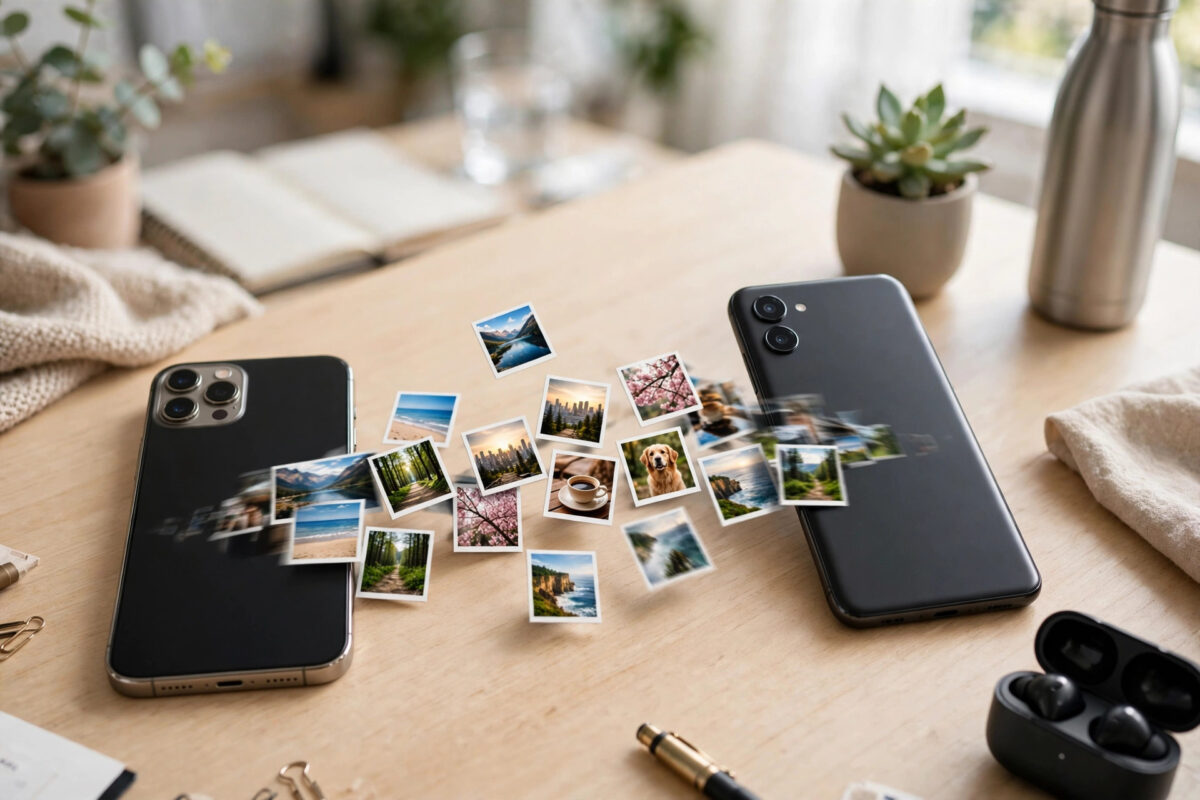
Switching from iPhone to Android, or simply preferring Google Photos’ search and sharing, often means one big job: moving your photo library out of iCloud and into Google Photos. Apple provides an official transfer service that copies your iCloud photos and videos directly to Google Photos, and there are manual routes too. The transfer is a copy, not a move — your iCloud library stays untouched until you decide otherwise.
This guide covers the official transfer service step by step, what you need before starting, what does and does not transfer, and the manual alternatives for smaller libraries.
Quick Answer
Make sure you have enough free space in your Google account, then go to privacy.apple.com, sign in, choose “Transfer a copy of your photos and videos”, select Google Photos as the destination, confirm, and wait — Apple transfers the library over the following 3 to 7 days and emails you when it finishes. Your iCloud originals are not deleted by the transfer.
Before You Start
- Check your Google storage. The incoming library counts against your Google quota. If your iCloud library is 40 GB and your Google account has 15 GB free, the transfer will fail partway. Free space or upgrade first — our guide on why Google storage stays full helps if the account is already crowded.
- Turn on iCloud Photos. The service transfers what is stored in iCloud Photos, so it must be enabled on your account.
- Know your Apple ID credentials and two-factor access. You will sign in and authorise Google during the request.
- Expect a wait. This is a server-to-server copy measured in days for large libraries, not an instant sync.
Using Apple’s Official Transfer Service
- Go to privacy.apple.com and sign in with your Apple ID.
- Choose Transfer a copy of your data (worded as “Request to transfer a copy of your photos and videos”).
- Select Google Photos as the destination service.
- Choose whether to transfer photos, videos, or both, and confirm the storage warning.
- Sign in to your Google account when prompted and grant Apple permission to add to your Google Photos library.
- Confirm the transfer request. Apple shows an estimate and sends progress emails.
- When the completion email arrives, open Google Photos and check the new album Apple creates — transferred items arrive organised into albums named after your original albums, with an additional album for the transfer itself.
Apple documents the requirements and limitations on its support page about transferring iCloud photos to Google Photos, which is worth reading if your library includes unusual formats.
What Transfers — and What Does Not
- Transfers: Photos and videos stored in iCloud Photos, including most common formats (jpg, png, mp4, mov and others), organised with your albums recreated in Google Photos.
- Does not transfer: Live Photos arrive as stills or separate pieces rather than true Live Photos in some cases; Smart Albums, shared albums’ contents owned by others, and some RAW or edited versions may arrive as originals only or be skipped. Very large single files above the destination’s limits can fail.
- Duplicates: If you previously uploaded some of the same photos to Google Photos manually, the transfer can create duplicates. Check before assuming the count is wrong.
Manual Alternatives
Download From iCloud, Upload to Google
For small libraries, download photos from iCloud.com (select batches, since browsers limit large selections) or request your photos through Apple’s privacy site as a download, then upload the folders to Google Photos in the browser or via the desktop app. This gives you full control and works for any destination, but it is slow for tens of thousands of items.
Use the Phone as the Bridge
If the photos are physically on your iPhone, install Google Photos on the iPhone and let it back up the library directly. That uploads over your Wi-Fi and avoids iCloud entirely, though it needs the phone plugged in and the app open for large libraries.
After the Transfer: Verify Before Deleting Anything
Compare counts and spot-check important albums in Google Photos, play a few videos, and confirm recent and old photos are both present. Remember the transfer copied everything — iCloud still holds the originals. Only when you are satisfied should you consider turning iCloud Photos off or reducing your iCloud plan; our guide on turning off iCloud Photos and downloading the originals covers that side safely.
Preparing Your Library Before the Transfer
A short tidy-up before you start pays off afterwards. Delete the obvious junk in iCloud Photos first — duplicate bursts, accidental screenshots, pocket videos — because everything you leave gets copied and then counts against your Google storage. Check for very large videos you do not actually need in the cloud at all; downloading those to a computer beforehand and removing them from iCloud Photos can shrink the transfer by gigabytes. Finally, make sure the photos on your phone itself have finished uploading to iCloud (open Photos and check the sync status at the bottom of the Library), so the transfer service sees your complete library rather than last month’s version of it.
How the Transferred Library Is Organised
Google Photos receives the transfer into albums that mirror your iCloud albums, and Apple also creates an album marking the transferred set, which makes the new arrivals easy to find and audit. Photos that were not in any album simply join your main library by date. Expect the Google Photos timeline to look right — capture dates travel with the files — even though the transfer itself takes days to complete.
Mistakes and Tips
- Do not start the transfer with a nearly full Google account. It is the number one cause of partial transfers. Check space first.
- Do not cancel midway unless necessary. Cancelling and restarting can leave a messy half-copied library and duplicates to sort.
- Keep iCloud Photos on until the completion email arrives. Changing storage settings mid-transfer can disrupt it.
- Give it the full week before worrying. Large libraries genuinely take days; arriving albums appear progressively.
How Dates, Albums, and Quality Survive the Move
The details people worry about most generally survive well. Capture dates and times travel with the files, so your Google Photos timeline stays in true chronological order. Favourite markings and some edits may not carry across perfectly — an edited photo can arrive as its original — so keep the iCloud library intact until you have checked the specific photos you care about. Quality is preserved for the formats the service supports; unusual or professional formats deserve a manual check, and any file that failed to transfer is reported in Apple’s completion email so you can move those few by hand.
Conclusion
Apple’s official transfer service is the cleanest way to move an iCloud library to Google Photos: check your Google space, request the transfer at privacy.apple.com, and let it run for a few days. Verify the results, tidy any duplicates, and only then change anything on the iCloud side. Done in that order, the move is boring — which is exactly what you want from a photo migration.
Frequently Asked Questions
Does the transfer delete photos from iCloud?
No. It copies them. Your iCloud Photos library remains intact until you delete or disable it yourself.
How long does the iCloud to Google Photos transfer take?
Apple states roughly 3 to 7 days depending on library size. You receive email updates and a final confirmation when it completes.
What if my Google account does not have enough space?
The transfer will fail or stop partway. Free up space or upgrade your Google storage before starting, aiming for more free space than the size of your iCloud library.
Do albums transfer as well?
Yes, albums you created are recreated in Google Photos. Some album types, such as Smart Albums and shared albums owned by others, are exceptions.
Can I transfer from Google Photos back to iCloud instead?
Google offers a similar export through Google Takeout and, in some regions, a direct transfer option to iCloud Photos. The same advice applies: check destination space first and verify before deleting.



Leave a Reply