
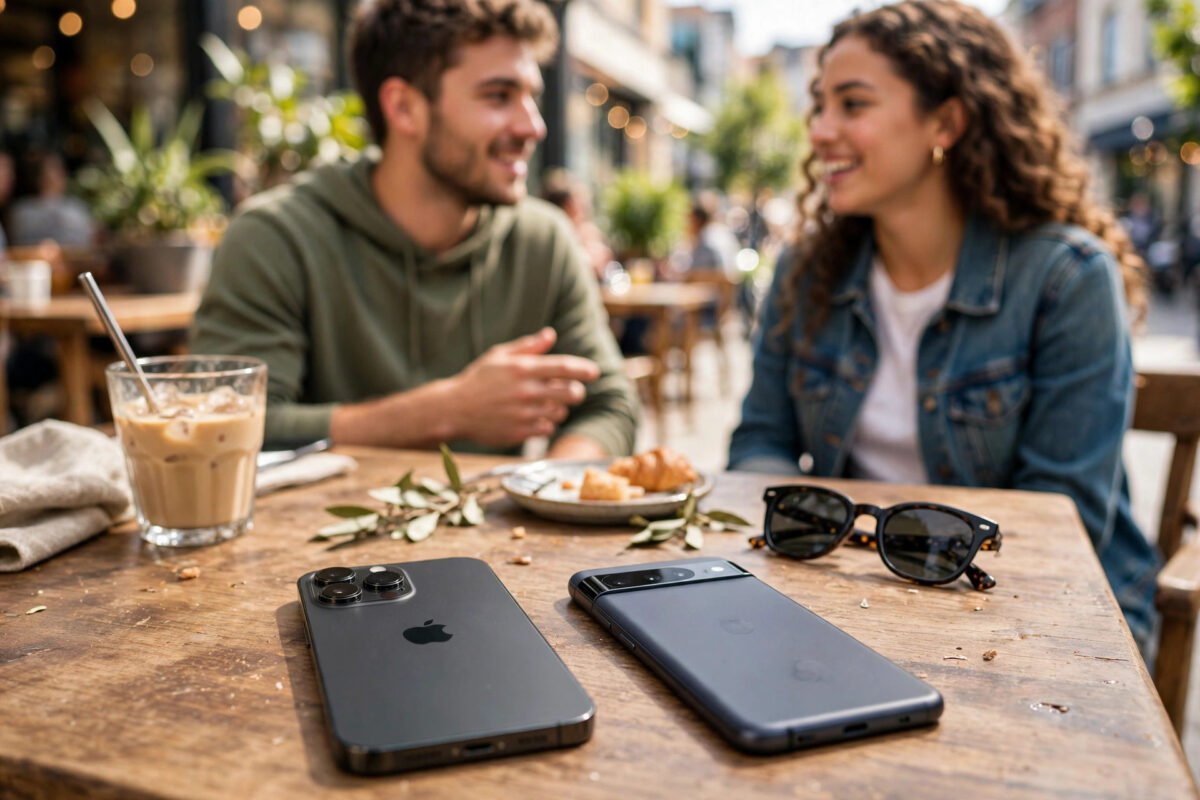
Sending a file from an iPhone to an Android phone sounds like it should take ten seconds, yet the two systems famously refuse to talk to each other directly. AirDrop does not work with Android, and Bluetooth file transfer is not supported on iPhone. The good news is that there are several reliable ways to move photos, documents and videos between them using tools already built into both phones, no extra apps required.
Quick Answer
The easiest no-app ways to send files from iPhone to Android are: share an iCloud link for photos, use a computer as the middleman with a USB cable, send files through a chat app both phones already have, email smaller files to yourself, or use a shared cloud folder such as Google Drive, which both phones can open in a browser or their built-in apps.
Method 1: Share an iCloud Photo Link
For photos and videos, this is the slickest trick. In the Photos app, select the pictures, tap Share, and choose Copy iCloud Link. Your phone uploads the selection and gives you a web link. Send that link to the Android user by message or email; they open it in any browser and download the full-quality files. The link expires after about a month, and the Android side needs no Apple account or app to download. It works beautifully for holiday albums and event photos where quality matters.
Method 2: Use a Computer as the Middleman
A Windows PC or Mac happily talks to both systems:
- Connect the iPhone to the computer and copy the files off, exactly as you would for a photo import.
- Disconnect the iPhone and connect the Android phone with its cable.
- Set the Android phone’s USB mode to File Transfer when it asks.
- Copy the files into the Android phone’s Downloads or DCIM folder.
- Safely disconnect, and the files are on the Android phone.
This route handles huge files and whole folders better than any wireless method, and it also leaves you with a backup copy on the computer. If you move pictures this way often, our guide on transferring photos from iPhone to a Windows PC covers the first half in detail.
Method 3: Use Apps Both Phones Already Have
Most people already have WhatsApp, Telegram or email on both devices, and these quietly solve the problem. WhatsApp is quick for photos and documents, although it compresses images unless you send them as documents or choose the HD option. Telegram is generous with file sizes for documents and videos. Email suits anything under about 20 MB. These are technically apps, but they are ones both phones almost certainly already run, so nothing new needs installing.
Method 4: A Shared Cloud Folder
Google Drive, Dropbox and OneDrive all work on both platforms. Upload the file from the iPhone side, then open the same account or a shared link on the Android phone and download it. Drive is especially natural for Android users because it is built into their phones. This method is best for documents you will share repeatedly, because the folder stays in sync instead of being a one-off transfer. Apple explains its side of file sharing through iCloud in its official iPhone User Guide.
What About Switching Phones Entirely?
If the Android phone is replacing the iPhone rather than just receiving a few files, the job is bigger: contacts, messages and app data matter as much as photos. In that case use the migration tools offered during the Android phone’s setup, which can pull data from the iPhone over a cable or from an iCloud backup. Treat single-file methods like the ones above as the everyday solution, and the migration tools as the one-time moving-house solution.
Mistakes to Avoid
Do not assume Bluetooth will work; iPhones do not support Bluetooth file transfer to Android, no matter what a forum post claims. Avoid sending important photos through apps that compress them without checking the quality settings first, because a beautiful photo can arrive as a blurry thumbnail. And be careful with public “free file transfer” websites for private documents; anything you upload to a stranger’s server should be treated as potentially exposed.
Which Method for Which Job?
Choosing well saves repeated frustration, so match the method to the moment. Sending a few photos to a friend’s Android after a day out: make an iCloud link, full quality, no cables, done in a minute. Handing a colleague a presentation or a signed PDF: drop it in a shared Drive folder, where it stays available and current. Moving a whole camera roll or a folder of large videos to your own new Android phone: cables and a computer, because wireless methods will crawl. Sending a quick document right now to someone in the same room whose number you already have: WhatsApp or Telegram as a document, accepting the small setup of choosing the document option to protect quality.
Notice what all four share: none of them asks either phone to install anything new, and all of them work with accounts and tools people already have. The platform rivalry makes headlines, but for everyday files it is a paper wall, and you now have four ways through it.
Conclusion
iPhone and Android may not share directly, but iCloud links, a computer middleman, everyday messaging apps and shared cloud folders cover every situation without installing anything new. Use iCloud links for photos, a cable and computer for big batches, and cloud folders for documents you share often, and the platform wall stops being a problem.
A Note on Privacy With Links and Shared Folders
Every convenient method in this guide involves a link or a cloud account, so treat them with ordinary care. An iCloud or Drive link can be opened by anyone who has it, not only the person you sent it to, so avoid posting such links in public groups for private files, and remove shared-folder access once a project ends. For genuinely sensitive documents, the computer-and-cable method keeps everything off the internet entirely, and it deserves to be your default for things like ID scans, contracts and financial paperwork. Convenience is wonderful; matching the method to the sensitivity of the file is the adult version of it.
One Final Tip
Whatever method you use, confirm the file actually arrived and opens before you delete your copy. A thirty-second check on the Android side, opening the photo full-screen or the document’s first page, protects against the classic mishaps: the half-finished upload, the link sent before the file was ready, the video that transferred as a tiny preview instead of the original.
Frequently Asked Questions
Why can’t I just use AirDrop to send to Android?
AirDrop is an Apple-only technology built into iOS and macOS. Android phones cannot see or receive AirDrop transfers, which is why every workaround uses the web, a cable, or an app both systems share.
Does an iCloud link share my whole photo library?
No. An iCloud link shares only the specific photos and videos you selected when creating it. The person with the link cannot browse the rest of your library, and the link expires automatically after about a month.
What is the best way to send a very large video?
For multi-gigabyte videos, a computer and two cables is the most reliable route. If that is not possible, upload the video to a cloud drive on Wi-Fi and share the link, rather than fighting messaging app size limits.
Will the Android phone receive my files in full quality?
It depends on the method. iCloud links, computer transfers and cloud drives deliver original quality. Messaging apps often compress photos and videos unless you specifically send the file as a document or choose the high-quality option.
Can I transfer files the other way, from Android to iPhone?
Yes, the same methods work in reverse: cloud links and drives, a computer middleman, or shared messaging apps. The iPhone’s Files app also opens most common document types it receives.



Leave a Reply