
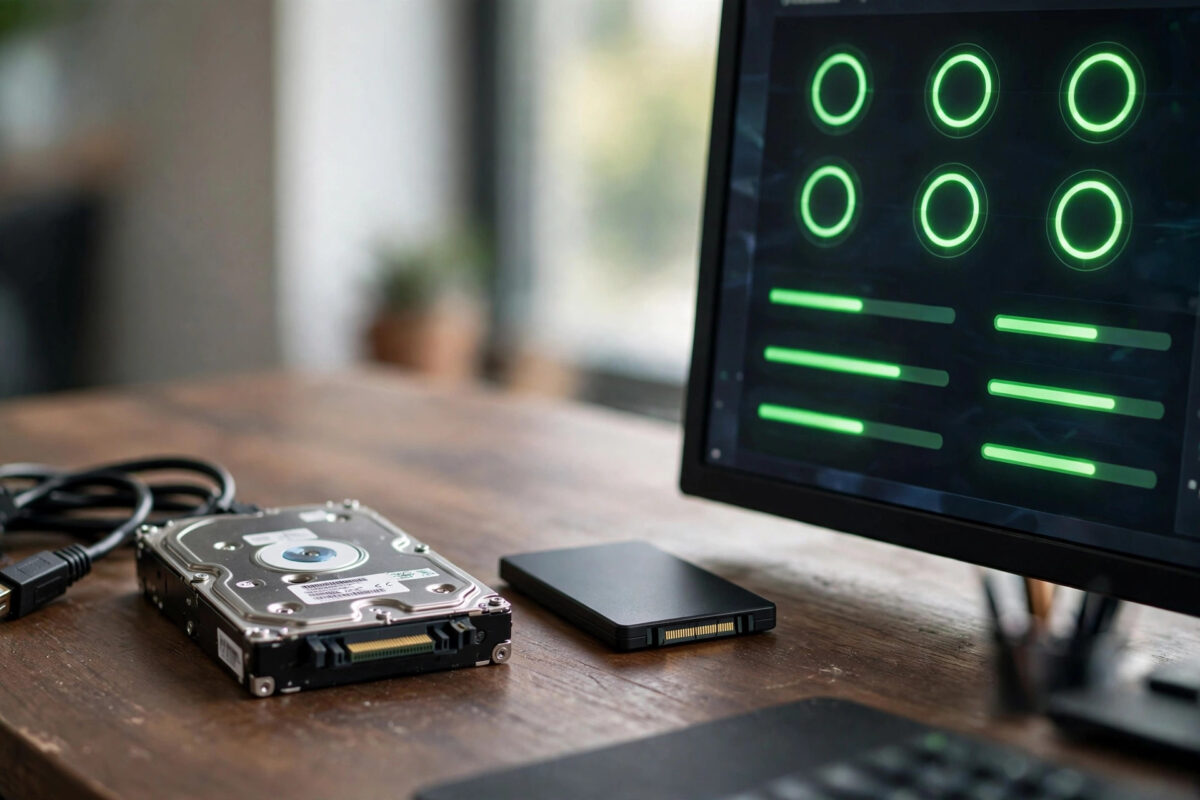
Hard drives rarely die politely. One day the PC is fine, the next it refuses to boot — and the family photos, documents, and work files on that drive are suddenly at risk. The reassuring news is that almost every drive constantly monitors its own health through a built-in system called SMART, and free tools can read those warnings weeks or months before a failure. This guide shows you how.
Quick Answer
To test your hard drive’s health for free, download CrystalDiskInfo, open it, and look at the big health status badge for your drive: “Good” means relax, “Caution” means back up now and plan a replacement, and “Bad” means copy your data off immediately. For a deeper test, your drive manufacturer’s own free tool (such as SeaTools or Western Digital Dashboard) can run extended diagnostics. Check SMART every few months — and always keep backups, because no test makes a drive immortal.
What Is SMART and What Does It Track?
SMART stands for Self-Monitoring, Analysis and Reporting Technology. Your hard drive or SSD quietly records dozens of internal measurements, including:
- Reallocated sectors — spots on the disk that failed and were replaced by spares. A rising count is the classic early warning of a dying drive.
- Current pending sectors — areas the drive cannot read reliably right now and is watching.
- Uncorrectable errors — data the drive tried and failed to recover.
- Power-on hours and start/stop counts — how hard and how long the drive has worked.
- Temperature — chronic overheating shortens any drive’s life.
- On SSDs, a wear percentage showing how much of the drive’s expected write life has been used.
No single number tells the whole story, which is why tools summarise everything into one health verdict — and why any “Caution” deserves respect even if the PC still seems fine.
Step by Step: Checking Health With CrystalDiskInfo
- Download CrystalDiskInfo from the official CrystalDiskInfo page (choose the standard edition; the installer from the official site is clean).
- Install and open it. Your drives appear across the top; click each one to inspect it.
- Read the Health Status on the left: a blue “Good” with a percentage on SSDs, yellow “Caution,” or red “Bad.”
- Glance at the raw values list. The ones that matter most: Reallocated Sectors Count, Current Pending Sector Count, and Uncorrectable Sector Count. In the “Current/Worst/Threshold” view, a value that has dropped to its threshold is what flips the drive to Caution.
- Check the temperature too — a drive cooking above 50°C regularly needs better case airflow.
- Note the power-on hours. A desktop drive with 40,000+ hours has earned retirement planning even if it still shows “Good.”
Manufacturer Tools for a Second Opinion
If CrystalDiskInfo shows Caution, or the PC behaves oddly despite a “Good” badge, run the drive maker’s own diagnostic, which can perform longer surface tests that SMART alone does not:
- Seagate SeaTools — free, works on most brands, includes short and long generic tests.
- Western Digital Dashboard — for WD and SanDisk drives, with firmware updates and extended tests.
- Samsung Magician — the companion for Samsung SSDs, with health, benchmarks, and firmware tools.
- Kingston SSD Manager / Crucial Storage Executive — equivalents for those brands.
Inside Windows you also have a basic built-in check: open Command Prompt and run wmic diskdrive get status for a quick OK/ Pred Fail answer, or use Error Checking in a drive’s Properties → Tools tab to scan the file system. These complement SMART tools rather than replace them — and if your drive is an SSD you are planning to clone or replace, our guide on freeing up disk space on Windows can help you tidy it first.
What To Do With Each Result
- Good: Carry on. Re-check every few months, and keep normal backups anyway.
- Caution: Back up everything important today. The drive may last a year or a week — treat it as untrustworthy, replace it soon, and do not store the only copy of anything on it.
- Bad: Stop using the drive for anything except copying data off it, starting with your most important files. Then replace it. Every extra hour of use risks total loss.
- Long test fails but SMART says Good: Trust the failure. Copy data off and replace the drive; surface damage can exist before SMART counters trip.
Common Mistakes to Avoid
- Running a “repair” or write-heavy test on a failing drive before backing up — testing can push a weak drive over the edge. Data first, diagnostics second.
- Assuming “Good” means “safe forever.” SMART predicts many failures, but a significant share of drives die with no warning at all. Backups are the real protection.
- Ignoring a small reallocated-sector count that keeps growing between checks — the trend matters more than the number.
- Downloading CrystalDiskInfo from third-party bundle sites that add unwanted extras. Use the official page.
- Checking only when something already feels wrong. A two-minute check each season is the whole point.
Reading the Key Numbers in More Detail
If you want to go one level deeper than the Good/Caution badge, these are the raw values worth understanding — CrystalDiskInfo lists them in its main window, and the “Raw Values” column is where the truth lives:
- Reallocated Sectors Count (ID 05): raw value is the number of bad spots already retired. Zero is perfect. A small stable number on an elderly drive is acceptable; a number that climbs between monthly checks is a drive in decline.
- Current Pending Sector Count (ID C5): spots the drive currently cannot read and is deciding about. Anything above zero here is a live problem — data in those areas is already at risk. Back up before anything else.
- Uncorrectable Sector Count (ID C6): errors the drive’s correction could not fix. Above zero means real data loss has already occurred somewhere, even if you have not noticed the victim file yet.
- Power-On Hours (ID 09): context, not a verdict. Desktop drives often serve happily past 40,000 hours, but combined with any sector warnings, high hours argue strongly for replacement rather than hope.
- SSD wear / “Health” percentage: an estimate of remaining write life. 90%+ is a young drive, 50% is middle-aged, and below 20% you should be planning the successor — though many SSDs keep working past 0% on this estimate, writes become riskier.
- CRC Error Count (ID C7): the exception to panic — a high value here usually means a bad data cable, not a bad drive. Swap the SATA cable and watch whether the count keeps rising before condemning the disk.
One more habit separates careful users from lucky ones: test any new or second-hand drive on day one. Run CrystalDiskInfo before you trust it with data, confirm the hours and power-on count match the seller’s story (a “lightly used” drive with 35,000 hours is neither), and run the manufacturer’s long test once. Ten minutes up front is much cheaper than discovering the truth after your files move in.
Conclusion
Testing your drive’s health costs nothing and takes two minutes with CrystalDiskInfo: open it, read the badge, glance at the sector counts. “Good” buys peace of mind, “Caution” buys you time to back up and replace, and “Bad” is your cue to rescue data immediately. Pair regular SMART checks with real backups and a failing drive becomes an inconvenience instead of a disaster.
Frequently Asked Questions
How accurate is SMART at predicting drive failure?
It catches many slow failures — sector problems, rising errors, wear — but not all sudden deaths. Studies of large drive fleets show a meaningful share of failures arrive with clean SMART data, which is why backups remain essential.
What does “Caution” with reallocated sectors actually mean?
The drive found bad spots, moved the data to spare areas, and is telling you its surface is degrading. A handful of reallocations on an old drive may stay stable for years, but a growing count means the end is approaching — back up and plan a replacement.
Can I fix a drive that fails the SMART test?
No. There is no software fix for physical wear or surface damage. Tools that claim to “repair” bad sectors simply force the drive to remap them, hiding symptoms while the drive keeps deteriorating. Replace the drive.
Do SSDs support SMART too?
Yes, and CrystalDiskInfo reads them well. For SSDs, watch the health percentage (wear level), total data written, and temperature rather than sector counts.
How often should I test my drive’s health?
Every three to six months is plenty for a healthy drive, plus immediately any time you hear clicking, notice files corrupting, or the PC starts freezing during disk-heavy work.



Leave a Reply