
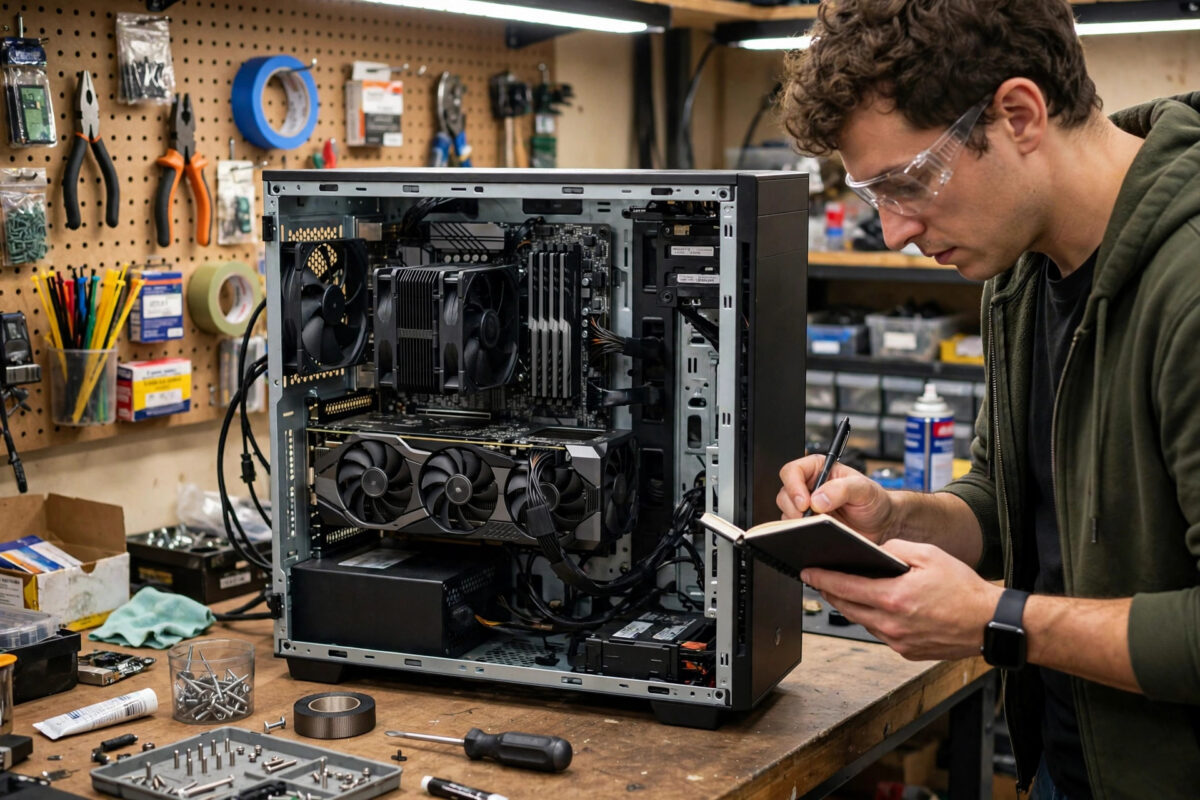
“Will this game run on my PC?” “What RAM do I need to buy to upgrade?” “Which graphics card is actually in this laptop?” Every one of those questions needs your full PC specs — and Windows hides the details across half a dozen different screens. A free system information tool gathers everything into one page: exact CPU model, motherboard, RAM speed and slots, GPU, storage, even sensor readings. Here are the best free options and how to read what they tell you.
Quick Answer
The best free system information tool for most people is Speccy for a friendly one-page summary, or HWiNFO if you want maximum detail plus live temperature and voltage sensors. CPU-Z is the classic free specialist for CPU, motherboard, and RAM specifics — the details you need before buying an upgrade. All three are free, and together they answer any specs question you will ever be asked.
Why Built-In Windows Tools Are Not Quite Enough
Windows will tell you some basics: Settings → System → About shows the CPU model, total RAM, and Windows edition. Task Manager’s Performance tab adds GPU model and drive types. But the upgrade-critical details are missing or scattered — your exact motherboard model, whether your RAM runs at its rated speed, how many memory slots are free, your SSD’s interface, or your power supply’s behaviour under load. That gap is exactly what these tools fill, and knowing your motherboard and memory type before ordering parts prevents the classic wasted purchase.
1. Speccy – Easiest Full Summary
Speccy (from the makers of CCleaner) presents your whole PC on one tidy page: operating system, CPU, RAM (with slot-by-slot detail a click away), motherboard, graphics, storage, optical drives, audio, and network — plus basic temperatures for key components. For answering “what are my specs?” in a forum post or a support chat, nothing is quicker: you can even publish an anonymous snapshot link to share the summary. The free version covers all of this; download it from the official Speccy page.
2. HWiNFO – Most Complete and Best Sensors
HWiNFO is the deep end: a complete hardware inventory plus a legendary Sensors window streaming temperatures, fan speeds, voltages, clock speeds, and power draw for nearly every component — the same tool recommended in our guide on checking CPU temperature and fixing overheating. Its summary window alone out-details most rivals, and it can log everything to a file for troubleshooting. The interface is denser than Speccy’s, but as a free diagnostic instrument it has no equal.
3. CPU-Z – The Upgrade Specialist
This tiny veteran focuses tightly on the components people upgrade: CPU name, cores, and clock speeds; motherboard model and chipset (essential for checking upgrade compatibility); memory type, size, speed, and timings; and a graphics tab with your GPU details. GPU-Z, its sibling from the same stable of tools, does the same forensic job for the graphics card. Before buying RAM, open CPU-Z’s Memory and SPD tabs — they tell you exactly what to order and which slots are occupied.
What Each Spec Actually Tells You
- CPU model and generation: decides game/program compatibility and what upgrades your motherboard supports. The generation matters as much as the name — a newer i5 often beats an older i7.
- RAM size, type (DDR4/DDR5), speed, and free slots: the complete shopping list for a memory upgrade, and the diagnosis when a PC feels starved.
- Motherboard model: your upgrade ceiling — supported CPUs, maximum RAM, and available slots all live in its manual.
- GPU model and VRAM: the numbers games check first, and the figure that decides graphics settings.
- Storage type and interface (SATA vs NVMe): explains a “slow” PC more often than the CPU does, and tells you which replacement drive to buy — pair this with a SMART health check to judge the current drive’s condition.
- BIOS version and Windows build: the two lines every support technician will ask for, and the key to driver and firmware updates.
How to Get a Shareable Specs Report in Two Minutes
- Install Speccy (or open HWiNFO and choose “Summary only”).
- Let the analysis finish — a few seconds.
- Screenshot the summary page, or use File → Save Report (HWiNFO) / Publish Snapshot (Speccy) for a text version.
- Redact before sharing publicly: remove the Windows product key and IP addresses if your chosen export includes them (Speccy’s summary shows the serial in some views). A hardware list is safe to share; licence keys are not.
Common Mistakes to Avoid
- Ordering RAM or a CPU from the headline specs alone (“16 GB, i7”) without the type, generation, and motherboard model — the classic incompatible-parts trap.
- Downloading these famous tools from bundle sites that wrap them in adware. Official pages only.
- Posting a full system report with your Windows key or network details visible in a public forum.
- Trusting one number in isolation — a “slow” PC is often a healthy CPU chained to a dying hard drive or 4 GB of RAM. Read the whole page.
- Installing five overlapping monitors. One inventory tool and (if needed) one sensor tool is plenty.
Worked Example: “Can I Upgrade My RAM?” Answered in Three Minutes
This is the question these tools answer most often, so here is the exact routine:
- Open CPU-Z and read the Memory tab: it shows your type (say DDR4), total size, and current speed. DDR4 and DDR5 are physically incompatible — this one line decides what you can buy.
- Open the SPD tab and click each slot in turn. Slots showing a module list its size and speed; slots showing nothing are free. Four slots, two populated, means you can add a matching pair rather than replacing what you own.
- Check the Mainboard tab for your motherboard model, then search that model’s official page for its maximum supported memory and per-slot limit — most boards accept far more than they shipped with.
- Match what you buy to what you have: same type, same speed (or faster — it will run at the slower stick’s pace), ideally the same capacity per slot. Buy from a seller with returns, install, and re-open CPU-Z: the Memory tab should now show the new total, running in dual-channel mode if the slots are paired correctly.
The same thinking works for storage: Speccy or HWiNFO shows your current drive’s model and interface, and the motherboard page tells you whether a free M.2 slot exists for a fast NVMe upgrade. In both cases the pattern is identical — identify precisely, verify against the motherboard, then buy once. That is the entire economic argument for these free tools: they cost nothing and routinely save the price of a wrong component.
Conclusion
Install Speccy for the friendly overview, HWiNFO for serious diagnostics and sensors, and CPU-Z when upgrade shopping — all free, all in minutes. With your exact specs in hand, compatibility questions answer themselves, support chats get shorter, and every upgrade you buy is the right one the first time.
Frequently Asked Questions
Are Speccy, HWiNFO, and CPU-Z really free?
Yes. Speccy and CPU-Z have free versions covering everything in this guide, and HWiNFO is free for non-commercial use, including its full sensor suite. Download them only from their official pages.
Which tool shows my exact motherboard model?
All three do. CPU-Z’s Mainboard tab and Speccy’s Motherboard section show the manufacturer, model, and chipset — the details you need to check CPU and RAM compatibility.
Can these tools tell me how many RAM slots are free?
Yes. Speccy’s RAM section lists total slots and how many are used, with details per slot; CPU-Z’s SPD tab shows each slot’s module (or “empty”) individually.
Do I need to install them, or can they run portably?
HWiNFO and CPU-Z both offer portable versions that run from a folder or USB stick without installing — ideal for checking a second-hand PC before you buy it.
Will a system information tool slow down my PC?
No. These are read-only diagnostic tools. Run one when you need information, close it, and it uses nothing. Only sensor logging (HWiNFO) runs continuously, and even that is lightweight.



Leave a Reply