
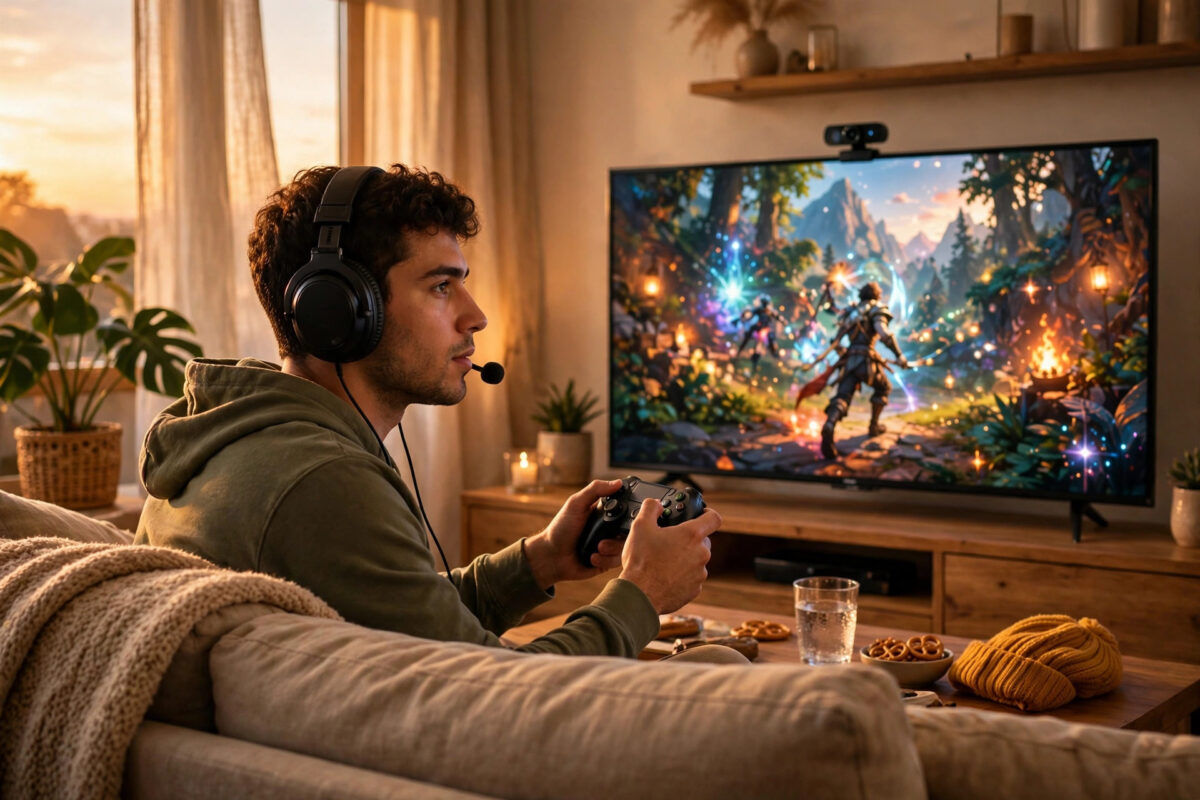
Streaming used to mean buying extra hardware, running cables everywhere, and spending an evening fighting with software. On PlayStation 5 and Xbox Series X|S, that is no longer true. Both consoles have Twitch built right into the system, so you can go live in a few minutes with nothing more than your console, a controller, and an internet connection.
That built-in option will not give you flashy overlays or custom alerts, but it is perfect for your first streams, for testing whether you enjoy broadcasting, and for sharing gameplay with friends. This guide walks you through the full setup on both consoles, the settings that actually matter, and how to avoid the small problems that ruin most first streams.
Quick Answer
On PS5, press the Create button, choose Broadcast, link your Twitch account, add a title, and select Go Live. On Xbox, open the Capture & Share menu, choose Live Streaming, link Twitch, set your title and audio, and start streaming. Use a wired internet connection, set the stream to 1080p if your upload speed allows it, and test your microphone before you go live.
What You Need Before You Start
You do not need much, but getting these basics ready first will save you from stopping mid-setup.
- A PS5 or Xbox Series X|S with the latest system update installed
- A free Twitch account with two-step verification turned on
- A stable internet connection, ideally wired with an Ethernet cable
- A headset with a microphone, or a compatible USB microphone
- Optional: a PlayStation HD Camera or a USB webcam for Xbox facecam video
Twitch requires two-step verification before you can stream from a console for the first time. Set this up on the Twitch website under Settings and Security before you touch the console. It only takes a minute and prevents a frustrating delay later.
Check Your Upload Speed First
Streaming is all about upload speed, not download speed. For a smooth 1080p stream at 60 frames per second, you want at least 6 to 8 Mbps of steady upload. For 720p, 3 to 5 Mbps is usually enough. Run a speed test on your console or phone, and pick a quality setting that leaves some headroom. If your upload is close to the limit, your stream will stutter whenever anyone else in the house uses the internet.
How to Stream to Twitch From PS5
Sony made the process very simple. You link your account once, and after that going live takes under a minute.
- Start the game you want to stream so it is running on screen.
- Press the Create button on your DualSense controller, just above the D-pad.
- Select the Broadcast option, shown as a small antenna icon.
- Choose Twitch from the list of services. If this is your first time, follow the on-screen link code or QR code to connect your Twitch account.
- Select the three dots for more options. Here you can turn on your camera, include microphone audio, include party chat audio, and show chat on screen.
- Write a clear stream title and choose your video quality.
- Select Go Live. A small red indicator shows that you are broadcasting.
- To stop, press the Create button again, open Broadcast, and choose Stop Broadcasting.
Before your first public stream, do a short test and watch the replay on your phone. Your voice should be clearly louder than the game. If the game drowns you out, lower game volume rather than shouting.
Best PS5 Broadcast Settings
Inside the Broadcast options you can choose 1080p, 720p, or lower. Pick 1080p only if your upload test was strong and stable. A steady 720p stream looks far better than a 1080p stream that keeps dropping quality. Also turn on the option to display chat if you play on a single screen. Seeing chat on your TV means you can actually talk to viewers instead of missing every message.
How to Stream to Twitch From Xbox Series X|S
Xbox uses the Twitch app itself rather than a fully built-in menu, but the result is the same and the setup is just as fast.
- Download the Twitch app from the Microsoft Store if it is not already installed.
- Open the app and sign in. Use the activation code on screen to link your Twitch account on your phone or computer.
- Press the Xbox button to open the guide, then go to Capture & Share.
- Select Live Streaming, then set up your stream if prompted.
- Choose Twitch as the destination, write your stream title, and select your microphone and camera settings.
- Pick your resolution and bitrate. Start with 1080p at 6000 kbps only if your upload is strong, otherwise choose 720p.
- Select Start Streaming. Launch your game after the stream starts, because Xbox needs the stream running first.
Start the broadcast before opening the game, and avoid returning to the dashboard mid-stream for long, because the stream can pause or end.
Audio and Party Chat on Xbox
By default, your party chat may not be included in the stream. Check the audio options in the Live Streaming screen and choose to include party audio only if everyone in the party agrees to be broadcast. This is both polite and important for privacy. Also test with a headset plugged in, because Xbox changes how microphone monitoring works once streaming starts.
If viewers hear echo, your TV sound is likely reaching the microphone. Use a headset and keep the TV muted.
Making Your Stream Look and Sound Good
Viewers forgive simple visuals. They do not forgive bad audio or a stream that buffers every ten seconds. Focus on these three areas first.
Use a Wired Connection
Wi-Fi is convenient, but it is the number one cause of dropped frames on console streams. An Ethernet cable from your router to your console gives you a stable upload that does not dip when someone walks between you and the router. If your console is far from the router, a powerline adapter is a reasonable middle option. For more stable online play in general, our guide on how to change your NAT type to open on a games console explains the router settings that also help voice chat and party features work properly while you stream.
Get Your Microphone Right
Keep the microphone close to your mouth, slightly to the side so breathing does not blast the audio. Speak at a normal level and set sensitivity so background noise does not trigger it. Do a short test stream and listen back on your phone. That one check reveals echo, buzzing, or low volume before real viewers do.
Write Better Titles and Go Live Consistently
Your title should say what you are playing and what is special about this session, for example a first playthrough or a ranked climb. Consistency matters more than length at the start. Two or three shorter streams at the same time each week help viewers find you again.
Streaming Rules and Safety Basics
Before you go live, read the Twitch Community Guidelines explained on the official Twitch help site so you know what content and behaviour are not allowed. Also check the in-game music. Many games include licensed songs that can cause your saved video to be muted. Turning off licensed music in the game audio settings, if that option exists, avoids that problem.
Never show personal information on screen. Hide notifications that might display messages, friend requests with real names, or payment details. On both consoles you can adjust notification settings to limit what pops up during a broadcast.
For official step-by-step help if a menu looks different after an update, the PlayStation support guide to broadcasting PS5 gameplay covers the current PS5 screens in detail.
Common Mistakes to Avoid
- Streaming on weak Wi-Fi: This causes buffering and pixelated video. Use Ethernet whenever possible.
- Choosing 1080p without enough upload: A stable lower resolution always looks better than an unstable high one.
- Not testing audio: Viewers leave quickly if they cannot hear you or if the game is painfully loud.
- Including party chat without permission: Always ask friends before their voices go on a public stream.
- Ignoring chat completely: Even saying hello and reading questions aloud makes a huge difference to whether people stay.
- Showing private notifications: Check your privacy and notification settings before every first stream on a new game.
Conclusion
Streaming directly from PS5 or Xbox is the easiest way to start on Twitch. Link your account once, use a wired connection, pick a resolution your upload can actually handle, test your microphone, and you are ready to go live in minutes. Start simple, stream regularly, and only consider extra hardware like a capture card later if you decide you want overlays, alerts, and more control. Your first goal is not perfection. It is a stable, clear stream that people can enjoy watching.
Frequently Asked Questions
Do I need a PC to stream from PS5 or Xbox to Twitch?
No. Both consoles can stream directly to Twitch without a PC or capture card. A PC only becomes necessary if you want custom overlays, advanced alerts, scene switching, or more detailed audio control.
Can viewers hear my party chat on stream?
Only if you turn that option on. Both consoles let you choose whether party or group chat audio is included. Always get permission from everyone in the party before enabling it.
Why does my console stream look blurry or pixelated?
This is usually caused by low upload speed, Wi-Fi interference, or a bitrate and resolution set too high for your connection. Lower the stream to 720p, switch to a wired connection, and test again.
Can I use a face camera with console streaming?
Yes. PS5 works with the PlayStation HD Camera, and Xbox supports many standard USB webcams. Position the camera at eye level with good light facing you for the best result.
Will streaming from my console cause lag in my game?
It can if your internet connection is already struggling, because the console is uploading video while you play online. A wired connection and a sensible resolution greatly reduce this risk, and single-player games are not affected in the same way.



Leave a Reply