
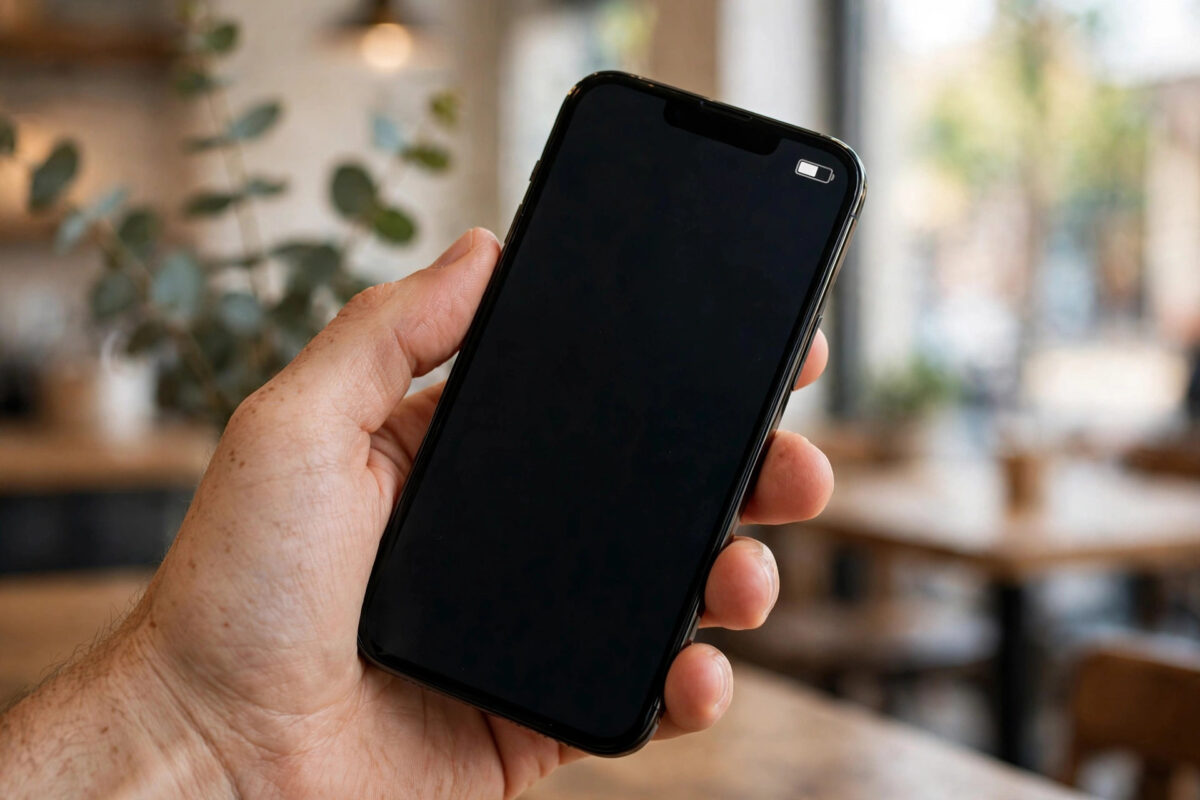
The little battery icon at the top of your iPhone screen tells you roughly how much charge is left, but roughly is not always good enough. Is that icon showing 40 percent or 25 percent? The difference decides whether you grab a charger before leaving the house. The good news is that your iPhone can show the exact number inside the battery icon, and turning it on takes less than ten seconds.
Quick Answer
To show the battery percentage in the iPhone status bar, go to Settings, tap Battery, and turn on Battery Percentage. The exact number then appears inside the battery icon at the top of the screen on Face ID models, and next to it on older models. This works on iOS 27 and recent versions, and you can turn it off again in the same place at any time.
Step by Step: Turn On Battery Percentage
- Open the Settings app on your iPhone.
- Scroll down and tap Battery. It sits in the main list of settings, below General and Accessibility.
- Turn on the Battery Percentage switch at the top of the screen. The switch turns green when it is active.
- Look at the top right of your screen. The number now appears inside the battery icon, so you can read your exact charge at a glance without opening anything.
That is the whole job. There is no need to restart the phone, and the change applies everywhere, on the home screen, in apps, and on the lock screen. Apple’s guide to showing the battery percentage on your iPhone confirms the same steps and lists which models show the number inside the icon.
Other Ways to See Your Exact Battery Level
The status bar number is the fastest method, but iOS gives you several other options. Knowing them helps on days when you want more detail, such as checking how long a charge will last.
Swipe down for Control Centre
On any iPhone with Face ID, swipe down from the top right corner to open Control Centre. The exact percentage appears there even if you keep the status bar number switched off. On older models with a home button, swipe up from the bottom of the screen instead.
Add the Batteries widget
Press and hold an empty space on your home screen, tap Edit, then Add Widget, and choose Batteries. The widget shows your iPhone level as a clear number and also displays the charge of connected AirPods, an Apple Watch, and other accessories. It is the best option if you manage several devices at once.
Ask Siri
Simply say, “Hey Siri, what is my battery percentage?” and Siri will read the exact figure aloud. This is handy while driving or cooking, when looking at the screen is awkward.
Check while charging
When your iPhone is plugged in or placed on a wireless charger, the lock screen briefly shows the current percentage in large text. With StandBy mode in iOS 27, a charging iPhone on its side also keeps the battery level visible across the room.
Why the Percentage Matters More Than the Icon
The plain icon changes shape slowly and can be misleading. A battery that looks half full may actually be at 38 percent, which is a very different situation when you are heading out for the evening. The exact number helps you plan charging stops, notice unusual drain from a faulty app, and learn how your own habits affect the battery. If your number falls much faster than it used to, that is an early sign worth checking. Our detailed guide on how to check your iPhone battery health and maximum capacity explains how to tell normal ageing from a battery that needs service.
Tips for Getting More From the Battery Display
- Watch for Low Power Mode. When Low Power Mode is on, the battery icon turns yellow. You can enable it quickly in Control Centre or in Settings, Battery, and it stretches the remaining percentage much further.
- Know the colours. White or black means normal use, green means the phone is charging, red means less than 20 percent remains, and yellow means Low Power Mode.
- Pair the number with Battery settings. The Battery screen shows which apps used the most power in the last 24 hours, so a falling percentage becomes easy to explain.
- Keep the icon honest. If the percentage ever seems frozen or jumps suddenly, restart the iPhone. A stuck reading is a display glitch, not a battery measurement.
Battery Percentage on Apple Watch and AirPods
Once you get used to an exact number for your iPhone, you will probably want the same clarity for your accessories. The Batteries widget mentioned earlier is the central place for this. Add the large version of the widget and it shows clear percentage rings and numbers for your iPhone, Apple Watch, AirPods case, and each individual earbud. That view is especially useful before a trip, when you want every device at a known level before you leave.
On Apple Watch itself, swipe up to Control Centre to see the watch battery percentage, and tap that percentage to check connected AirPods as well. On your iPhone, opening the AirPods case near the phone brings up a card with exact figures for both earbuds and the case. Between the status bar number for the phone and these quick checks for accessories, you can confirm the state of everything you carry in under half a minute, without opening a single settings screen.
A Quick Daily Habit That Prevents Surprises
The percentage is most useful when you glance at it at the same moments each day. Many people check it when they wake up, when they leave work, and when they plug in at night. Those three glances build an instinct for what is normal for your phone. When a day breaks the pattern, for example dropping twice as fast by lunchtime, you will spot it immediately and can check the app usage list while the cause is still easy to find. Small habits like this are worth more than any battery-saving trick, because most sudden drain problems are caused by one app behaving badly, and early detection keeps a minor annoyance from becoming a dead phone at an important moment.
Common Problems and Simple Fixes
The Battery Percentage option is missing
Make sure your iPhone is updated to a recent iOS version in Settings, General, Software Update. Very old models and very old iOS versions place the toggle in a slightly different spot, but on any iPhone running iOS 16 or later, including iOS 27 on the iPhone 18, it is in Settings, Battery.
The number is hard to read
The digits inside the small icon are tiny by design. If you struggle to read them, use the Batteries widget instead, or turn on larger text in Settings, Accessibility, Display and Text Size. Control Centre also shows the number in a bigger, clearer style.
The percentage drops but the icon looks full
This mismatch is exactly why the number exists. Trust the percentage. If it falls unusually fast, check the app usage list in Battery settings and look for an app draining power in the background, then close or update it. Apple’s advice on understanding iPhone battery usage information explains how to read those graphs.
Conclusion
Showing the battery percentage in the status bar is a ten-second change that makes your iPhone easier to live with every single day. Open Settings, Battery, switch on Battery Percentage, and you will always know exactly how much charge you have. Combine it with the Batteries widget and Control Centre, and you will never be caught out by a misleading little icon again.
Frequently Asked Questions
Does showing the battery percentage use more battery?
No. The number is simply a different way of displaying information your iPhone already measures. It has no measurable effect on battery life.
Why did older iPhones show the percentage beside the icon?
Models with a home button have more space in the status bar, so the number sits next to the icon. Face ID models have the notch or Dynamic Island, so Apple places the number inside the icon itself.
Can I show the percentage on the lock screen only?
There is no separate lock-screen-only switch. The setting controls the status bar everywhere. However, the lock screen does briefly show the percentage in large text whenever you start charging.
My iPhone percentage jumps from 30 to 20 quickly. Is that normal?
Small steps are normal, but sudden jumps can mean the battery is ageing or needs recalibration. Keep iOS updated, and if jumps continue, check maximum capacity in Settings, Battery, Battery Health.
How do I turn the battery percentage off again?
Go back to Settings, Battery, and switch Battery Percentage off. The status bar returns to the plain icon immediately.



[…] you choose, it helps to keep an eye on the battery itself. Our walkthrough on how to show the battery percentage in the iPhone status bar makes it far easier to notice charging habits and changes at a […]