
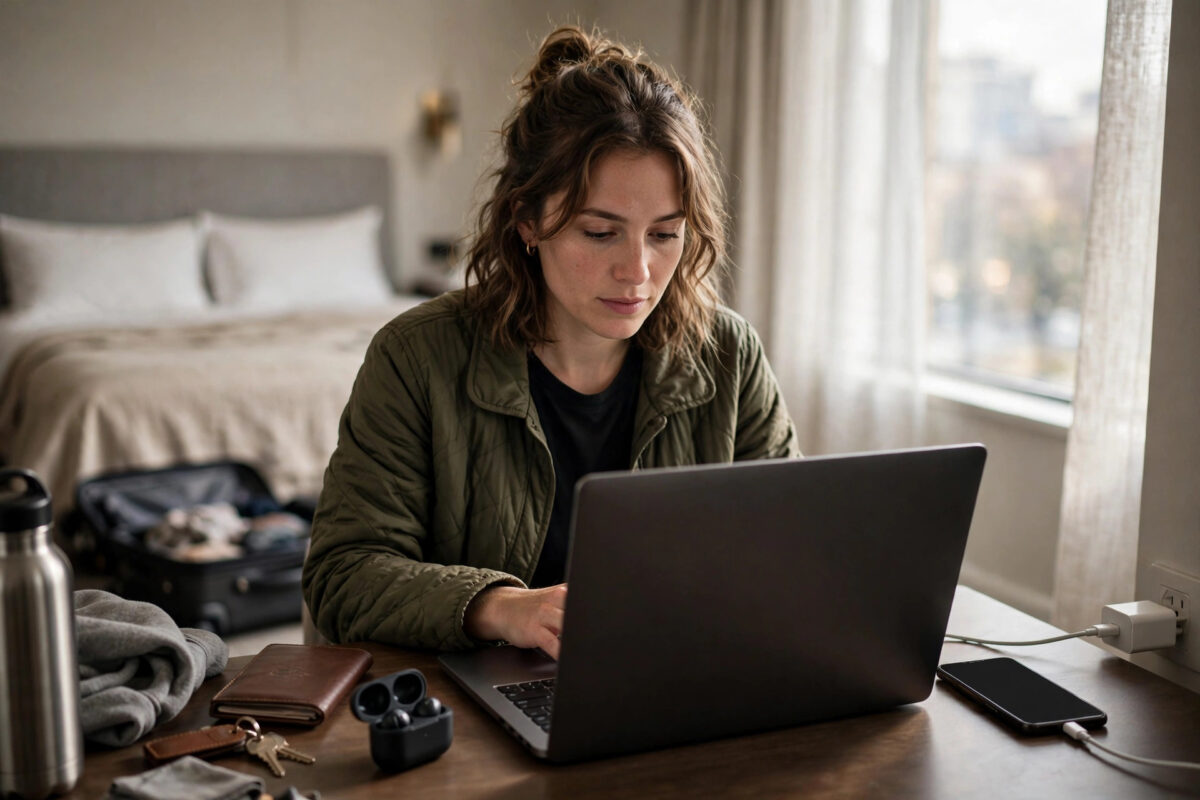
Hotel Wi-Fi is slow, the train’s Wi-Fi keeps dropping, and the café wants your email address for thirty minutes of throttled browsing. When you are travelling, your phone’s mobile data is often the best internet connection you own — if you know how to share it with your laptop properly. Sharing is easy to switch on, but doing it well involves real choices: hotspot versus USB cable, which SIM’s data to burn, how to stop your laptop devouring your allowance with background updates, and how to stay safe in public places. This guide covers the complete travelling setup, at home or abroad.
Quick Answer
To share mobile data with your laptop while travelling, turn on your phone’s mobile hotspot, connect the laptop to the phone’s Wi-Fi name with the hotspot password, and set the connection as metered on the laptop so it does not download big updates. For longer sessions, a USB cable (USB tethering) is faster, more stable, and charges the phone at the same time. Abroad, share from a local or travel eSIM data line rather than expensive roaming data whenever possible.
The Three Ways to Share: Hotspot, USB, and Bluetooth
Wi-Fi Hotspot
The most flexible option: your phone becomes a small Wi-Fi router that several devices can join. It is the only method that works for tablets and friends’ devices too. The costs are battery life and heat, because the phone is running its mobile radio and a Wi-Fi transmitter at full tilt. Our setup guide on how to set up a mobile hotspot on a 5G phone walks through the switches on Android and iPhone, and Google’s tethering and hotspot help guide covers the Android screens in official detail.
USB Tethering
Connect the phone to the laptop with a cable, then switch on USB tethering in the same hotspot settings menu. The laptop gets a wired-feeling connection: typically the fastest and most stable of the three, with no Wi-Fi password to type and no strangers able to see your network name. The phone charges from the laptop while you work. For a full day of remote work in a hotel room, this is the professional choice.
Bluetooth Tethering
The slowest method, useful only for light browsing and email when battery is precious, because it uses very little power. Pair the devices once, then enable Bluetooth tethering. Speeds are a fraction of the other methods, so treat it as an emergency fallback.
Step by Step: A Clean Travel Setup
- Decide which data you are spending. At home, your normal allowance. Abroad, a travel eSIM or local SIM if you have one, set as the phone’s data SIM before you share. Our roaming guide explains what roaming means and how to avoid high charges before you burn roaming data into a laptop.
- Start the hotspot or plug in the cable. Use a hotspot name you recognise and a strong password you have not used elsewhere.
- Connect the laptop and set the connection as metered. On Windows: Settings, Network and Internet, Wi-Fi, your network, then switch on “Metered connection”. On a Mac, enable Low Data Mode for the network in Wi-Fi settings. This single toggle prevents the multi-gigabyte update ambush.
- Pause cloud syncing. Pause OneDrive, Google Drive, Dropbox, and photo uploads for the session, or set them to respect the metered connection.
- Position the phone for signal. On the hotel window sill almost always beats in your pocket. Watch the phone’s signal bars or, better, its speed, as you place it.
- Keep the phone powered. Plug it into the laptop (USB tethering does this automatically) or a power bank. A phone that dies mid-call helps nobody.
- Afterwards, check what you used. Your phone’s hotspot data counter shows the session total, teaching you what a workday abroad actually costs.
How Much Data a Laptop Really Uses
Laptops are far hungrier than phones because their software assumes unlimited home broadband. Browsing and documents use roughly 100 to 300 MB per hour. Email is trivial. Video calls take 500 MB to 1.5 GB per hour depending on quality. Streaming video at HD runs 1.5 to 3 GB per hour. The killers are background tasks: a Windows or macOS update can exceed 4 GB, a game update tens of gigabytes, and cloud restores are effectively unbounded. This is why the metered setting and paused syncing are not optional garnish; they are the difference between a controlled 1 GB workday and a 15 GB accident. If your allowance is tight, the habits in our guide on how to stop mobile data from finishing too quickly apply to travel days too.
Staying Secure in Public Places
A personal hotspot is actually more secure than public Wi-Fi, because the connection is yours alone and encrypted with your password. Do not share the password with strangers who ask, however friendly, and turn the hotspot off when you finish so your phone stops advertising its name. On the laptop, keep the firewall on and avoid setting the connection as a trusted home network in Windows, which loosens sharing rules. If you must use public Wi-Fi instead, treat it as untrusted: avoid banking, and prefer your phone’s hotspot for anything sensitive.
Common Mistakes to Avoid
- Forgetting metered mode. The number one cause of travel data disasters. Set it the first time you connect, every trip.
- Sharing roaming data when a local eSIM was cheaper. Decide your data strategy before the plane lands, not after the first 5 GB.
- Leaving the hotspot discoverable all day. Battery drain, heat, and security exposure for no benefit.
- Working from a weak-signal pocket. A phone in a bag under a train table gives a fraction of the speed of the same phone on the window ledge.
- Assuming the train or hotel blocks tethering. Your hotspot is your own network; nobody can block it. Only your plan’s tethering rules matter, so check them if you bought a restricted plan.
Trains, Planes, and Cars: Mode-Specific Tips
On trains, place the phone against the window and expect speeds to swing as you pass through cuttings, tunnels, and rural gaps; download work before boarding so the connection only has to handle messages and light tasks. On planes, your phone cannot share what it does not have — in-flight connectivity comes from the airline’s own Wi-Fi passes, and your hotspot stays off in the air. In cars, a phone mounted on the dashboard vent gets a far better signal than one in a door pocket or the boot, and passengers sharing the hotspot should agree data rules in advance if the allowance is a travel pack. In every mode, the pattern is the same: signal position first, metered mode on, and heavy downloads saved for solid ground and proper Wi-Fi.
Conclusion
Sharing your phone’s data with a laptop while travelling is a five-minute skill with lasting value: hotspot for flexibility, USB tethering for long work sessions, metered mode always on, cloud syncing paused, and a deliberate decision about which SIM’s data you are spending. Set it up once, and patchy hotel Wi-Fi becomes a problem you simply route around.
Frequently Asked Questions
Is USB tethering faster than a Wi-Fi hotspot?
Usually yes, slightly, and it is noticeably more stable because there is no wireless interference. It also avoids Wi-Fi band issues and charges the phone. For one laptop, USB is the best method.
Can I share data from a travel eSIM?
Most travel eSIMs allow hotspot use, but some budget ones prohibit tethering in their terms. Check the product description before buying if laptop sharing is your main purpose.
Why does my laptop say “no internet” when connected to the hotspot?
Common causes are a plan that blocks tethering, the phone’s own data being exhausted, or the laptop clinging to a saved public Wi-Fi profile. Toggle the laptop’s Wi-Fi, check the phone has working data by itself, then reconnect.
How long will my phone battery last as a hotspot?
Typically three to six hours of active hotspot use, less on 5G in weak signal. Carry a power bank or use USB tethering, which charges the phone as you work.
Is it safe to work on a hotspot in an airport?
Yes — safer than the airport’s public Wi-Fi, since your hotspot is encrypted and private. Keep a strong password, do not share it, and switch the hotspot off when you are done.

Leave a Reply