
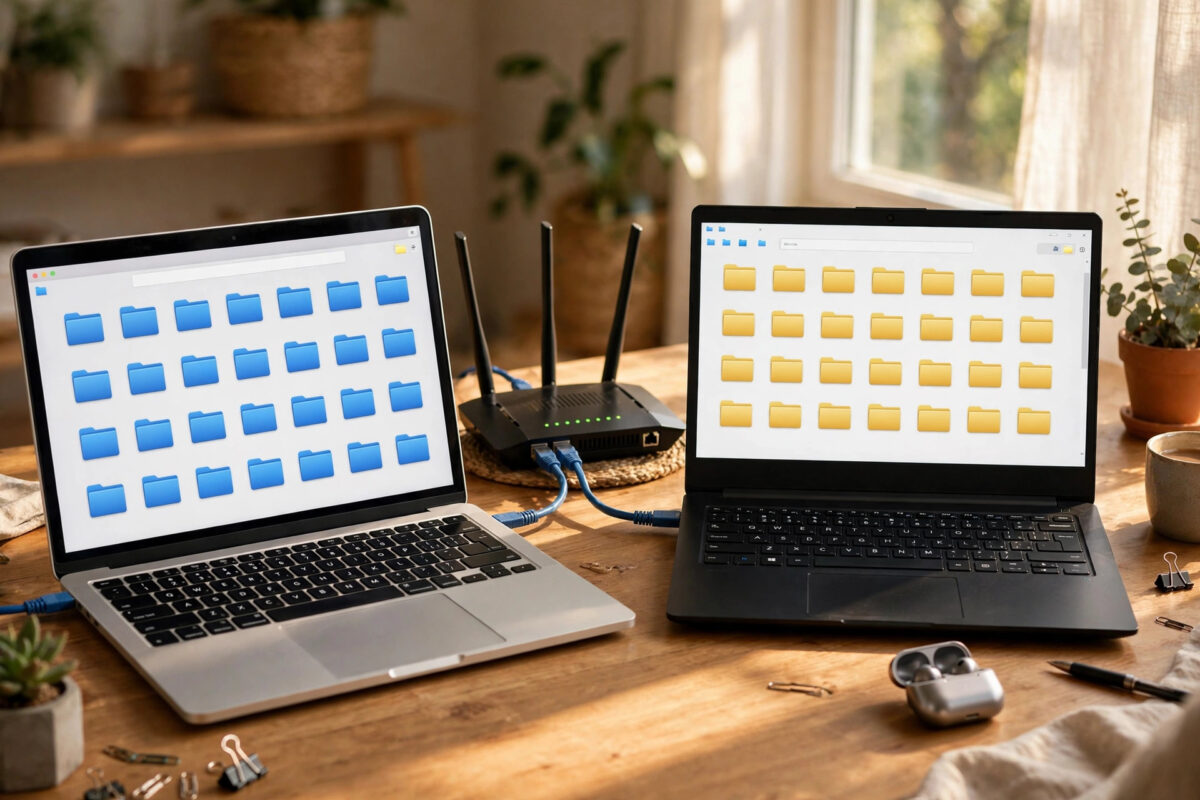
Many homes and small offices use a mix of Mac and Windows computers. You might write a document on your Mac, then need it on a Windows laptop in the next room. Copying files with a USB stick every time is slow and annoying.
The good news is that both computers can share files directly over your home network. Once you set it up, sharing takes just a few clicks. This guide walks you through the setup on both sides, step by step, in plain language.
Quick Answer
Connect both computers to the same Wi-Fi or wired network. On your Mac, turn on File Sharing in System Settings and choose the folders you want to share. On the Windows PC, open File Explorer, type the Mac’s network address into the address bar, sign in with your Mac username and password, and open the shared folder to copy files.
What You Need Before You Start
You do not need any extra software for basic file sharing. Mac and Windows both include the tools by default. Before you begin, check these simple things:
- Both computers are turned on and connected to the same router, either by Wi-Fi or by cable.
- You know your Mac username and the password you use to log in to the Mac.
- You know your Windows username and password if you use one.
- Both computers are awake and not in sleep mode during the transfer.
If the two computers are on different networks, for example one on a guest Wi-Fi network, sharing will not work. Guest networks often block devices from seeing each other. Switch both devices to your main home network first.
Step 1: Turn On File Sharing on Your Mac
The Mac will be the computer that shares its folders in this example. Windows will connect to it. Follow these steps:
- Click the Apple menu in the top-left corner of the screen.
- Open System Settings, called System Preferences on older versions of macOS.
- Go to General, then click Sharing.
- Turn on the switch next to File Sharing.
- Click the small info button next to File Sharing to see more options.
After you turn sharing on, your Mac shows its network name near the top of the Sharing screen. Write this name down. You will need it when you connect from Windows. It often looks like a name followed by .local, for example Imran-MacBook.local.
Choose Which Folders to Share
By default, your Mac shares only your Public folder. That is a safe starting point, but you can add more folders:
- In the File Sharing options, look for the Shared Folders list.
- Click the plus button below the list.
- Select the folder you want to share, such as Documents or a project folder.
- Click Add to confirm.
Next, check the Users list on the right side of the same window. This list controls who can open each folder and what they can do. You can give a user read-only access, which means they can view and copy files but cannot change them. Read and write access lets them add, edit, and delete files too. For your own account, read and write is usually the right choice.
Enable Sharing for Windows
There is one more small setting that helps Windows connect smoothly:
- In the File Sharing options, click Options.
- Make sure Share files and folders using SMB is checked.
- Under Windows File Sharing, check the box next to your account name.
- Type your Mac password if the system asks for it.
- Click Done.
SMB is the standard language that Windows uses for file sharing. Modern versions of macOS use it by default, so this step takes less than a minute. You can read more in Apple’s guide on how to set up file sharing on Mac, which covers each setting in detail.
Step 2: Connect From the Windows PC
Now move to the Windows computer. Make sure it is on the same network, then do the following:
- Open File Explorer from the taskbar.
- Click in the address bar at the top of the window.
- Type two backslashes followed by your Mac’s name or IP address, for example \\Imran-MacBook.local, and press Enter.
- Wait a few seconds while Windows finds the Mac.
- When asked, type your Mac username and Mac password, then click OK.
The shared folders should now appear in the window. You can open them like any normal folder. Drag files in to copy them to the Mac, or drag files out to copy them to the Windows PC. Large files will take longer, especially over Wi-Fi, so keep both computers near the router for big transfers.
Find Your Mac’s IP Address
If the Mac’s name does not work, use its IP address instead. On the Mac, open System Settings, go to Wi-Fi or Network, and click Details next to your connection. You will see an address like 192.168.1.25. On Windows, type \\192.168.1.25 in the File Explorer address bar and press Enter.
You can also make the shared folder easier to reach next time. Right-click the folder on Windows, choose Map network drive, pick a drive letter, and click Finish. The folder will then appear under This PC every time you start Windows.
How to Share Files From Windows to Mac
Sharing works in the other direction too. If the file is on the Windows PC, share it there and open it from the Mac.
Share a Folder on Windows
- Right-click the folder you want to share and choose Properties.
- Open the Sharing tab and click Share.
- Choose the user you want to share with, or choose Everyone for home use.
- Set the permission level to Read or Read/Write.
- Click Share, then note the network path Windows shows you.
Microsoft explains the full process in its help page about file sharing over a network in Windows. On the Mac side, open Finder, choose Go, then Connect to Server. Type smb:// followed by the Windows PC’s name or IP address, click Connect, sign in, and pick the shared folder.
Keep Your Shared Files Safe
Sharing is useful, but you should share wisely. Only share the folders you really need. Avoid sharing your whole home folder if a single project folder will do.
Use strong passwords on both computers. If a computer has no password, Windows and macOS may block network access for safety. Turn off sharing when you do not need it, especially on a laptop you take to cafes or other public places. On a public network, other people could try to reach your shared folders.
It also helps to keep a proper backup. If someone edits or deletes a shared file by mistake, a backup lets you recover it. Our step-by-step guide on how to back up your Mac with Time Machine shows you how to set up automatic backups to an external drive.
Common Mistakes and How to Fix Them
If sharing does not work the first time, do not worry. Most problems have simple causes. Check these common issues:
- Different networks: One device is on the guest Wi-Fi or a different router. Connect both to the same network.
- Wrong password: You must use the Mac account password when connecting from Windows, not your Apple Account password unless they happen to be the same.
- Firewall blocking: On the Mac, check System Settings, Network, then Firewall, and allow File Sharing. On Windows, make sure network discovery and file sharing are on for private networks.
- Computer asleep: A sleeping computer cannot share files. Wake it up or adjust its sleep settings during a long transfer.
- Old sharing protocol: Very old Windows versions may need extra settings. Keep both systems updated to avoid these problems.
A quick restart of both computers fixes many small network glitches. Routers also benefit from a restart if devices cannot see each other at all.
Conclusion
Sharing files between a Mac and a Windows PC on the same network is free, fast, and built into both systems. Turn on File Sharing on the Mac, choose your folders, and connect from Windows using the Mac’s name or IP address. Set clear permissions, use strong passwords, and switch sharing off when you travel. After the first setup, moving files between the two computers becomes a simple drag and drop.
Frequently Asked Questions
Can I share files between Mac and Windows without Wi-Fi?
Yes. You can connect both computers to the same router with Ethernet cables, and sharing works the same way. A wired connection is often faster and more stable for very large files like videos.
Why does Windows ask for a password when I open the Mac folder?
That password protects your files. Windows needs your Mac username and password to prove you are allowed to open the folder. Type the same details you use to log in to the Mac itself.
Why can I see the folder but cannot add files to it?
Your permission is probably set to read-only. On the Mac, open the File Sharing settings, select the folder, and change your access to Read & Write. Then disconnect and connect again from Windows.
Is it safe to share files on my home network?
It is generally safe on a private home network with a strong Wi-Fi password. Share only the folders you need, keep passwords strong, and turn sharing off on public networks in hotels, cafes, and airports.
What is the fastest way to move very large files?
Use a wired Ethernet connection on both computers if you can. If that is not possible, sit near the router, keep both computers awake, and copy one large batch at a time instead of many small batches.



Leave a Reply