
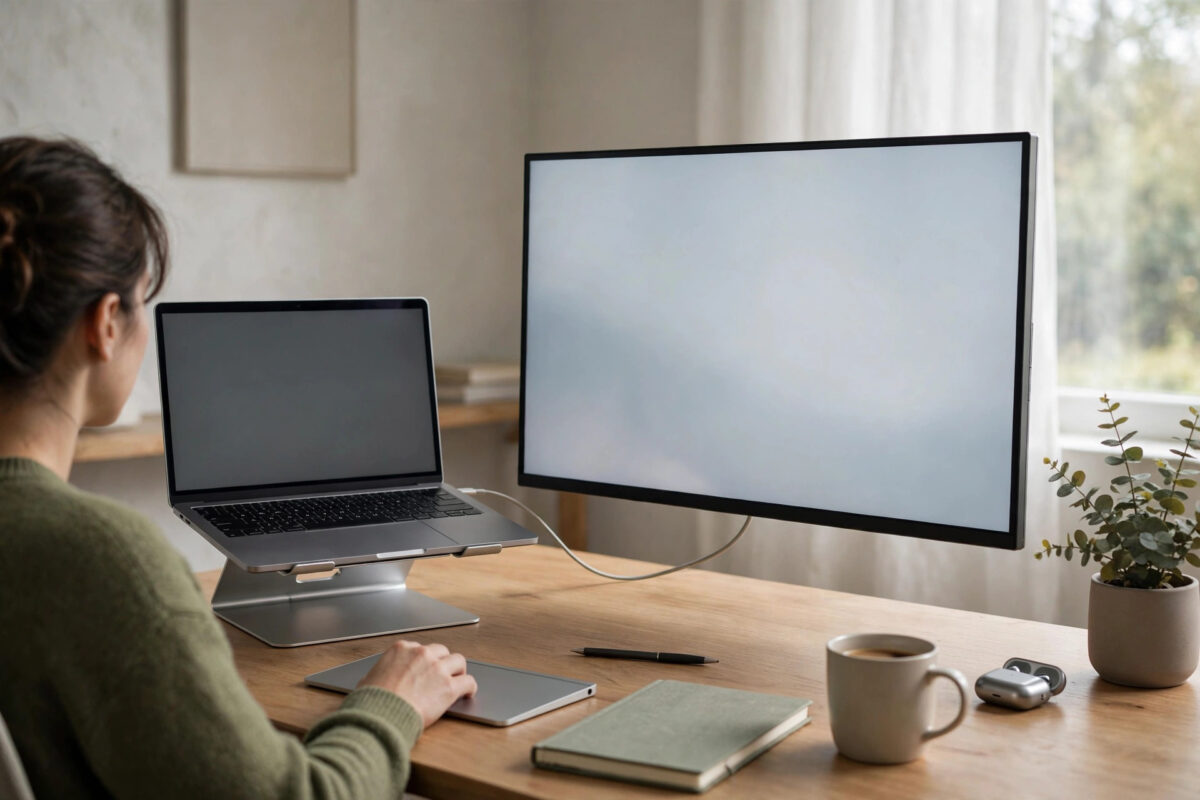
You plug your MacBook into a big external monitor, open your apps, and within minutes the fans spin up like a small jet. The noise is distracting in a quiet room, in a meeting, or while you record audio. Many Mac users face this exact problem.
The good news is that fan noise with an external monitor is usually not a fault. The Mac is working harder to draw extra pixels, and heat builds up fast in a thin laptop body. With a few smart changes to your setup and settings, you can make it much quieter.
Quick Answer
To reduce fan noise with an external monitor, lower the display scaling instead of using the highest scaled resolution, keep your Mac on a raised stand with clear vents, close heavy apps and browser tabs, and use the right cable and charger. If your MacBook supports it, using it in clamshell mode with good airflow or switching to a lower refresh rate can also cut heat and noise a lot.
Why an External Monitor Makes Your Mac Louder
Your Mac’s graphics chip has to draw every pixel on every screen. A large 4K or 5K monitor has far more pixels than the built-in display. When you also mirror or extend the laptop screen, the chip does even more work.
Scaled resolutions add extra load. When you pick a scaled option that says it looks like a smaller resolution, the Mac often renders a much bigger image first and then shrinks it. That hidden work creates heat. Heat triggers the fans, and the fans create noise.
Other factors make the problem worse:
- A warm room or direct sunlight on the desk.
- A thick case or a laptop sitting flat on a soft surface.
- Video calls, screen sharing, and many browser tabs running at once.
- Charging a nearly empty battery while you work, which adds more heat.
Understanding the cause helps you fix the real problem instead of just hiding the sound.
Step 1: Change the Display Scaling
This is the single most effective fix for many people. Follow these steps:
- Open System Settings and go to Displays.
- Select your external monitor at the top of the window.
- Look at the resolution options and choose Default for display if it is offered.
- If you use a scaled option, pick a lower one than your current setting and test it for a day.
- Avoid the highest scaled option unless you truly need that much space.
Text may look a little larger with a lower scaling, but the graphics chip will work much less. On many setups, the fans calm down within ten to fifteen minutes of this change. Give it time, because the metal body needs a while to cool.
Lower the Refresh Rate if You Do Not Need It
Some monitors run at 120Hz, 144Hz, or higher. That is great for gaming, but it makes the graphics chip draw far more frames during normal office work. In the same Displays settings, set the refresh rate to 60Hz for everyday tasks. Switch back to a high rate only when you play games or edit fast video.
Step 2: Improve Airflow Around Your Mac
Heat needs a way to escape. A few simple habits help a lot:
- Raise the Mac on a stand so air can flow under and around it.
- Keep the vents at the back and sides clear of books, papers, and walls.
- Never use the Mac on a bed, sofa, or blanket while it is connected to a monitor.
- Keep the desk area cool, and move the Mac out of direct sunlight.
- Remove a thick protective case if the Mac often runs hot.
If you use your MacBook with the lid closed, called clamshell mode, place it on a stand with the hinge area free. Some users find clamshell mode quieter because the built-in screen is off. Others find it warmer because heat escapes through the keyboard area on some models. Test both ways for a day each and keep the quieter one.
Step 3: Find and Close Heavy Apps
Sometimes one app is the real cause of the noise. Activity Monitor shows you which one:
- Open Finder, go to Applications, then Utilities, and open Activity Monitor.
- Click the CPU tab and sort by CPU use.
- Look for apps using a very high share of the processor for a long time.
- Check the GPU column too if it is shown, by choosing Window and then GPU History.
- Quit apps you do not need, or restart an app that seems stuck.
Common heavy apps include video meeting tools with screen sharing, cloud sync services uploading many files, photo apps scanning a big library, and browsers with dozens of tabs. Chrome tabs with video or ads are frequent offenders. Close tabs you are not using, or try a lighter browser for a day to compare.
Apple explains how to use this tool in its support guide on how to view CPU use in Activity Monitor on Mac. Checking it once a week helps you spot new noisy apps early.
Step 4: Use the Right Cable, Dock, and Charger
Not all cables and docks behave the same way. A poor-quality dock can run hot and make your Mac work harder. If the noise started when you bought a new dock, test a direct cable from the Mac to the monitor for one day.
Use the charger that came with your Mac, or one with the same or higher wattage from a trusted brand. A weak charger forces the system to manage power in a less efficient way during heavy work. Also, plug the charger into the Mac or dock as Apple recommends for your model, and avoid stacking hot devices like docks, drives, and chargers on top of each other.
Check for Dust and Age
On older Intel Macs, dust inside the vents and worn cooling paste can raise temperatures over the years. You cannot fix internal dust safely at home on most models. If your Mac is loud even without a monitor after trying every step here, book a service check. A cleaning by a trained technician can make a real difference on an older machine.
Step 5: Adjust Room and Work Habits
Small habits add up during a long workday. Charge the battery before a long video call instead of during it. Download large files after work hours rather than while you present your screen. If you render video or export big files, expect fan noise during that short task; that is normal and healthy.
You should also keep macOS and your apps updated. Updates often include graphics and power fixes. Go to System Settings, then General, then Software Update, and install what is offered. Restart your Mac after a big update.
Good cable and desk habits also protect your battery over time. Our practical guide on how to check your Mac battery health and cycle count explains how heat affects battery life and what numbers to watch.
Common Mistakes That Keep Fans Loud
Many users try fixes that do not help, or even make heat worse. Avoid these common mistakes:
- Blocking the vents to muffle sound: Covering vents traps heat and makes fans spin even faster a few minutes later.
- Using the highest scaled resolution all day: It looks spacious, but it is the top cause of constant fan noise on many setups.
- Installing fan-control apps to force slow fans: Forcing fans to stay slow can overheat parts and shorten the life of your Mac. Let the system protect itself.
- Ignoring one runaway app: A single stuck app can keep the processor busy for hours. Always check Activity Monitor first.
- Stacking hot gear together: A dock, charger, and external drive piled together create a hot spot on your desk.
If the fans stay at full speed for hours with no heavy apps open and no monitor connected, that is not normal. Back up your data and contact Apple Support or an authorized service provider.
Conclusion
Fan noise with an external monitor usually comes from display scaling, poor airflow, and one or two heavy apps working together. Lower the scaling, set a sensible refresh rate, raise the Mac on a stand, and check Activity Monitor for greedy apps. Use a good cable, dock, and charger, and keep everything updated. With these changes, most Macs run far quieter while still driving a big, clear external screen.
Frequently Asked Questions
Is constant fan noise harmful to my Mac?
The fans themselves are doing their job, which is to protect the parts inside. Noise alone is not harmful, but constant high heat over many months can wear the battery faster. Reducing heat with the steps above is good for the Mac’s long-term health.
Is clamshell mode quieter than using both screens?
Often, yes, because the built-in screen is off and the graphics chip draws fewer pixels. Keep the Mac on an open stand so heat can escape, and test it for a day to see if your setup runs cooler that way.
Why did the noise start after a macOS update?
After an update, the Mac may index files, sync photos, or finish background tasks for a few hours. That extra work raises heat for a short time. If the noise is still there after a full day, check Activity Monitor and your display scaling.
Should I use a cooling pad under my MacBook?
A simple raised stand usually helps more, because MacBooks mostly cool through their metal body and rear vents. A cooling pad will not hurt, but fix scaling and airflow first, since those give bigger results.
When should I take my Mac in for service?
Book a check if fans run at full speed with no apps open, if the Mac shuts down from heat, or if you hear grinding or rattling sounds. Those signs can point to a hardware problem that settings cannot fix.



Leave a Reply