
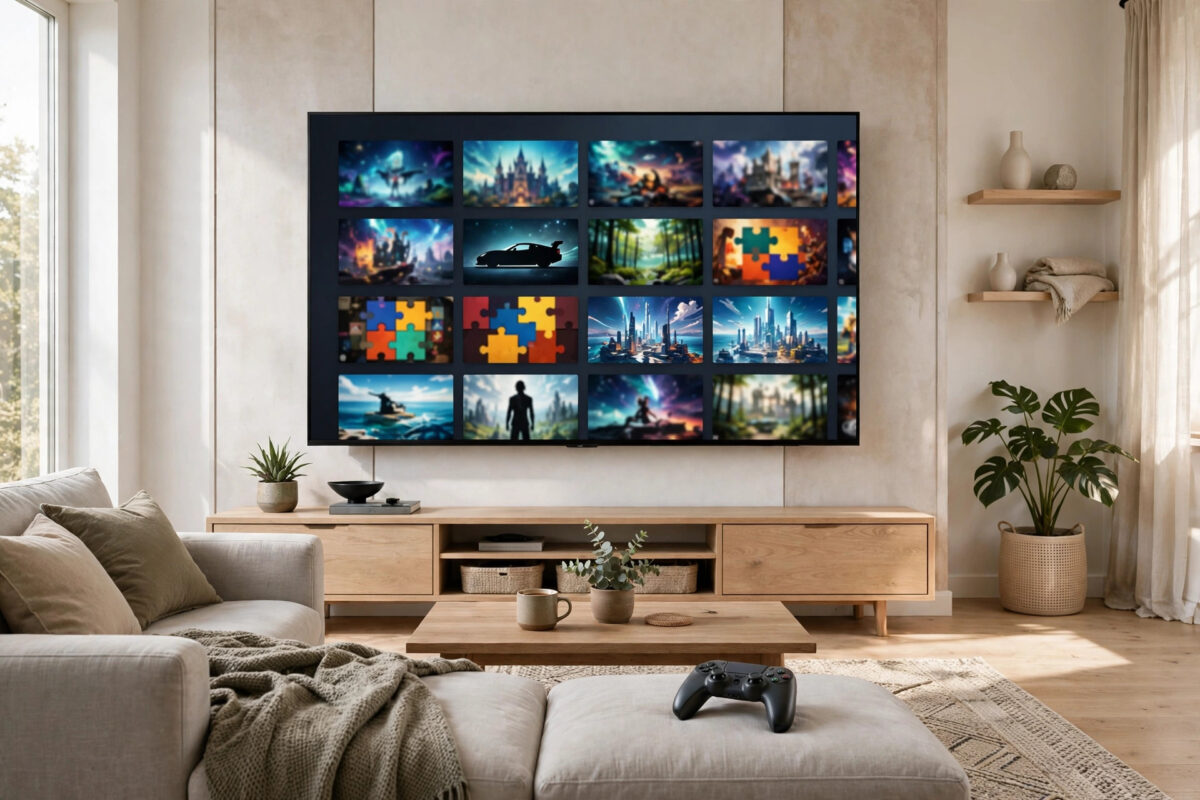
Xbox Cloud Gaming lets you play hundreds of Game Pass titles on a TV with no console at all — the game runs on Microsoft’s servers and streams to you like a video. If your smart TV supports the Xbox app, setup takes about ten minutes. This guide covers which TVs work, the full setup, controller pairing, and the network tweaks that make cloud games feel responsive.
Quick Answer
To set up Xbox Cloud Gaming on a smart TV, install the Xbox app from the TV’s app store (supported Samsung and LG smart TVs, and Amazon Fire TV devices), sign in with a Microsoft account that has Game Pass Ultimate, and pair a Bluetooth controller such as an Xbox Wireless Controller. Connect the TV by Ethernet or strong 5 GHz Wi-Fi. Then pick a game in the app’s cloud section and play instantly, with no downloads or installs.
What You Need Before You Start
- A compatible TV or streaming device. The Xbox app is available on Samsung smart TVs from 2020 onwards, newer LG TVs with webOS, and Amazon Fire TV Stick and Cube models. If your TV lacks it, a Fire TV Stick is the cheapest way in.
- Game Pass Ultimate. Cloud gaming is included in the Ultimate tier only. Lower tiers do not include it.
- A Bluetooth controller. An Xbox Wireless Controller is ideal; PlayStation DualSense and many other Bluetooth pads also work for cloud play.
- A decent internet connection. Microsoft recommends at least 20 Mbps download for TV cloud gaming, with low latency mattering even more than raw speed.
- A Microsoft account signed in on the TV app.
Step-by-Step Setup
- Connect the TV to the internet. Use an Ethernet cable if your router is nearby; otherwise join your 5 GHz Wi-Fi network.
- Open the TV’s app store and search for “Xbox”. Install the official Xbox app by Microsoft.
- Launch the app and choose Sign in. A code appears on screen; on your phone or computer, visit the address shown and enter the code to link your account quickly without typing passwords on the TV remote.
- Pair your controller: put it in pairing mode (hold the Pair button until the Xbox light flashes), open the TV’s Bluetooth settings, and select the controller.
- Return to the Xbox app, browse the Cloud Gaming section, choose a game, and press Play. The game starts streaming within seconds.
Microsoft keeps the current device support list and setup screens on its Xbox cloud gaming on smart TVs support page, worth checking because supported TV models expand regularly.
Making Cloud Games Feel Responsive
Cloud gaming adds a round trip to a server, so your job is to keep every other delay as small as possible:
- Turn on the TV’s Game Mode for the app input if your TV offers it per-app; it cuts picture processing delay significantly.
- Wire the TV by Ethernet whenever possible. A cable removes Wi-Fi jitter, the biggest cause of inconsistent cloud performance.
- Stay close to the router on Wi-Fi, use the 5 GHz band, and avoid playing during heavy downloads elsewhere in the house.
- Keep the controller close to the TV and remove obstacles; Bluetooth latency grows with distance and interference.
- Choose games that suit streaming. Racing and fighting games are the sternest test; strategy, adventure, and turn-based games feel perfect even on average connections. Our guide on connecting consoles on tricky networks also explains why network type matters more than headline speed for streamed play.
Saves, Profiles, and Multiple Players
Your cloud saves follow your account, so a game started on a console continues on the TV and vice versa, as long as the title supports cloud saves (most do). Family members can sign in with their own profiles on the TV app. Local multiplayer through cloud gaming is limited: most titles support one player per stream, though a growing number allow a second controller for couch co-op. Check the game’s page in the app for its supported features before promising a two-player session.
Troubleshooting Common Problems
- The app is missing from the store. Your TV model is probably unsupported. Update the TV’s firmware, search again, and if it is still absent, use a Fire TV Stick or another supported device.
- Games look blurry or pixelated. The stream adapts to your connection. Wire the TV, pause other downloads, and test again. Persistent blur usually means Wi-Fi congestion.
- Input feels delayed. Enable Game Mode on the TV, move the controller closer, and switch to Ethernet. Picture settings like motion smoothing add big delays and should be off.
- Controller will not pair. Update the controller firmware via a console or the Xbox Accessories app on PC, then pair again. Forget any old pairing on the TV first.
- “Cloud gaming is not available in your region”. Xbox Cloud Gaming is not offered everywhere. The message is about your account region and location, and a different TV will not change it. Microsoft’s cloud gaming overview lists supported regions.
Cloud Gaming vs a Real Console: The Honest Comparison
Cloud gaming on a TV shines for convenience: no hardware cost, no installs, no updates, and instant access to a large library on any supported screen in the house. It is perfect for trying games before committing, for casual sessions, and for bedrooms or spare rooms without a console. A physical console still wins on picture quality at 4K, on the lowest possible input delay, on playing games you own that are not streamable, and on working when your internet stumbles. Many households end up with both: a console under the main TV and cloud streaming everywhere else, with saves syncing between them. Choosing cloud first is also a low-risk way to discover whether you enjoy the Xbox library enough to justify buying hardware later.
Data Usage: What an Hour of Cloud Gaming Eats
Streaming games uses far more data than streaming video, because the picture is high-motion and interactive. Expect roughly 5 to 10GB per hour depending on resolution and the game’s pace, with fast, colourful games at the top of that range. On an unlimited home broadband connection this is a non-issue. On a capped connection, or if your TV is connected through a phone hotspot, track your usage in the router or provider app and consider shorter sessions or the lower stream quality option where offered. Downloading a game to a console, by contrast, is a one-off cost that then plays offline forever — another reason heavy players on tight data caps still lean towards local hardware.
Conclusion
Xbox Cloud Gaming on a smart TV is the fastest route from owning nothing to playing major games: install the app, sign in with Game Pass Ultimate, pair a controller, and wire the TV if you can. It will not replace a console for twitch-competitive play, but for the vast majority of games and players, a well-set-up TV stream feels remarkably close to the real thing.
Frequently Asked Questions
Do I need an Xbox console to use cloud gaming on my TV?
No. That is the point of the service. The games run on Microsoft’s servers and stream to the TV app. You need only the TV or streaming device, a controller, and Game Pass Ultimate.
Can I play games I own, or only Game Pass games?
Mostly Game Pass catalogue titles, but Microsoft has been adding support for streaming selected games you own digitally. The app shows which of your owned games are streamable.
What internet speed do I really need?
Around 20 Mbps download is the recommended level for TVs, but stability and latency matter more than peak speed. A steady wired 25 Mbps connection beats an unstable 200 Mbps Wi-Fi one for cloud gaming.
Does a DualSense controller work with the Xbox TV app?
Yes. The app accepts many Bluetooth controllers including the DualSense. The Xbox controller remains the best fit because its button labels match the on-screen prompts.
Can children play with their own profiles?
Yes. Each family member can sign in with their own Microsoft account, and child accounts keep their family safety restrictions, including content limits, while cloud gaming.



Leave a Reply