
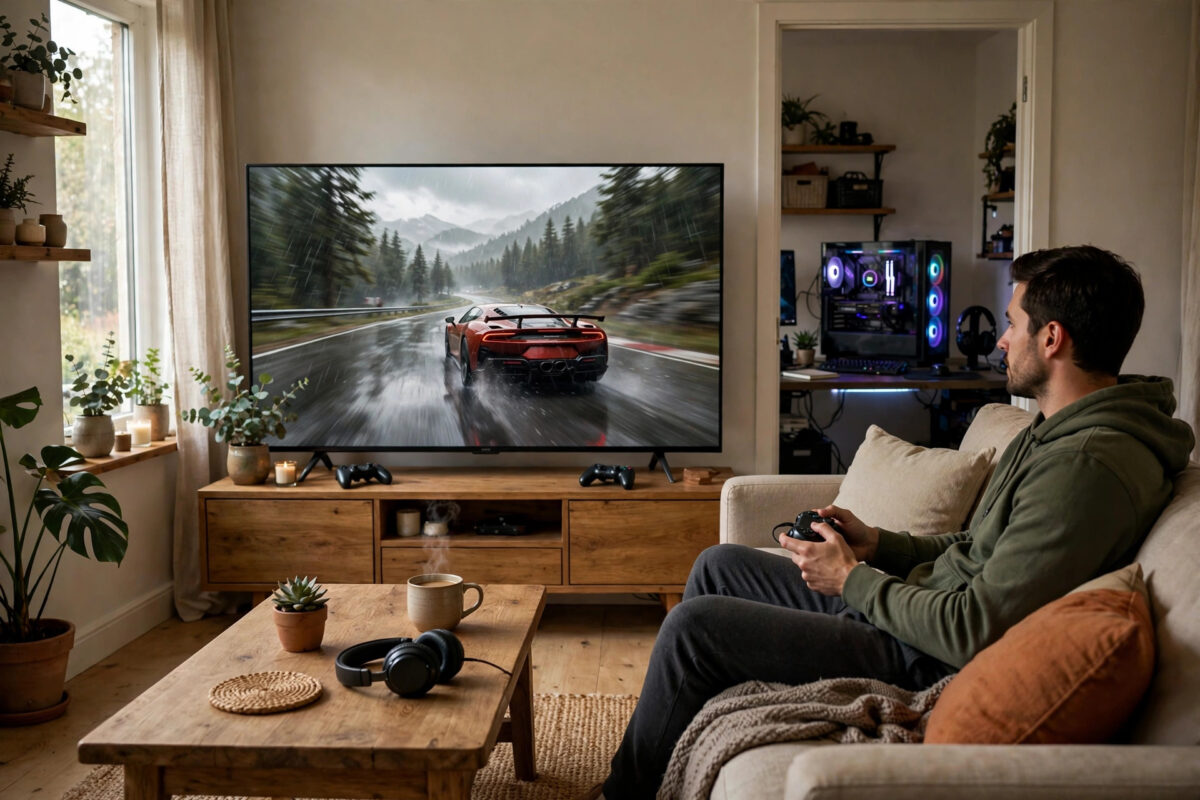
Your gaming PC is in one room, but the big TV and the comfortable sofa are in another. Or perhaps you want to keep playing in bed on a laptop, or let a family member use the TV screen while the PC stays in the office. Steam Remote Play was made for all of these moments.
Remote Play streams the game from your powerful PC to another device over your home network. The PC does all the hard work of running the game. The other device simply shows the picture, plays the sound, and sends your controller or keyboard inputs back.
This guide explains what you need, how to set it up step by step on both devices, and how to tune the settings so the picture is smooth instead of laggy and blurry.
Quick Answer
Sign in to Steam with the same account on your gaming PC and on the second device, make sure both are on the same home network, and keep the host PC switched on and unlocked. Then find the game in the library on the second device and choose Stream instead of Play. The game runs on your PC and streams to you in the other room.
What You Need Before You Start
Remote Play does not need expensive extra hardware, but a few basics make a big difference to how well it works.
- A host PC that can run the game well. The game runs locally first, so the host must play it smoothly on its own before streaming is involved.
- A client device. This can be a laptop, a mini PC, a tablet or phone with the Steam Link app, or another computer with Steam installed.
- The same Steam account on both devices. For the standard in-home setup, both devices sign in to the same account.
- A solid home network. This is the most important item on the list, and it is covered in detail below.
- A controller or keyboard and mouse at the client end. Most living-room setups work best with a standard game controller.
Both devices need to be awake and connected while you play. If the host PC goes to sleep, the stream ends. It is worth changing your Windows power settings so the PC does not sleep in the middle of a session.
How Remote Play Actually Works
Understanding the basics helps you fix problems later. The host PC renders the game, captures the picture and sound many times per second, compresses them into a video stream, and sends that stream across your network. Your inputs travel the other way.
Because everything is compressed and sent in real time, two things decide the quality of your experience. The first is network speed and stability between the two devices. The second is how much work you ask the system to do: a higher resolution and frame rate need more bandwidth and more encoding power.
This is why Remote Play feels excellent for most games on a good home network, but fast competitive shooters will always feel a touch less responsive than sitting at the PC itself. Story games, racing games, platformers, strategy games, and turn-based games are ideal for streaming to another room.
Setting Up the Host PC
Start at the gaming PC, because a few settings there control the whole experience.
- Open Steam on the gaming PC and sign in.
- Go to Steam in the top-left corner and choose Settings.
- Select Remote Play from the list on the left.
- Make sure the option to enable Remote Play is switched on.
- Leave this PC switched on, unlocked, and connected to your home network.
- Close any heavy programs you do not need, so the PC can focus on the game and the stream.
In the same Remote Play settings you will find advanced host options, such as using hardware encoding. On most modern PCs with a recent graphics card, hardware encoding should stay enabled because it produces a smooth stream with very little load on the processor. If you see strange picture glitches, this setting is one to test later, not one to change blindly at the start.
Setting Up the Second Device and Starting a Stream
Now move to the device in the other room. The exact screens differ slightly between a laptop, a phone, and a TV device, but the flow is the same.
- Install Steam, or the free Steam Link app, on the second device.
- Connect this device to the same home network as the host PC.
- Sign in with the same Steam account you use on the gaming PC.
- Wait a moment while the two devices find each other on the network.
- Open your Library. Games installed on the host PC will show a Stream option.
- Connect your controller to this device, by cable or Bluetooth, before you start.
- Select the game and choose Stream. The game will launch on the host PC and appear on your screen here.
- To finish, open the Steam overlay or the app menu and choose Stop Streaming, which closes the stream cleanly.
On phones and tablets, the Steam Link app first runs a network test and may ask you to enter a short code shown on the host PC to pair the device. This pairing is a one-time step for security, and after that the device is remembered. Details of the official app and supported devices are listed on the official Steam Link page on the Steam Store.
Getting a Smooth Picture: Network and Quality Tips
Most Remote Play disappointment comes from network setup, not from Steam itself. Follow these rules for the best result.
Use the Best Connection You Can on Both Ends
A wired cable for the host PC is the single biggest improvement you can make. If the client device can also use a cable, even better. If Wi-Fi is your only option, use the 5 GHz band, stay in reasonable range of the router, and avoid streaming while the network is busy with large downloads. Our practical guide to improving Wi-Fi signal at home covers router placement and settings that help streaming as well as browsing.
Match the Stream to Your Network
- On the client device, open the streaming settings and start with the Balanced quality preset.
- If the picture is smooth, try the Beautiful preset for sharper detail.
- If the picture stutters or breaks up, use the Fast preset and lower the resolution limit.
- Limit the frame rate to 60 frames per second unless your network and screens comfortably support more.
- Set a bandwidth limit only if other people at home complain while you stream.
Change one setting at a time and test for a few minutes in a busy scene in the game. Menus always look perfect; busy action scenes reveal the truth about your settings.
Common Mistakes to Avoid
The most common mistake is streaming over weak Wi-Fi and blaming Steam. A host PC on Wi-Fi in a far corner of the house will struggle no matter what settings you pick. Wire the host first, then judge the results.
Another frequent mistake is leaving the host PC locked or asleep. Remote Play needs the host awake and signed in. Set the PC to stay awake while plugged in, and unlock it before you settle down in the other room.
Players also often connect the controller to the host PC instead of the client device. Your inputs are sent from the device in front of you, so the controller belongs there. Finally, avoid running big downloads or cloud backups on the host during a stream. They compete for the same network and processor time that your game needs.
Conclusion
Steam Remote Play turns the PC you already own into a games machine for the whole house. Sign in with the same account on both devices, enable Remote Play on the host, connect a controller at the client end, and choose Stream instead of Play.
For the smoothest results, wire the host PC to your router, use 5 GHz Wi-Fi where a cable is impossible, and start with the Balanced quality preset before pushing settings higher. Set it up once, test it properly, and your games are no longer tied to the room where your PC happens to sit.
Frequently Asked Questions
Is Steam Remote Play free to use?
Yes. Remote Play is a built-in Steam feature and the Steam Link app is free. You only need the game in your Steam library, two devices, and a home network. There is no subscription or extra charge for streaming within your home.
Can I use Remote Play away from home?
Yes, Steam Link can connect over the internet, which Valve calls Remote Play Anywhere. Quality depends heavily on both connections, especially the upload speed at home. In-home streaming on your own network is faster, more stable, and the best place to start.
Why is my Remote Play stream laggy or blurry?
The usual causes are Wi-Fi on the host PC, a weak signal, or quality settings that are too high for your network. Connect the host by cable, move to the 5 GHz band, lower the streaming resolution, and choose the Fast or Balanced preset to test.
Can two people play together with Remote Play?
Yes, with a feature called Remote Play Together. It lets an online friend join a local multiplayer game as if they were sitting beside you, even if they do not own the game. Only games that support local shared or split-screen play work with it.
Do I need the game installed on the second device?
No. The game only needs to be installed on the host PC. The second device runs Steam or the Steam Link app and receives the stream. This is why even a modest old laptop can be a good Remote Play client.



Leave a Reply