
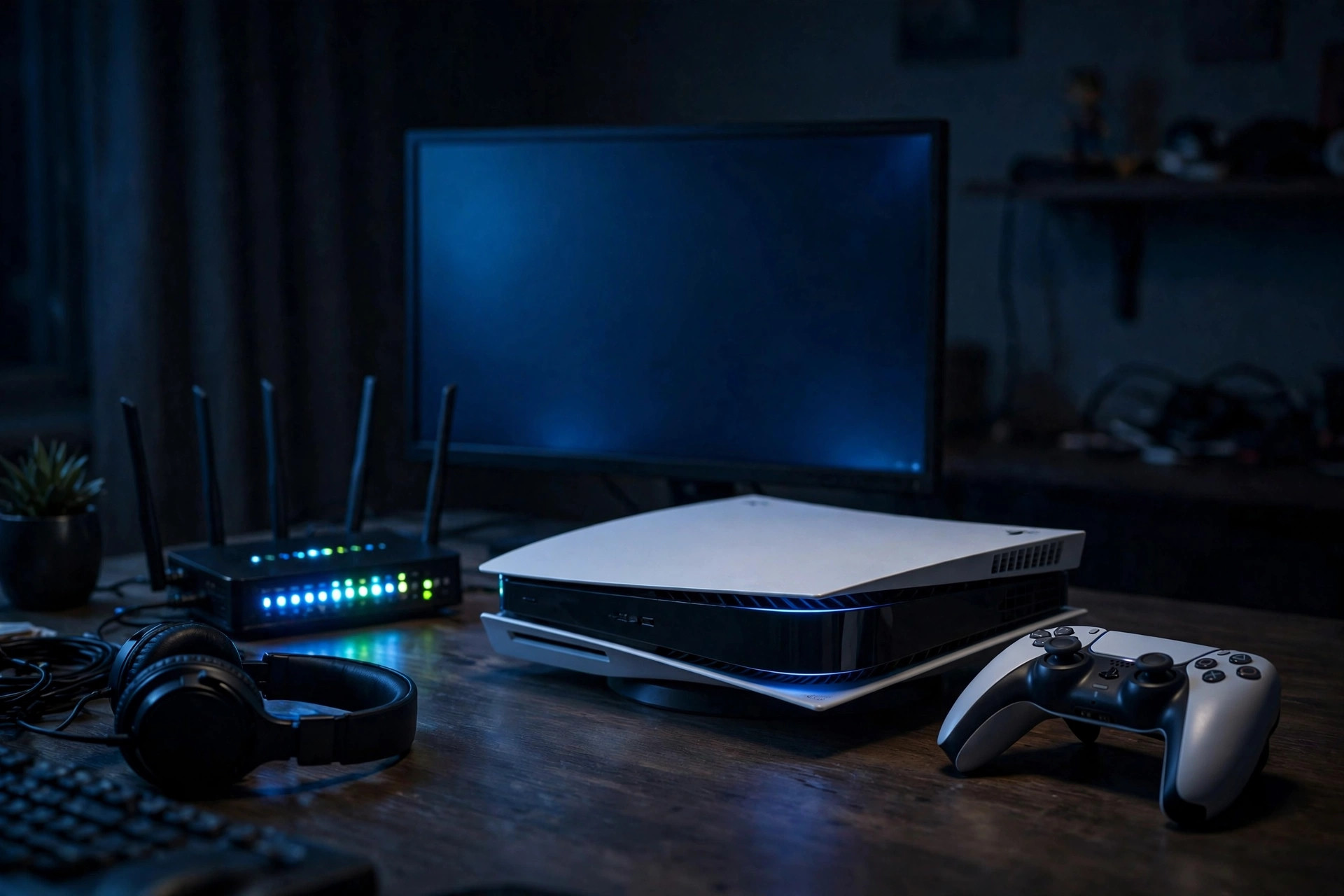
If you play online games, you have probably seen the words Strict NAT, Moderate NAT, or Type 3 NAT on your screen, usually right before voice chat fails, a lobby refuses to fill, or a friend cannot join your game. These problems are rarely caused by slow internet. More often, your router is blocking the incoming connections your console or PC needs, because routers are designed to keep unsolicited traffic out. Port forwarding is how you open exactly the right doors, for exactly the right game, without weakening your whole network.
This guide walks you through port forwarding step by step: how to give your console a fixed address, how to create the forwarding rule, and how to test it, with the real port numbers used by Xbox, PlayStation, and PC platforms.
What Is Port Forwarding?
Think of your router as a reception desk in a large office building. Your home has one public address, but inside there are many devices. When game data arrives from the internet, the router needs to know which device it belongs to. Outgoing traffic is easy, because the router remembers what each device requested. Incoming traffic that nobody requested, such as another player trying to connect directly to your console to join your hosted game, has no instructions, so the router drops it.
Port forwarding is a standing instruction you give the router: whenever traffic arrives on a specific numbered port, send it to a specific device on your network. Ports are simply numbered channels, from 1 to 65535, that different services use. Web traffic uses port 80 and 443, while games each use their own set. Your NAT type is a summary of how open your setup is. Open NAT (Type 1 or Type 2) means connections flow freely and gaming works best. Strict NAT (Type 3) means your device can only connect to players with Open NAT, which causes the matchmaking and voice chat problems gamers know well. Port forwarding moves most home setups from Strict to Open.
Before You Start: Information You Need
Gather three things before you touch any settings. First, the IP address of your gaming device, from its network settings. Second, the exact ports your game or console requires, listed below. Third, your router’s admin address and login, usually 192.168.1.1 or 192.168.0.1 with details on the router sticker.
- Xbox consoles and Xbox Live: TCP and UDP ports 3074, plus UDP 88, 500, 3544, and 4500, and TCP 53.
- PlayStation consoles and PlayStation Network: TCP ports 80, 443, 3478, 3479, and 3480, plus UDP ports 3478, 3479, and 49152 to 65535 for voice and game traffic. The commonly cited core range is UDP and TCP 3478 to 3480.
- Steam: UDP 27015 to 27030 and TCP 27014 to 27050 for downloads and client traffic, plus UDP 27000 to 27100 for game servers.
- Popular individual games: Minecraft Java Edition uses TCP 25565; Call of Duty titles generally rely on the Xbox or PlayStation platform ports above on console, and UDP 3074, 27014 to 27050 on PC.
Always check the game publisher’s support page for your exact title, because ports change between editions. Microsoft publishes its own list in the Xbox network ports guide on the official Xbox support site, and it is the safest reference for Xbox forwarding.
Step 1: Give Your Console or PC a Static IP Address
Port forwarding points traffic at one specific local IP address, so that address must never change. By default, your router hands out addresses automatically with DHCP, and your console’s address can change after every restart, silently breaking your forwarding rule. Fix this first with one of two methods.
The easiest and most reliable method is a DHCP reservation inside the router. Find the DHCP or LAN settings page, locate your console in the connected devices list, and reserve its current address permanently. The router will then always give that device the same address. The alternative is a manual static IP set on the console itself: on PlayStation, go to Settings, Network, Set Up Internet Connection, then Custom, and enter an address outside the router’s automatic range, such as 192.168.1.150, with subnet mask 255.255.255.0, gateway 192.168.1.1, and DNS of your choice. On Xbox, the equivalent is in Settings, General, Network Settings, Advanced Settings, IP Settings, Manual. Choose one method, not both, to avoid address conflicts.
Step 2: Create the Port Forwarding Rule
Logging In and Finding the Right Menu
Open your browser, go to your router’s admin address, and log in. The port forwarding page hides under different names: Port Forwarding or Virtual Servers on TP-Link, Port Forwarding under Advanced Setup and WAN Services on Netgear, Port Forwarding under WAN on ASUS, and Port Forwarding in the Advanced settings of many ISP hubs. If you see a section called NAT, that is the right neighborhood.
Entering the Rule
Click Add New or Create Rule. You will be asked for a service name, an external port or port range, a protocol, and an internal IP address. Name it clearly, for example Xbox-3074. Enter the external port, such as 3074, and if there is a separate internal port field, enter the same number. Select the protocol carefully: choose TCP, UDP, or Both exactly as the game requires, because forwarding the wrong protocol does nothing. In the internal IP field, type the static address you set for your console, such as 192.168.1.150. Save the rule, then repeat for each additional port or range. Apply the settings and restart the router if it asks you to.
Step 3: Test Your NAT Type and Connection
Reconnect your console and run its built-in network test. On PlayStation, go to Settings, Network, Test Internet Connection, and look at the NAT Type line: Type 2 is the normal, healthy result for a home router with forwarding in place. On Xbox, go to Settings, General, Network Settings, and run Test NAT Type; you want to see Open. If it still shows Strict or Moderate, restart both the console and router once, then test again, because some routers only apply rules cleanly after a full reboot. Also test a real game: join a friend’s lobby and try voice chat, since those are the features Strict NAT breaks first.
For more home network walkthroughs like this one, browse the tutorials at NetworkUstad networking and Wi-Fi guides.
Port Forwarding Not Working?
The most common cause of failure is double NAT: your router sits behind an ISP gateway that is also routing, so the outer box never passes traffic inward. Fix it by putting the gateway into bridge or modem-only mode. The second cause is CGNAT, where your provider shares one public IP among many customers; if your router’s WAN address starts with 100.64 to 100.127, forwarding cannot work until you ask your provider for a public IP. Other culprits are forwarding to the wrong address after skipping the static IP step, choosing TCP when the game needs UDP, and Windows Firewall blocking the game on PC.
Common Mistakes and Safety Tips
- Forwarding huge port ranges. Never forward ranges like 1 to 65535. Every open port is a door; open only the exact ports a game documents.
- Using DMZ as a shortcut. Placing a PC in the router’s DMZ exposes it completely. DMZ is a last resort for a console only, never for a Windows PC.
- Leaving UPnP on alongside manual rules. UPnP opens ports automatically and can conflict with manual rules. For a single gaming device, either use UPnP alone or switch it off and forward manually; manual rules are the more controlled option.
- Forgetting the rule afterwards. When you stop playing a game or replace your console, delete its old forwarding rules to keep your network tidy and safe.
- Forwarding remote desktop or camera ports. This guide is for games. Never forward ports for remote access tools or cameras without understanding the serious security risks involved.
Conclusion
Port forwarding sounds technical, but the process is really three simple ideas: give your console an address that never changes, tell the router which numbered ports belong to that address, and test the result with the console’s NAT check. Done correctly, you get Open NAT, faster matchmaking, working voice chat, and friends who can always join your games. Done carelessly, with giant ranges or a DMZ on a PC, it weakens your network, so follow the exact port lists from Microsoft, Sony, or your game publisher, and remove rules you no longer need. Ten careful minutes in your router settings can permanently fix the most frustrating problem in online gaming.
Frequently Asked Questions
Is port forwarding safe for gaming consoles?
Yes, when you forward only the documented ports to a console. Consoles run a closed system with no extra services listening on those ports, so the practical risk is very low. The risk rises sharply if you forward wide ranges or point rules at a PC running other software.
What is the difference between port forwarding and UPnP?
UPnP lets devices open ports automatically whenever they ask, which is convenient but gives you no control or record of what was opened. Manual port forwarding opens only the ports you choose, permanently, for one device. Many gamers disable UPnP and forward manually for predictability.
Why does my NAT still show Strict after forwarding?
Usually because of double NAT from an ISP gateway in front of your router, or because your provider uses CGNAT. Check whether your router’s WAN address is a private address or in the 100.64 range. Fix double NAT with bridge mode, and ask your provider about a public IP if you have CGNAT.
Which ports should I forward for PlayStation and Xbox?
For Xbox, start with TCP and UDP 3074, the core Xbox Live port. For PlayStation, forward TCP 3478, 3479, and 3480 plus UDP 3478 and 3479. Then add any extra ports your specific game lists in its support documentation.
Do I need port forwarding if my NAT is already Open?
No. If your console already reports Open NAT or Type 2 and you can join games and use voice chat without problems, your router and UPnP are already handling everything. Forwarding more ports would add exposure without improving anything.



Leave a Reply