
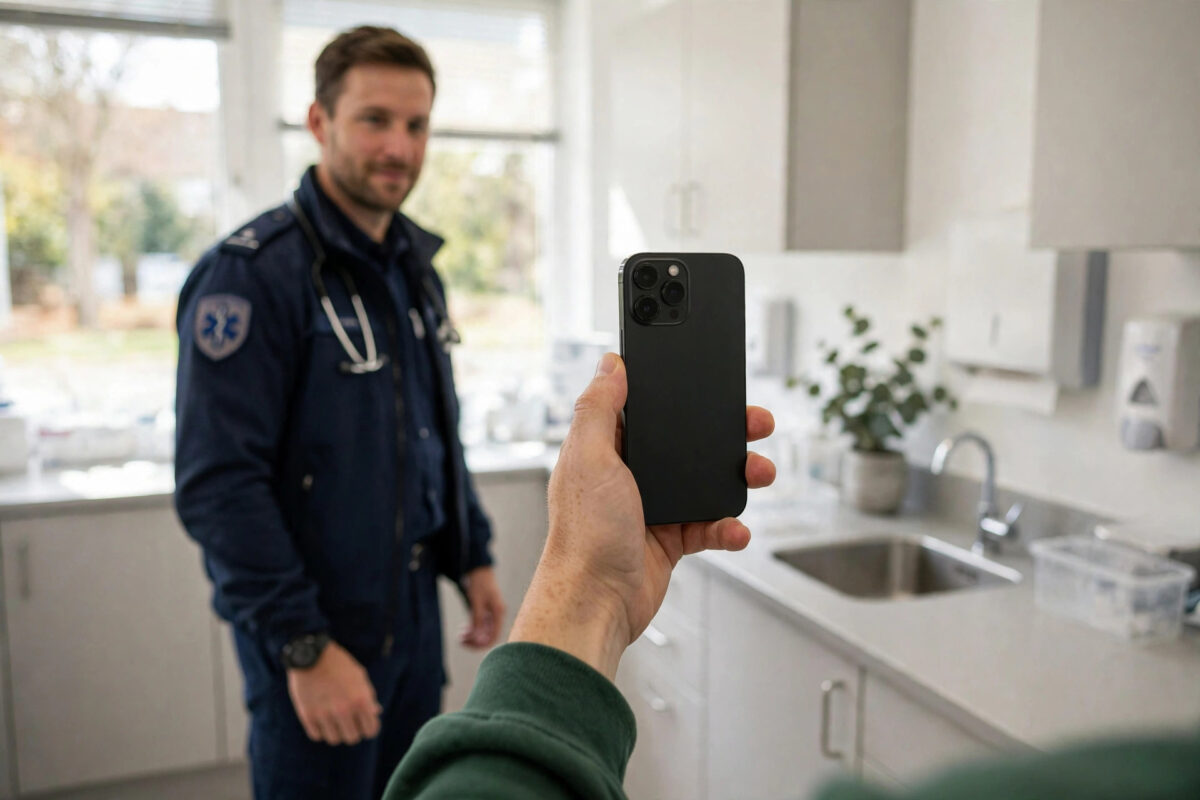
Your iPhone can speak for you when you cannot speak for yourself. Medical ID is a built-in health profile that shows your allergies, conditions, medicines, blood type, and emergency contacts on the lock screen, without anyone needing your passcode. Paramedics, doctors, and helpful strangers can open it in seconds during an emergency.
Many people buy an iPhone, set up Face ID, and never visit the Health app again. That means this life-saving page stays blank. Setting it up takes about five minutes, and you only need to do it once. In this guide you will learn exactly how to create your Medical ID, control what it shows, test it from your lock screen, and keep it accurate on iOS 27.
Quick Answer
To set up Medical ID on iPhone, open the Health app, tap your profile photo, tap Medical ID, then tap Edit and add your conditions, allergies, medicines, blood type, and emergency contacts. Turn on Show When Locked and Emergency Access, then tap Done. Anyone can then view it from the lock screen by swiping up, tapping Emergency, and tapping Medical ID.
What Is Medical ID and Why Does It Matter?
Medical ID is part of the Health app on every iPhone. It is not a full medical record. It is a short, focused summary designed for the first few minutes of an emergency, when clear information matters most.
First responders are trained to look for it. If you are unconscious, confused, or unable to unlock your phone, they can still learn that you are allergic to penicillin, take blood thinners, or have a heart condition. They can also call your emergency contact without guessing who that person should be.
What Information Can Medical ID Show?
- Your name, photo, date of birth, height, and weight
- Medical conditions such as asthma, diabetes, epilepsy, or heart disease
- Allergies and reactions, including medicine and food allergies
- Current medicines and doses
- Blood type and whether you are an organ donor
- Emergency contacts with their relationship to you
- Notes, such as a pacemaker, hearing aids, or a preferred hospital
You choose every detail. Nothing appears unless you type it in, and you can leave any field blank. If privacy worries you, add only the most important items, such as serious allergies and one trusted contact.
How to Set Up Medical ID Step by Step
There are two easy ways to reach Medical ID: through the Health app and through Settings. The Health app method is the clearest for a first-time setup on iOS 27.
Method 1: Using the Health App
- Unlock your iPhone and open the Health app. It has a white icon with a red heart.
- Tap your profile photo or initials in the top corner of the screen.
- Tap Medical ID from the list under your name.
- Tap Edit in the top corner. If this is your first time, you may see a Get Started button instead.
- Add your photo, date of birth, and basic details at the top.
- Scroll down and fill in Medical Conditions, Medical Notes, Allergies and Reactions, and Medications. Tap each field and type clearly.
- Add your blood type, organ donor choice, weight, and height.
- Scroll to Emergency Contacts and tap Add Emergency Contact. Pick a person from your contacts and choose their relationship, such as spouse, parent, or friend.
- Turn on Show When Locked and Share During Emergency Call if you want the information available in a crisis.
- Tap Done to save everything.
Method 2: Using Settings
- Open Settings and scroll down to Health.
- Tap Medical ID.
- Tap Edit and complete the same fields as above.
- Check your emergency contacts and lock screen options, then tap Done.
Both methods edit the same profile. Use whichever app you already have open. After saving, test the result right away so you know it works before you ever need it.
How to Test Medical ID From Your Lock Screen
A Medical ID that cannot be found is not useful. Testing takes less than a minute and shows you exactly what a stranger would see.
- Lock your iPhone by pressing the side button.
- Wake the screen and swipe up as if you were going to enter your passcode.
- Tap Emergency in the corner of the passcode screen.
- Tap Medical ID at the bottom of the emergency call screen.
- Read through the page. Check names, phone numbers, spelling, and medicine doses.
If Medical ID does not appear, go back to the Health app and confirm that Show When Locked is turned on. Also make sure you tapped Done after editing, because leaving the screen without saving can lose your changes.
How to Add and Manage Emergency Contacts
Your emergency contacts deserve special care. These are the people a hospital or responder will call first, so pick people who usually answer their phone and who know your health situation.
You can add more than one contact. Many people add a partner first, then a parent, sibling, or close friend as a backup. Make sure each person is saved in your Contacts app with a correct, current number. Medical ID pulls the number from Contacts, so an old number there means an old number in an emergency.
If you use Emergency SOS, your iPhone can also notify these contacts after an emergency call ends and share your location for a period of time. You can learn how that calling feature works in our guide on how to turn on Emergency SOS on iPhone for quick help.
What to Write in Each Field
Clear, simple wording works best. Responders scan this page quickly, often in poor light or a noisy place. Short facts beat long stories.
Good Examples
- Conditions: Type 2 diabetes, Asthma, High blood pressure
- Allergies: Penicillin – rash and breathing difficulty; Peanuts – severe
- Medicines: Metformin 500 mg twice daily; Blue inhaler as needed
- Notes: Wears hearing aids. Has pacemaker. Prefers St Mary’s Hospital if possible.
Avoid vague words like “some tablets” or “a few allergies.” Name the medicine, the dose, and how often you take it. If a dose changes, update Medical ID on the same day you update your pill box or prescription list.
Apple explains the official setup and sharing options in its guide on setting up and viewing your Medical ID on iPhone, which is worth reading if you want to check a detail against Apple’s own wording.
Privacy: Who Can See Your Medical ID?
Show When Locked means anyone holding your phone can read the page from the lock screen. That is the point of the feature, but it is still your choice. Your full Health app data, messages, photos, and other apps stay locked and private. Only the Medical ID page you created is visible.
Share During Emergency Call is separate. When it is on and you make an emergency call or use Emergency SOS, your iPhone can send your Medical ID to emergency services where that service is supported. If you prefer, you can leave lock screen access on and turn this sharing option off.
Think about balance. For most people, a serious allergy and an emergency contact are worth showing. If a detail feels too private and is not urgent for first aid, you can leave it out.
Common Mistakes to Avoid
- Leaving Medical ID blank: A blank page helps no one. Even two or three key facts are better than nothing.
- Forgetting Show When Locked: Without it, responders cannot see the page without your passcode.
- Using old phone numbers: Check your contacts’ numbers after they change phones.
- Listing medicines without doses: A name alone can confuse. Add the dose and timing.
- Never updating it: New conditions, new medicines, and new allergies should be added promptly.
- Adding jokes or nicknames: Use real names and clear relationships so a stranger understands instantly.
- Not testing it: Always view the finished page from your own lock screen at least once.
Helpful Tips for Keeping It Accurate
Set a simple routine. Update Medical ID whenever your prescription changes, when you get a new diagnosis, or when an emergency contact changes their number. Many people check it at the start of each year alongside other phone settings.
If you help parents or older relatives with their phones, offer to set up their Medical ID as well.
Conclusion
Medical ID turns your iPhone into a clear, calm helper in a stressful moment. Open the Health app, add your key conditions, allergies, medicines, blood type, and trusted contacts, turn on Show When Locked, and test the page from your lock screen. Keep it short, accurate, and up to date. Those few minutes of setup today could give responders exactly the information they need tomorrow.
Frequently Asked Questions
Can anyone see my Medical ID without my passcode?
Yes, if Show When Locked is on. Anyone can open it from the Emergency screen on your lock screen. They cannot open your other apps or your full health records from there.
Does Medical ID work if my iPhone battery is low?
It works while the phone has power and can show the lock screen. If the phone is fully off or the battery is empty, it cannot be viewed, so it should not replace a medical alert card or bracelet.
Can I add more than one emergency contact?
Yes. You can add several contacts and choose each person’s relationship to you. Add at least two people if you can, in case the first person does not answer.
Will my Medical ID be shared when I call emergency services?
Only if Share During Emergency Call is turned on and the service is supported in your area. You can control this switch separately in the Medical ID edit screen.
How often should I update my Medical ID?
Update it whenever your medicines, conditions, allergies, or contacts change. A quick review every six to twelve months is a good habit even if nothing has changed.



[…] you have not created that health profile yet, follow our full walkthrough on how to set up Medical ID on iPhone for emergencies and then return to check your SOS switches. The two features are designed to work […]