
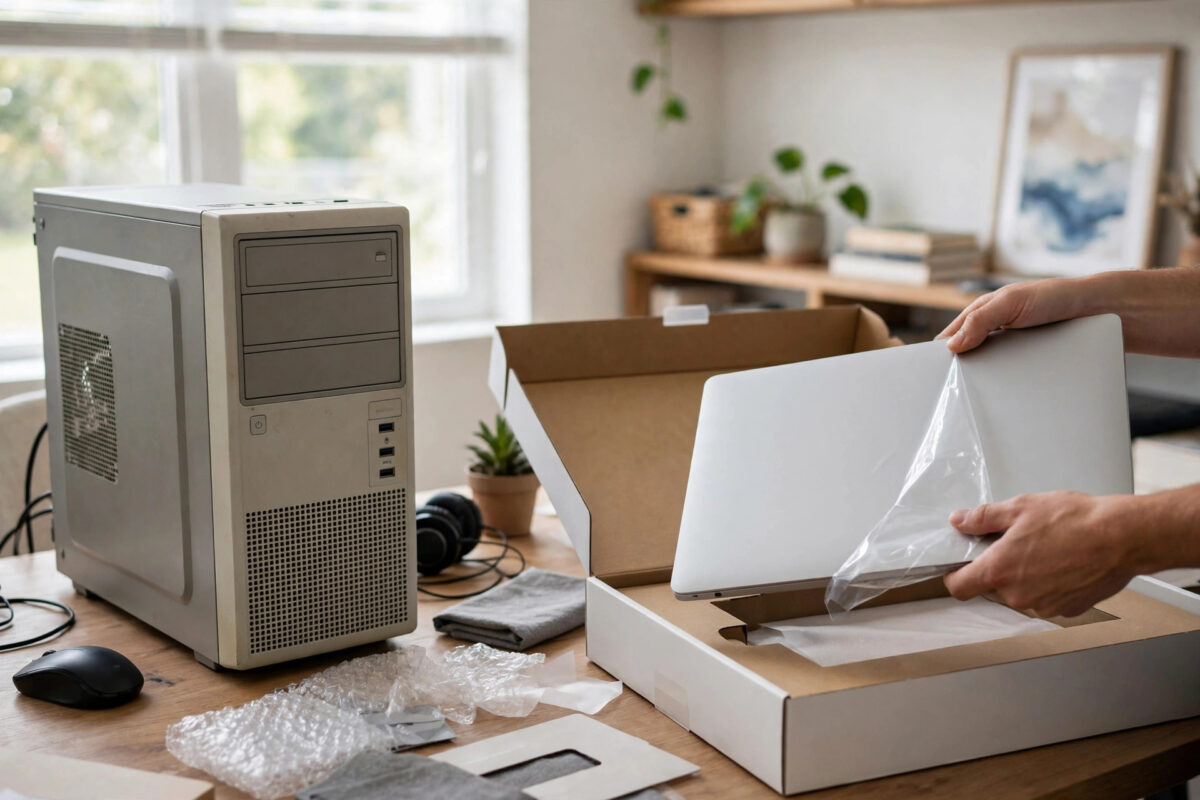
Google’s new Googlebook laptops are aimed squarely at Windows users who are tired of updates, slowdowns, and maintenance. The hardware is simple, the system is built around your Google account and the web, and setup takes minutes. The bigger question for most buyers is not the laptop itself — it is how to get years of files off the old Windows PC and into the new machine safely.
This guide covers both halves: first-time Googlebook setup, step by step, and the four sensible ways to move your files from Windows, with honest advice on which suits you.
Quick Answer
To set up a new Googlebook, connect it to Wi-Fi, sign in with your Google account, and let it update itself — that is genuinely most of the setup, because your settings, bookmarks, and apps follow your account. To move files from a Windows PC, the easiest route is Google Drive: upload your Documents, Pictures, and Desktop folders from the Windows PC, then sign in on the Googlebook and download or work on them in place. For very large collections, copy files to a USB drive or external disk instead. Do the transfer before you wipe or sell the Windows machine, and verify your most important folders open correctly on the Googlebook first.
First-Time Setup, Step by Step
- Unbox and charge. Plug in the charger first; setup plus updates is not the moment to run on battery.
- Power on and pick your language and keyboard layout.
- Connect to Wi-Fi. Use your main home network — setup downloads updates, and a phone hotspot will suffer.
- Sign in with your Google account. This is the heart of a Googlebook: your account is your user profile. If you use two-factor authentication, have your phone nearby.
- Accept the update check. The laptop will find and install system updates. Let it finish and restart if asked.
- Review the suggested apps and services — install what you recognise, skip the rest. Nothing here is compulsory, and everything can be added later.
- Set a screen lock (PIN or fingerprint if offered) so the laptop locks when you walk away.
- Open the Files app and the browser to confirm your bookmarks, passwords, and Drive contents are present.
That is the whole job. There are no drivers to install, no antivirus to choose, and no two-hour update marathon — the contrasts with Windows setup are deliberate, and they are the product’s main selling point.
Moving Your Files: Four Methods Compared
Method 1: Google Drive (best for most people)
On the Windows PC, open drive.google.com in the browser (or install Google Drive for desktop) and upload your key folders: Documents, Pictures, Desktop, and any project folders. On the Googlebook, the same files are already visible in the Files app under Google Drive. You can work on them directly from Drive or download copies for offline use. The limit is your Drive storage — the free tier fills quickly if you have years of photos.
Method 2: USB drive or external disk (best for large libraries)
Copy your folders to a USB stick or external hard drive from the Windows PC, plug the drive into the Googlebook, and drag the files into its local storage or your chosen folders. Slow but simple, free at any size, and it leaves the external drive as a backup afterwards.
Method 3: Home network sharing (best for the technically comfortable)
If both machines are on your home Wi-Fi, you can share a Windows folder on the network and connect to it from the Googlebook’s Files app. Speeds are good and nothing leaves your house, but Windows sharing settings can be fiddly the first time.
Method 4: Direct cable transfer tools
Some migration tools promise one-cable copying between computers. They work, but for a Googlebook the cloud and USB routes are so simple that a third-party tool is rarely worth installing. Google documents the standard options in its official support pages for new devices, and the methods above follow that same account-and-Drive approach.
What Will Not Move — and What to Do About It
- Windows programs: .exe software does not run on a Googlebook. For each essential program, find its web version (most major tools have one) or an equivalent app before you retire the PC.
- Outlook data files and niche formats: export mail to your Google account or convert documents to standard formats on the Windows side, while you still can.
- Game libraries: PC games stay behind unless they are streamed. Cloud gaming services run in the browser if your connection is strong.
- Printer and scanner drivers: most modern printers work over Wi-Fi with a Googlebook automatically; very old USB-only models may not.
The honest way to handle this list: keep the Windows PC switched on and available for the first month. Migrate in comfort, and deal with stragglers as they appear — much like the staged approach in our guide to moving everything to a new phone, the rule is “verify on the new device before retiring the old one.”
Your First Week: Habits That Make the Switch Stick
Most failed migrations fail socially, not technically: the new laptop sits unused because one familiar thing was missing. Spend the first week deliberately living on the Googlebook — mail, documents, browsing, video calls — and keep a small note of every task that sends you back to the Windows PC. At the end of the week, work through that list one item at a time: find the web version, move the missing file, learn the new shortcut. In practice the list is always shorter than feared, and closing it out is what turns the Googlebook from “the new laptop” into simply your laptop.
Common Mistakes and Useful Tips
Wiping the Windows PC on day one. The classic migration disaster. Keep the old machine intact for at least two weeks after the move.
Uploading everything to Drive “just in case”. You will hit your storage limit and clutter your new laptop with junk from 2016. Move what you use; archive the rest on the external drive.
Forgetting the Downloads and Desktop folders. People hide surprising amounts of important stuff in both. Check them explicitly — they are where the missing contract or photo always turns out to be.
Using a brand-new Google account. If your bookmarks, passwords, and Drive live under an existing account, sign in with that one. A fresh account makes the new laptop feel empty for no reason.
Conclusion
A Googlebook sets itself up around your Google account in minutes, and your files follow by Drive, USB, or home network — whichever matches the size of your collection. Choose the method, copy carefully, verify your important folders on the new machine, and only then think about retiring the Windows PC. Migration done in that order is boring, and boring is exactly what you want.
Frequently Asked Questions
How long does it take to set up a Googlebook?
Basic setup — Wi-Fi, sign-in, updates — takes about 10 to 20 minutes. The file transfer is the variable part: a few gigabytes over Google Drive might take half an hour, while a huge photo library on USB can take an afternoon.
Can I run Microsoft Office on a Googlebook?
You can use the web versions of Word, Excel, and PowerPoint through your browser, and Google Docs, Sheets, and Slides open Office files directly. The full Windows desktop Office programs do not install on a Googlebook.
What if my files are bigger than my Google Drive space?
Use a USB drive or external hard disk for the bulk transfer, and keep Drive for the documents you actively work on. Alternatively, upgrade Drive storage for a single month, complete the migration, and downgrade afterwards.
Do I need an internet connection to use a Googlebook?
Setup and sign-in need the internet, and many services are web-based, but documents and files you download for offline use work without a connection. Plan ahead before a flight by downloading what you need.
Should I reset my Windows PC after moving?
Only after you have verified everything important works on the Googlebook and you have a backup (the external drive you used for the transfer makes a good one). When you do retire it, use Windows’ own reset option and choose the data-wiping setting if the machine is leaving your home.



Leave a Reply