
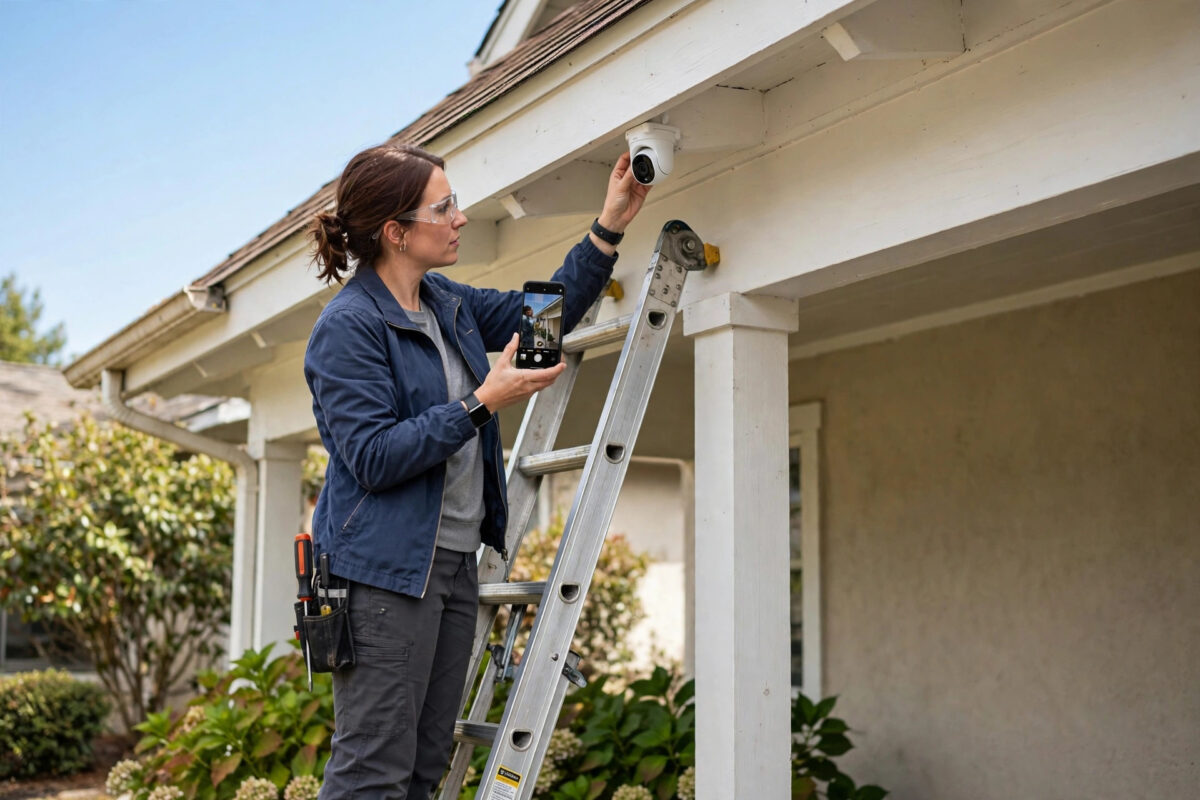
Connecting a security camera to your phone means you can check your front door, driveway, or baby’s room from anywhere in the world — and get an alert the moment something moves. The setup is genuinely simple with modern Wi-Fi cameras from brands like Ring, Tapo, Blink, Eufy, Arlo, and Reolink: almost all of them follow the same pattern of app, account, QR code, and Wi-Fi password. This guide takes you through the whole process, explains the settings that matter for reliable alerts, and fixes the problems that stop cameras connecting.
Quick Answer
Install the camera brand’s app, create an account, plug the camera in, tap “Add device” in the app, scan the QR code on the camera (or let the camera scan the QR code the app shows), and enter your 2.4GHz Wi-Fi password. Position the camera, then set motion detection zones and notification preferences in the app. Most cameras are live on your phone within ten minutes.
Before You Start
- Check your Wi-Fi band: The large majority of security cameras connect to 2.4GHz Wi-Fi only. If your router merges both bands under one name, most cameras still cope; if yours refuses, temporarily split the bands in the router settings or use the router’s guest 2.4GHz network for setup.
- Strong signal at the camera’s spot: Stand where the camera will go and check your phone shows at least two bars of Wi-Fi. Walls and metal doors eat signal; if the reading is weak, plan on a mesh node or extender nearby.
- Power: Plug-in cameras need a socket within cable reach. Battery cameras should be fully charged before mounting — most take four to six hours for the first charge.
- A microSD card (optional): If the camera supports local recording and you do not want a cloud subscription, insert a card (usually up to 128GB or 256GB, class 10) before you mount the camera.
Step-by-Step: Connecting the Camera
- Download the right app: Tapo for TP-Link Tapo cameras, Ring for Ring, Blink Home Monitor for Blink, Eufy Security for Eufy, Arlo Secure for Arlo, Reolink for Reolink. The correct app name is printed on the box and in the manual — third-party apps cannot set these cameras up.
- Create an account and verify your email. Turn on two-factor authentication straight away in the account settings; a camera account is worth protecting.
- Power up the camera and wait for its status light to blink (usually red or blue), which means it is in pairing mode. If it does not blink, hold the reset button — typically for 5–10 seconds — until it does.
- Tap Add Device (+) in the app and select your camera model from the list.
- Scan or show the QR code: Some apps ask you to scan the code printed on the camera with your phone; others display a QR code on your phone that you hold 15–20cm in front of the camera lens until you hear a beep or a voice prompt.
- Enter your Wi-Fi password carefully — this is the step where most setups fail. Passwords are case-sensitive; a single wrong character gives a vague “connection failed” message.
- Name the camera by location (“Front Door”, “Garden”, “Garage”) and choose its room if the app asks. Clear names make notifications and voice-assistant commands far easier later.
- Update the firmware when the app offers it, before you mount the camera. Updates regularly fix connection and detection bugs.
Settings to Configure Once It Is Live
Motion Detection and Zones
Out of the box, most cameras alert on any movement, including trees and passing cars. Draw activity zones over only the areas you care about — the path, the door, the driveway — and set sensitivity to medium. Cameras with person detection (often called AI or smart detection) should have “person” alerts on and “all motion” alerts off, or your phone will buzz all day. If your camera specifically drops offline after dark, our guide on why CCTV cameras lose connection at night covers the infrared and power causes.
Recording and Storage
Choose between continuous recording (needs a subscription or a hub on most systems), motion-only clips, or local microSD recording. Set clip length to at least 20–30 seconds so events are not cut off mid-action, and enable the free cloud trial only if you plan to keep it — note when it expires.
Sharing Access
Every major app lets you invite family members with their own logins (look for “Share device” or “Family” in settings). Always share this way rather than giving out your password, so you can revoke access later.
Notifications
Allow notifications for the app in your phone’s system settings, and exempt the app from battery optimisation on Android (Settings > Apps > your camera app > Battery > Unrestricted) — aggressive battery savers are the top reason alerts arrive late. The camera manufacturers’ own help centres, such as the TP-Link support site for Tapo models, list per-model LED meanings if your camera’s light pattern does not match the app’s description.
Troubleshooting Connection Failures
- “Cannot connect to Wi-Fi”: Confirm you are using the 2.4GHz band, retype the password, move the camera within three metres of the router for setup (you can relocate it afterwards), and restart the router.
- QR code will not scan: Raise your phone’s brightness to maximum, clean the camera lens, and hold the phone steady 15–20cm away, moving slowly closer if it does not beep.
- Camera connects then drops offline: The signal at its final position is too weak, or the router is kicking it off. Check the app’s signal-strength readout (aim for “good” or above −65 dBm), and give the camera a fixed IP in the router’s DHCP reservations.
- App says the camera is bound to another account: Common with second-hand cameras. Hold the reset button for a full factory reset, or contact the brand’s support with proof of purchase.
Common Mistakes to Avoid
- Mounting before testing: Always complete setup and check the live view at ground level first — drilling holes for a camera that cannot hold a signal wastes an afternoon.
- Pointing the camera through glass: Infrared night vision reflects off windows and blinds the camera after dark. Mount outside the glass or disable IR and rely on external lighting.
- Leaving the default privacy settings: Turn on two-factor authentication and set a strong, unique password; cameras are prime targets for credential stuffing.
- Aiming at the street with full sensitivity: You will get hundreds of useless alerts and quickly start ignoring the important ones.
Conclusion
Connecting a security camera to your phone is a ten-minute routine — app, account, QR code, Wi-Fi password — provided your network is ready: a reachable 2.4GHz signal and the correct password do most of the work. The real craft is in the follow-up settings: tight motion zones, person-only alerts, and an app exempt from battery saving. Get those right and the camera quietly does its job, pinging you only when something actually matters.
Frequently Asked Questions
Do security cameras work on 5GHz Wi-Fi?
Most budget and mid-range cameras are 2.4GHz only. A few dual-band models from Ring, Arlo, and Reolink support 5GHz. Check the specification for “dual band” before buying if 5GHz matters to you; 2.4GHz actually reaches further outdoors.
Can I view my camera when I am away from home?
Yes. As long as the camera is online and your phone has mobile data or Wi-Fi, the app streams from anywhere. No port forwarding or technical setup is needed with the major brands.
Do I need a subscription for the camera to work?
No — live viewing and motion alerts are free on virtually all cameras. Subscriptions add cloud video history, richer notifications, and person/package recognition. Cameras with microSD slots can record locally without any subscription.
Why are my motion alerts delayed?
Usually the phone’s battery optimisation is putting the app to sleep. Set the camera app’s battery usage to “Unrestricted” on Android or enable Background App Refresh on iPhone, and keep the app updated.
How many cameras can I add to one app?
There is no practical limit for home use — most apps happily manage a dozen or more cameras per account, and you can group them by home or property.



[…] same tuning principles apply to full-size cameras; our guide on connecting a security camera to your phone goes deeper on zones and notification […]
[…] daily even in weak winter sun), or switch a problem position to a wired or PoE camera. Our guide on connecting a security camera to your phone covers which camera types suit which positions, so repeat offenders can be re-planned rather than […]