
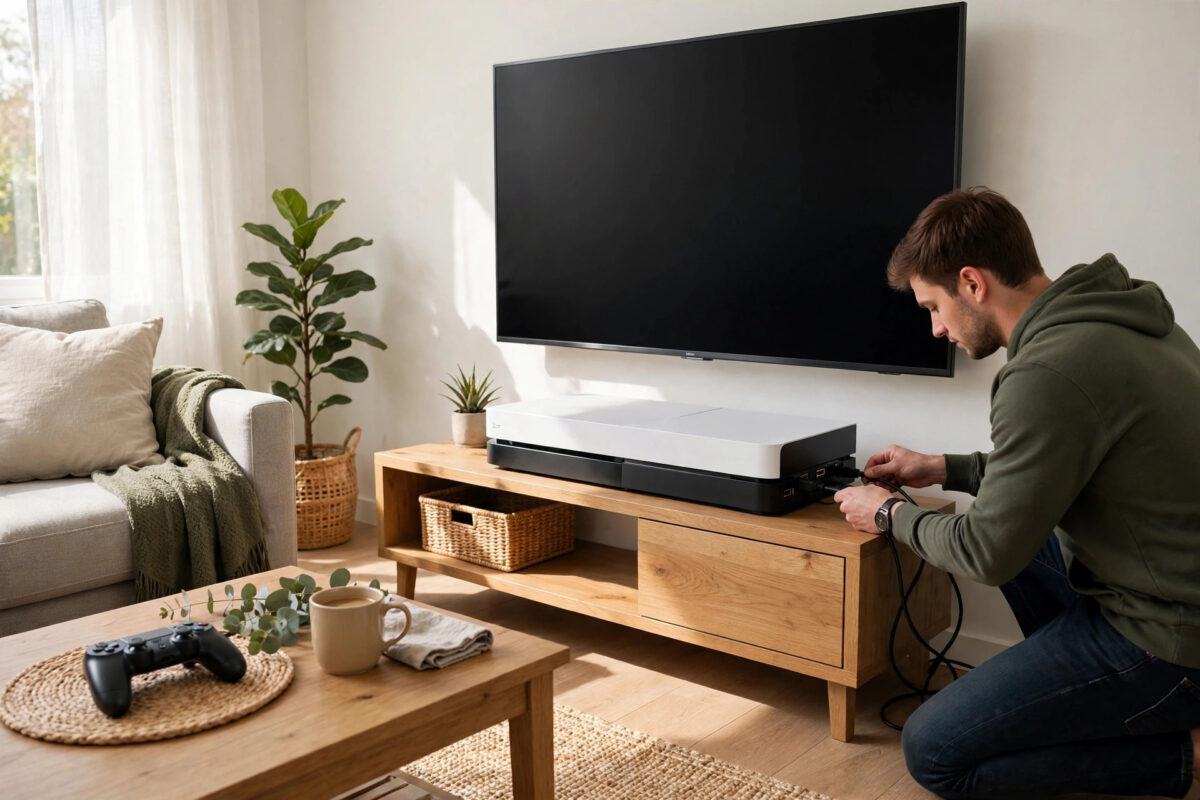
Unboxing a new PS5 is exciting, but the first setup decides how smooth everything runs afterwards. A rushed setup can leave you with the wrong language, a weak Wi-Fi connection, or games installing to the wrong place. This guide walks you through the complete first-time setup in plain order, from plugging in the cables to the settings worth changing before you play your first game.
Quick Answer
Place the PS5 with space around it for airflow, connect the HDMI cable to your TV and the power cable to the wall, then turn it on and pair the DualSense controller with the USB cable. Follow the on-screen steps to pick your language, connect to Wi-Fi, sign in to PlayStation Network, and install the latest system update. Before playing, set your resolution, turn on Rest Mode downloads, and adjust privacy settings. The whole process takes about 20 to 30 minutes.
What You Need Before You Start
Everything required is already in the box, but having a few extras ready makes the setup faster and avoids stopping halfway through.
- The PS5 console, DualSense controller, HDMI cable, power cable, and USB-C charging cable from the box
- A TV or monitor with an HDMI port (HDMI 2.1 is best for 4K 120Hz gaming, but any HDMI port works)
- Your Wi-Fi network name and password, or an Ethernet cable for a wired connection
- An email address for your PlayStation Network account
- Roughly 30 minutes of free time, because the first system update can be large
Step 1: Position the Console Safely
The PS5 pulls air in through its vents and pushes warm air out, so where you place it matters more than most people think. Leave at least 10 cm (about 4 inches) of clear space on all sides, and never place it inside a closed cabinet while playing. If you stand it upright, attach the included base hook so it sits level. If you lay it flat, clip the base onto the marked points on the side panel. Keep it away from radiators, direct sunlight, and soft surfaces like beds or thick carpets that block airflow.
Step 2: Connect the Cables
- Plug one end of the HDMI cable into the HDMI OUT port on the back of the PS5 and the other end into an HDMI port on your TV. Note the port number, because you will need to select it on the TV.
- Connect the power cable to the back of the console and directly into a wall socket. Avoid cheap extension leads if you can, as consoles draw a lot of power.
- If you have an Ethernet cable, plug it into the LAN port on the back now. A wired connection is faster and more stable than Wi-Fi for big game downloads.
- Switch your TV to the correct HDMI input using the Source or Input button on the TV remote.
Step 3: Power On and Pair the Controller
Press the power button on the console. On the standard PS5 it is the long thin button near the top of the front panel; on the Digital Edition it is the only button. The console will beep and the light strip will glow blue, then white. The screen will ask you to connect the controller. Plug the USB-C cable into the DualSense and the other end into the front USB port of the PS5, then press the PS button in the centre of the controller. After a few seconds the controller is paired, and you can unplug the cable and use it wirelessly.
Step 4: Language, Display, and Internet Setup
The setup wizard now takes you through the basics:
- Choose your language and region. Pick the region where you actually live, because it controls which PlayStation Store you use and which offers you see.
- Adjust the screen area if the edges of the picture look cut off. Use the on-screen arrows until the corners fit neatly inside your TV screen.
- Connect to the internet. Pick your Wi-Fi network from the list and enter the password carefully, or confirm the wired connection if you plugged in Ethernet.
- Agree to the software licence terms so the setup can continue.
Step 5: Sign In or Create a PlayStation Network Account
A PlayStation Network (PSN) account is needed to download games, play online, and back up your saves. If you already have one from a PS4 or the PlayStation App, sign in with the same details so your games, friends, and trophies carry over. If you are new, choose the create account option and follow the prompts. You can also speed this up by scanning the QR code on screen with the PlayStation App on your phone. Our separate guide on creating a PlayStation Network account safely explains the password and security choices in more detail.
Step 6: Install the System Software Update
Almost every new PS5 needs a system update out of the box, and skipping it can block online features. Accept the update and let it download and install fully. The console will restart once or twice, which is normal. Do not unplug the power during this step. Sony publishes the current version details on the official PlayStation system software update page if you ever need to update manually with a USB drive instead.
Step 7: Transfer Data and Install Your First Games
If you are upgrading from a PS4, the setup offers to transfer your games and save data over your home network. Both consoles must be on and signed into the same account. If you skip this, you can still download everything again later from your library. Next, the home screen offers a few starter apps and games to install. Pick one or two and let them download while you finish the settings below, rather than filling the drive on day one.
Settings Worth Changing Right Away
Power and Rest Mode
Go to Settings, then System, then Power Saving. Set the time until the PS5 enters Rest Mode to one hour for media and three hours for games. Rest Mode lets downloads continue while the console sleeps and keeps the controller charging. Sony explains which features work while the console sleeps in its PlayStation guide to Rest Mode.
Privacy and Communication
Under Settings, then Users and Accounts, then Privacy, choose a preset such as Social and Open or Team Player. Set who can send you friend requests and messages. Doing this now stops random invites and spam messages later.
Notifications and Captures
In Settings, then Notifications, turn off pop-ups for things you do not care about, such as download progress for every small file. In Captures settings, you can shorten the recent gameplay recording length to save storage space.
Common First-Day Mistakes to Avoid
- Skipping the controller pairing cable step. Bluetooth pairing alone does not work on first boot; the USB cable connection is required once.
- Choosing the wrong account region. Your store and wallet funds are locked to the region you pick, so match it to where you live and where you will buy games.
- Blocking the vents. A PS5 pushed against a wall or stuffed into a TV unit will get loud and may overheat during long sessions.
- Downloading everything at once. The internal storage fills quickly. Install the games you will play this week and add the rest later.
- Leaving default privacy settings on. Two minutes in the privacy menu saves you from unwanted messages and visible activity.
Conclusion
A careful first setup takes under half an hour and pays off every time you switch the console on. Give the PS5 room to breathe, use a wired connection if you can, sign in with the correct region, install the system update, and tidy up the privacy and power settings before you start playing. After that, the console mostly looks after itself, and you can focus on the games.
Frequently Asked Questions
Do I need a PlayStation Network account to set up a PS5?
You can finish the basic setup without one, but you cannot download games, use the PlayStation Store, play online multiplayer, or back up saves to the cloud without an account. Creating one is free and takes a few minutes.
How long does the first PS5 setup take?
Around 20 to 30 minutes for most people. The biggest variable is the system software update, which depends on your internet speed. A PS4 data transfer can add significant time if you have a large library.
Should I connect my PS5 with Wi-Fi or an Ethernet cable?
Ethernet is better whenever it is practical. It gives faster downloads, lower ping in online games, and fewer dropouts. If you must use Wi-Fi, choose the 5 GHz band and keep the router reasonably close.
Can I change my PSN account region later?
No. The region is fixed when the account is created and cannot be changed afterwards. If you picked the wrong one, the only fix is a new account in the correct region, and store credit does not move between accounts.
Why does my PS5 ask to adjust the screen area?
Some TVs crop the edges of the picture slightly, a behaviour called overscan. The screen area adjustment makes sure menus and game interfaces sit fully inside the visible part of your TV screen.



[…] manages spending and communication. If you have just unpacked the console itself, our guide to setting up a PS5 for the first time covers where these menus sit during the first […]