
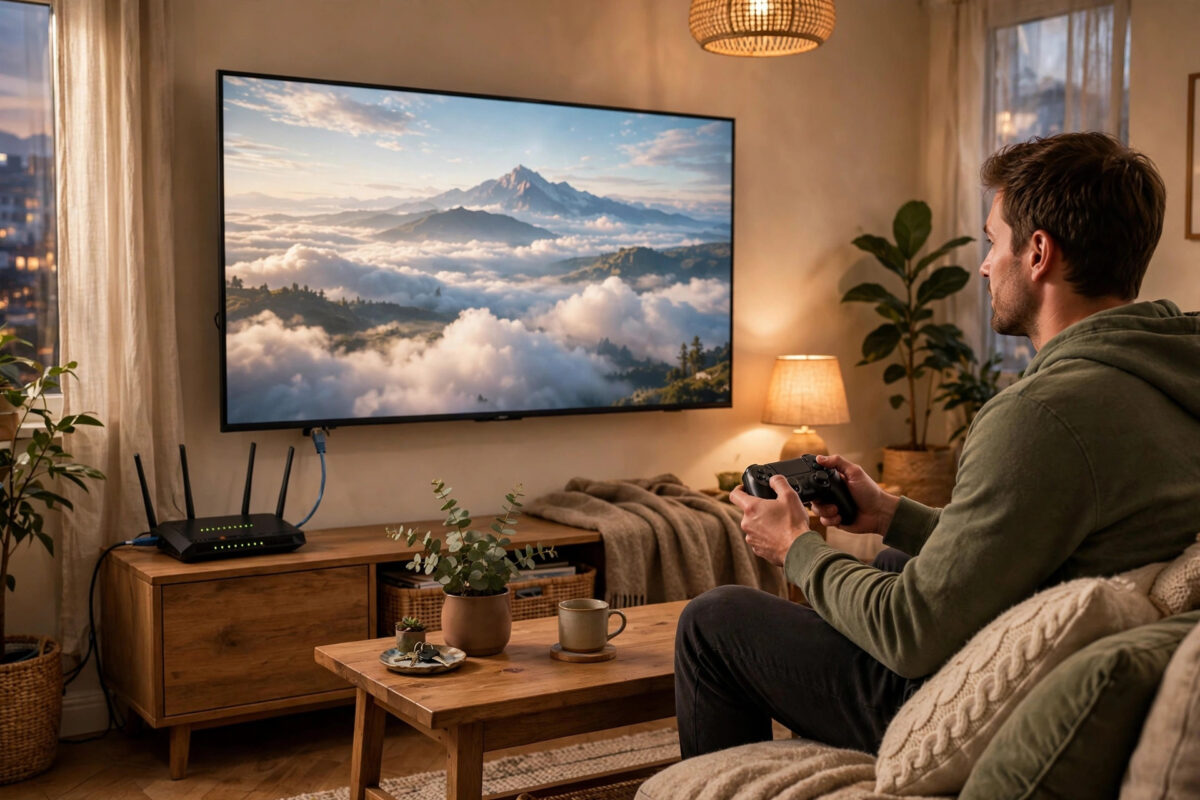
Cloud gaming promises a lot. No expensive console, no big downloads, just press play and the game runs on a powerful machine somewhere else. Then you press jump, and your character jumps a moment later. You aim, and the view trails behind your thumb. That small gap is input delay, and it can make even a great game feel heavy and unfair.
The good news is that most of that delay is not fixed. A large share of it comes from your home setup — your Wi-Fi, your TV, your controller connection, and a few settings most people never touch. This guide breaks down where the delay hides and how to cut each part of it down.
Quick Answer
Use a wired Ethernet connection wherever possible, or a strong 5 GHz Wi-Fi signal close to the router if wiring is impossible. Turn on Game Mode on your TV or monitor, connect your controller by cable or a low-latency wireless mode, and play on the cloud server region closest to you. Together, these steps remove most avoidable input delay in cloud gaming.
Where Input Delay in Cloud Gaming Comes From
With a local console, your button press travels a few feet. With cloud gaming, it takes a long round trip. Understanding each leg of that trip shows you exactly what you can and cannot improve.
- Your controller sends the input to your device.
- Your device sends it over your home network and the internet to the cloud server.
- The server runs the game, renders the frame, and encodes it as video.
- The video travels back across the internet to your device.
- Your device decodes the video and your screen displays it.
You cannot move the server closer, but you can remove the extra delays your own setup adds. In many homes those extras are bigger than the internet trip itself.
Fix 1: Get Off Weak Wi-Fi and Go Wired
Your home network is the single biggest factor you control. Cloud gaming needs a steady, low-jitter connection far more than it needs raw download speed. A fast but unstable connection feels worse than a slightly slower, rock-steady one.
The best connection options, in order
- Run an Ethernet cable directly from your router to your PC, console, or streaming device. This is the gold standard and removes Wi-Fi delay and interference completely.
- If a long cable is impractical, use a powerline adapter or a wired mesh node near your gaming spot, then a short cable from there to your device.
- If you must use Wi-Fi, use the 5 GHz or 6 GHz band, sit in the same room as the router or access point, and keep a clear line of sight where possible.
- Avoid the 2.4 GHz band for cloud gaming. It travels far but is slow, crowded, and adds noticeable delay.
Test the difference by playing the same fast section wired and then on Wi-Fi. Our guide on how to check and lower ping for online gaming shows you how to measure latency and spot an unstable connection.
Fix 2: Turn On Game Mode and Fix Your Display Settings
Modern TVs do a lot of picture processing. They smooth motion, boost colours, and clean up the image. All of that processing takes time, and for cloud gaming you are paying for it in delay on top of the delay you already have.
- Find the picture mode or a dedicated Game Mode setting on your TV and turn Game Mode on for the input you game on.
- Turn off motion smoothing, noise reduction, and similar picture enhancements for that input.
- If your TV and device support it, enable Auto Low Latency Mode so Game Mode switches on automatically.
- On a monitor or PC, set the highest refresh rate your screen supports in your system display settings, not just in the game.
- Match the cloud service’s stream resolution and frame rate to what your connection handles smoothly. A stable 1080p stream feels more responsive than a 4K stream that keeps stuttering.
Fix 3: Reduce Controller Delay
Your controller is the first link in the chain, and its connection type matters more in cloud gaming than in local play, because every millisecond adds to an already long trip.
- Go wired: A USB cable gives the most consistent, lowest-delay connection for almost any controller.
- Use a 2.4 GHz dongle over Bluetooth: Many controllers and third-party pads offer a dedicated wireless receiver that responds faster and more steadily than Bluetooth.
- If you use Bluetooth: Keep the distance short, remove obstacles, and disconnect other Bluetooth devices that compete for the same radio, like unused headsets and speakers.
- Update your controller: Firmware updates sometimes improve polling and connection stability.
- Raise the polling rate if your controller allows it: Higher polling means your device checks for inputs more often, shaving off small delays with each press.
Fix 4: Pick the Closest Server and the Right Service Settings
Distance to the cloud server sets the floor for your delay. A server in your own region might add twenty milliseconds. A server on another continent can add well over a hundred, and no home fix can undo that. The Xbox cloud gaming support guidance on Xbox.com and the GeForce NOW support pages from NVIDIA both explain how region, network type, and stream quality affect responsiveness for their services.
- In your cloud service’s settings or account page, check which region you are connected to and change it to the closest one if it is wrong.
- Turn off VPNs while cloud gaming. A VPN routes your traffic through extra locations and almost always increases delay.
- Look for stream settings such as resolution, frame rate, and bandwidth limits. Choose the option that runs smoothly without constant quality drops.
- If the service offers a network test, run it at the time of day you normally play, because evening congestion changes results.
- Play during quieter hours if your scores or enjoyment suffer badly at peak times, when both your home network and local internet are busiest.
Fix 5: Calm Down Your Home Network
Your cloud stream shares your connection with everything else in the home. A big download, a 4K video stream in the next room, or cloud backups can all introduce spikes that you feel as sudden lag.
- Pause large downloads, game updates, and cloud syncing on other devices while you play.
- Enable Quality of Service, often called QoS or Smart Queue Management, on your router and prioritise your gaming device.
- Restart your router occasionally to clear slowdowns, and keep its firmware updated.
- Place the router centrally and high up, away from thick walls, metal objects, and other electronics, if you rely on Wi-Fi.
- Use a modern router if yours is very old. Wi-Fi 6 and newer standards handle busy homes and latency noticeably better.
Common Mistakes That Make Cloud Gaming Feel Worse
- Chasing download speed instead of stability: A 500 Mbps plan on bad Wi-Fi feels worse than a steady 75 Mbps wired connection for cloud play.
- Playing through a VPN: It adds distance and delay to every single input and frame.
- Leaving the TV in a movie mode: Picture processing quietly adds one of the largest delays in the whole chain.
- Using Bluetooth across the room with obstacles: Weak controller links add inconsistent delay that is harder to adapt to than a slightly higher steady delay.
- Streaming at the highest resolution on a struggling connection: Constant stutters feel far worse than a clean, lower-resolution stream.
Tips to Test Your Improvements Properly
Change one thing at a time and test in the same game. Fast shooters and fighting games reveal delay best, so use a familiar, fast section as your benchmark. Many services show latency statistics in their overlay. Write your numbers down before and after each change so you know which fixes actually helped. Also set fair expectations by genre: slower adventures hide delay well, while competitive shooters expose every millisecond.
Conclusion
Input delay in cloud gaming is a chain of small delays, and you control several links. Wire your connection, switch your display to Game Mode, connect your controller the fast way, pick the nearest server, and keep your home network calm while you play. Together these steps can transform a mushy stream into one that feels sharp and responsive. Start with the cable and Game Mode, then work down the list.
Frequently Asked Questions
What internet speed do I actually need for cloud gaming?
Most services recommend at least 25 to 35 Mbps for a smooth 1080p stream, with more for 4K. But stability matters more than the headline number. A steady connection with low ping and low jitter at 50 Mbps will feel better than an unstable 300 Mbps connection that spikes and drops.
Is 5 GHz Wi-Fi good enough, or do I really need a cable?
A strong 5 GHz connection in the same room as the router works well for many players. A cable is still better because it removes interference entirely. For competitive games the cable is worth the effort; for casual play, good 5 GHz Wi-Fi is a reasonable compromise.
Why does cloud gaming feel fine in some games and awful in others?
Fast games expose delay because they demand split-second reactions, while slower games hide it. A strategy game might feel perfect on the same connection where a fighting game feels unplayable. The delay is similar in both. Your sensitivity to it changes with the speed of the game.
Does a gaming monitor really help with cloud gaming delay?
Yes. Gaming monitors are built for low display delay and high refresh rates, so they show the returned video sooner than a typical TV without Game Mode. A monitor will not fix a poor network, but with a wired connection it gives you the most responsive display option.
Can a better router reduce my cloud gaming lag?
It can help if your current router is old, struggles with many devices, or lacks good QoS features. A modern router handles busy homes better and keeps latency steadier under load. It cannot shorten the distance to the server, though, so treat it as a stability upgrade rather than a magic fix.



Leave a Reply