
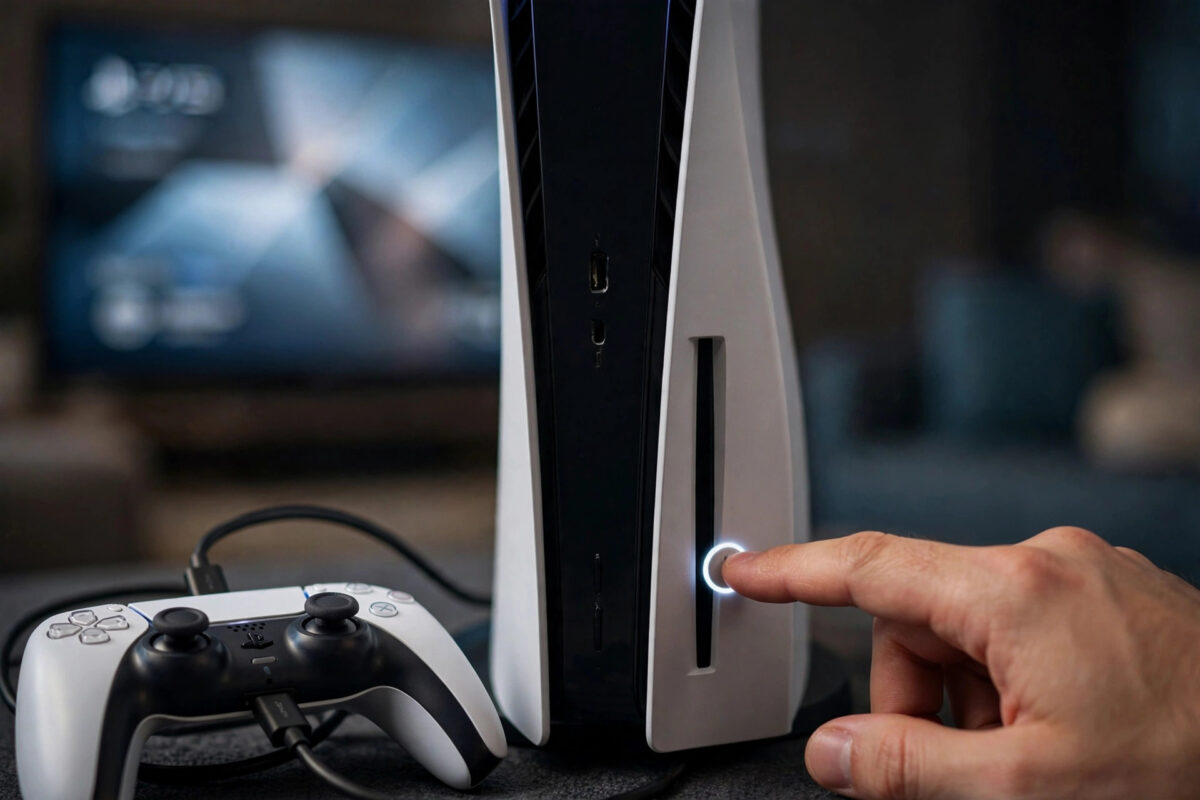
Over time, your PlayStation 5 keeps track of hundreds of games, apps, updates, screenshots, and clips. The database is the index the console uses to find all of that content quickly. When that index gets messy or corrupted, you may notice slow menus, missing game icons, long loading times, downloads that misbehave, or small glitches that a normal restart does not fix. Rebuilding the database in safe mode is Sony’s built-in way to clean up that index. This guide shows you exactly how to do it safely.
Quick Answer
To rebuild the PS5 database, turn the console off completely, then press and hold the power button until you hear a second beep to enter safe mode. Connect your DualSense controller with a USB cable, press the PS button, select Clear Cache and Rebuild Database, then choose Rebuild Database and confirm. The process does not delete your games or saved data, and it can take from a few minutes to over an hour depending on how full your drive is.
What Does Rebuilding the PS5 Database Actually Do?
Rebuilding the database scans all of the content on your storage and creates a new, clean database of where everything is. Think of it like rebuilding the index of a large book. The pages themselves, your games and saves, do not change. The console simply relearns where each item belongs.
This is different from resetting the console. A reset removes users, games, and data. A database rebuild removes nothing. Your downloaded games, disc game records, saved data, settings, screenshots, and video clips all remain.
One thing you may notice afterwards is that recently played games may no longer appear in the same order on the home screen, and some items in your library may need a moment to refresh their icons. That is normal while the new database settles in.
You may also see the option to clear the cache in the same safe mode menu. Clearing the cache removes temporary system files that can build up and cause sluggish behaviour. Many players clear the cache first, restart, and rebuild the database afterwards if problems continue.
When Should You Rebuild the PS5 Database?
You do not need to rebuild the database on a schedule. It is a troubleshooting tool, best used when you see specific signs of trouble.
- Games or apps are missing from the home screen or library even though they are installed.
- The home screen, menus, or library load much more slowly than they used to.
- Downloads stall, fail to start, or show strange errors repeatedly.
- Games crash or glitch often, especially more than one title.
- Icons appear blank, duplicated, or take a long time to load.
- The console has just recovered from an improper shutdown or power cut while it was running.
- You have deleted and installed many large games over a long period and the system feels disorganized.
If a single game has a problem and everything else works perfectly, try updating or reinstalling that game first. A database rebuild is most useful for system-wide slowness and repeated, general glitches.
Before You Start: What You Need
The process is simple, but prepare properly so nothing interrupts it.
- A USB cable for your controller. Safe mode does not work with a wireless controller connection at first. You need a USB cable that carries data, not a charge-only cable.
- Stable power. Plug the console directly into a reliable socket. Do not start the rebuild if a storm or power problems are expected.
- Time. A mostly empty drive may finish in minutes. A nearly full 825 GB or 1 TB drive with many games can take much longer. Do not start when you need the console straight away.
- A complete shutdown. The console must be fully off, not in rest mode, before you begin.
You do not need an internet connection for the rebuild itself, and you do not need to back up saves, because the process does not delete data. Even so, regular cloud backups with PlayStation Plus are always a sensible habit.
Step-by-Step: Rebuild the PS5 Database in Safe Mode
- Turn off the PS5 completely. Press the PS button, select Power, then Turn Off PS5. Wait until the power indicator stops blinking and goes out fully.
- Press and hold the power button on the console. Keep holding it. You will hear one beep when you first press it.
- Keep holding until you hear a second beep, about seven seconds later. Then release the button. The console is now starting in safe mode.
- Connect your DualSense controller to the console with a USB cable.
- Press the PS button on the controller. The safe mode menu should appear on screen.
- Select Clear Cache and Rebuild Database. On some system versions this is listed as option 5.
- Select Rebuild Database, then choose OK to confirm.
- Wait while the console scans the drive and rebuilds the database. A progress bar shows the status. Do not turn off the console or unplug it during this step.
- When the process finishes, the PS5 restarts normally. Remove the cable if you wish and test the console.
After the restart, give the console a few minutes. Open the Game Library, start a couple of games, and check whether the slowness, missing icons, or download problems have improved. If you were fixing crashes alongside network trouble, you might also review how to change your NAT type to open on a games console so your connection settings are as healthy as your storage.
The official explanation of each safe mode option is available on the PlayStation guide to using safe mode on PS5 consoles, which is worth checking if your menu wording differs slightly.
How Long Does a Database Rebuild Take?
Time depends mainly on how much content is on your drive and how disorganized the old database was. Many players finish in five to twenty minutes. A nearly full drive with hundreds of items can take an hour or more.
If the progress bar moves slowly but keeps moving, be patient. That is normal. The warning sign is a bar that has not moved at all for several hours, combined with no drive activity. In that rare case, contact PlayStation Support for advice rather than repeatedly cutting the power.
Do not judge the result too quickly. Load times and library behaviour often improve immediately, but the console may still refresh some artwork and recent activity in the background after the first restart.
What If Safe Mode Will Not Appear?
If you hold the power button and only hear one beep, you probably released it too early or the console was in rest mode rather than fully off. Turn the console on, shut it down completely, wait until all lights are out, then try the two-beep method again.
If the screen stays black, check that your TV or monitor is on the correct HDMI input and that the cable is secure. Safe mode uses a basic display output, so it should work even if your usual display settings have a problem.
If your controller does not respond, try a different USB cable and a different USB port on the console. Charge-only cables are a very common cause of this problem. The controller light should come on once it connects.
Common Mistakes to Avoid
- Starting from rest mode. Safe mode requires a full shutdown first. Rest mode will not give you the two-beep start.
- Releasing the power button after the first beep. That simply turns the console on normally. Wait for the second beep.
- Using Bluetooth in safe mode. The controller must be connected by USB at the start. Wireless pairing is not available until the console boots normally.
- Choosing Reset PS5 by accident. Reset options delete data. You want Clear Cache and Rebuild Database, then Rebuild Database only.
- Unplugging the console mid-rebuild. Cutting power during the scan can corrupt data. Always let it finish.
- Expecting it to fix everything. A rebuild fixes index and organization problems. It cannot fix a faulty game patch, a damaged disc, or failing hardware.
Conclusion
Rebuilding the PS5 database in safe mode is a safe, built-in fix for slow menus, missing content, stubborn downloads, and general glitches. Shut the console down fully, hold the power button to the second beep, connect the controller by USB, and choose Rebuild Database. Your games and saves stay untouched, and in many cases the console feels noticeably faster and more organized afterwards.
Frequently Asked Questions
Does rebuilding the PS5 database delete my games or saves?
No. The rebuild only reorganizes the index of your content. Your games, apps, saved data, settings, and media all remain exactly where they were. It is completely different from a factory reset.
How often should I rebuild the database?
Only when you have a reason to. There is no set schedule. Use it when you notice slow menus, missing icons, repeated download problems, or general glitches that a normal restart does not clear.
Can I use my controller wirelessly in safe mode?
No, not at the start. Safe mode requires the DualSense to be connected with a USB data cable so you can press the PS button and navigate the menu. Once the console restarts normally, wireless works again.
Why did my home screen change after the rebuild?
The new database may reset the order of recently played games and refresh some icons. This is normal and temporary. Your content is still installed; the console is simply presenting the rebuilt index.
What should I do if the rebuild does not fix my problem?
Update your system software, test games from internal storage, and reinstall a problem game. If glitches affect everything and survive those steps, check the troubleshooting pages on PlayStation Support or contact them directly, as a wider fault may be present.



Leave a Reply