
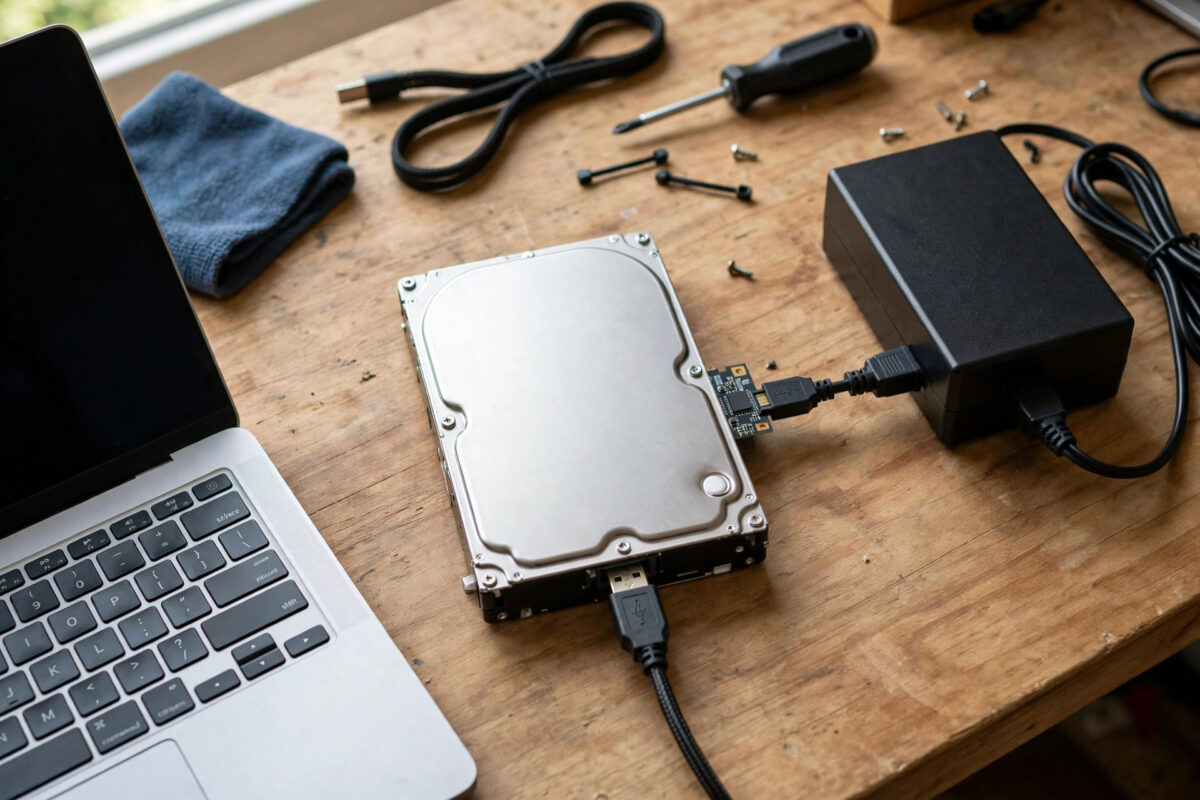
You plugged your old 3.5-inch desktop hard drive into a USB adapter, connected it to your laptop, and nothing happened. No spin, no drive letter, no sound at all. It is tempting to assume the drive is dead. In most cases it is not dead at all. It is simply starved of power, because a single USB cable cannot supply what a desktop drive needs to start its motor and move its heads.
This guide explains the two voltages a 3.5-inch drive needs, why USB alone only provides one of them, and how to power the drive correctly and safely with the right supply. Get the power right first, and only then judge whether the drive itself is healthy.
Quick Answer
A 3.5-inch hard drive needs both 5V and 12V power. USB only supplies 5V, so the drive cannot spin up on USB alone. Use a USB to SATA or IDE adapter kit that includes a separate 12V, at least 2A, external power supply, connect that supply to the drive first, let the drive spin up smoothly, and only then plug in the USB data cable.
The Simple Reason USB Alone Is Not Enough
Inside a hard drive, different parts use different voltages. The circuit board and logic run largely on 5V. The spindle motor that spins the heavy metal platters in a 3.5-inch drive, and the actuator that moves the heads quickly, need 12V. No 12V means no spin, and no spin means no data, however good your adapter cable is.
A standard USB port gives you 5V only. USB 2.0 is rated at 500 milliamps and USB 3.0 at 900 milliamps, but neither gives 12V. A Y-cable raises current at 5V, but it can never create the missing 12V rail.
Why 2.5-inch drives seem to break this rule
Small 2.5-inch laptop drives were designed to run entirely on 5V, with tiny platters and a low-power motor. That is why a simple USB enclosure works fine for them. A 3.5-inch desktop drive is a different class of machine, with larger platters, a stronger motor, and a design that expects the 12V line from a desktop power supply. Expecting it to run from USB alone is like expecting a desktop PC to run from a phone charger because the plug can be adapted to fit.
What the Right Adapter Kit Includes
- Data adapter: A USB to SATA adapter for newer desktop drives, or a USB to IDE/SATA universal adapter for older IDE drives, depending on your drive connector.
- External 12V power supply: A wall adapter clearly marked 12V DC output, at least 2A, with a centre-positive plug that matches the kit. This is the part that makes the setup work.
- Power lead for the drive: A SATA power connector for SATA drives, or a 4-pin Molex plug for IDE drives, fed from that 12V supply, often with a 5V line derived inside the kit as well.
If your current kit has no wall supply at all, it was designed for 2.5-inch drives only. Do not try to fix that with extra USB cables. Buy or borrow a complete kit rated for 3.5-inch drives. Our walkthrough on getting files off an old IDE hard drive with a modern PC shows the full kit in use, including jumper settings and the safe copy order once power is correct.
Step by Step: Power the Drive Correctly
- Place the drive on a flat, hard, clean surface, label up, held by its edges. Keep the circuit board underneath clear of metal objects, screws, and anything that could short it.
- With everything off and USB unplugged, connect the data adapter to the drive. Push SATA data on straight, or for IDE, align the 40-pin connector carefully with pin 1.
- Connect the power lead. For SATA, push the flat power connector on fully. For IDE, push the 4-pin Molex plug in its one correct direction without forcing it.
- Check the external supply label before you plug it in. Confirm it says 12V DC output and at least 2A, and that it is the supply supplied with the kit.
- Plug the supply into the wall, connect it to the adapter power lead if it is separate, and switch it on.
- Listen and feel lightly for spin-up. A healthy drive gives a smooth rising whir, a soft click as heads load, and then a steady quiet hum with slight vibration.
- Wait about ten seconds for the drive to reach full speed and settle.
- Now plug the USB cable into your computer. Wait up to a minute, then check File Explorer and Disk Management for the new drive.
- Copy the files you need promptly and in priority order, most important folders first. When you finish, eject the drive in Windows, unplug USB, then switch off the drive power last.
How to Check a Supply If the Drive Still Will Not Spin
- Confirm the obvious: Wall socket on, supply plug fully seated, power lead fully pushed onto the drive, and any inline switch on the kit set to on.
- Try a different wall socket without any extension strip, to rule out a dead outlet or a loose strip switch.
- Inspect the supply label again. A 5V supply that looks identical will never spin a 3.5-inch drive. A 9V or variable supply set to the wrong voltage is a risk, not a fix.
- Test the kit with a known good drive if you have one, or test your drive in a desktop PC or a powered docking station. This tells you whether the fault is the kit, the supply, or the drive itself.
- Stop if the drive clicks, beeps, or grinds even with proven correct power. At that point power is no longer the issue. Repeated clicking under correct power points to mechanical or head failure, and continued power-on attempts can reduce recovery chances.
For safe handling in Windows, the Microsoft Support guidance for Windows hardware and storage covers ejecting properly. For the drive itself, follow the ratings on its top label, which list the exact 5V and 12V current it expects.
Safety Warnings You Should Not Skip
- Never use the wrong voltage. Feeding 12V where 5V is expected, or using an adjustable supply set incorrectly, can burn the drive board instantly and take your data with it. Match the kit supply exactly.
- Do not hot-swap power plugs. Connect everything while off, power the drive first, and remove power last.
- Keep the exposed board safe. A bare 3.5-inch drive has its circuit board exposed underneath. Never rest it on a metal case, foil, or a pile of screws while powered.
- Do not open the drive casing. There is nothing user-serviceable inside, and opening it outside a clean room introduces dust that destroys the platter surface.
- Unplug a hot or smelly setup at once. Heat, a burning smell, or a supply that is too hot to hold comfortably means stop, switch off at the wall, and replace the faulty part before trying again.
Common Mistakes People Make With Drive Power
- Buying a cable-only adapter for a desktop drive: The listing may say SATA to USB, but without a 12V supply it suits 2.5-inch drives and SSDs only.
- Using a Y-cable as a fix: Two USB plugs still deliver only 5V. Current was never the missing piece. Voltage is.
- Plugging USB in first: The PC then tries to talk to a drive that has not spun up, and often gives up. Power first, USB second, every time.
- Judging the drive dead in the first minute: Many healthy drives were nearly thrown away when the only fault was missing 12V. Test with correct power before you write a drive off.
- Leaving the drive powered for hours while idle: An old drive on a bench supply is not a permanent home. Copy what you need, shut it down in the right order, and store the data on modern storage.
Conclusion
If a 3.5-inch drive does nothing on a USB adapter, think power before you think failure. USB supplies 5V, and a desktop drive also needs 12V at a solid 2 amps to spin its platters. Use a complete adapter kit with its matched external supply, connect everything while off, power the drive first, listen for a smooth spin, and only then connect USB. With the right power, a healthy drive announces itself quickly, and you can copy your files and retire it with confidence.
Frequently Asked Questions
Can a USB-C port power a 3.5-inch drive on its own?
Not through a simple adapter cable. USB-C can negotiate higher voltages for devices designed for USB Power Delivery, but a bare hard drive expects a steady SATA or Molex power feed with 5V and 12V. Use a docking station or kit with its own 12V supply.
How many amps should the 12V supply provide?
Choose at least 2A at 12V, which is what most universal kits include. A drive draws its highest current at spin-up, so an underrated 1A supply may fail at the exact moment the motor starts, even if it looks fine at idle.
Will a powered USB hub solve the problem?
No. A powered hub still outputs 5V on its USB ports. It helps with current for 2.5-inch drives and other USB devices, but it does not create the 12V rail a 3.5-inch drive requires.
My drive spins with the supply but Windows does not show it. What next?
Check Disk Management for the disk without initialising or formatting it, try a different USB port directly on the PC, and confirm the data adapter suits your drive type, SATA or IDE. If it still clicks or disconnects, stop and treat it as a failing drive.
Is it safe to leave the external supply plugged in all the time?
Switch it off when you are not copying files. These bench setups have exposed boards and connectors, so they are for short recovery sessions, not for running a drive day and night as permanent storage.



Leave a Reply