
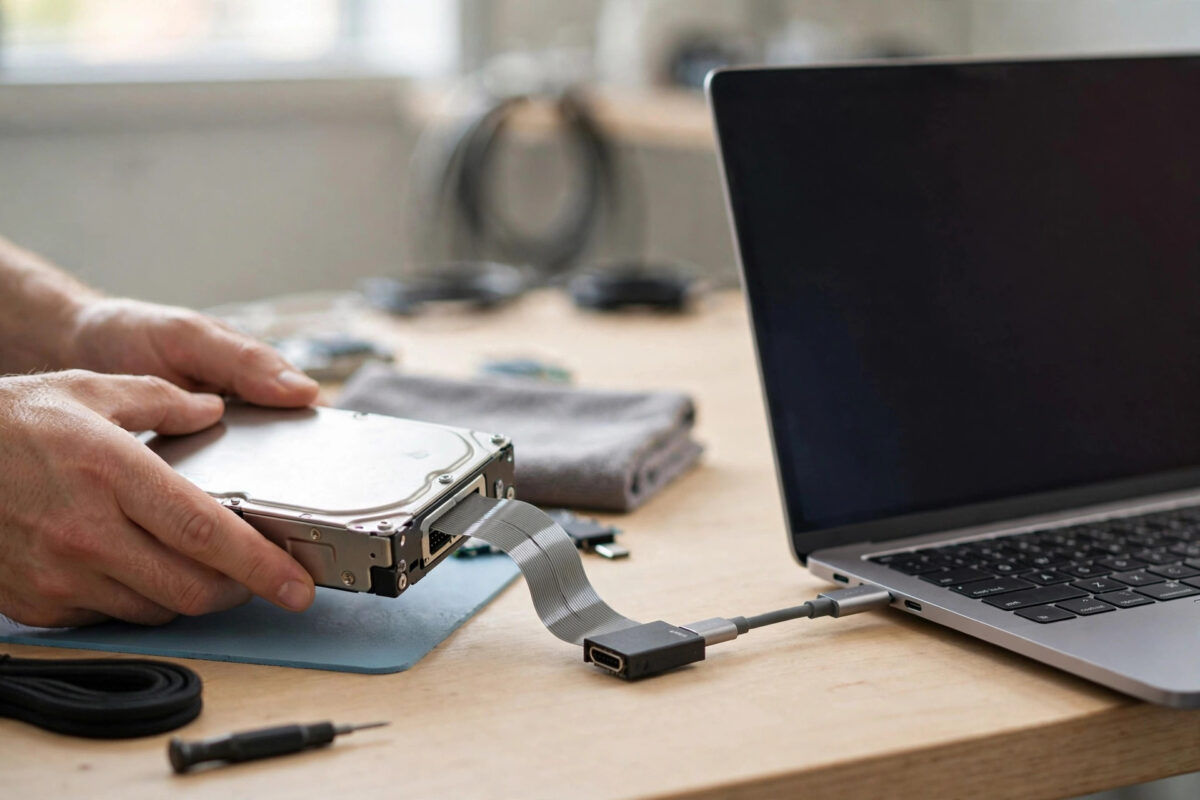
Somewhere in a drawer or an old desktop tower sits a hard drive from fifteen years ago, full of family photos, documents, and music you thought were left behind. Modern PCs have no connector for it on the motherboard, so it looks unusable. It is not. With the right adapter, the correct power, and a gentle, read-only approach, you can usually copy those files onto a modern computer safely, without risking the only copy of them.
This guide covers identifying an IDE drive, what adapter to buy, how to wire it up, and how to copy files in the safest order. Treat the drive as fragile: old drives fail most when rushed or powered wrong.
Quick Answer
Buy a USB to IDE and SATA adapter kit that includes a separate 12V power supply, set the IDE drive jumper to Master or Cable Select, and connect the wide 40-pin IDE plug plus the 4-pin Molex power plug before you plug USB into your modern PC. Copy your most important folders first, and if the drive clicks, grinds, or keeps disconnecting, stop and make a disk image or seek professional help instead of forcing it.
How to Tell You Really Have an IDE Drive
IDE, also called PATA, was the standard before SATA took over. You can recognise it without any tools, just by looking at the connectors on the back edge of the drive.
- Wide data connector: IDE uses a wide 40-pin connector, usually connected with a flat grey ribbon cable in old PCs. SATA uses a small thin L-shaped plug by comparison.
- Four-pin Molex power: A chunky white or clear 4-pin power socket sits beside the data connector. Modern SATA power is a flat 15-pin connector.
- Jumper pins: Between the data and power connectors there is a small block of pins with a tiny plastic jumper. SATA drives do not need jumpers in this way.
- Size: Most desktop IDE drives are 3.5-inch. Laptop IDE drives are 2.5-inch and use a smaller 44-pin connector that also carries power.
Write down the make, model, and size printed on the top label before you order anything. That label tells you whether you need the 3.5-inch kit, the 2.5-inch 44-pin adapter, or both, which many universal kits include.
What You Need Before You Start
- A USB to IDE/SATA adapter kit with a 40-pin IDE connector and an included external power supply. A bare USB cable alone cannot power a 3.5-inch desktop drive.
- For a 2.5-inch laptop IDE drive, a 44-pin adapter, which is included in most universal kits.
- A modern PC with a free USB port and enough free disk space for everything you plan to copy. Check space first.
- A clean, flat, hard surface, good light, and time without pressure.
If the files are irreplaceable and the drive already makes noises, read our guide to recovering files from a failing hard drive without making it worse before you power the drive again, because the imaging-first approach there may be safer than a direct copy.
Step by Step: Connect the Drive and Copy Your Files
Step 1: Prepare the drive gently
- Remove the drive from the old PC or enclosure using its screws. Hold it by the edges, do not press on the top cover, and do not shake it.
- Place it label-side up on a flat, non-slip surface. Keep drinks, magnets, and loose screws well away from it.
- Look at the jumper diagram on the label. Move the small jumper with your fingernails or fine tweezers to Master or Single. If neither is listed, try Cable Select. A wrong Slave setting is a common reason an adapter sees no drive at all.
Step 2: Connect data and power in the right order
- With everything still switched off and USB unplugged, push the IDE adapter firmly onto the 40-pin data connector. Align pin 1, marked on the drive and often shown by the red stripe side on old ribbons, so you do not force it the wrong way round.
- Connect the 4-pin Molex power plug from the adapter power supply to the drive. It is shaped to fit one way only. Do not force it.
- For a 2.5-inch drive, push the 44-pin adapter on carefully in one straight motion. Its extra pins carry power, so no separate Molex plug is used.
- Plug the power supply into the wall and switch it on. Listen. The drive should spin up with a smooth whir and a soft settle. If it clicks repeatedly, knocks, or grinds, switch the power off at once and see the warning section below.
- Only after the drive is spinning normally, plug the adapter USB cable into your modern PC.
Step 3: Open the drive in Windows without formatting it
- Wait up to a minute. Older drives can take longer to appear than a modern SSD.
- Open File Explorer and look for a new drive letter under This PC.
- If Windows asks to format, initialise, or scan and fix the drive, choose Cancel or No every time. Formatting would erase the file system you need. A scan can stress a weak drive, so skip it for the first copy.
- If no letter appears, open Disk Management and check whether the disk is listed as Online with a healthy partition. Do not initialise it if asked. Initialising writes a new signature and is not a read step.
- If the partition shows as RAW or unallocated, stop the direct copy plan. That points to file system damage, and imaging plus recovery software is the safer route.
Step 4: Copy in priority order
- Create a clearly named folder on your modern PC, such as Old IDE Drive Backup, on a disk with plenty of space.
- Copy the most important and hardest to replace files first: photos, personal documents, and any folder you cannot recreate. Leave music and downloads that exist elsewhere until last.
- Copy in small batches, one folder at a time, rather than selecting the whole drive at once. Small batches make it clear which folder causes errors and put less continuous strain on an old mechanism.
- After each batch, open a few copied files to confirm they work before you move on.
- When everything important is copied, make a second copy of that backup folder to another drive or cloud storage. One copy on one disk is not a backup.
When to Stop and Image the Drive First
A healthy old drive spins smoothly and copies steadily. A failing drive warns you. Stop powering it and switch to an imaging-first approach, or to a professional lab for truly irreplaceable data, if you hear repeated clicking, see the drive appear and vanish, get constant read errors, or smell anything hot or electrical. Each extra power-on can reduce what can still be recovered.
Imaging means making a sector-by-sector copy to a healthy drive with a tool that can skip bad areas, rather than dragging files until the drive dies. The Microsoft Support guidance for Windows storage and File Explorer helps with the Windows side, but no setting can fix a failing mechanism.
Common Mistakes to Avoid
- Using USB power alone for a 3.5-inch drive: It will not spin up properly. Desktop drives need the 12V supply in the kit. See the power guide linked in the FAQ if you are unsure.
- Forgetting the jumper: A drive left as Slave often stays invisible on a single-drive adapter. Set Master or Cable Select first.
- Clicking Format or Initialise: Both destroy the structure you need to read the files. Cancel every such prompt.
- Copying the whole drive in one go: One huge copy hides errors and stresses the drive for hours. Small, priority-first batches are safer.
- Working on a bed or carpet: Soft surfaces, static, and knocks are bad for old drives. Use a hard, clean table and handle the drive by its edges.
- Putting the drive back in a drawer as the only copy: After a successful copy, keep two copies on modern storage and retire the old drive from duty.
Conclusion
Getting files off a 15-year-old IDE drive is a parts and patience job, not a software trick. Identify the connector, use a universal adapter kit with its own power supply, set the jumper correctly, connect power before USB, refuse every format prompt, and copy your most precious folders first in small batches. If the drive sounds unhealthy, stop and image it or get professional help. Done calmly, most healthy IDE drives give up their photos and documents without a fight.
Frequently Asked Questions
Will a USB to SATA adapter work for an IDE drive?
No. SATA and IDE data connectors are completely different. You need an adapter that explicitly lists IDE or PATA with the wide 40-pin connector, ideally in a universal kit that also covers SATA for future use.
Why does my PC not see the IDE drive at all?
The most common causes are a Slave jumper setting, no separate power connected, or the USB plugged in before the drive had spun up. Power off, set Master, connect Molex power, switch on, wait for a smooth spin, then plug in USB.
My old drive is a small laptop drive. Is the method different?
Slightly. Laptop IDE drives use a compact 44-pin connector that carries data and power together, so you use the 44-pin part of the kit and no Molex plug. The copy steps and safety rules are otherwise the same.
Windows says the drive needs to be formatted. Should I do it?
Never, if you want the files. Cancel the prompt. A format message usually means Windows cannot read the file system cleanly. Try the drive on the adapter again, check Disk Management without initialising, and consider imaging and recovery software if it stays unreadable.
How long should copying take?
Old IDE drives and USB adapters are slow by modern standards. Tens of gigabytes can take an hour or more. Steady progress is a good sign. Freezes, disconnects, and clicking are not, and mean you should stop and change plan.



[…] with extra USB cables. Buy or borrow a complete kit rated for 3.5-inch drives. Our walkthrough on getting files off an old IDE hard drive with a modern PC shows the full kit in use, including jumper settings and the safe copy order once power is […]