
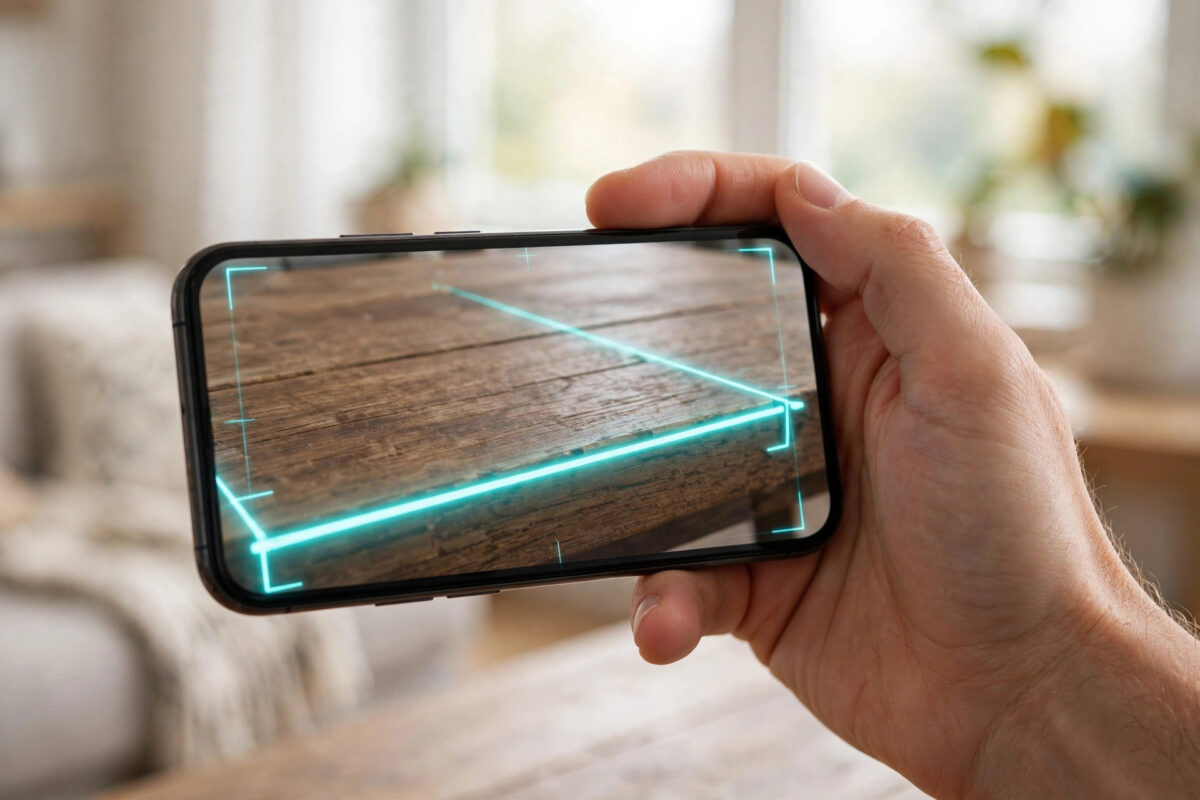
Your iPhone can do far more than take photos and send messages. Hidden in its app library is a simple tool that turns your phone into a digital tape measure. It can measure a table, a picture frame, a doorway, or even the height of a person standing in front of you.
The tool is called Measure, and it uses your camera and augmented reality to work out real sizes from what it sees. In this guide, you will learn how to measure objects with the iPhone Measure app, how to get more accurate results, and how to avoid the small mistakes that make readings go wrong.
Quick Answer
Open the Measure app, point your iPhone at the object, and move the phone slowly until a white circle with a dot appears. Tap the Add button to mark the starting point, move the phone to the end of the object, and tap Add again. The app shows the length on screen, and you can tap the shutter button to save a photo of your measurement.
What You Need Before You Start
The Measure app comes pre-installed on most modern iPhones, so there is usually nothing to download. If you cannot find it, swipe down on the Home Screen and type Measure in the search bar. You can also check the App Library under the Utilities folder.
For the best results, you need three simple things:
- A well-lit room or outdoor space, so the camera can see edges clearly
- A flat surface or object with clear corners and straight edges
- A steady hand, because shaking the phone can shift the points you place
Newer models with a LiDAR scanner, such as the Pro models, measure faster and more accurately because they sense depth directly. Older models still work well, but they rely only on the camera, so good light matters even more. Apple explains the requirements in its official guide on using the Measure app on iPhone.
How to Measure an Object Step by Step
Measuring takes less than a minute once you know the flow. Follow these steps in order:
- Open the Measure app from your Home Screen or App Library.
- Hold your iPhone so the camera faces the object you want to measure.
- Move the phone slowly from side to side. The app is looking for a flat surface, and it will ask you to keep moving until it is ready.
- When a white circle with a dot in the middle appears, line the dot up with the point where your measurement should start.
- Tap the Add button, shown as a plus sign, to lock in the first point.
- Move the phone slowly along the object until the dot reaches the end point.
- Tap the Add button again. A line appears between the two points with the length shown in the middle.
- Tap the white shutter button to take a photo that saves the measurement on the picture.
After you place the second point, you can keep going. Tap Add again to start a new line from a different point, which is useful when you want both the width and the height of the same object. Tap the back arrow to undo the last point, or tap Clear to start again.
How to Measure a Rectangle Automatically
Many everyday objects are rectangles: books, boxes, laptop lids, doors, and picture frames. The Measure app can detect these shapes on its own and save you the tapping.
Automatic rectangle detection
Point the camera at the rectangular object and move the phone slowly. When the app recognises the shape, a white box outlines it. Tap the Add button, and the app shows the length and width at once. Tap the measurement itself to see extra details, including the diagonal length and the area of the surface.
The area figure is handy when you are buying paint, tiles, or flooring, because it tells you how much surface you need to cover. Remember that it is an estimate, so always add a little extra when you order materials.
How to Measure a Person’s Height
On iPhones with a LiDAR scanner, the Measure app can work out how tall someone is, from the floor to the top of their head, hair, or hat.
- Open the Measure app and stand where you can see the person from head to toe.
- Ask the person to stand straight against a plain background if possible.
- Line them up in the frame. A line appears at the top of their head with the height shown below it.
- Tap the shutter button to save a photo with the height included.
This works best when the floor is clear and the light is even. If the app struggles, move a little closer or further away until the height line appears.
Using the Built-In Level Tool
The Measure app also hides a second tool that many people miss: a spirit level. It helps you hang pictures straight, check shelves, and line up furniture.
- Open the Measure app and tap Level at the bottom of the screen.
- Place the iPhone against the object, or lay it flat on a surface.
- Adjust the object until the screen turns green and shows zero degrees.
When two circles overlap perfectly on the flat view, the surface is level. If you measure a lot around the house, you may also enjoy our related guide on scanning documents neatly with the iPhone Notes app, which uses the same camera smarts for paperwork.
How to Change Units and Save Measurements
By default, the app follows your region settings, but you can switch between metric and imperial units at any time. Go to Settings, tap Measure, then tap Measurement Units and choose Metric or Imperial. This changes results between centimetres and inches across the whole app.
When you take a photo of a measurement with the shutter button, the picture is saved in your Photos library like any other image. You can open it later, share it with a family member, or send it to a shop assistant when you are buying furniture or fabric. To review a measurement in detail, tap the number on the line and the app shows it in both smaller and larger units.
Tips for More Accurate Results
The Measure app is designed for quick, everyday jobs, not for building work that needs perfect precision. Still, a few habits make a big difference:
- Measure in good light. Dark rooms and strong shadows hide edges, and the app may place points in the wrong spot.
- Move slowly. Slow movements give the camera time to map the surface properly.
- Measure along a flat surface. Soft or curved objects, like cushions and cables, give unreliable readings.
- Start close, then step back. Begin near the object so the app finds the surface, then move to fit the whole object in view.
- Check twice for important jobs. Measure two or three times and compare. If the numbers match, you can trust them.
- Keep the lens clean. A smudged camera cover makes edge detection harder than you might expect.
Common Mistakes to Avoid
Most wrong readings come from a handful of simple errors. The biggest one is rushing. If you tap the first point before the app has finished mapping the surface, every point after it will be slightly off.
Another common mistake is measuring at a sharp angle. Try to face the object as squarely as you can, so the camera sees the true length rather than a shortened view. People also forget that the app measures in a straight line between two points. If you move the phone in a curve, the result will not match a tape measure laid along the object.
Finally, do not rely on the app for jobs where a few millimetres decide success, such as cutting glass or fitting a worktop. For those tasks, confirm the number with a real tape measure. Apple itself presents the app as a convenient guide, a point also covered in the official iPhone user guide for Measure.
Conclusion
The Measure app turns your iPhone into a pocket tape measure that is always with you. Open the app, place two points, and you have a length in seconds, plus a level tool, automatic rectangle detection, and height measuring on supported models. Use good light, move slowly, and double-check important jobs, and it will handle most everyday measuring tasks around your home with ease.
Frequently Asked Questions
Is the iPhone Measure app accurate?
It is accurate enough for everyday jobs like checking furniture sizes or picture frames, usually within a small margin. For building or cutting work where exact millimetres matter, confirm the result with a physical tape measure.
Which iPhones have the Measure app?
The app is available on iPhones running modern versions of iOS, starting from older models like the iPhone 6s and first iPhone SE. Height measuring and the fastest results need a model with a LiDAR scanner.
Can I measure a room with the Measure app?
Yes. Measure each wall one line at a time by placing points in the corners, and write the numbers down as you go. Rectangle detection can also help with floors, rugs, and large flat areas.
How do I switch between centimetres and inches?
Open Settings, tap Measure, then tap Measurement Units. Choose Metric for centimetres and metres, or Imperial for inches and feet, and the app updates straight away.
Where do my saved measurements go?
When you tap the shutter button, the app saves a photo with the measurement drawn on it to your Photos library. You can view, share, or delete it like any normal photo.



Leave a Reply