
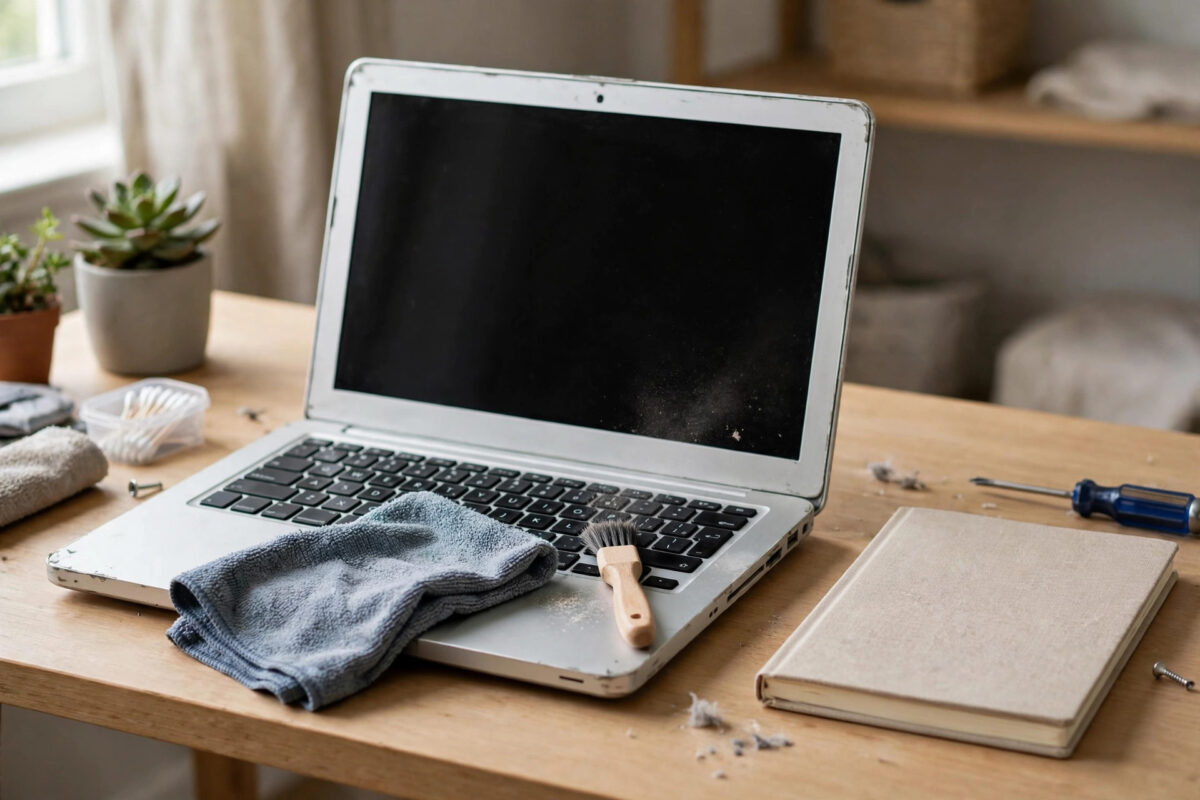
An old laptop rarely dies all at once. It just gets slower: five minutes to feel usable after login, apps opening with a delay, stutter when you switch windows, and a fan that runs constantly. The usual advice is to buy more RAM or fit an SSD, and those upgrades do help, but they are not always possible. Maybe the laptop is sealed, the budget is not there, or you just need this machine to last one more year.
A surprising amount of slowness on older Windows laptops is software clutter, not dying hardware. Years of startup programs, background updaters, full storage, visual effects designed for newer machines, and a browser carrying two dozen extensions can make a decent processor feel ancient. This guide focuses only on free, no-upgrade fixes you can do in an afternoon, in a safe order, with exact Windows settings.
First, Check What Is Actually Slowing You Down
Press Ctrl + Shift + Esc to open Task Manager and click More details if needed. On the Processes tab, sort by CPU, Memory, and Disk. If Disk sits at 100% for minutes after login, startup load or storage is your problem. If Memory is constantly above 85%, too many apps are open or starting automatically. If one program is always top for CPU, start there.
Next, open Settings > System > Storage. Windows needs free space to update, cache, and swap data. If your system drive has less than 10% free, or less than about 15 GB, performance will suffer no matter what else you do. Freeing space is then your first job. Also check your Windows version in Settings > System > About; a laptop with repeatedly failed pending updates can feel slow because update processes keep retrying in the background.
1. Cut Startup Programs Ruthlessly
This is the highest-impact free fix for most old laptops.
Step 1: Open Task Manager > Startup apps. You will see every program that launches at login with an impact rating of Low, Medium, or High.
Step 2: Disable anything you do not need in the first minute after login: game launchers, Adobe updaters, Spotify, manufacturer helpers, and printer utilities are typical candidates. Right-click and choose Disable. Disabling does not uninstall the program; you can still open it manually.
Step 3: Keep your antivirus enabled. Aim for three or four essentials in total.
Step 4: Go to Settings > Apps > Startup and turn off the same kind of optional apps there.
Restart and notice the difference. Cutting eight startup items to three can halve the time before the desktop feels responsive on a typical five-year-old laptop.
2. Uninstall Software You No Longer Use
Old laptops accumulate trial antivirus suites, duplicate PDF tools, old games, and manufacturer utilities. Each may add background services even when you never open it. Go to Settings > Apps > Installed apps, sort by Size, and review what is installed. Uninstall clear clutter: expired trials, duplicate media players, and games you no longer play. Search a name quickly before removing anything you do not recognise, because some entries are drivers you need. Restart after a batch of uninstalls.
Pay special attention if you have two full antivirus products installed. Running two real-time scanners at once is a classic cause of severe slowdowns. Keep one, usually Microsoft Defender if the other subscription has expired, and fully uninstall the second.
3. Free Up Storage and Turn On Storage Sense
In Settings > System > Storage, click Temporary files. Tick safe categories such as Temporary files, Recycle Bin, Thumbnails, and Delivery Optimization Files, review Downloads carefully, and click Remove files. This can reclaim several gigabytes.
Turn on Storage Sense on the Storage page and configure it to run Every month, delete temporary files automatically, and empty the Recycle Bin after 30 days. Then check Settings > System > Storage > Cleanup recommendations for large unused files and apps. Move personal videos to an external drive or cloud storage rather than deleting photos in a rush. For the full list of safe categories, see Microsoft’s official guide to freeing up drive space in Windows.
If you still use a traditional hard drive, search for Defragment and Optimize Drives, select your system drive, and click Optimize. Windows runs TRIM for SSDs in the same tool, so following the tool is safe for both drive types.
4. Reduce Visual Effects and Background Activity
Search for Adjust the appearance and performance of Windows. On the Visual Effects tab, choose Adjust for best performance for maximum gain, or Custom and keep only “Smooth edges of screen fonts” and “Show thumbnails instead of icons” for a better balance. Click Apply. The interface looks plainer and feels snappier on old hardware.
Go to Settings > Personalization > Colors and turn off Transparency effects. Then go to Settings > Accessibility > Visual effects and turn off Animation effects.
Limit background apps in Settings > Apps > Installed apps: click the three dots next to apps you rarely use, choose Advanced options, and set Background app permissions to Never for non-essential apps.
5. Fix Your Browser
For many people, “my laptop is slow” means “my browser is slow.” Remove extensions you do not use weekly. Coupon finders and multiple stacked blockers are common culprits; keep one reputable blocker at most.
Clear cached files in Chrome or Edge under Settings > Privacy and security > Clear browsing data (in Edge: Settings > Privacy, search, and services > Clear browsing data > Choose what to clear). Choose Cached images and files for All time, keeping passwords and autofill. Reduce open tabs, which can consume gigabytes of memory. In Edge, turn on Save resources with Sleeping tabs in Settings > System and performance.
For more optimisation walkthroughs, browse the guides on NetworkUstad’s laptop and Windows tips collection.
6. Check Power Mode, Malware, and Updates
Go to Settings > System > Power & battery and set Power mode to Best performance while plugged in. Battery saver deliberately throttles the processor, so do not diagnose slowness while it is active.
Run a full check in Windows Security > Virus & threat protection > Scan options: choose Full scan. Run Microsoft Defender Offline scan once if the full scan finds anything. A single adware infection can explain constant disk and network activity.
Finally, install pending updates in Settings > Windows Update. Half-installed updates consume resources repeatedly. One clean, fully updated restart is faster than weeks of retries.
Common Mistakes and Useful Tips
Installing a “PC booster” or registry cleaner: These rarely help, often add their own startup programs, and sometimes delete entries Windows needs. Every fix here uses built-in tools.
Disabling all Windows services from a forum list: The wrong service breaks search, printing, or updates. Startup apps are safe to trim; core services are not a speed hack.
Expecting one tweak to fix everything: The gain comes from stacking small wins: fewer startup apps, free disk space, fewer effects, and a lean browser together feel like a different machine.
Tip: Restart weekly. A real Restart clears memory leaks and finishes pending maintenance that sleep never does.
Tip: If the fan is loud and the base is very hot, dust in the vents is likely. Short bursts of compressed air on external vents, with the laptop off, can reduce thermal throttling safely.
Conclusion
You cannot turn a ten-year-old laptop into a new one without hardware changes, but you can often recover the speed clutter has stolen from it. Start with Task Manager, cut startup programs, uninstall what you no longer use, free storage until you have comfortable headroom, trim visual effects, and clean up your browser. Finish with the right power mode, a full Defender scan, and fully applied updates. Done in that order, these free steps regularly make an old laptop feel two or three years younger, with no cost and no risky booster software.
Frequently Asked Questions
What is the fastest free way to speed up an old laptop?
Disabling unnecessary startup apps in Task Manager > Startup apps gives the quickest visible improvement for most people, followed by freeing disk space if your drive is nearly full.
Will deleting files really make it faster?
Yes, if the drive is nearly full. Windows needs free space for updates and temporary operations. Keeping at least 15 to 20 GB free on the system drive prevents a major source of slowdowns.
Is it safe to disable all startup programs?
No. Keep your antivirus and any tools you rely on. Disable optional launchers, updaters, and media apps first. Nothing is uninstalled, so you can re-enable anything in Task Manager.
Should I turn off Windows visual effects?
On an old laptop, yes. Adjust for best performance and turning off transparency reduces load on weak integrated graphics, with only a cosmetic downside.
When is it time to upgrade or replace the laptop?
If it still struggles with basic tasks after these steps, has a failing drive, or cannot run a supported Windows version securely, an upgrade or replacement is the honest answer. These free fixes tell you that quickly.


Leave a Reply