
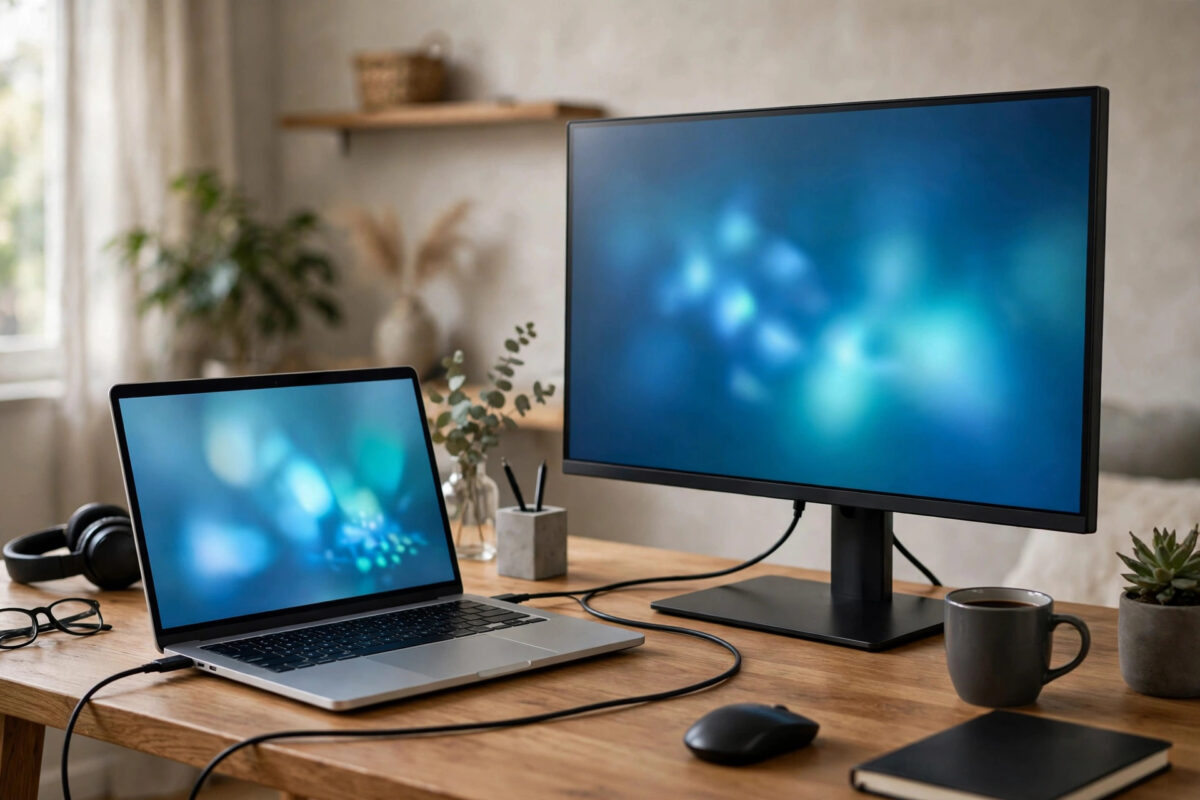
Adding a second monitor is one of the most satisfying upgrades you can make to a laptop setup, and it does not require a new computer. With two screens you can keep email or notes on one display and your main document on the other, join a video call while sharing a different window, or compare spreadsheets side by side. Once you have worked this way for a week, a single small laptop screen feels cramped.
The part that puts people off is the tangle of ports and cable names: HDMI, USB-C, DisplayPort, Thunderbolt, adapters, docks. In practice, connecting a second monitor takes about five minutes once you know which port you have and which display mode you want in Windows. This guide covers compatibility, the right cable, the physical connection, and every Windows display setting that matters, including what to do when the second screen stays black.
Step 1: Check What Ports Your Laptop and Monitor Have
Look at the sides of your laptop. Most laptops have at least one of these video outputs:
HDMI: A flat, trapezoid-shaped port and the most common option. Almost every modern monitor and TV has HDMI in, so an HDMI-to-HDMI cable is simplest for most people.
USB-C with DisplayPort Alt Mode or Thunderbolt: A small oval port used for video as well as charging on many modern laptops. Look for a lightning symbol (Thunderbolt) or “DP” next to the port. Not every USB-C port carries video, so check your laptop specifications if nothing is printed next to it.
Mini DisplayPort or DisplayPort: Less common on newer thin laptops, but reliable for high resolutions and refresh rates.
VGA: The old blue connector with screws, only relevant for a very old monitor, with limited quality and resolution.
Now check the back of your monitor for its inputs. You need one cable type that exists on both sides. HDMI to HDMI needs one standard cable. USB-C on the laptop to HDMI on the monitor needs a USB-C to HDMI cable or adapter. Avoid chaining multiple cheap adapters; one correct cable is more reliable.
If you use a docking station or USB-C hub, confirm it supports your monitor’s resolution. A dock limited to 1080p will hold back a 1440p or 4K monitor even if the laptop can drive it. Intel’s overview of setting up multiple monitors and matching ports and resolutions is a useful reference for what connections can handle.
Step 2: Choose the Right Cable
For a 1080p monitor at 60 Hz, any certified HDMI cable or decent USB-C video cable works. For 1440p at high refresh rates or 4K at 60 Hz, use an HDMI 2.0 or newer cable, or a USB-C cable explicitly rated for DisplayPort Alt Mode and 4K video. Very long, very cheap cables are a frequent cause of flickering at higher resolutions even when they work at 1080p. You do not need to match brands; HDMI, DisplayPort, and USB-C video are industry standards.
Step 3: Connect the Monitor Physically
Step 1: Place the monitor where you want it before plugging anything in, with the top of the screen roughly at or slightly below eye level. Cable length decides desk layouts more than people expect.
Step 2: Connect the monitor’s power cable and turn it on. Use its menu or input button to select the correct input, for example HDMI 1 or HDMI 2. Many “second monitor does not work” problems are simply the monitor listening on the wrong input.
Step 3: Connect the video cable firmly to both laptop and monitor. If you use an adapter, connect the adapter to the laptop first, then the cable.
Step 4: Wake the laptop and sign in. Windows should detect the display within seconds and mirror or extend it automatically.
Step 4: Choose Extend, Duplicate, or Second Screen Only
Press Windows + P to open the Project menu:
PC screen only: Only the laptop display is active.
Duplicate: Both screens show the same image. Best for presentations.
Extend: The two screens form one large desktop. You can drag windows between them and work in different apps on each. This is the right choice for almost all desk work.
Second screen only: Only the external monitor is active. Useful if you close the laptop lid and work like a desktop.
Choose Extend, then drag a window past the edge of your laptop screen. If it moves to the monitor, the connection works and you only need to arrange the layout.
Step 5: Arrange the Displays and Set Scaling
Go to Settings > System > Display. You will see numbered rectangles for your screens. Click Identify to flash a number on each physical monitor. Drag the rectangles to match your real desk: if the monitor sits to the right of the laptop, put its rectangle on the right and align the tops. Click Apply. If the virtual layout is backwards, your mouse will disappear off the wrong edge, so this step matters.
Click each display and check two settings. Display resolution should be the value marked (Recommended), which is the native resolution. Scale can differ per screen: a small laptop screen often feels best at 125%, while a large 1080p monitor is usually clearest at 100%. To choose the main display, select it on this page and tick Make this my main display.
Microsoft’s reference for setting up dual monitors on Windows, including arrangement and scaling matches these Settings paths exactly.
Step 6: Refresh Rate, Orientation, and Closing the Lid
Go to Settings > System > Display > Advanced display, select the external monitor, and set Refresh rate to the highest stable value your monitor and cable support. Windows may default a high-refresh monitor to 60 Hz.
For a vertical monitor, select it in Settings > System > Display and change Display orientation to Portrait, then rotate the stand if it supports it.
To close the lid while working on the monitor, open Control Panel > Hardware and Sound > Power Options > Choose what closing the lid does and set When I close the lid to Do nothing while Plugged in. You will need an external keyboard and mouse, and the laptop still needs airflow.
For more desk setup walkthroughs, see the guides on NetworkUstad’s networking and PC setup hub.
Troubleshooting: Monitor Not Detected or Black
Work through these checks in order. First, confirm the monitor is on the right input and try its other HDMI port. Second, in Settings > System > Display, scroll to Multiple displays and click Detect. Third, swap the cable; a charge-only USB-C cable looks identical to a video cable and is the most common cause. Fourth, update your graphics driver via Settings > Windows Update > Advanced options > Optional updates. Fifth, lower resolution and refresh rate temporarily. If it works at 1080p 60 Hz but flickers at 4K, the cable or adapter is the limit, not the monitor.
Common Mistakes and Useful Tips
Using a charge-only USB-C cable: The most frequent mistake. Buy a cable labelled for video, DisplayPort Alt Mode, or Thunderbolt.
Forgetting the monitor input: A monitor set to HDMI 2 while your cable is in HDMI 1 shows “No signal” even though everything is connected.
Wrong virtual arrangement: If dragging windows feels backwards, fix the rectangle order in Settings > System > Display before blaming hardware.
Tip: Learn Windows + P to switch modes and Windows + Shift + Left/Right Arrow to move the active window between monitors instantly.
Tip: If text is blurry on the external screen only, set its resolution to the (Recommended) native value. Wrong resolution causes most blur.
Conclusion
Connecting a second monitor is mostly about matching one port to one cable, selecting the right input on the monitor, and telling Windows how to use the extra space. Choose Extend in the Windows + P menu for everyday work, arrange the rectangles in Settings > System > Display to match your desk, set each screen to its recommended resolution, and adjust scaling per monitor. If the screen stays black, the answer is usually the input, the cable, or the driver, in that order. Once set up, that second display is the upgrade you notice every day, because it changes how much you can see and do at once.
Frequently Asked Questions
Can any laptop connect to a second monitor?
Almost any laptop with HDMI, DisplayPort, Thunderbolt, or video-capable USB-C can. Very old laptops with only VGA can connect to older monitors or through adapters, but resolution will be limited.
Why does my USB-C cable charge but show no picture?
Many USB-C cables are charge-only and carry no video signal. You need a cable rated for DisplayPort Alt Mode, Thunderbolt, or explicitly for video. Swapping to a video-rated cable fixes this immediately.
Should I use Duplicate or Extend for working from home?
Use Extend. It gives you a larger desktop for different apps on each screen. Duplicate is for presentations, where someone else needs to see exactly what is on your screen.
Can I connect two external monitors to one laptop?
Often yes, if the laptop has two video outputs, a Thunderbolt port with a suitable dock, and graphics that support the total resolution. Check your model specifications for the maximum number of external displays.
Why is my second monitor blurry?
It is usually set below its native resolution. Go to Settings > System > Display, select that monitor, set Display resolution to (Recommended), then adjust Scale for that display separately.

Leave a Reply