
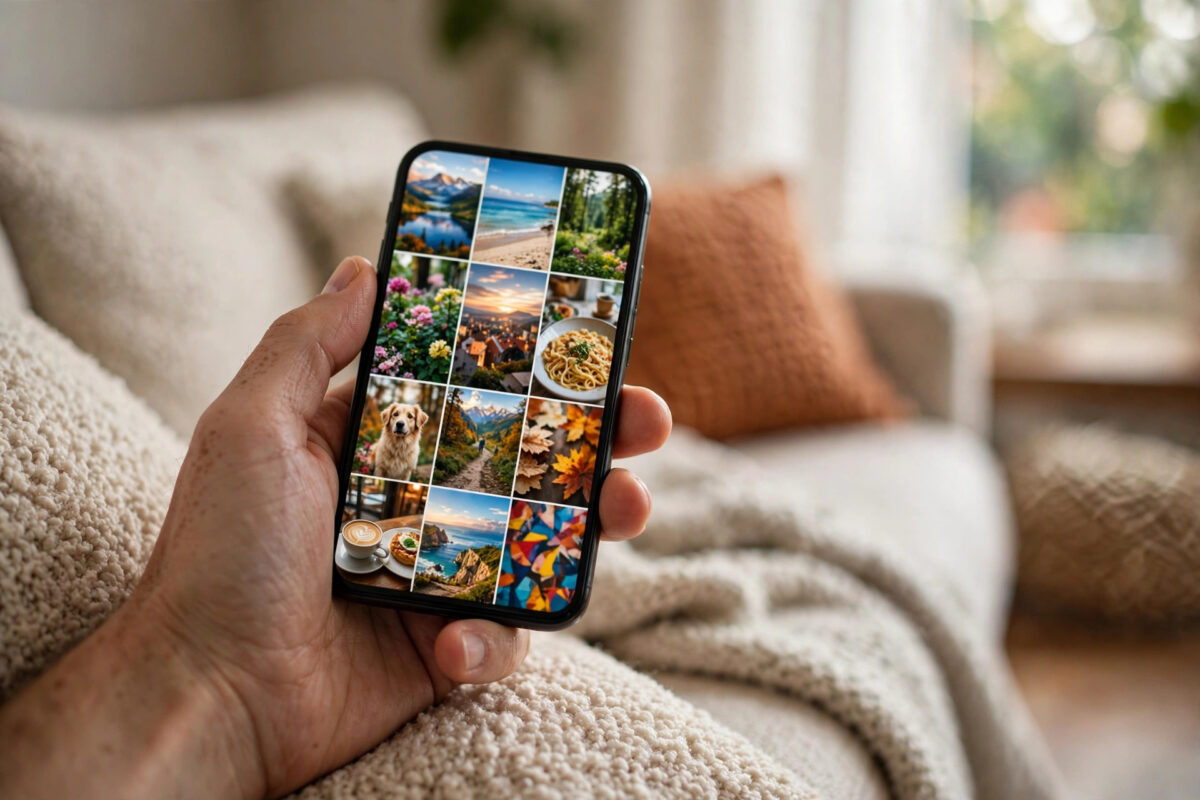
Some photos are meant only for your eyes. Maybe they are screenshots of bank details, pictures of documents, a surprise gift you are planning, or personal moments you simply do not want appearing when you hand your phone to a friend. The good news is that your iPhone already has a built-in place for these pictures: the Hidden album.
Hiding a photo takes less than a minute, and the photo disappears from your main library, your albums, and the Photos widget on your Home Screen. In this guide, you will learn how to hide one photo, how to hide many photos at once, how to find the Hidden album again, and how to unhide anything when you no longer need it tucked away.
Quick Answer
To hide a photo on iPhone, open the Photos app, tap the photo, tap the three-dot menu in the top corner, and choose Hide, then confirm Hide Photo. The picture moves instantly to the Hidden album under Utilities in the Albums tab. On iOS 27, the Hidden album stays locked with Face ID by default, so the photo stays private until you unlock it.
What Happens When You Hide a Photo?
When you hide a photo or video, your iPhone does not delete it and does not move it to a different device. It simply removes it from the normal views of your library. The item no longer appears in your Years, Months, and Days views, in Memories, or in search results while the album is locked.
The photo still lives safely on your phone and, if you use iCloud Photos, it stays hidden in the same way on your iPad, Mac, and on iCloud.com. Hiding is a privacy feature, not a storage feature, so a hidden photo takes up exactly the same space as before.
It is also worth knowing what hiding is not. Hiding does not encrypt a photo separately, and it does not remove the photo from backups. Think of it as putting a letter in a locked drawer instead of leaving it on the kitchen table.
How to Hide a Single Photo or Video
The single-photo method is best when you are reviewing pictures one by one and spot something you want to tuck away.
- Open the Photos app on your iPhone.
- Browse your library and tap the photo or video you want to hide so it fills the screen.
- Tap the three-dot icon in the top-right corner of the screen.
- Scroll the menu if needed and tap Hide.
- Confirm by tapping Hide Photo (or Hide Video) in the message that appears.
The photo vanishes from your library view straight away. Nothing is deleted, and you can reverse this in seconds using the steps further down this guide.
If you change your mind within a few seconds, you do not need to go hunting for the album. Simply follow the unhide steps below, because the item is already waiting in the Hidden album.
How to Hide Several Photos at Once
Hiding pictures one at a time gets tedious if you have a whole batch, for example all the photos from a work project or a set of document scans. The bulk method is much faster.
- Open the Photos app and go to your library or any album.
- Tap Select in the top-right corner.
- Tap each photo and video you want to hide. A blue tick appears on every chosen item. You can also drag your finger across rows to select many in one swipe.
- Tap the three-dot icon at the bottom or top of the screen.
- Choose Hide, then confirm with Hide Photos.
Every selected item moves to the Hidden album together. This works the same in albums you created yourself and in the main library view, so you can tidy up a holiday album without removing the private shots permanently.
Hiding Photos Straight After Taking Them
Many people hide a photo the moment they take it, for example a picture of a passport before a trip. You can do this without leaving the Camera flow for long: take the shot, tap the small thumbnail in the bottom-left corner of the Camera app, and the photo opens in Photos. Then use the three-dot menu and Hide as described above. The whole detour takes about ten seconds.
Where to Find the Hidden Album
Hiding is only useful if you can find the photos again. Apple places the Hidden album in a spot that is easy to reach but not obvious to someone casually scrolling your phone.
- Open the Photos app and tap the Albums tab (or scroll down in the Library view on iOS 27).
- Scroll all the way down to the Utilities section.
- Tap Hidden. You will see a lock icon next to it.
- Authenticate with Face ID, Touch ID, or your passcode.
- Browse your hidden photos and videos like a normal album.
Once unlocked, the album stays open while you remain in the Photos app. When you leave the app, it locks again automatically, which is exactly the behaviour you want for private content.
If you cannot see the Hidden album at all, it may be switched off in settings. That setting, and how to control it, is covered in the pro tips section below.
How to Unhide a Photo
Removing a photo from the Hidden album puts it back in your main library, in its original date order, as if it was never hidden.
- Open the Hidden album using the steps above and unlock it.
- Tap the photo you want to restore.
- Tap the three-dot icon and choose Unhide.
- For several photos, tap Select, choose the items, tap the three-dot icon, and choose Unhide.
The photo returns to your library immediately, and if you use iCloud Photos it reappears on your other devices too. Apple explains this behaviour in its official guide on hiding photos on iPhone and iPad, which is worth bookmarking if you share devices at home.
Hidden Album vs. Deleted Album: Do Not Confuse Them
New users often mix up the Hidden album and the Recently Deleted album, which also sits under Utilities. They do very different jobs.
- Hidden album: keeps photos private but fully alive. They stay backed up, synced, and available forever until you unhide or delete them yourself.
- Recently Deleted album: holds photos you deleted. Items there are removed permanently after about 30 days and no longer count as part of your library.
If your goal is privacy, always choose Hide. If you press Delete by mistake, recover the item from Recently Deleted first, then hide it properly.
Common Mistakes and Pro Tips
Leaving the Hidden album visible to everyone. On older iOS versions the album could sit unlocked. On iOS 27 it locks by default, but check Settings > Apps > Photos and make sure the option to use Face ID for the Hidden album is turned on.
Turning the album off and panicking. In Settings > Apps > Photos there is a switch called Show Hidden Album. Turning it off only removes the album from view; your photos are not deleted. Turn it back on and everything returns.
Forgetting shared albums. Hiding a photo does not remove copies you already placed in a Shared Album. Check your shared albums separately if a picture keeps appearing for family members.
Using Hide for storage problems. Hidden photos still use space. If storage is your real problem, follow our guide on freeing up iPhone storage space without deleting your favourite photos instead, and keep Hide purely for privacy.
Taking screenshots of sensitive documents and forgetting them. Screenshots land in the main library and in the Screenshots album. Hide them straight after taking them, especially anything with account numbers, addresses, or booking codes.
A good habit is a monthly two-minute tidy-up: search your library for documents and receipts, select them in bulk, and hide them in one go.
Conclusion
The Hidden album is one of the simplest privacy tools on your iPhone. A few taps move any photo or video out of your main library and behind Face ID, while keeping it safe, synced, and easy to recover. Hide single shots as you take them, use Select for bigger clean-ups, and remember that Hide is for privacy, not for saving space. With the album locked and visible only when you want it, you can hand your phone to anyone with confidence.
Frequently Asked Questions
Does hiding a photo delete it from iCloud?
No. A hidden photo stays in iCloud Photos if you use it, and it stays hidden on all your devices signed in with the same Apple Account. Hiding and deleting are completely separate actions.
Can anyone see my Hidden album without my passcode?
On iOS 27, no. The album requires Face ID, Touch ID, or your device passcode every time the Photos app is reopened. Someone holding your unlocked phone still cannot open the album without passing that check.
Why can I not find the Hidden album?
The option to show it is probably turned off. Go to Settings > Apps > Photos and turn on Show Hidden Album. Also update your iPhone if you are on very old software, because the locked Hidden album arrived with newer iOS versions. Apple lists the requirements in its iPhone software update support information.
Do hidden photos appear in Memories and widgets?
No. While a photo is hidden, it is excluded from Memories, Featured Photos, search results, and the Photos widget. It only appears inside the locked Hidden album until you unhide it.
If I hide a photo, is it removed from albums I created?
Yes. Hiding removes the photo from custom albums as well as the main library, because the same item is being hidden everywhere at once. Unhiding restores it to its original places.



Leave a Reply