
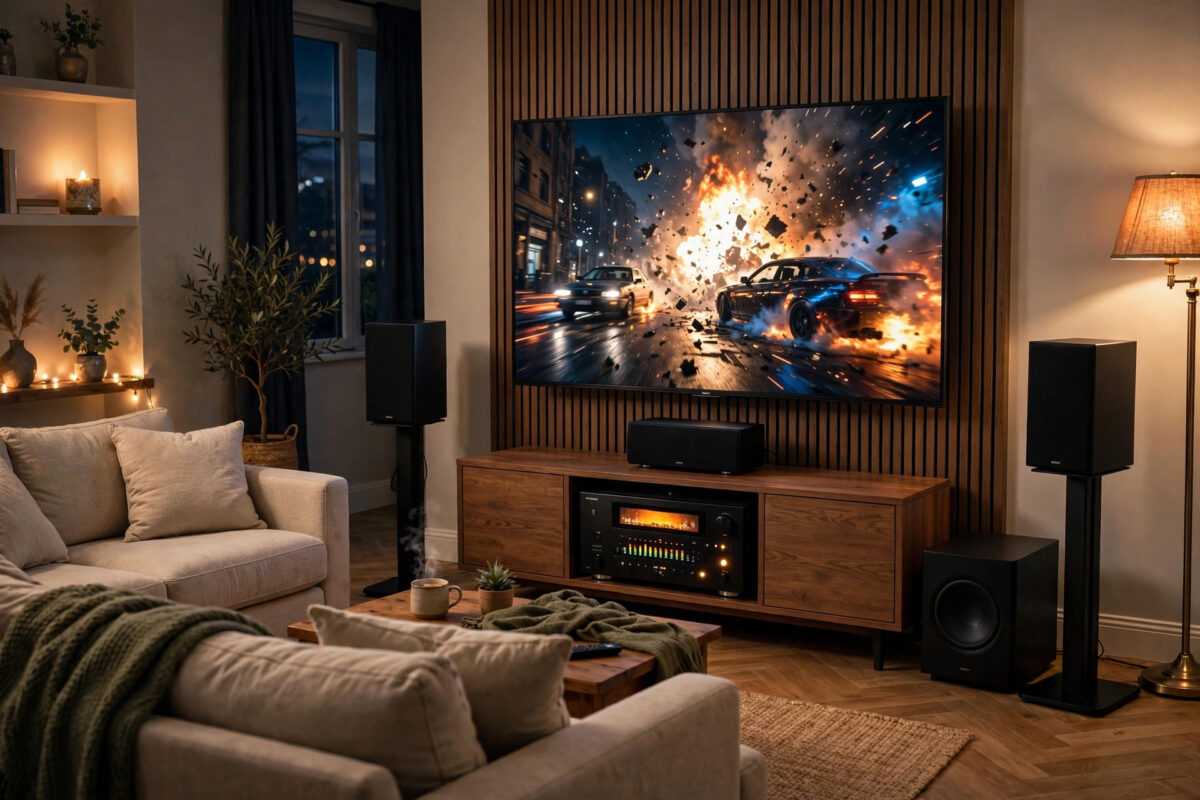
You open Netflix, start a big action film, and the picture looks amazing. But the sound only comes from the front speakers, or worse, only from the TV. Your AV receiver and surround speakers are sitting there doing almost nothing. This is a very common problem, and it usually comes down to one cable, one setting, or the way the app sends audio.
The good news is that you rarely need new equipment. Most modern TVs, receivers, and apps already support 5.1 and Dolby Atmos. You just need to connect them in the right order and set each device to pass the full signal through.
Quick Answer
Connect your TV to your AV receiver using the HDMI ARC or eARC ports, then turn on ARC/eARC and set your TV’s digital audio output to Passthrough or Bitstream instead of PCM. In your streaming app, choose a title that is actually available in 5.1 or Dolby Atmos, and make sure the app’s audio track is set to English 5.1 or Atmos. Finally, set your receiver to Auto or Direct so it decodes the signal it receives.
How Surround Sound From Streaming Actually Works
Streaming apps do not send sound in the same way as a Blu-ray disc. Netflix, Disney+, Prime Video, and Apple TV+ send compressed audio formats such as Dolby Digital Plus. Some titles also carry Dolby Atmos inside that Dolby Digital Plus signal. Your TV’s job is to pass that signal, unchanged, to your receiver. Your receiver’s job is to decode it and send each channel to the right speaker.
Problems start when any link changes the signal. If your TV is set to PCM, it often converts everything to stereo. If the app is playing a stereo track, your receiver has nothing extra to work with.
The Three Audio Routes Explained
- HDMI eARC: The best option. It carries Dolby Digital Plus, Dolby Atmos, and higher quality formats from your TV back to your receiver through one HDMI cable.
- HDMI ARC: Works well for standard 5.1 Dolby Digital and most streaming Atmos, but it has less bandwidth than eARC.
- Optical (TOSLINK): A reliable backup for basic 5.1 Dolby Digital and DTS, but it cannot carry Dolby Digital Plus Atmos or uncompressed 5.1 audio.
If your TV and receiver both have eARC, use it. Check the HDMI port labels carefully, because usually only one port on the TV and one port on the receiver support ARC or eARC.
Step-by-Step: Set Up Surround Sound Correctly
- Find the ARC/eARC ports. On your TV, look for an HDMI port labelled ARC or eARC. On your receiver, find the main HDMI OUT port with the same label.
- Connect one HDMI cable between those two ports. Use a High Speed or Ultra High Speed HDMI cable, especially for eARC.
- Turn on HDMI-CEC on both devices. This feature has different names: Samsung calls it Anynet+, LG calls it SIMPLINK, and Sony calls it BRAVIA Sync. ARC often will not work until CEC is on.
- Enable ARC or eARC in the TV sound settings. Set Sound Output to HDMI Receiver or ARC, then turn eARC mode on if you have it.
- Change the digital audio format to Passthrough. Look for a setting called Digital Output Audio Format, HDMI Audio Format, or similar. Choose Passthrough, Bitstream, or Auto. Avoid PCM for streaming surround sound.
- Set the receiver input to TV Audio. Most receivers switch to this input automatically when the TV sends sound, but you can select it manually with the remote.
- Play a known surround title and check the receiver display. The front panel should show Dolby Digital+, Dolby Atmos, or Multichannel, not just Stereo or PCM 2.0.
Check the Streaming App Itself
Sometimes the TV and receiver are perfect, but the app is playing a stereo track. Many shows, older films, and a lot of non-English content are only available in stereo. No setting can create real surround channels that were never in the original mix.
What to Check Inside the App
- On the title page, look for badges such as 5.1, Dolby Vision, or Dolby Atmos. If there is no badge, the title is probably stereo only.
- During playback, open the audio and subtitles menu and choose the English 5.1 or Atmos track if one is listed.
- Check your subscription plan. On some services, Atmos and the best picture quality are only included in the premium plan.
- Make sure the app is updated. Old app versions on smart TVs sometimes lose surround support after a service changes its streaming format.
The Netflix Help Center guide to surround sound explains that you need a title with a 5.1 badge, a system that supports it, and enough internet speed for high quality playback. The same basic rules apply to most other streaming services too.
Should You Stream From the TV or Through the Receiver?
Option 1: Apps on the TV, Sound Through eARC
This is the simplest setup for most homes. You use the TV’s built-in apps, and sound travels back to the receiver through eARC. It keeps things tidy and works well with modern TVs. It is also the best option if your receiver is older and cannot pass through 4K HDR video from a newer streaming stick.
Option 2: Streaming Device Plugged Into the Receiver
Plugging an Apple TV 4K, Fire TV Stick, or console directly into your receiver can be more reliable for audio, because the receiver decodes sound first and passes only picture to the TV. If eARC keeps dropping out, try this route before buying anything new.
If your soundbar or receiver setup is still giving you trouble after this, our complete guide to connecting a soundbar to your TV with HDMI ARC walks through port labels, CEC settings, and cable checks in more detail.
Fix the Receiver Settings Too
Your receiver can also shrink or change the sound without you realising it. Check these three areas.
Listening Mode
Set the listening mode to Auto, Direct, or Straight while you test. Modes with names like Stereo, All Channel Stereo, or a heavy music effect can spread two channels across all speakers, which sounds full but is not true surround sound. Once real 5.1 works, you can try upmixers such as Dolby Surround or Neural:X for stereo content if you like them.
Speaker Configuration
Tell the receiver which speakers you actually have. In the setup menu, set unused channels to None and used channels to Small if you have a subwoofer. Set the crossover to around 80Hz for most small and medium speakers. If the receiver thinks you have speakers that are not connected, dialogue and effects can be sent to a silent channel and simply disappear.
Common Mistakes to Avoid
- Leaving the TV on PCM. This is the number one cause of stereo-only sound from streaming apps. Use Passthrough or Bitstream.
- Using the wrong HDMI port. Only the labelled ARC/eARC ports can send audio back to the receiver. A normal HDMI port cannot do this job.
- Testing with a stereo title. Always test with a modern film or show that clearly shows a 5.1 or Atmos badge.
- Turning off HDMI-CEC. ARC and CEC depend on each other on most TVs. Turning CEC off to stop devices switching inputs often kills your audio too.
- Stacking two volume systems. Pick one remote for daily volume control, usually the receiver or TV remote through CEC. Fighting volume controls cause confusion and sudden loud or quiet sound.
- Expecting surround from live TV apps with stereo broadcasts. Many news, sport highlights, and catch-up programmes are mixed in stereo by the broadcaster.
Quick Troubleshooting Checklist
- Restart all three parts of the chain: TV, receiver, and streaming device. Unplug them for 30 seconds to clear a bad handshake.
- Reseat the HDMI cable at both ends, or try a different certified cable.
- Update the TV and receiver firmware, then test again.
- Turn ARC off and back on in the TV settings to force a new connection.
- Test with a different app. If only one app fails, the problem is inside that app or your plan, not your hardware.
Conclusion
Getting surround sound from streaming apps is mostly about protecting the original audio signal on its short trip from the app to your speakers. Use the eARC ports, turn on CEC, set the TV to Passthrough instead of PCM, and confirm the title you are playing actually has a 5.1 or Atmos track. Do those four things and your receiver display should light up with the right format, dialogue should anchor to the centre speaker, and effects should finally move around the room the way the filmmakers intended.
Frequently Asked Questions
Why does my receiver say PCM 2.0 for Netflix?
Your TV is converting the app audio to stereo PCM before sending it out. Go to your TV sound settings and change the digital output format from PCM to Passthrough, Bitstream, or Auto, then restart the app and play the title again.
Can optical cable carry Dolby Atmos from streaming apps?
No. Optical can carry basic 5.1 Dolby Digital, but it cannot carry the Dolby Digital Plus signal that streaming services use for Atmos. For Atmos you need HDMI ARC or, better, HDMI eARC.
Why is dialogue so quiet compared with explosions?
This usually means your centre speaker is set too low, or the receiver is playing a stereo downmix on the front speakers only. Run the test tones, raise the centre channel level by 2 or 3 dB, and turn on your receiver’s dialogue or night mode if loud effects are a problem in the evening.
Do I need a premium streaming plan for surround sound?
For basic 5.1, usually not. For Dolby Atmos and the highest picture quality, some services such as Netflix reserve those features for their top plan, so check your subscription if Atmos badges never appear.
Why does surround work in one app but not another?
Each app decides which audio formats it supports on each TV model, and each title has its own audio tracks. If Disney+ gives you 5.1 but a catch-up app gives stereo, the second app or programme is most likely stereo only, and your system is working correctly.



[…] your wider home cinema setup needs attention alongside sync, our guide to getting surround sound from streaming apps through an AV receiver explains the ARC and passthrough settings that also keep audio in […]