
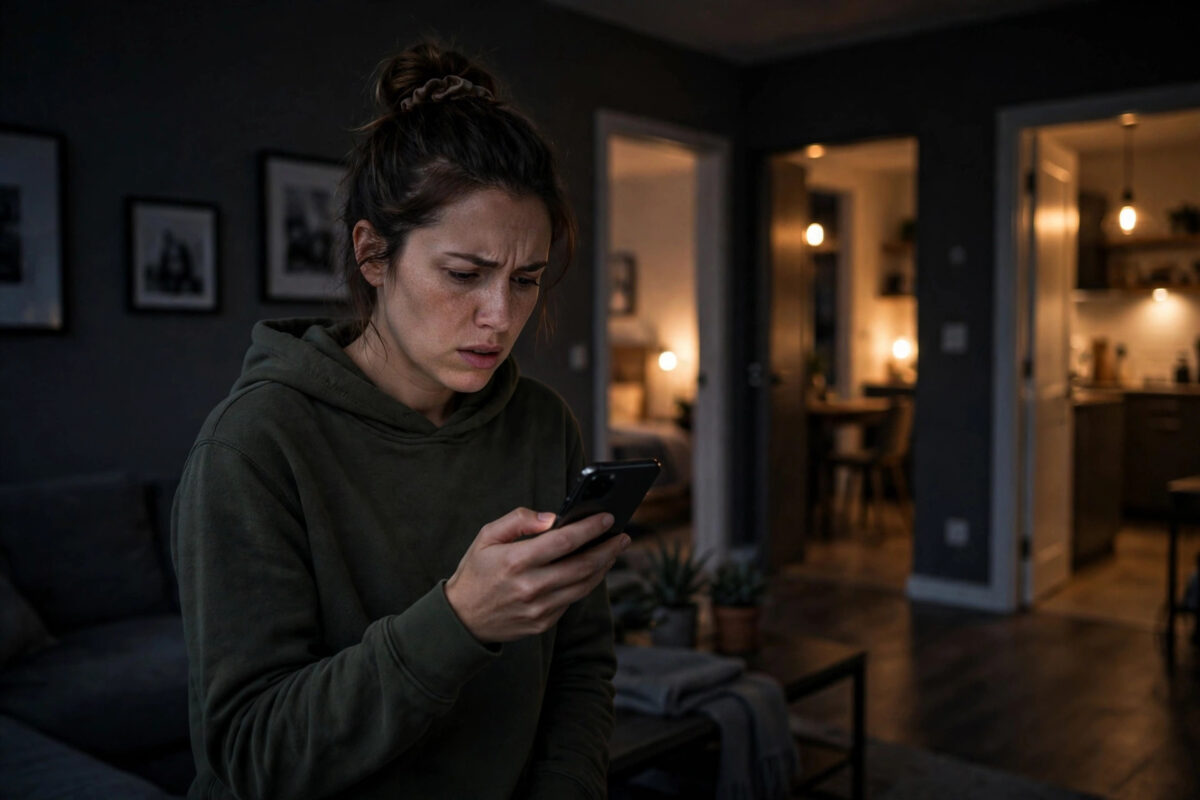
You say, “Turn off the lights,” meaning the lamp beside you. The whole house goes dark. Someone upstairs shouts, someone in the kitchen is left standing by a hot pan, and you are blamed for a command that sounded perfectly reasonable.
This is one of the most common smart lighting frustrations, and it is rarely a faulty bulb. Voice assistants act on groups, rooms, and device names. When those are messy — a group called “All Lights,” lights with similar names, or a speaker assigned to the wrong room — one short command can reach far further than you intended.
The fix is a tidy-up, not new hardware. Work through the causes below in order, and your “lights off” command will soon mean only the room you are standing in.
Quick Answer
This problem is usually caused by room groups and naming: your speaker belongs to a large group, or your lights share a group or name that the assistant treats as one set. Open your Alexa or Google Home app, check which room the speaker is in, make sure each room group contains only that room’s lights, and give groups plain room names. Then say the room name in your command, such as “Turn off the kitchen lights,” and test from each speaker.
How Voice Assistants Decide Which Lights You Mean
When you give a short command with no room name, the assistant makes a best guess. It usually considers:
- The room of the speaker: A speaker assigned to the kitchen is expected to control kitchen lights first.
- Groups: If lights are grouped together, a command to the group affects every light in it, whatever room they are physically in.
- Device names: Lights called “Light 1,” “Light 2,” and “Light” can be matched together in surprising ways.
- Whole-home groups: Some apps create an “all lights” style group automatically, and a broad command can land on it.
Understanding this explains the behaviour. The assistant is not broken; it is following a structure that no longer matches how your home is actually laid out. Both Google’s guide to controlling smart home devices by room and Alexa’s group settings work on this same room-based logic.
Step 1: Check Which Room Each Speaker Belongs To
Start with the speaker you used when the problem happened.
- Open your voice assistant app — Alexa or Google Home.
- Find the speaker or display and open its settings.
- Check its assigned room or group. Correct it if it says the wrong room, such as a speaker that moved from the lounge to a bedroom months ago.
- Repeat for every speaker and display in the house.
A speaker left in a “Downstairs” or whole-home group is a classic cause. Once it sits in one clear room, a bare “turn off the lights” command from that speaker should affect that room alone.
Step 2: Clean Up Your Room Groups
Next, inspect the groups themselves. Over time, groups collect stray devices: a hallway bulb added to the lounge, a spare lamp tested in the kitchen and never moved.
- List your groups or rooms one at a time in the app.
- Open each group and read the full device list, not just the lights you expect.
- Move any light that physically lives elsewhere into its correct room.
- Delete empty or duplicate groups, such as both “Lounge” and “Living Room” for the same space.
- Watch out for a catch-all group containing every light. If you do not use it deliberately, remove lights from it or delete it.
If your setup has grown tangled over several years, our guide to organising smart lights by room in Alexa and Google Home walks through a full room-by-room reset of groups and names.
Step 3: Rename Lights So Names Stop Colliding
Names are commands. If several lights share vague names, the assistant has to guess, and it often guesses broadly.
Follow these naming rules:
- One unique name per light: “Kitchen Ceiling,” “Kitchen Counter,” and “Hall Lamp” are clear. Three lights all called “Light” are not.
- Do not put the word “lights” in a single bulb’s name: A bulb called “Bedroom Lights” confuses room commands.
- Avoid naming a light after another room: A “Spare Room” bulb stored in the lounge will follow the wrong commands.
- Keep names short and spoken-friendly: You should be able to say the name naturally in a sentence.
- Use the same names in every app: If a bulb is “Reading Lamp” in the brand app but “Sofa Light” in Alexa, mistakes creep in.
After renaming, wait a minute, then test. In Alexa you can also ask the app to discover devices again so the new names settle in.
Step 4: Change How You Phrase the Command
While you tidy up, adjust your own habit slightly. Adding the room name makes any command unambiguous, on any platform:
- Say “Turn off the kitchen lights” rather than “Turn off the lights.”
- For a single lamp, use its exact name: “Turn off the reading lamp.”
- To turn everything off deliberately when leaving, set up a named routine such as “Leaving home,” rather than relying on a broad lights command.
This is also the safest approach with guests and children. A visitor who says a room name will get a predictable result, instead of plunging the house into darkness.
Step 5: Check Routines and Third-Party Apps
If the problem survives clean groups and names, something else may be listening. Check for:
- Routines: A routine triggered by a phrase like “lights off” might be set to switch off every light in the home. Review routines in Alexa or Google Home and narrow any you find.
- Brand apps: A bulb maker’s app may have its own groups or scenes that mirror your rooms badly. Align them with the rooms in your main app.
- Home automation platforms: If you use another platform or a hub, check its automations for a rule that reacts to one light changing by switching off others.
- Duplicate devices: The same bulb appearing twice, through two integrations, can cause double or wider actions. Remove the duplicate entry you do not use.
Common Mistakes to Avoid
Creating one giant group for convenience. An “Everywhere” light group feels handy until a tired voice command uses it by accident. Keep groups room-sized, and use a named routine for whole-home actions instead.
Moving a speaker without updating its room. Speakers travel — from kitchen to bedroom to a child’s room. Every move needs a thirty-second room update in the app.
Testing only once, from one speaker. A fix that works in the lounge may still fail from the bedroom speaker. Test the same command in every room where you use voice control.
Blaming the bulbs and replacing them. New bulbs added to the same messy groups will behave in exactly the same way. Structure first, hardware last.
Using fancy or funny names. A lamp called “Disco Palace” is amusing for a day and annoying for a year. Clear, boring names are what voice control needs.
Conclusion
When one command turns off every light in the house, the cause is almost always structure: a speaker in the wrong group, lights gathered into oversized groups, or names that collide. Put each speaker in its true room, make every group match one real room, give each light a unique spoken-friendly name, and add the room name to your commands. Test room by room, and “lights off” will go back to meaning exactly what you intended — the lights where you are standing.
Frequently Asked Questions
Why does Alexa turn off all my lights when I name one room?
Usually because that room’s group contains extra lights from elsewhere, or a light’s name overlaps with the room name. Open the group, remove any lights that do not physically belong there, and rename anything vague.
Why does Google Home turn off lights in other rooms?
Check the speaker’s assigned room in Google Home and the room membership of each light. A speaker placed in a large area, or lights left in a shared room after being moved, will widen the effect of a short command.
How do I turn off all the lights on purpose when I leave?
Create a routine with a distinct phrase, such as “I’m leaving,” that switches off every light group. This keeps the deliberate whole-home action available without making everyday room commands risky.
Do I need to rename lights in the brand app as well?
It helps. Matching names across the brand app, Alexa, and Google Home prevents confusion when devices sync. Change the name in one place, check it appears correctly in the others, then test by voice.
Will a factory reset of my bulbs fix this problem?
Almost never. The fault lies in groups, rooms, and names, not in the bulbs themselves. Resetting adds work without changing the structure that caused the problem, so tidy the app setup first.



Leave a Reply