
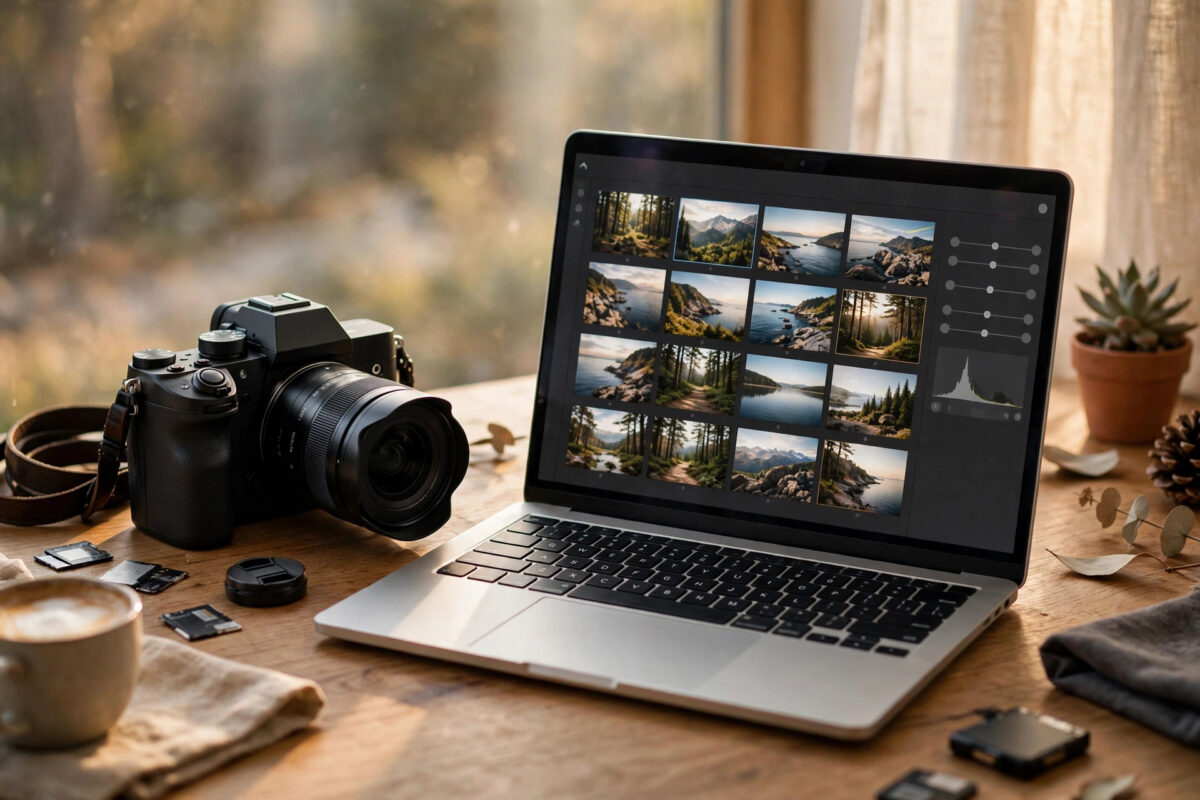
You import a card from a newer Canon camera, and Lightroom greets you with “unsupported file format” or simply refuses to show your CR3 RAW files. Nothing is wrong with your photos. Your version of Lightroom is simply too old to understand the CR3 files from that camera model, because every new camera needs fresh RAW support added to the software.
The good news is that you have several solid options, from a free update to a simple conversion workflow that keeps all the benefits of RAW editing.
Quick Answer
CR3 support depends on both your Lightroom version and your camera model, so first check whether a free update to your existing Lightroom adds your camera. If your Lightroom is too old to update further, convert the CR3 files to DNG with the free Adobe DNG Converter, which older Lightroom versions can open and edit like normal RAW files. As a backup, Canon’s free Digital Photo Professional software opens every CR3 file and can export TIFFs for Lightroom.
Why Older Lightroom Cannot Open Newer CR3 Files
CR3 is Canon’s current RAW format, introduced with cameras such as the EOS R and EOS M50. A RAW file is not a finished picture. It is sensor data plus a recipe, and software needs a profile for each specific camera model to decode it correctly.
Adobe adds those profiles in Camera Raw updates. Lightroom Classic and Lightroom both rely on the same engine, so a camera is supported only when your installed version includes a Camera Raw release that covers it. Adobe’s official list of supported RAW formats and cameras shows exactly which Camera Raw version each Canon model needs. If your Lightroom stopped receiving updates before that version, it will never open those CR3 files directly, no matter what settings you change.
This also explains a confusing detail: an older Lightroom may open CR3 files from one Canon camera but not another. Support arrived model by model, not for the CR3 format all at once.
Fix 1: Update Lightroom as Far as Your Version Allows
- In Lightroom, open Help and choose Updates, or open the Creative Cloud desktop app and check for a Lightroom update.
- Install any update offered. Even a minor update can add the camera profile you need.
- Restart Lightroom and try importing one CR3 file as a test.
- If no update is offered, check Adobe’s supported cameras list for your model and note the minimum Camera Raw version, then compare it with the version shown in Lightroom’s About screen.
- If your licence only covers an older Lightroom generation, that generation has a fixed ceiling. Updates will not take it further, so move on to the DNG method below.
Fix 2: Convert CR3 to DNG With Adobe DNG Converter
This is the most reliable long-term fix for older Lightroom versions. DNG is Adobe’s open RAW format, and even very old Lightroom versions read DNG files, including DNGs converted from brand-new cameras. The converter is free and is updated for new cameras much longer than old Lightroom versions are.
- Download the free Adobe DNG Converter from Adobe and install it.
- Copy your CR3 files from the memory card to a folder on your computer first. Convert the copies, never the card originals.
- Open DNG Converter and select the folder containing the CR3 files.
- Choose a destination folder for the DNG files, ideally a separate “DNG” folder so originals and conversions stay apart.
- Open Preferences in the converter and set Compatibility to a Camera Raw version your Lightroom supports. Choosing an older compatibility setting is what makes this method work with old software.
- Decide whether to embed the original CR3 inside the DNG. Embedding makes files much larger but lets you extract the untouched original later. For most people, leaving it off is fine if you keep the CR3 files archived separately.
- Click Convert and wait. Conversion is quick, usually a second or two per photo.
- Import the DNG files into Lightroom and edit them normally, with the full RAW adjustment range.
Adobe explains the converter settings and compatibility options in detail in its DNG Converter help pages. Once converted, the workflow feels identical to working with native RAW files, which is why so many photographers standardise on DNG.
Fix 3: Use Canon Digital Photo Professional
Every Canon camera is supported by Canon’s own free software, Digital Photo Professional (DPP), available from the official Canon support website for your camera model. DPP opens CR3 files that nothing else will touch.
- Download and install DPP for your camera from Canon’s support site.
- Open the CR3 files in DPP and make basic corrections if you wish, such as white balance and exposure.
- Select the photos and use Convert and Save to export them as 16-bit TIFF files.
- Import the TIFF files into Lightroom for your normal editing and organising.
TIFF files are large and slightly less flexible than RAW for extreme exposure recovery, so treat DPP as a solid backup or a short-term bridge, not your main workflow. Our guide to opening RAW photo files on Windows and Mac compares the other free viewers and converters worth knowing about.
Mistakes and Myths to Avoid
- Renaming .CR3 to .CR2 or .DNG. Changing the file extension does nothing. The data inside is still CR3, and Lightroom still cannot decode it.
- Downloading “CR3 plugins” from unknown sites. There is no legitimate third-party plugin that adds CR3 support to old Lightroom. These downloads are a common source of malware.
- Converting to JPEG as the fix. JPEG throws away most of the RAW data. You lose the exposure and white balance flexibility that made you shoot RAW in the first place. DNG keeps it; JPEG does not.
- Assuming the files are corrupt. If the same CR3 files open in Canon DPP, they are healthy. The problem is purely software support.
- Deleting the original CR3 files. Keep them archived. A future Lightroom upgrade will open them natively, and they are your only untouched originals.
Which Fix Should You Choose?
If a free update adds your camera, take it, because native support is always simplest. If your Lightroom has reached its ceiling, the DNG Converter route is the best permanent answer: one quick conversion step, then normal RAW editing forever, with no subscription required. Use Canon DPP when you need a file open right now, or when a brand-new camera is not yet covered by the DNG Converter, which is rare and usually only lasts a few weeks.
Conclusion
“Unsupported file format” for CR3 files is a version problem, not damaged photos. Update Lightroom if you can, convert CR3 to DNG with Adobe’s free converter if you cannot, and keep Canon DPP as your backup. Whichever route you choose, archive the original CR3 files untouched.
Frequently Asked Questions
Does converting CR3 to DNG lose image quality?
No. DNG conversion keeps the full RAW sensor data, so you keep the same editing flexibility for exposure, white balance, and detail. The only thing that changes is the container the data sits in. Set the converter’s compatibility option correctly and older Lightroom versions will edit the DNGs happily.
Why does my Lightroom open CR3 from one Canon camera but not another?
Because Adobe adds support camera by camera. Each model needs its own profile in a specific Camera Raw version. Your Lightroom includes profiles up to a certain point, so older Canon models work and newer ones do not.
Can I make Lightroom 6 open CR3 files?
Not directly. Lightroom 6 stopped receiving camera updates long before most CR3 cameras existed. The practical solution is converting CR3 to DNG with a compatibility setting Lightroom 6 understands, then importing the DNGs, which works very well.
Is Adobe DNG Converter really free?
Yes. Adobe publishes it as a free download for Windows and Mac, with no subscription needed, and updates it as new cameras launch. Download it only from Adobe’s own site to avoid fake versions bundled with unwanted software.
Should I shoot a different format in the camera instead?
Most Canon cameras that shoot CR3 cannot switch to the older CR2 format, so changing camera settings is not an option. Shooting RAW plus JPEG gives you instant JPEGs as a stopgap, but DNG conversion remains the proper fix for the RAW files.



Leave a Reply