
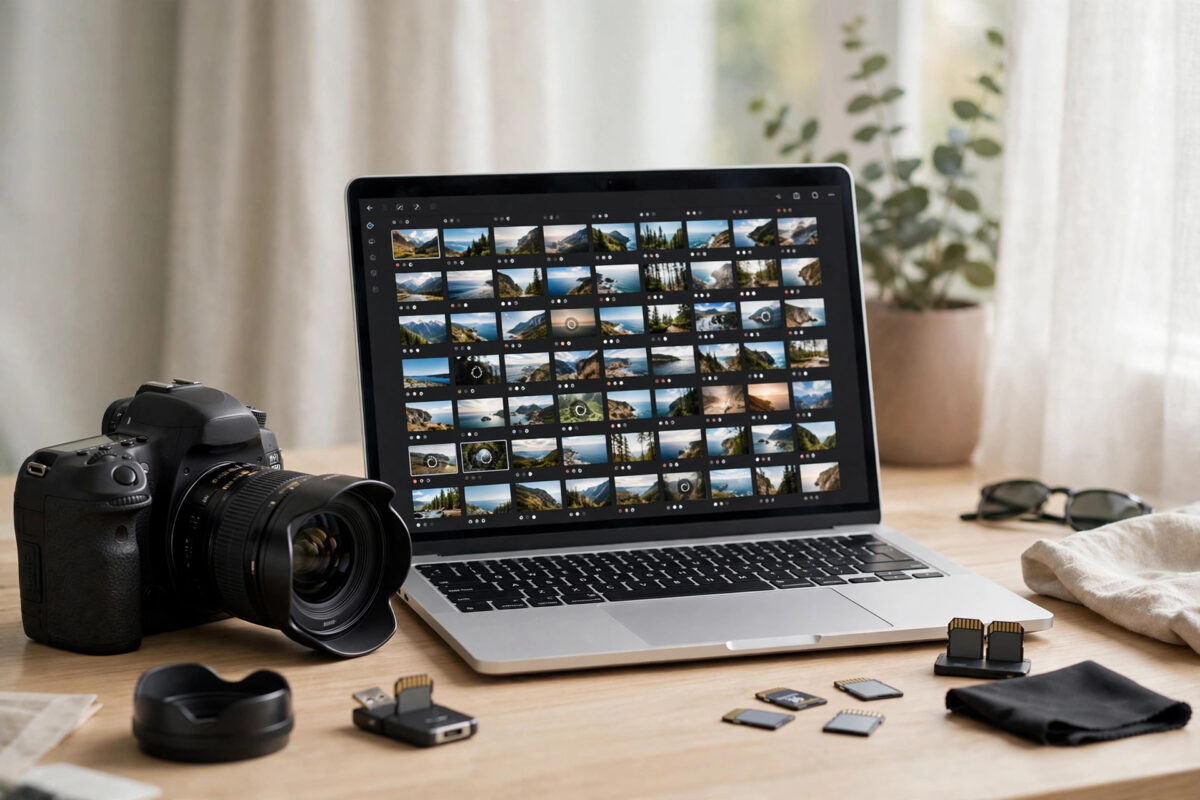
You have a folder, or a whole drive, full of Nikon NEF RAW files, and your photo editor simply will not open them. This is one of the most common RAW problems there is: the editor is older than the camera, so it has never heard of your NEF files. Converting the NEFs to DNG in bulk solves it in one pass, and your editor will treat the DNGs like any other RAW file.
This guide covers the free Adobe DNG Converter workflow for large batches, the settings that matter, and how to check the results before you trust them.
Quick Answer
Download the free Adobe DNG Converter, point it at the folder containing your NEF files, choose a destination folder and set the compatibility option to a Camera Raw version your editor supports, then click Convert. The tool processes the whole folder, including subfolders if you tick that option, and produces DNG copies with the full RAW data intact. Keep your original NEF files archived until you have checked the DNGs open and edit correctly.
Why Your Editor Refuses Nikon NEF Files
NEF is Nikon’s RAW format, and like every RAW format it changes slightly with each new camera model. Photo editors decode NEF files using camera profiles built into their RAW engine. When a camera launches after your editor’s last update, the editor has no profile for it and reports the files as unsupported, unreadable, or simply shows blank thumbnails.
DNG, Adobe’s open RAW format, was designed to end this problem. A DNG converted today can be read by editors many years old, because the DNG Converter can write the file in a compatibility mode those editors understand. That is why bulk conversion is the standard fix, and it is also covered in our wider guide to converting RAW files to DNG for older editors.
What You Need Before You Start
- The free Adobe DNG Converter, downloaded from Adobe’s official site.
- Your NEF files copied to your computer. Convert copies on a hard drive, never files still sitting on a memory card.
- Free disk space roughly equal to the size of the NEF folder, because conversion creates a second set of files.
- A few test files first. Convert five photos, check them in your editor, then commit to the full batch.
Step by Step: Bulk Convert NEF to DNG
- Install and open Adobe DNG Converter.
- Under step 1 in the converter window, click Select Folder and choose the folder holding your NEF files.
- If your photos are organised in dated subfolders, tick “Include files contained within subfolders” so the whole tree is processed in one run.
- Under step 2, choose where the DNG files go. “Save in New Location” with a clearly named folder, such as “Wedding DNG,” keeps originals and conversions separate and safe.
- Under step 3, leave the file naming on Document Name, or add a counter if you want numbered files. Avoid renaming schemes you might regret later.
- Click Preferences and set the important options, explained in the next section: compatibility, preview size, compression, and whether to embed the original NEF.
- Click Convert. A progress window shows each file being processed. A few hundred photos usually take only a few minutes.
- When it finishes, open the destination folder, import a selection of DNGs into your editor, and confirm they open, display correctly, and allow full RAW adjustments such as exposure and white balance.
Adobe documents every converter option in its official DNG help pages, including the compatibility settings for older software.
The Settings That Actually Matter
Compatibility
This is the setting that decides whether your old editor can read the new DNGs. In Preferences, choose the Camera Raw version that matches or is older than your editor’s engine. If you are unsure, pick an older option. Choosing one that is too new recreates the exact “unsupported” problem you are trying to escape.
Embed Original Raw File
The converter can store the complete original NEF inside each DNG. This makes every file much bigger, but it means the untouched NEF can be extracted later. A sensible approach is to leave embedding off and simply keep your NEF folder archived on a backup drive, which gives you the same safety without doubling every working file.
JPEG Preview and Compression
A full-size JPEG preview makes DNGs display quickly in browsers and older software, at the cost of some file size. Lossless compression is on by default and is genuinely lossless, so leave it enabled. Avoid the “Use Lossy Compression” option for master files, because it discards data permanently to save space.
Converting From Lightroom or Bridge Instead
If you already have a newer Lightroom or Adobe Bridge that can read your NEFs, you can convert during import or export instead. In Lightroom Classic, the import option “Copy as DNG” converts while copying from the card. In Bridge, selecting files and choosing the DNG conversion tool does the same job. These routes are convenient for new photos, but for rescuing a backlog that your only editor cannot open, the standalone DNG Converter is the right tool because it does not depend on any editor at all. Nikon’s own free software, available from the official Nikon support site, can also open every NEF and export TIFFs if you ever need a non-Adobe fallback.
Mistakes That Cause Trouble in Bulk Conversions
- Deleting the NEFs straight after converting. Always test the DNGs in your editor first, including a few high-ISO and brightly lit shots, and keep the NEFs until the job they belong to is finished.
- Converting files on the memory card. Card reads are slow, and any interruption risks the originals. Copy to a drive first.
- Picking the newest compatibility setting. It feels safer but defeats the purpose. Match the setting to your editor, not to the calendar.
- Using lossy compression to save space. The savings are real, but so is the data loss. Keep masters lossless.
- Skipping the test batch. Five test files take a minute and reveal wrong settings before you have converted five thousand files the wrong way.
Checking the Results Properly
After a bulk run, do more than glance at the folder. Compare file counts: the destination should contain one DNG for every NEF, and the converter reports any file it skipped. Open a random sample across different dates and folders, zoom to 100 percent on one or two, and make a strong test edit, such as lifting shadows hard, to confirm the RAW flexibility survived. Only when the sample passes should the batch be considered done.
Conclusion
An editor that will not open Nikon NEF files is not a dead end. Copy the files to your computer, run them through the free Adobe DNG Converter with the right compatibility setting, test a sample, and you will have a full set of editable DNGs with your original NEFs safely archived behind them.
Frequently Asked Questions
Does converting NEF to DNG lose quality?
No, not with the default settings. The conversion keeps the complete RAW sensor data, so exposure, white balance, and detail adjustments behave the same as with the NEF. Only the optional lossy compression mode discards data, and it is off by default.
Are DNG files bigger or smaller than NEF files?
Usually a little smaller, thanks to lossless compression, unless you embed the original NEF inside each DNG, which makes them much larger. Full-size JPEG previews also add a small amount of size in exchange for faster browsing.
Can I convert NEF files in bulk for free?
Yes. Adobe DNG Converter is a free download from Adobe and handles whole folders and subfolder trees in one run. It needs no subscription and no other Adobe software installed.
Will DNG files work in non-Adobe editors?
Most major editors, including Capture One, DxO PhotoLab, ON1, and Affinity Photo, open DNG files. A few tools handle camera-native RAW slightly better for special features, which is another reason to keep your original NEFs archived.
What if some NEF files fail to convert?
A small number of failures usually means those files are damaged rather than unsupported. Check whether Nikon’s own software can open them. If it cannot either, recover them from the memory card or backup before that source is reused or formatted.



Leave a Reply