
Music that crackles. Voices that buzz on calls. A brand-new iPhone 18 Pro should sound clean, so any crackling from the speaker feels like a defect — and sometimes it is. But in many cases the cause is something stuck in the speaker grille, a software setting, or one badly behaved app.
This guide helps you tell the difference. Work through the checks in order, test the speaker the right way, and learn the point at which crackling becomes Apple’s problem rather than yours.
Quick Answer
To fix speaker crackling on the iPhone 18 Pro, first remove the case and clean the speaker grilles gently with a soft, dry brush, then test with several different sounds — a voice memo, a song, and a call — at different volumes. Restart the phone, update iOS, and turn off any EQ or sound processing to test again. If the crackling happens on every sound, at low volume too, and survives a restart and update, it is very likely a hardware fault with the speaker itself, and you should contact Apple Support for a warranty repair. Crackling only at maximum volume, or only in one app, is usually software or content, not a broken speaker.
First, Test the Speaker Properly
Random testing gives random conclusions. Use this controlled approach:
- Remove the case and screen protector — protectors that cover the top speaker cause more “faults” than any other single thing.
- Record a 20-second voice memo of yourself speaking at normal volume.
- Play it back at 50 percent volume, then at 80 percent, and listen for crackle.
- Play a familiar song from a streaming app and repeat the test.
- Make a short call and ask the other person whether they hear crackling, which separates your speaker from your microphone.
Write down when it crackles: which sounds, which volumes, which speaker — top or bottom. That small table is gold if you end up at a support appointment. The pattern tells the story:
- Crackling in one app only: the app or its audio is the problem
- Crackling only at full volume: often the recording itself or distortion, sometimes early speaker trouble
- Crackling on everything, even quiet sounds: classic hardware fault
- Crackling on calls only: frequently network quality, not the speaker at all
The Fixes, in Order
1. Clean the speaker grilles
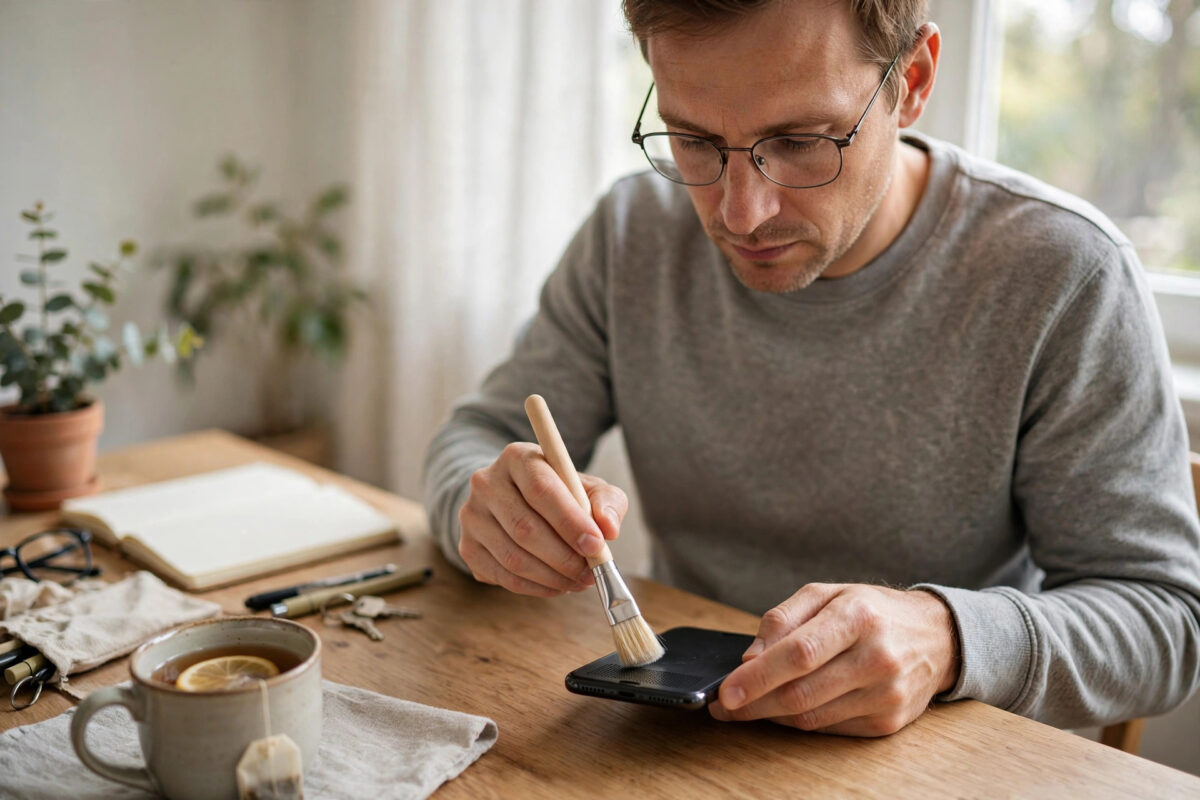
Pocket lint and dust pack into the fine mesh over the speakers and vibrate, which sounds exactly like crackling. Use a soft, dry, anti-static brush or a clean, dry toothbrush with feather-light strokes across — never into — the grille. Do not use compressed air at close range, liquids, or anything sharp.
2. Restart and update
Restart the phone to clear the audio system, then check Settings, General, Software Update. Audio bugs in early iOS releases for a new model are common and quietly fixed.
3. Strip away audio processing
Turn off EQ (Settings, Music, EQ), disable any sound effects inside the app you are using, and test with plain audio. Processing that boosts bass or loudness can push a small speaker into distortion that sounds like damage.
4. Test without accessories
Disconnect Bluetooth audio, unplug anything from the port, and switch off hearing-device features under Accessibility if you enabled them. You are isolating the phone’s own speakers.
5. Check for water
If the phone was recently splashed or used in a steamy bathroom, moisture in the speaker sounds buzzy and muffled. Let it dry at room temperature for several hours — no rice needed, no hairdryer — and test again.
When It Is Hardware
Book support if crackling is present on all audio, at moderate volumes, after cleaning, restarting, and updating. A speaker with a torn or loose diaphragm has a distinctive rattle on bass notes and speech alike, and no setting changes it. Apple Support’s iPhone sound troubleshooting covers the same escalation path: if their listed steps do not restore clean sound, the device needs service. On a phone this new, service means a warranty repair or replacement, not a bill.
If the crackling arrived with other symptoms — a hot spot near one end of the phone, or distortion that began after a drop — say so plainly at the appointment; combined symptoms point technicians to the right module faster. Our guide to iPhone 18 Pro camera-area finish issues explains how to document cosmetic or physical changes with dated photos, and the same evidence habit applies here with short audio recordings.
Protecting the Speakers Afterwards
Once your sound is clean again, a few habits keep it that way. Keep the phone out of steamy bathrooms during showers, or at least off the sink ledge where condensation settles into the grilles. Give the speaker areas a gentle dry brush every few weeks — lint accumulates faster than intuition suggests, especially if the phone lives in a trouser pocket. If you work around dust, flour, or fine sand, a case with port covers is worth its small inconvenience.
Be careful, too, with “speaker cleaner” apps and videos that play loud ejection tones. The water-ejection idea works by vibrating droplets out of the grille, and Apple’s own devices use similar tricks, but third-party versions vary wildly in volume and duration. Used briefly at sensible volume they are harmless for most people; used at maximum for minutes at a time, they stress exactly the component you are trying to protect. The brush remains the boring, safe champion.
Common Mistakes and Useful Tips
Cleaning with liquids or air cans. Moisture and pressure both damage speaker membranes. Dry brush, gentle strokes, nothing else.
Testing with one badly recorded video. Social media audio is often clipped and distorted at the source. Judge the speaker with a voice memo you recorded yourself in a quiet room.
Assuming maximum volume should be perfectly clean. Tiny phone speakers distort near their limit on heavy bass. Crackling at 100 percent alone is a weaker fault signal than crackling at half volume.
Delaying a warranty claim. If it is hardware, it will not heal. Report it early, with your test notes, while the phone is new.
Conclusion
Most iPhone 18 Pro speaker crackling comes from a dirty grille, a case or protector in the way, one app, or early software — all fixable at home in fifteen minutes with careful testing. Crackling that survives cleaning, restarting, and updating, on every kind of sound, is a faulty speaker, and faulty speakers on new phones are exactly what the warranty covers.
Frequently Asked Questions
Why does my iPhone 18 Pro speaker only crackle on calls?
Call audio passes through a different path — the earpiece speaker and your network connection. Crackling on calls only usually means network quality or the top earpiece, so test a voice memo on loudspeaker: if that is clean, your bottom speaker is fine and the calls issue is coverage or the earpiece grille being blocked.
Can water cause permanent speaker crackling?
Temporary buzzing after a splash is common and clears as the speaker dries. Permanent crackling after serious water exposure is possible, though water damage is assessed separately under warranty, so be honest about what happened when you book service.
Is it safe to use a toothbrush on the speaker?
Yes, if it is clean, dry, and soft, and you brush gently across the surface. The goal is to lift lint out of the mesh, not to push anything deeper in — light strokes, no pressure, no liquid.
Why did the crackling start after I installed a screen protector?
Many protectors slightly overlap the earpiece cut-out or trap a film of air and debris over it, which vibrates and buzzes. Remove the protector and retest before assuming the phone is faulty; refitting a better-aligned protector usually ends the problem.
Will Apple charge me to fix a crackling speaker?
If the phone is within warranty and there is no accidental or water damage, a defective speaker is covered. Keep your test notes and any recordings of the fault — intermittent problems are easier to approve when the evidence comes with them.



Leave a Reply