
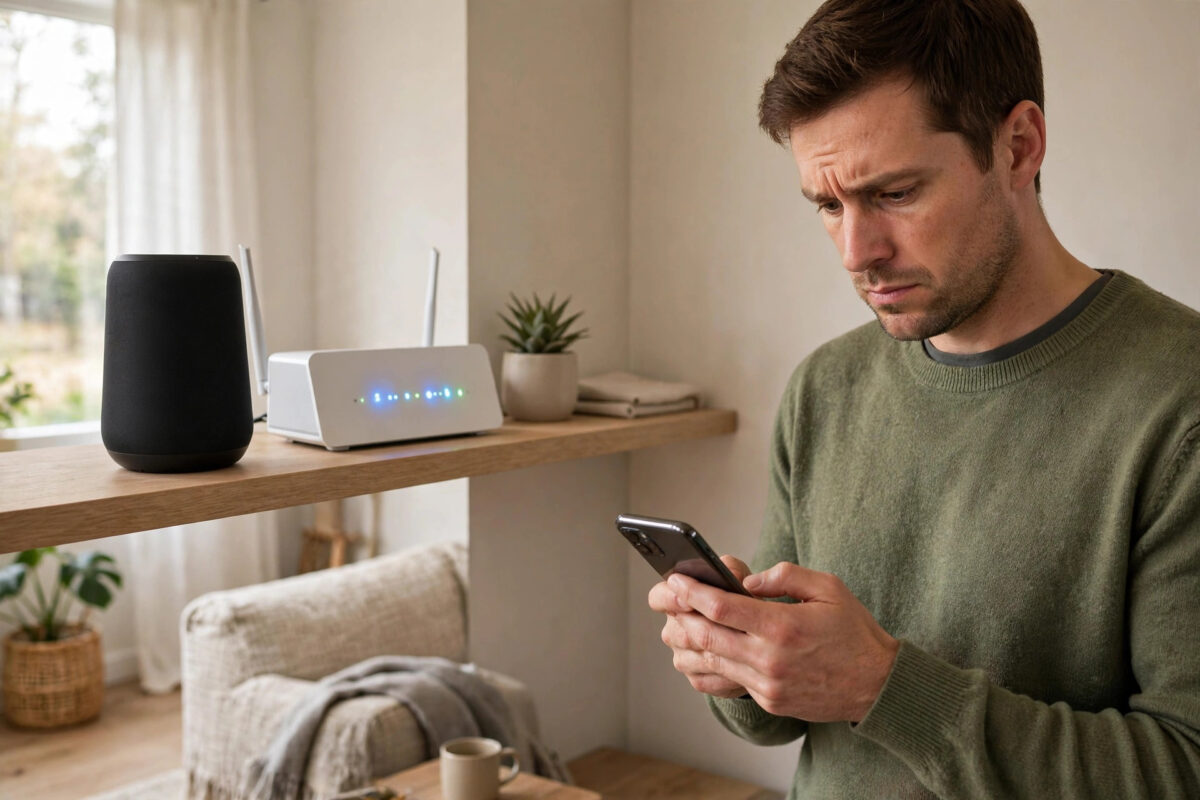
You upgraded your router, everything seemed fine, and then one day you opened Spotify and your Sonos speaker was simply gone from the list of available devices. The speaker still plays radio. The Sonos app can still see it. But Spotify Connect acts as if it does not exist.
This is one of the most common Sonos problems after any network change. A new router means a new network, even if you kept the same Wi-Fi name and password. Small settings that were fine before — band steering, a changed subnet, or a speaker stuck on old network details — can break the discovery that Spotify Connect depends on.
Work through the fixes below in order. Most people get their speaker back within the first few steps.
Quick Answer
First, make sure your phone and the Sonos speaker are on exactly the same Wi-Fi network, then fully close and reopen Spotify and the Sonos app. Next, reboot your router, then reboot the missing speaker by unplugging it for 30 seconds. If it is still missing, update the Sonos system and Spotify, check that the speaker is not on a guest network or a different Wi-Fi band blocked by router isolation, and re-link your Spotify account inside the Sonos app under Settings and Services.
How Spotify Connect Finds Your Sonos Speaker
Spotify Connect is not Bluetooth. Spotify does not pair with your speaker directly. Instead, your phone, the Spotify service, and the speaker all need to find each other over your home network and the internet.
That discovery relies on your local network letting devices see one another. After a router upgrade, new security defaults can quietly block that. Features like AP isolation, a strict firewall, separate 2.4 GHz and 5 GHz networks, or a guest network can each leave a speaker working in the Sonos app but invisible to Spotify.
Step 1: Check You Are on the Same Network
- On your phone, open Wi-Fi settings and note the exact network name you are connected to.
- Open the Sonos app. If it says it cannot find your system, your phone may be on a different network from the speakers.
- If your router offers both a normal and a guest network, make sure your phone is on the main one, not the guest one.
- If your new router created separate names for 2.4 GHz and 5 GHz, try connecting your phone to the same band the Sonos system uses.
- Turn off any VPN on your phone while you test, as a VPN can hide local devices from apps.
- Force close Spotify completely, then reopen it and tap the Devices icon to check the list again.
If the speaker appears now, you are done.
Step 2: Reboot Everything in the Right Order
Order matters here. Restarting things in the wrong order can leave the speaker connecting before the network is ready.
- Unplug your router and any mesh nodes or extenders from power.
- Unplug the missing Sonos speaker from power as well.
- Wait a full 60 seconds.
- Plug the router back in first and wait until your Wi-Fi is fully back and your phone can browse the web.
- Plug in any mesh nodes and let them settle.
- Plug the Sonos speaker back in and wait for its light to show it has finished starting up and joined the network.
- Open the Sonos app and confirm the speaker is present and can play something.
- Open Spotify, start a song, tap the Devices icon, and look for the speaker again.
This clean start clears old address leases and stale discovery records, which are very common after a router swap.
Step 3: Update Sonos and Spotify
After a router upgrade, an out-of-date speaker or app can struggle with newer network security, such as WPA3. Updates are quick and worth doing before deeper digging.
- In the Sonos app, go to Settings, then System, then System Updates, and check for updates.
- Install any available update and let every speaker restart.
- Update the Spotify app from your phone’s app store.
- Update the Sonos app itself as well, not just the speakers.
- Restart your phone once.
Step 4: Check Router Settings That Block Discovery
If the basics did not work, your new router’s defaults are the likely cause. Log in to the router’s admin page or app and look for these settings.
Turn Off AP or Client Isolation
Isolation stops Wi-Fi devices from seeing each other. It is useful for guest networks and harmful for smart speakers. Make sure it is off on your main network, and never run Sonos on a guest network.
Review Band Steering and Separate Bands
Some older speakers only use 2.4 GHz. A phone on 5 GHz and a speaker on 2.4 GHz are usually fine on the same router — unless the router isolates the bands. If you suspect this, temporarily give both bands the same name and password.
Check Multicast and IGMP Settings
Device discovery uses multicast traffic. Some routers ship with multicast filtering or IGMP snooping settings that interfere. If your router has an option for multicast enhancement or IGMP proxy, try enabling it. Sonos’s official router configuration guidance lists the ports and network requirements its system needs, which is helpful if your router has a strict firewall.
Avoid Double NAT
If you plugged your new router into an ISP modem-router and both are routing, you get double NAT, which can break discovery. Put the ISP box in bridge mode, or use your new router in access point mode. Pick one device to do the routing.
Step 5: Re-Link Spotify Inside the Sonos App
Sometimes the speaker and network are fine, but the Spotify service link inside Sonos has gone stale after the network change.
- Open the Sonos app and go to Settings, then Services and Voice.
- Tap Spotify in the list.
- Remove the service, or sign out of your Spotify account if removal is not offered.
- Wait a minute, then add Spotify again and sign in with the correct account.
- Play a track from Spotify inside the Sonos app as a test.
- Then test from the Spotify app itself using Spotify Connect.
Note the difference: if Spotify works inside the Sonos app but not from the Spotify app, the problem is discovery on your network. If it fails in both, the problem is the account link or Spotify itself. Also check Spotify’s official Spotify Connect help page to confirm your speaker model is supported and to see Spotify’s own troubleshooting steps.
Step 6: Move the Speaker Onto the New Network Properly
If you changed your Wi-Fi name or password during the upgrade, the speaker may still be trying to use the old details whenever it restarts. In that case, use the Sonos app’s network update flow: open Settings, go to System and Network, and follow the prompts to update the Wi-Fi network, or connect the speaker to the router with an Ethernet cable temporarily and then update the wireless settings from the app. Wiring the speaker for ten minutes is also a great test — if Spotify Connect finds it instantly while wired, your Wi-Fi settings are definitely the issue, not the speaker or your account.
If your Sonos troubles go beyond Spotify, our guide on fixing Sonos speakers that cut out during TV audio covers the network and grouping fixes that overlap with this problem.
Common Mistakes to Avoid
- Factory resetting the speaker first. A reset wipes settings and rarely fixes a network discovery issue. Try it only as a last resort, and only on the one affected speaker.
- Testing while a VPN is on. A VPN on your phone can make local speakers disappear from Spotify’s list.
- Leaving the speaker on a guest network. Guest networks are designed to isolate devices, which is the opposite of what Connect needs.
- Rebooting the speaker before the router is ready. The speaker may grab a bad state if it starts before the network settles.
- Using two routers without bridge mode. Double NAT causes exactly this kind of half-working behaviour.
Conclusion
A Sonos speaker missing from Spotify Connect after a router upgrade is almost always a network discovery problem, not a broken speaker. Confirm both devices are on the same main network, reboot the router first and the speaker second, update everything, and check your new router for isolation, guest network, and double NAT issues. Re-link Spotify inside Sonos if the account connection looks stale, and your speaker should be back in the Connect list where it belongs.
Frequently Asked Questions
Why does my Sonos speaker show in the Sonos app but not in Spotify?
The two apps discover speakers in slightly different ways. The Sonos app finding your speaker proves it is powered and partly connected, but Spotify Connect also needs clear local network discovery and a healthy account link. Router isolation, a VPN, or a stale Spotify service link are the usual causes.
Does Spotify Connect need the speaker and phone on the same Wi-Fi?
For setup and reliable discovery, yes, they should be on the same main home network. Once a speaker is playing, Spotify can control it remotely, but the first connection after a network change should always be done at home on the same Wi-Fi.
Should I factory reset my Sonos speaker if it stays missing?
Only as a last step after rebooting, updating, checking router settings, and re-linking Spotify. A factory reset removes the speaker from your system and you will need to set it up again, so it should never be the first thing you try.
My other Sonos speakers appear but one does not. What does that mean?
That points to a problem with that single speaker rather than your account. Reboot that speaker, check it is on the same network in the Sonos app’s system info, and test it wired to the router if you can. One speaker stuck with old network details is a very common pattern.
Could my new router’s WPA3 security be the problem?
It can be, with some older speakers. If everything else fails, set your router’s security to WPA2/WPA3 mixed mode rather than WPA3 only, then reboot the speaker and test Spotify Connect again.



[…] your speakers also vanish from apps or services after network changes, the checks in our guide to fixing a Sonos speaker missing from Spotify Connect will help you rule out router isolation and account issues as […]