
Stick drift is the most frustrating DualSense problem: your character walks on their own, the camera slowly spins, or menus scroll without you touching anything. Before you spend money on a replacement controller, know that a large share of drift cases are caused by dirt, software glitches, or worn settings rather than dead hardware. This guide runs through every fix worth trying at home, in order from easiest to most involved.
Quick Answer
To fix PS5 controller drift without buying a new one, start by resetting the controller with the pinhole button on the back, then clean around the base of the drifting stick with compressed air while rotating it. Update the controller firmware, and increase the stick dead zone in games that offer that setting. If drift is caused by dust or minor wear, these steps usually cure it or reduce it to a level you cannot feel. Severe drift from worn-out sensors is the only case that truly needs repair or replacement.
How to Confirm It Really Is Drift
First, be sure the problem is the stick and not the game. Open a different game or the console menus and watch whether the same movement happens. On a PC, you can connect the controller and use a gamepad tester in your browser to see the stick’s resting position plotted live; a healthy stick sits dead centre, while a drifting one rests slightly off-centre or jitters. Also test with the controller both wired and wireless, because a weak Bluetooth connection can mimic drift. Note which stick drifts and in which direction, because cleaning and calibration effort should focus there.
Fix 1: Reset the Controller
A reset clears pairing glitches and minor firmware confusion, and it costs nothing:
- Turn the controller off completely so the light bar is dark.
- Turn it over and find the small hole on the back, near the L2 button.
- Push a straightened paperclip or SIM tool into the hole and hold the internal button for at least five seconds.
- Reconnect the controller to the PS5 or PC, by cable first, and test again in a game menu where drift was obvious.
Fix 2: Clean Around the Stick Properly
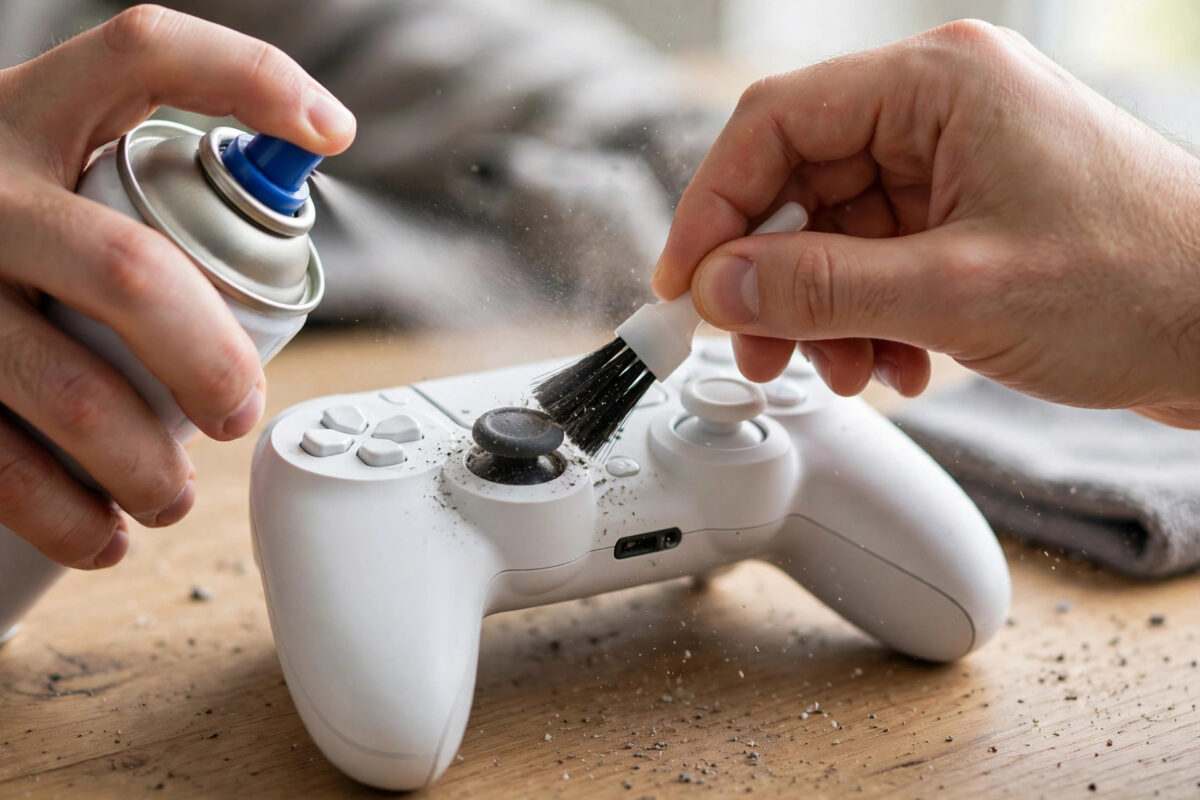
Dust, skin flakes, and snack crumbs work their way under the stick cap and interfere with the sensors. Cleaning is the fix that surprises people most often:
- Power the controller fully off.
- Press the stick in and rotate it in slow circles, holding it at each edge for a few seconds. This can dislodge debris sitting in the mechanism.
- Use short bursts of compressed air around the base of the stick while rotating it, keeping the can upright so no liquid sprays out.
- Run a dry cotton bud or a soft brush around the rim of the stick. A tiny amount of isopropyl alcohol (90% or higher) on the bud helps lift sticky residue, but never soak the area.
- Let everything dry for a few minutes, then test.
Fix 3: Update the Controller Firmware
Sony regularly ships small firmware updates that improve stick behaviour and connectivity. On PS5, go to Settings, Accessories, Controllers, and check the wireless controller device software option. If a PC is more convenient, Sony offers a firmware updater app for Windows. Our step-by-step walkthrough on updating PS5 controller firmware using a PC covers that route in detail.
Fix 4: Raise the Dead Zone in Game Settings
The dead zone is the small area around the stick’s centre where movement is ignored. Mild drift only nudges the stick a tiny amount, so a slightly larger dead zone hides it completely. Many shooters and racing games expose this under controller or accessibility settings, sometimes labelled Inner Dead Zone. Increase it in small steps, for example from 0.05 to 0.10, testing between changes. Too large a dead zone makes aiming feel heavy, so find the smallest value that stops the drift. Sony’s DualSense support hub also carries the official troubleshooting flow if you want to compare notes.
When the Problem Is Real Wear
The DualSense uses potentiometers that physically wear as the stick moves, so heavy daily use for years will eventually produce drift no cleaning can fix. Signs of true hardware wear include drift that grows steadily worse week by week, a stick that feels gritty or loose, and drift that survives cleaning plus a dead zone increase. At that point the honest options are a professional repair, a warranty claim if the controller is still covered, or replacement. Opening the controller yourself to swap stick modules is possible but fiddly, involves soldering on most models, and voids any remaining warranty, so treat it as a last resort for out-of-warranty controllers only.
Mistakes That Make Drift Worse
- Spraying liquids into the stick. Household cleaners and excess alcohol can damage the sensors. Use compressed air and a barely damp cotton bud only.
- Yanking the stick cap off. Forcing parts risks snapping the stick mechanism and turning mild drift into a dead controller.
- Assuming it is the console. Always test a second game or a gamepad tester before changing system settings.
- Cranking the dead zone to maximum. It masks drift but ruins fine aim. Small increases work better.
- Storing the controller loose in a bag. Pressure on the sticks during travel accelerates wear. Use a case or store it sticks-up.
Check It Is Not the Game’s Fault
Occasionally the controller is innocent. Some games ship with very sensitive default stick settings, and a few have had genuine bugs where characters move with no input at all. Test your controller in the console’s own menus and in a second game: if only one title misbehaves, look in that game’s settings for dead zone and sensitivity sliders, and check whether the developer has patched the issue. Analogue triggers can also cause phantom inputs in racing games if a trigger rests slightly engaged; the same gamepad tester that shows stick position usually displays trigger values, so confirm both triggers rest at zero. Ruling out software saves you disassembling a healthy controller.
Looking After the Sticks Long Term
However you fix the drift, habits decide whether it returns. Keep the controller in a case or on a stand rather than loose in a drawer where the sticks get pressed for weeks. Clean the stick rims briefly every month instead of waiting for a crisis clean. Avoid eating over the controller during play — crumb ingress is the top preventable cause of sudden drift. And rotate between two controllers if you own a spare, halving the wear on each. Potentiometer sticks have a finite life measured in hundreds of hours of movement; gentle treatment stretches that life a long way.
Conclusion
Most DualSense drift is a cleaning and software problem, not a death sentence for the controller. Reset it, blow out and clean the stick base, update the firmware, and nudge the dead zone up in the games you play. Those four free steps fix or hide the majority of cases. Save your money for the rare situation where the sensor itself has worn out, and even then, check your warranty before paying for anything.
Frequently Asked Questions
Does blowing into the stick actually fix drift?
Compressed air genuinely helps when dust is the cause, which is common. Rotate the stick while using short bursts around its base. If the drift is from worn sensors rather than dirt, air will not change anything.
Will drift come back after cleaning?
It can, because debris builds up again over time and wear continues. Many players repeat a quick clean every few months and keep a mildly drifting controller usable for a long time.
Is stick drift covered by warranty?
Generally yes, if the controller is within its warranty period and the drift is not caused by damage. Keep your proof of purchase and contact PlayStation support before attempting any repair yourself.
Why does drift only happen in one game?
That usually means the stick is borderline and the game has a very small default dead zone. Other games ignore the tiny input. Increasing the dead zone in that one game, or cleaning the stick, normally resolves it.
Can a software update permanently fix drift?
Updates can improve how the controller filters small movements, which hides very mild drift. They cannot repair physical wear, but they are always worth installing before you conclude the hardware is faulty.



[…] owners dealing with a similar problem on a DualSense will recognise the same principle behind our guide to fixing PS5 controller drift, since the underlying cause and cure are closely […]
[…] exact scenario. Drift in particular has several other causes, so if it persists, work through our DualSense drift fixes next. Sony also notes that you can update a controller from the PS5 itself under Settings, […]