
Few error messages are as alarming as switching on your computer and being greeted with the words No Bootable Device, Boot Device Not Found, or No Boot Device Available instead of the familiar Windows logo. The screen is black, there may be a prompt to insert boot media and press a key, and it feels as though everything on the drive has vanished. In most cases, it has not.
A loose cable, a USB stick left plugged in, a changed BIOS setting after a flat CMOS battery, a corrupted boot configuration, or an update that interrupted at the wrong moment can all produce exactly the same message. A genuinely failed drive is only one possibility, and it is not even the most common one. Work through this guide in order, starting with the two-minute checks before moving to BIOS settings and Windows repair tools.
What the No Bootable Device Error Actually Means
When you press the power button, your motherboard firmware, either BIOS or the more modern UEFI, runs a self-test and then looks for a bootable device following a stored boot order list. A device is bootable if it contains a recognised boot sector or EFI system partition with the Windows Boot Manager files.
On newer systems, also note your firmware mode. Windows installed in UEFI mode with a GPT drive will not boot if the firmware is switched to Legacy or CSM mode, and a Windows installation created for Legacy mode will not boot in pure UEFI mode with Secure Boot enforced. A single accidental setting change, a BIOS reset, or a firmware update can flip this mode overnight, which is why checking it is a central step below. Microsoft documents the expected boot behaviour in its overview of the Windows Recovery Environment, which is the toolkit you will use for the software repairs later in this guide.
Step 1: Remove External Drives and Restart
Start with the fix that solves a surprising number of cases instantly. Shut the PC down by holding the power button, then remove every USB stick, external hard drive, SD card, and disc in the optical drive. Many systems are set to try USB devices before the internal drive, and a non-bootable memory stick left in the port from yesterday will be tried, fail, and on some machines block the process completely.
Check the Drive Cables Inside a Desktop
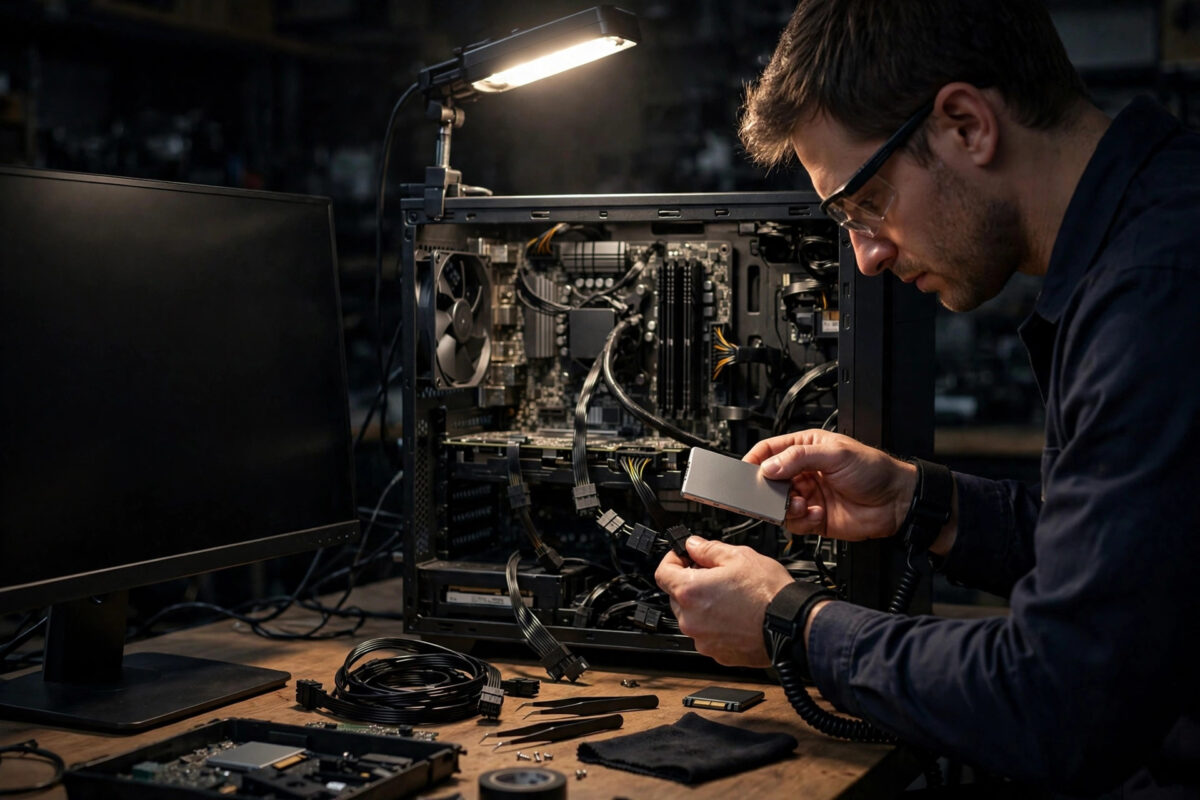
If the error persists on a desktop PC, power off, unplug the power cable, open the side panel, and look at the storage drive connections. A SATA drive has two cables: a data cable to the motherboard and a power cable from the power supply. Reseat both ends of each by unplugging them and pushing them firmly back in until they click or sit flush. Also try a different SATA port on the motherboard and, if you have a spare, a different SATA cable, because cables do fail. For NVMe M.2 drives, check the drive is fully seated in its slot and that its retaining screw holds it flat rather than angled. More practical walkthroughs like these are collected in our hands-on Windows troubleshooting and PC repair guides for readers fixing systems at home.
Step 2: Check the Drive and Boot Order in BIOS or UEFI
Restart the PC and repeatedly tap your firmware setup key as it powers on. Common keys are Delete, F2, F10, F12, or Esc, varying by manufacturer; the correct key is often shown briefly on screen or printed in the manual. Once inside Setup, you are answering two questions. First, does the firmware see your drive at all?
If Your Drive Is Listed
Go to the Boot section and set the first boot option to Windows Boot Manager if it appears, which is the correct choice for UEFI Windows installations, or to your system drive itself on older Legacy setups. While you are there, confirm the boot mode matches your installation: UEFI for most Windows 10 and all Windows 11 systems, with CSM or Legacy support disabled.
If Your Drive Is Not Listed
A drive missing from Setup after you have reseated its cables points more strongly to hardware failure, a dead SATA port, or a faulty power connector. Test the drive in another PC or a USB caddy if you can, and test a known-good drive in this PC. On laptops, a missing drive often means the SSD has failed or, occasionally, become unseated after a drop.
Step 3: Repair Windows Startup Using Recovery Tools
If the drive is detected and the boot order is right but Windows still refuses to start, the boot files themselves are probably damaged. You need the Windows Recovery Environment. On many systems you can reach it by interrupting startup: power on, and as soon as the Windows logo or spinning dots appear, hold the power button to force off. Repeat this three times and Windows should present the Automatic Repair screen.
Run Startup Repair First
In the recovery menu, select Troubleshoot > Advanced options > Startup Repair, choose your Windows installation, and let the tool work. Startup Repair automatically checks the boot configuration, the EFI partition, and common file corruption. It fixes a large share of post-update boot failures with no further input. Restart when it finishes and test normally.
Rebuild the Boot Files With Command Prompt
If Startup Repair reports it could not repair your PC, return to Advanced options and open Command Prompt. Run these commands one at a time, pressing Enter after each: bootrec /fixmbr, then bootrec /fixboot, then bootrec /scanos, and finally bootrec /rebuildbcd.
Check the Disk for Errors
Still in Command Prompt, run chkdsk C: /f to scan the Windows partition for file system errors and fix them. This can take some time on a large drive, but a corrupted file system will defeat every boot repair until it is corrected. Afterwards, run sfc /scannow /offbootdir=C:\ /offwindir=C:\Windows to check protected system files offline. Close Command Prompt and choose Continue to attempt a normal start.
Step 4: Consider These Less Common Causes
If you recently cloned your drive, converted it between MBR and GPT, or resized partitions, the EFI system partition may be missing or pointing to the wrong place, and the bcdboot method above is the usual cure. If the error appeared immediately after a BIOS update or the PC had been unplugged for weeks, suspect that Setup simply reset to defaults; re-enter Setup, restore UEFI mode, correct the boot order, and confirm the date and time are right, since a flat CMOS battery will keep losing these settings.
Common Mistakes and Helpful Tips
The costliest mistake is rushing to reinstall Windows or format the drive. Reinstallation is the last resort, not the first, and formatting destroys data that the calmer steps above would have preserved entirely. Another common error is changing many BIOS settings at random; change one thing at a time, note what you altered, and save and test after each change so you know what actually helped.
Two habits prevent most repeat performances. First, keep a Windows installation USB stored safely even when everything works; it is your key to the recovery tools when the PC cannot boot on its own.
Conclusion
The no bootable device error looks catastrophic, but it usually means something simple: an external device confusing the boot order, a loose cable, a firmware setting that changed, or damaged boot files. Remove external media, reseat the drive, confirm the drive and Windows Boot Manager in BIOS or UEFI with the correct mode selected, and then use Startup Repair and the bootrec and bcdboot commands if software is at fault. Only when the firmware cannot see a properly connected drive should you conclude the hardware has failed.
Frequently Asked Questions
Does the no bootable device error mean my files are deleted?
Almost never. The error means the firmware could not find valid startup files, not that your documents and photos are gone. In most cases the drive and all its contents are intact, and once booting is repaired everything returns exactly as it was before.
Why did this error appear after a Windows update?
An interrupted or faulty update can corrupt the boot configuration data or leave startup files in an inconsistent state. Startup Repair and the bootrec and bcdboot commands in the Windows Recovery Environment are designed to rebuild exactly those files.
How do I enter BIOS to check the boot order?
Restart the PC and repeatedly tap the setup key shown on screen during startup, commonly Delete, F2, F10, F12 or Esc depending on the manufacturer. Inside Setup, open the Boot section to view and change which device the PC tries first.
What if my drive does not appear in BIOS at all?
Power off and reseat the drive’s data and power cables, try another port or cable, and check an M.2 drive is seated flat. If the drive still is not detected, it has likely failed or the port is faulty, and testing the drive in another machine will confirm it.
Can a USB stick cause the no bootable device error?
Yes. If the boot order tries USB before the internal drive, a non-bootable USB stick or external drive can trigger the message. Remove all external storage, restart, and then set Windows Boot Manager or your internal drive as the first boot option.



Leave a Reply