
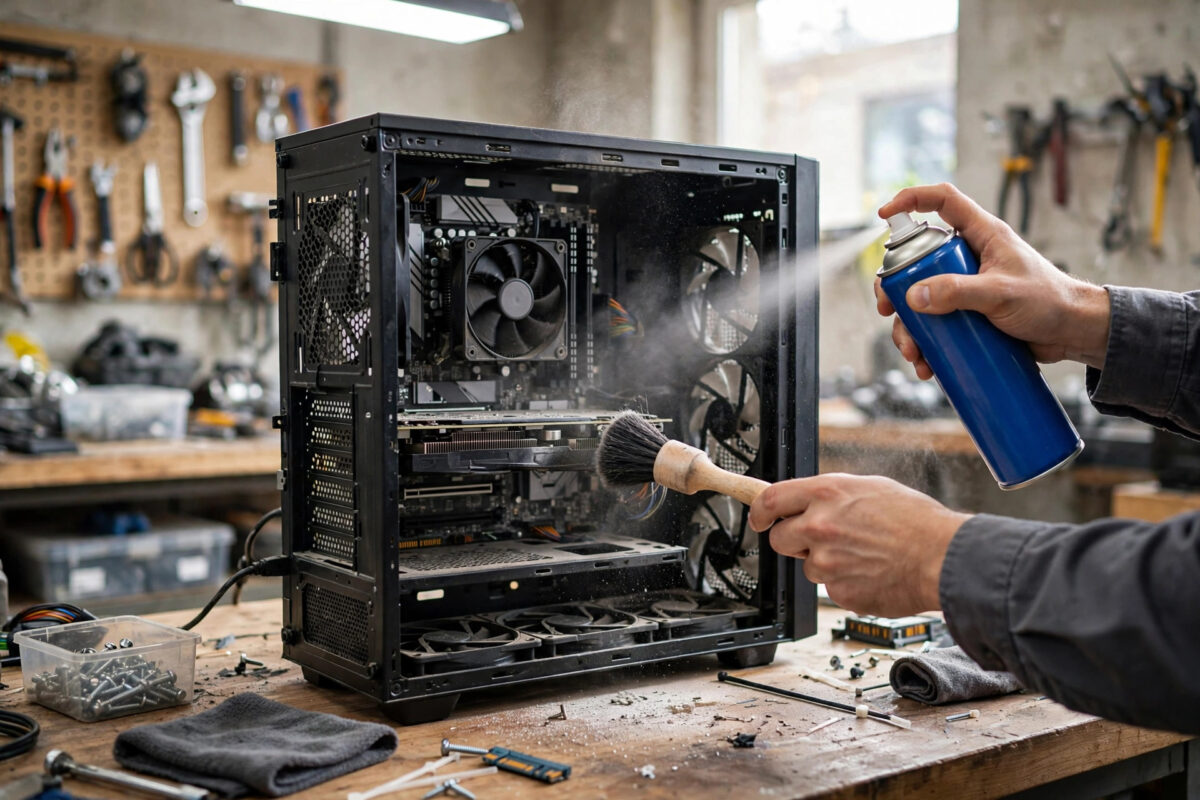
Dust is the quiet enemy inside almost every desktop PC and a surprising number of laptops. It settles on fans, coats heatsinks like a blanket, clogs filters and vents, and slowly pushes temperatures higher month after month. The symptoms creep up on you: fans that used to be silent now roar during simple tasks, games stutter as the processor throttles to protect itself, and in bad cases the machine shuts down without warning on a warm day.
The important word is careful. A PC is not difficult to clean, but it is easy to damage with the wrong tool, particularly a household vacuum cleaner, a wet cloth, or a blast of air that spins a fan far faster than it was designed to turn.
Why Dust Causes So Many Problems
Your processor and graphics card produce heat that must escape through metal heatsinks with thin fins. Fans push air across those fins, and that moving air carries dust with it. Dust sticks to the fins, fills the gaps between them, and insulates the very surfaces that need to shed heat. At the same time, dust mats build up on intake filters and fan blades, reducing how much air the system can move in the first place.
Higher temperatures have real consequences. Modern CPUs and GPUs automatically reduce their clock speeds when they get too hot, a behaviour called thermal throttling, so a dusty PC is literally a slower PC. Fans compensate by spinning faster, which means more noise and faster wear on their bearings. Over years, sustained heat also shortens the life of components and can dry out thermal paste more quickly. Cleaning is therefore not cosmetic housekeeping; it is basic performance maintenance, just like the guidance in our practical PC maintenance and Windows tips collection that helps readers keep older machines running well.
What You Will Need Before You Start
Gather everything first so you are not hunting for tools with the case open. You will need a can of compressed air or, even better, a rechargeable electric air duster, a soft anti-static brush or a clean, soft paintbrush, microfibre cloths, isopropyl alcohol at 90 percent or higher for stubborn grime, cotton swabs, a Phillips screwdriver for the side panel, and cable ties if your cables are untidy.
A Quick Word About Compressed Air
If you use a canned air product, keep the can upright at all times, use short bursts, and never shake it while spraying. Tilting or inverting the can can spray freezing liquid propellant onto components, which can cause thermal shock and condensation. Hold the nozzle several centimetres away from boards and fans rather than pressing it right against them. The background information on gas dusters and their safe use explains why the liquid spray happens and why short, upright bursts matter.
Step-by-Step: Cleaning a Desktop PC Safely
Step 1: Shut Down and Disconnect Everything Properly
Shut Windows down completely from Start > Power > Shut down; do not just put the PC to sleep. Switch the power supply off using the rocker switch on the back of the case, then unplug the power cable and all peripherals. Press and hold the front power button for about five seconds after unplugging to discharge leftover power from the capacitors.
Step 2: Open the Case and Ground Yourself
Move the tower to your work surface, remove the side panel screws, and slide or swing the panel off according to your case design. Before touching anything inside, touch a large unpainted metal part of the case to discharge static from your body, and repeat this occasionally while you work. If you own an anti-static wrist strap, wear it clipped to the case. Static damage is uncommon but real, and this simple habit removes most of the risk.
Step 3: Remove and Clean the Dust Filters First
Most modern cases have removable filters at the front, top and under the power supply. Slide them out and take them away from the PC. These can be rinsed under a tap if they are plain mesh, shaken out, or wiped with a microfibre cloth. If you wash them, let them dry completely before refitting; a damp filter inside a running PC invites moisture exactly where you do not want it. Cleaning filters alone can noticeably improve airflow on a neglected system.
Step 4: Blow Out the Interior in the Right Order
Work from the top of the case downwards so falling dust does not settle on areas you have already cleaned. Use short bursts of air across the CPU heatsink fins, the rear exhaust fan, the top vents, the graphics card fans and fins, and the front intake area. Hold each fan blade still with a fingertip or a cotton swab while you blow through it.
Step 5: Clean Fan Blades and Stubborn Dust
Air alone rarely removes the sticky film that builds up on fan blades, especially in homes with cooking fumes or smokers. Wipe each accessible blade gently with a microfibre cloth lightly dampened, not wet, with isopropyl alcohol. Use cotton swabs dipped in alcohol for heatsink edges, corners and the areas around motherboard components. Be patient and gentle; you are wiping dust away, not scrubbing.
Step 6: Reassemble and Check Your Work
Refit the dry filters, replace the side panel, reconnect the power cable and peripherals, and switch the power supply back on. Boot into Windows and listen. Fans should sound calmer at idle. To confirm the improvement, open Task Manager with Ctrl + Shift + Esc and check the Performance tab while you work, and if you use temperature monitoring software, compare your CPU and GPU temperatures with what you saw before cleaning.
Cleaning a Laptop Without Opening It
Laptops need a gentler approach because their internals are compact and often not designed for user access. Shut the laptop down, unplug the charger, and if the battery is removable, take it out. Hold the laptop so the side and rear vents are accessible, then use short bursts of compressed air into the exhaust vents at a slight angle, alternating with bursts into the intake vents underneath. Hold the laptop steady and use brief bursts only, since the fans inside are small and especially easy to overspin. Wipe the keyboard, palm rest and screen surround with a dry or barely alcohol-dampened microfibre cloth. Unless you are confident with tiny screws and ribbon cables, do not open a laptop for dust alone; blowing through the vents every few months handles most buildup, and a professional internal clean is worthwhile only if the machine still overheats afterwards. General care advice from manufacturers, including the Microsoft guidance on cleaning and caring for devices, reinforces the same principles: power off first, no liquids inside, and soft cloths only.
Common Mistakes and Helpful Tips
The biggest mistake is using a vacuum cleaner inside or even near an open PC. Vacuums generate static electricity at the nozzle, and that discharge can kill a motherboard silently. The second biggest mistake is letting fans spin freely under compressed air. Always hold the blades.
For timing, a light clean every three to six months suits most homes, with a deeper clean once a year. Homes with pets, carpets, or a PC sitting on the floor need the shorter interval; a PC on a desk in a cleaner room needs less.
Conclusion
Cleaning dust from your PC safely comes down to a few habits: power everything off and unplug it, ground yourself, remove and clean the filters, blow from top to bottom in short bursts while holding every fan still, and wipe stubborn grime with isopropyl alcohol on a soft cloth. Done every few months, this simple routine lowers temperatures, cuts fan noise, restores the performance lost to thermal throttling, and helps your components live longer. It costs almost nothing, takes less than an hour, and is one of the most satisfying pieces of maintenance any PC owner can learn.
Frequently Asked Questions
How often should I clean dust from my PC?
For most homes, a light dusting every three to six months and a thorough clean once a year is enough. If you have pets, carpets, or the PC sits on the floor, check the filters monthly, because they will clog much faster than you expect.
Can I use a vacuum cleaner to clean my PC?
No. Vacuum nozzles build up static electricity that can damage the motherboard and other components, and the suction can loosen small connectors. Use compressed air or an electric duster plus a soft brush instead, which is both safer and more effective.
Is it safe to use compressed air on PC fans?
Yes, provided you hold the fan blades still while spraying and use short bursts. Letting a fan spin freely under air pressure can damage its bearing and potentially feed voltage back into the board, so a fingertip on the hub is an essential habit.
Why is my PC still loud after cleaning?
If dust is gone but noise remains, check for a worn fan bearing, cables touching a fan blade, or high temperatures caused by old thermal paste. Open Task Manager to see whether a background program is pushing the CPU, which would make any healthy fan work hard.
Should I open my laptop to clean inside it?
Usually not. Blowing short bursts of air through the vents while the laptop is off handles most dust. Only open a laptop if you are confident with small screws and cables, or take it to a technician if vent cleaning does not solve overheating.


Leave a Reply