
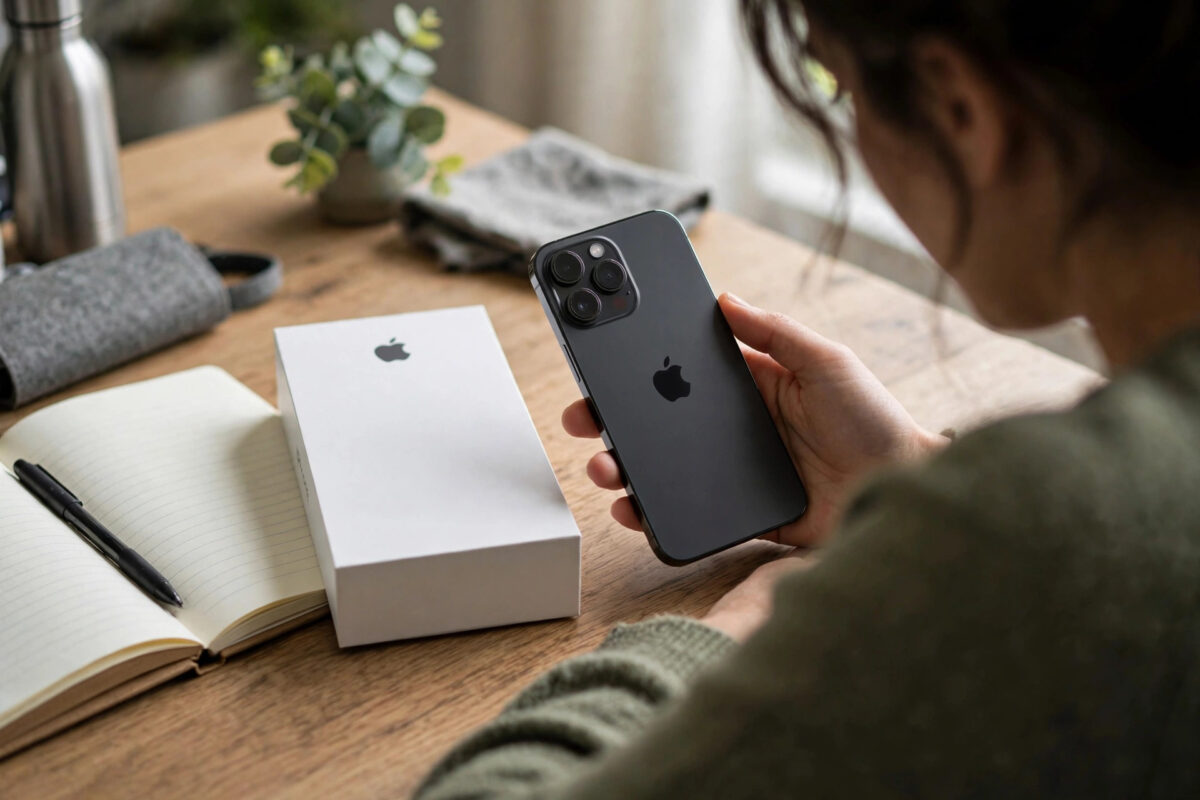
The IMEI is your iPhone’s unique identity number, a bit like a fingerprint for the hardware. Carriers ask for it when you unlock a phone, insurers want it for claims, buyers check it before paying for a used device, and the police need it if your phone is ever stolen.
Apple gives you at least five ways to find it, including two that work even when the phone will not switch on. Knowing them all means you are never stuck when a form demands those fifteen digits.
This guide covers the Settings method, the universal dial code, the places it is printed on the hardware and box, and how to find it from a computer.
Quick Answer
The fastest way to find your iPhone IMEI is Settings, General, About, then scroll to the IMEI line. You can also dial *#06# on the Phone keypad and the IMEI appears instantly. On many models the IMEI is printed on the SIM tray, and it is also on the original box’s barcode label and in Finder or iTunes when the phone is connected to a computer.
Method 1: In Settings (The Main Way)
If your iPhone turns on, this is the easiest and most reliable source, and the numbers can be copied with a long press.
- Open Settings and tap General, then About.
- Scroll down past the model and serial number to the IMEI line.
- On dual-SIM models you will see two IMEIs: one for the physical SIM line and one for the eSIM line. Note which is which.
- Touch and hold the number to copy it, ready to paste into a form or message.
The About screen is also where you check the carrier lock and warranty-related details, so take a screenshot for your records while you are there and store it somewhere other than the phone itself.
Method 2: Dial *#06#
This old GSM code works on iPhones and almost every other phone ever made, and it needs no menus at all.
- Open the Phone app and go to the Keypad.
- Type *#06# exactly. You do not need to press call.
- The IMEI (and on dual-SIM phones, both IMEIs) appears on screen immediately.
- Write it down carefully. The screen cannot be screenshot-protected, so a normal screenshot works too.
This method is perfect when a carrier’s support line asks for the IMEI while you are on a call on another phone, or when the Settings app is misbehaving.
Method 3: On the SIM Tray and Device Body
If the phone will not turn on, the hardware itself carries the number in tiny print on many models.
- Eject the SIM tray with a SIM tool or paperclip and read the tiny engraved numbers on the tray. You may need good light or a magnifier.
- On older models such as the iPhone 6 and earlier, the IMEI is printed on the back of the phone itself.
- eSIM-only models without a tray, like recent US iPhones, do not have the tray engraving, so use the box or computer methods instead.
Engraved numbers are easy to misread: 0 and O, 1 and 7, and 5 and 6 cause most errors. Photograph the tray with another phone and zoom in to be sure.
Method 4: The Original Box and Receipt
The white barcode label on the bottom or back of the iPhone box lists the serial number and IMEI in plain print, which is the clearest copy of all.
- Check the box even if the phone is lost or stolen; the IMEI on the box is what police and insurers want.
- Retail receipts and carrier contracts often print the IMEI too.
- If you bought from Apple, the invoice in your email includes it.
Before selling a phone, verify the box IMEI matches the Settings IMEI. A mismatch means the box belongs to a different phone, which can worry buyers unnecessarily.
Method 5: From a Computer or iCloud
Your computer and your Apple account both keep a record of the IMEI, which saves you when the phone is not in your hand.
- Connect the iPhone to a computer and open Finder or iTunes. Click the phone summary; clicking the serial number area cycles through identifiers including the IMEI.
- Or visit appleid.apple.com, sign in, and open your Devices list. Select the iPhone to see its details.
- The Find My app’s device details on another Apple device can also confirm the serial number associated with the phone.
Once you have the IMEI, you can use it for useful checks such as confirming coverage. Our guide on checking your iPhone warranty status shows what to do with it on Apple’s site.
What to Do With Your IMEI Once You Have It
Finding the number is step one; using it wisely is step two. With the IMEI you can verify a used phone before buying (checking it is not reported stolen), confirm its exact model and storage when a seller’s description is vague, and give carriers what they need to unlock the phone or block it after a theft.
If your iPhone is ever stolen, report the IMEI to your carrier immediately and ask them to blacklist it. A blacklisted phone cannot be used on mobile networks, which removes most of its resale value and protects you from the phone being used in your name. Give the same number to the police for their report; recovered phones are matched to owners through IMEI records.
Keep your record of the number current. If Apple replaces your phone under warranty, the new device has a different IMEI, so update your note. And if you insure your phone, check the policy lists the correct IMEI, because a mismatch can complicate a claim at the worst possible moment. Two minutes of admin today saves genuine trouble later.
Common Mistakes and Helpful Tips
- Keep a private record of your IMEI outside the phone: in a password manager, an email to yourself, or a note at home. After a theft, it is hard to retrieve.
- Never post your full IMEI publicly in a sale advert. Share it privately with a serious buyer only; scammers harvest IMEIs for fraud.
- Dual-SIM phones have two IMEIs. Give the carrier the one for the line they are dealing with.
- An IMEI has 15 digits. If your number is longer or shorter, you are probably reading the serial number or ICCID instead.
Apple lists every official location of the IMEI in its support library. See Apple’s guide to finding the serial number and IMEI for model-by-model diagrams.
Conclusion
Your IMEI is easiest to find in Settings, General, About, or instantly by dialling *#06#. When the phone will not start, the SIM tray engraving, the box label, and your computer or Apple account records all carry the same number. Write it down somewhere safe today: for unlocks, claims, sales and theft reports, those fifteen digits are the first thing everyone asks for.
Frequently Asked Questions
What is the difference between the IMEI and the serial number?
The serial number is Apple’s internal identifier used for warranty and manufacturing. The IMEI is the global mobile-network identity of the device, used by carriers to allow or block it on networks. Both are unique, but carriers and police work with the IMEI.
Can I find the IMEI of a lost iPhone?
Yes. Check the original box, your purchase receipt or carrier contract, or sign in to your Apple account on the web and view the device details. Your carrier can also retrieve it from their records for the line the phone used.
Is it safe to give my IMEI to a buyer or checking service?
Sharing it privately for a legitimate check is normal practice. Avoid posting it in public adverts or giving it to unknown websites, because harvested IMEIs can be used in scams, such as cloning or fake warranty claims.
Why does my iPhone have two IMEI numbers?
Dual-SIM iPhones have one IMEI for each line: the physical SIM slot and the eSIM. Each line is a separate network identity. This is normal, and each IMEI is used for the carrier service on that line.
What can someone check with my IMEI?
They can see the model, storage, approximate age, whether it has been reported lost or stolen (blacklisted), and often its lock and warranty status. They cannot read your data, messages or location from the IMEI alone.



[…] or liquid damage. It covers defects. If your phone is out of warranty entirely, our notes on finding your iPhone IMEI number will still help you with carrier and insurer checks, which use IMEI rather than […]