
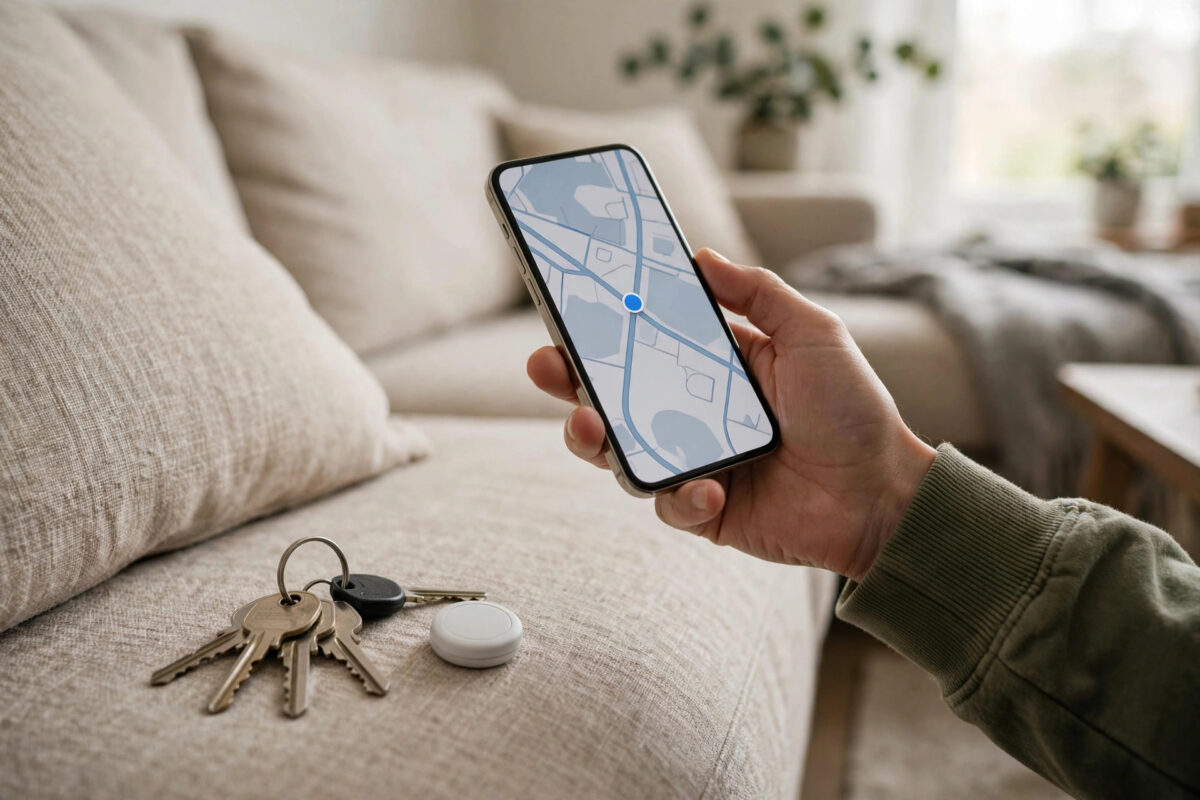
Tracker tags like Apple AirTag, Samsung Galaxy SmartTag, Tile, and Chipolo exist for exactly one moment: the day your keys, bag, or bike goes missing. When that day comes, knowing how the finding systems actually work — Bluetooth range, crowd-finding networks, and sound alerts — gets your item back much faster than wandering around shaking sofa cushions. This guide walks through the search, step by step.
Quick Answer
Open the tracker’s app (Find My, SmartThings Find, or the Tile app), check the item’s last seen location on the map, and go there. When you are close, use the “Play Sound” option to make the tag ring, or Precision Finding / nearby radar to walk straight to it. If it is out of Bluetooth range, enable Lost Mode and rely on the network of other people’s phones to report its location anonymously.
How Tracker Tags Are Found: Two Systems Working Together
Bluetooth: For Nearby Items
Your phone connects directly to the tag over Bluetooth within roughly 10–30 metres indoors (further outdoors with clear line of sight). Inside this range you get live tools: a ringtone from the tag, a signal strength indicator that warms and cools as you move, and on newer phones with ultra-wideband (UWB) — iPhone 11 and later with AirTag, Samsung Galaxy flagships with SmartTag2 — on-screen directions with distance measured in steps.
The Finding Network: For Everything Else
Beyond Bluetooth range, the tag quietly broadcasts a secure Bluetooth signal that passing phones detect. Those phones anonymously report the tag’s location to the network (Apple’s Find My network, Samsung’s Galaxy Find network, or Google’s Find Hub network for compatible tags), and you see the updated position in your app. Nobody — including Apple, Samsung, or the person whose phone spotted it — learns anything about you or them; the system is end-to-end encrypted and anonymous. The practical meaning: in busy areas locations update often; in remote countryside, they may not update for hours.
Step-by-Step: Finding Your Item
Step 1: Check the Map and Last Seen
- Open Find My (AirTag), SmartThings Find (SmartTag), or the Tile/Chipolo app.
- Select the item. Note the last seen time and place — “Home, 20 minutes ago” is very different from “City centre, yesterday”.
- If the map shows your house, the item is almost certainly inside; skip to Step 2. If it shows somewhere you visited, head there first.
Step 2: Make It Ring
Within Bluetooth range, tap Play Sound. The tag plays a chime for about a minute. Work room by room, and listen hardest in the classic hiding places: sofa cushions and sides, coat and bag pockets, under car seats, laundry baskets, jacket pockets from last week, and inside shoes by the door. For items in bags, unzip compartments — a tag’s chime is easily muffled by fabric. If your phone shows a signal meter (Tile) or nearby screen, sweep slowly: signal strength lags a second or two behind your movement.
Step 3: Use Precision Finding Where Available
With an AirTag and a UWB iPhone, tap Find and follow the arrows and distance countdown — it genuinely leads you to within centimetres, even through a room. SmartTag2 with a UWB Galaxy phone offers a similar compass-style search in SmartThings Find. Precision tools transform the last ten metres, which is where most hunts get stuck, so if your phone supports them, start here once you are in the right building.
Step 4: Out of Range? Turn On Lost Mode
- In the app, mark the item as lost.
- Add a phone number or email and a short message (“Keys on a blue lanyard — reward, please call”).
- Confirm notifications are on so you are alerted the moment the network spots the tag.
AirTags and many tags can also be scanned by the finder: anyone with a phone can tap the tag (NFC) to see your message and contact details — without learning anything else about you. The Apple support page on locating an AirTag describes the Lost Mode and notification flow in Apple’s own words.
If You Still Cannot Find It
- Retrace your route physically: The last-seen map point is where a phone last heard the tag, which is usually within metres of where it fell. Walk that segment slowly, checking kerbs, grass edges, and drains for keys.
- Check the boring places again: Most “lost” items are at home. Bags you switched, the other coat, the car boot, the fridge top (yes, really).
- Give it time in public places: A tag in a busy station may appear on the map within minutes; one in a quiet park may need a passer-by. Check the app periodically through the day.
- For bikes and luggage: If the location settles somewhere you do not recognise — someone’s address, for example — do not confront anyone. Share the location with the police and let them handle recovery; note the same advice applies if a tag you do not own appears to be tracking you, which your phone will warn you about via unwanted-tracking alerts.
While you search, keep your phone’s Bluetooth and location services on — turning them off blinds both finding methods. The Bluetooth pairing behaviour is the same technology behind simpler connections, like those in our guide on pairing a Bluetooth speaker with multiple devices.
Common Mistakes to Avoid
- Relying on the map pin as exact: Last-seen positions are approximate, especially indoors. Treat the pin as a neighbourhood, then search by sound.
- Searching with Bluetooth or location off: Both are required for nearby finding and for the network to help you.
- Forgetting to enable Notify When Found: Without it, you must keep checking the app manually.
- A dead tag battery: Most tags warn when the battery runs low — replace it then, not later. CR2032 cells typically last about a year.
- Removing the tag’s battery cover incorrectly: On AirTag, press and rotate the steel cover; forcing it damages the tag.
Conclusion
Finding a lost tracker tag is a method, not luck: map first, then sound and precision tools nearby, and Lost Mode plus the crowd network when the item is far away. Keep Bluetooth and notifications on, replace the battery when warned, and the little disc that seemed like a gimmick will quietly earn its price the first time your keys slide behind the sofa of a house you visited yesterday.
Frequently Asked Questions
How far away can a tracker tag be found?
Directly from your phone, about 10–30 metres indoors and up to 60–100 metres outdoors in open space. Through the finding networks, effectively unlimited — a tag on another continent can report its position if phones pass near it — but updates depend on how many network phones are around.
Can I find an AirTag with an Android phone?
You cannot track your own AirTag from Android (you need an Apple device and Find My). However, Android phones can detect and scan an unknown AirTag nearby: hold it to the back of the phone to open a page with the owner’s Lost Mode message.
Why does my tag show an old location?
Nobody with a network phone has passed within Bluetooth range of it since that timestamp. This is common in quiet or rural areas. Move closer to the last location yourself, or wait — locations refresh as soon as any compatible phone goes by.
What if the sound is too quiet to hear?
Search at a quiet time of day, turn off TVs and music, and use Precision Finding if your phone supports it — it does not depend on hearing at all. In Tile’s app, the signal strength meter works silently the same way.
My tag’s battery died. Can it still be found?
No — a dead tag cannot broadcast. Replace the battery as soon as you get a low-battery warning. If the item is already lost with a dead tag, only the last seen location is available, so search there physically.



Leave a Reply