
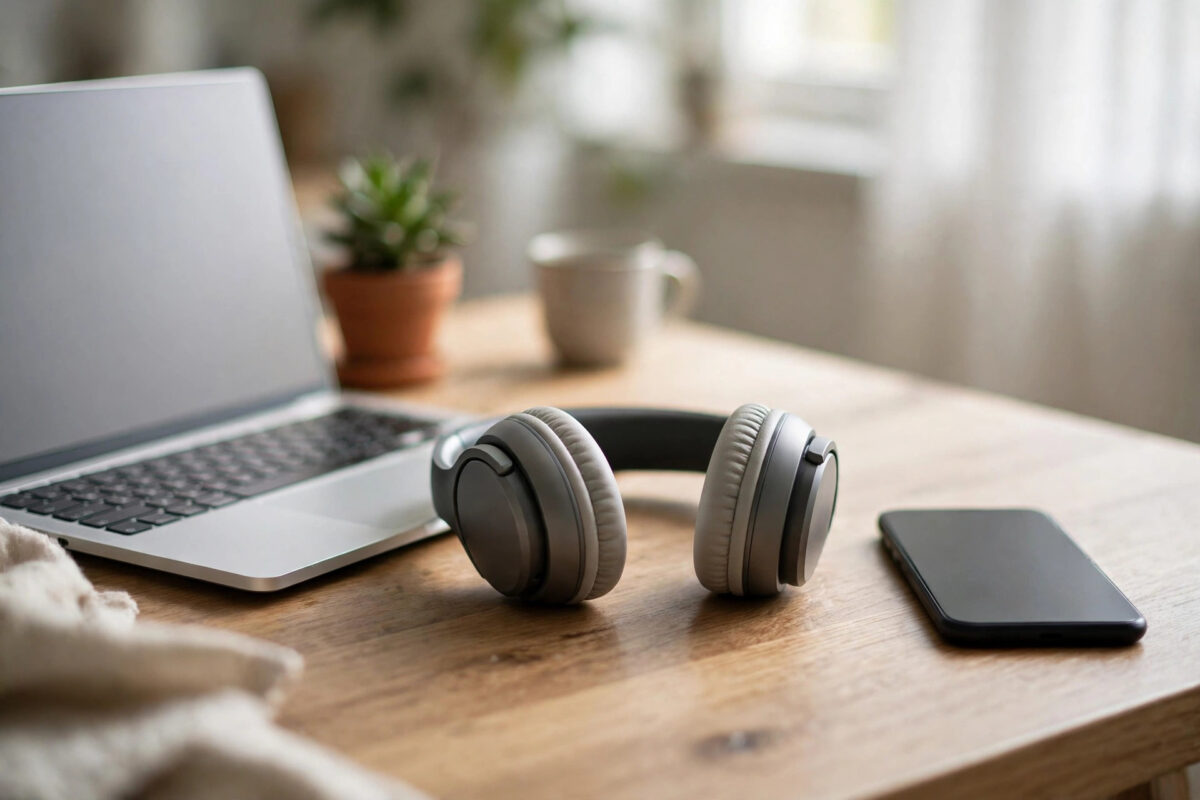
Watching a film on your tablet while staying reachable on your phone used to mean taking one earbud out. Headphones with multipoint Bluetooth solve this: they stay connected to two devices simultaneously and switch automatically when a call comes in or you press play on the other device. This guide explains how multipoint works, how to set it up on popular headphones, and what to do if your current pair does not support it.
Quick Answer
If your headphones support multipoint Bluetooth (many Sony, Bose, Jabra, Sennheiser, and newer earbuds do), pair them with the first device, then put them back into pairing mode and pair with the second — both stay connected, and the headphones switch audio automatically. Enable multipoint in the manufacturer’s app if it is off by default. Headphones without multipoint must be disconnected and re-paired manually, or replaced with a multipoint model.
What Multipoint Actually Does
Standard Bluetooth audio allows one active connection: your headphones serve one device until you disconnect. Multipoint keeps two connections alive at once and manages them intelligently:
- You watch a video on your laptop; a call arrives on your phone — the video pauses and the call comes through the headphones.
- You hang up; the video resumes and the headphones switch back on their own.
- You press play on the second device while the first is idle — audio moves to the second device.
The limit is two devices for nearly all consumer headphones, and only one plays sound at a time — multipoint is a smart switch, not a mixer. It also depends on the headphones supporting it: Bluetooth itself has allowed multipoint for years, but manufacturers choose whether to include it, and some budget models and certain earbuds (notably older AirPods rivals and most gaming headsets) omit it.
Which Popular Headphones Support Multipoint?
- Sony: WH-1000XM4/XM5 and WF-1000XM5 — yes, enable “Connect to 2 devices simultaneously” in the Sony Sound Connect app.
- Bose: QuietComfort Ultra Headphones and Earbuds, QC45/QC Earbuds II — yes, managed in the Bose app’s Bluetooth connections list.
- Jabra: Elite series earbuds — multipoint is a headline Jabra feature and works out of the box.
- Sennheiser: Momentum 4 and Accentum ranges — yes, via the Smart Control app.
- Apple AirPods: Not true multipoint — instead they auto-switch between Apple devices signed into the same Apple ID, which feels similar inside the Apple ecosystem but does not include Android or Windows devices (an AirPod can only hold one of those at a time).
- Samsung Galaxy Buds: Auto-switch works between Samsung devices on one account; true multipoint to arbitrary devices is limited on older models.
Check your exact model on the manufacturer’s site — the same technology underpins simpler pairing tricks too, like those in our guide on pairing a Bluetooth speaker with multiple devices.
Step-by-Step Multipoint Setup
- Update and install the app. Install the manufacturer’s app on your phone and update the headphone firmware — multipoint improvements and bug fixes often arrive this way.
- Turn multipoint on. In the app, look for “Multipoint”, “Connect to 2 devices”, or “Dual connection” and enable it. Sony and some others ship with it off.
- Pair with device one. Put the headphones in pairing mode, connect from your phone’s Bluetooth settings as normal, and confirm audio plays.
- Pair with device two. Put the headphones back into pairing mode (on many models, hold the power or Bluetooth button again — the first connection usually stays live). On the laptop/tablet, select the headphones in its Bluetooth settings.
- Test the switch. Play music on device one, then start a video or call on device two. Audio should move across within a second or two, and return when device two stops.
The Bluetooth Special Interest Group’s own feature overview explains multipoint and related capabilities in more depth if you want the background.
Troubleshooting
- Second device will not pair: The headphones were not in pairing mode, or multipoint is disabled in the app. Enable it first, then retry.
- Audio will not switch back: Some models prioritise the most recent device. Pause fully on one before playing on the other, or tap the headphone in the other device’s Bluetooth menu to claim it.
- Choppy audio with two devices connected: Keep both devices within a few metres, avoid sitting next to busy USB 3 hubs, and check for firmware updates — multipoint stability improved a lot in recent versions.
- Call quality drops: Multipoint plus a laptop using the headphones’ microphone can engage the lower-quality hands-free profile. Use the laptop’s own mic for meetings if voices sound thin.
- One device keeps disconnecting: Remove (“forget”) the headphones on both devices, reset the headphones’ pairing list per the manual, and set the pair up fresh.
If Your Headphones Do Not Support Multipoint
You have three options. First, the manual shuffle: disconnect in one device’s Bluetooth settings, connect on the other — tedious but free, and faster if you use the quick-settings Bluetooth tiles. Second, for a fixed desk setup, a small Bluetooth transmitter/receiver or your computer’s audio routed through your phone apps can fake some of the convenience. Third, upgrade deliberately: multipoint is now common from mid-range prices upward, so your next earbuds can simply have it. For TV watching specifically, a different trick — connecting earbuds straight to the television — is covered in our guide on connecting wireless earbuds to a smart TV.
Common Mistakes to Avoid
- Assuming all Bluetooth headphones do multipoint: It is a model feature, not a Bluetooth guarantee. Check before buying.
- Leaving multipoint disabled in the app: Sony and others ship it off by default; pairing a second device fails until you switch it on.
- Expecting two streams at once: Multipoint switches; it does not mix. You cannot hear laptop music and phone call simultaneously.
- Pairing order confusion: If you want your phone to win interruptions, pair and test calls deliberately, and set the phone as the priority device if the app offers it.
- Skipping firmware updates: Multipoint bugs are the most commonly patched headphone issues.
Conclusion
Multipoint turns headphones into a shared resource for your two most-used devices, with calls and playback switching automatically. Set it up once — firmware updated, feature enabled in the app, both devices paired — and the daily earbud shuffle disappears. If your current pair lacks it, the manual workaround tides you over until your next pair, which should have multipoint on its must-have list.
Frequently Asked Questions
Can headphones connect to three devices at once?
Almost never for audio. Consumer multipoint is limited to two simultaneous connections. Some headphones remember many paired devices and reconnect quickly, but only two are live at any moment.
Do AirPods connect to two devices at the same time?
Not in the multipoint sense. AirPods maintain one active connection but switch automatically between iPhones, iPads, and Macs signed into the same Apple ID. With a Windows PC or Android phone involved, you must switch manually.
Why do my headphones switch to my phone when I am watching my laptop?
Because the phone produced audio — a notification sound, a video autoplay, a call — and the headphones treated it as the active source. Silence the phone or disable its media sounds, and check the app for a priority-device setting.
Does multipoint reduce battery life or audio quality?
Slightly, in both cases it is minor: maintaining two connections uses a little more power, and some models drop to a lower codec when multipoint is active. Most listeners never notice either effect in daily use.
Can I use multipoint with a TV and a phone?
Yes, if the TV supports Bluetooth audio output (most modern smart TVs do) and your headphones support multipoint. Pair with the TV as device two; the same setup pattern as our tablet guide on connecting accessories to a tablet applies — pairing mode, select, confirm.



Leave a Reply