
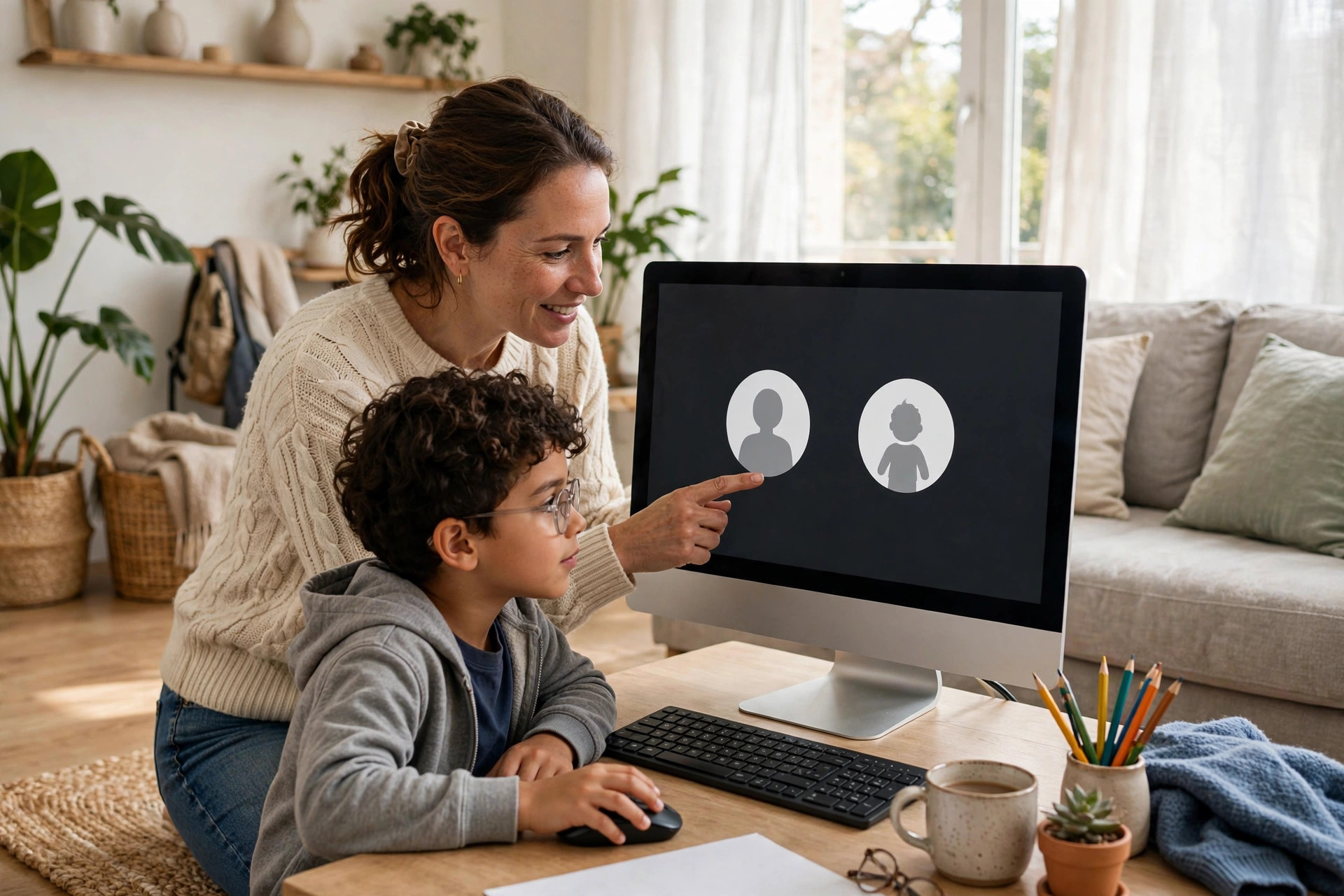
Sharing one family computer sounds simple until files start disappearing, browser histories get mixed together, and a child accidentally changes a setting that locks everyone else out. When everyone logs in with the same account, there is no privacy, no personalisation, and no real control over what younger users can install or open.
Creating separate accounts for each child solves most of those problems in one move. Each person gets their own desktop, documents folder, browser profile, and sign-in, while parents keep an administrator account to manage safety settings. It takes less than half an hour to set up properly, and it makes the family PC far easier and safer to share.
This guide walks you through the process on Windows and explains the extra steps that actually matter — choosing the right account type, turning on parental controls, and teaching kids good habits from day one.
Quick Answer
On Windows, go to Settings, Accounts, Other users, and add a new account for each child. Make your own account the only administrator, give children standard accounts, and link child accounts to Microsoft Family Safety to set screen time, content filters, and app limits.
Why Separate Accounts Matter
A separate account is not just about keeping desktops tidy. It creates a boundary. Your work documents, saved passwords, and email stay in your profile, while your child’s school projects, games, and downloads stay in theirs. If one account picks up a problem file or a setting goes wrong, the other profiles are usually unaffected.
It also makes parental controls possible. Without individual accounts, Windows cannot tell who is using the PC, so it cannot apply different screen time limits or age-appropriate filters. With individual accounts, you can set sensible rules for a seven-year-old and looser rules for a teenager on the same machine.
Standard vs Administrator Accounts
There should only be one or two administrator accounts on a family PC, and they should belong to adults. An administrator can install software, change security settings, and delete other users’ files. A standard user can run most everyday apps, save their own files, and personalise their desktop, but they will be asked for an adult’s password before making major changes. That single prompt prevents a lot of accidental — and not-so-accidental — problems.
How to Create Accounts on Windows 11
Before you start, sign in with your adult administrator account and make sure Windows is up to date. Then follow these steps for each child:
- Open Settings. Press the Windows key, type Settings, and open it.
- Go to Accounts. Select Accounts from the left menu, then choose Other users.
- Add an account. Click Add account next to Add other user.
- Choose how they sign in. For children, enter the email address of their Microsoft child account. If they do not have one, select the option to create one and follow the prompts to make a child account with their correct date of birth.
- Finish the setup. Complete the verification steps, then return to Other users.
- Set the account type. Click the child’s name, choose Change account type, and confirm it is set to Standard User, not Administrator.
- Let them sign in once. Sign out, let your child sign in with their own password or PIN, and allow Windows a few minutes to create their folders and desktop.
Repeat the process for each child. Use a clear, real first name for each account so there is never confusion about whose profile is whose. Avoid shared nicknames like “Kids” — one account per child is the whole point.
What About Windows 10 and Mac?
On Windows 10 the path is very similar: Settings, Accounts, Family and other users, then Add a family member and choose Child. On a Mac, go to System Settings, Users and Groups, click Add User, create a standard account for each child, and then manage them through Screen Time and Family Sharing. The principle is identical on every system — one adult admin, standard accounts for children.
Set Up Microsoft Family Safety
Creating the account is only half the job. Family Safety is where the useful controls live. You can manage it from the Microsoft Family Safety app or the family settings page in your browser.
- Add your child to your family group. If you created a child account in the steps above, they should already appear in your group.
- Set screen time. Choose daily limits for the device and for specific apps and games. Build in a clear downtime before bedtime.
- Turn on content filters. Block inappropriate websites and searches, and allow only age-appropriate sites if your child is younger.
- Control apps and spending. Require approval for new app and game installs, set an age limit for content, and require a password for purchases so nothing is bought by accident.
- Review activity reports together. Check the weekly summary at first, not to spy, but to spot problems early and adjust rules that are too strict or too loose.
For step-by-step details that match your exact version, follow the official guidance on Microsoft Family Safety support and setup help, which covers screen time, filters, and activity reporting in depth.
Organise Files, Browsers, and Passwords
Once accounts exist, spend ten minutes tidying up how the PC is used day to day.
- Move personal files. Help each child move their documents, pictures, and schoolwork into their own Documents and Pictures folders.
- Create separate browser profiles. Each Windows account will naturally have its own browser history, favourites, and saved logins — remind children never to save school or game passwords in an adult’s browser.
- Use strong, different passwords. Adults should use a long password plus a PIN or fingerprint if available. Older children should choose a passphrase they can remember but others cannot guess.
- Keep one shared folder. For photos or documents the whole family needs, create a shared folder in Public or in a trusted cloud folder, and teach everyone to put shared items there instead of borrowing each other’s accounts.
You can find more everyday setup ideas in our practical home technology guides on Network Ustad, which cover family devices, home networks, and staying safe online.
Teach the House Rules
Technology controls work best when children understand them. Sit down for five minutes and agree on simple rules: always use your own account, never share your password — even with siblings — ask an adult before installing anything new, and sign out or lock the screen when you walk away by pressing Windows key plus L.
Explain that the administrator password is not a punishment tool. It exists so an adult can check what is being installed before it runs. Most children accept the system quickly once they realise their own files and game saves are also protected from younger siblings.
Common Mistakes to Avoid
- Giving children administrator rights. This removes almost every protection you just set up. Keep children on standard accounts.
- Using one “Kids” account for all children. You lose individual limits, and arguments about deleted files and changed settings are guaranteed.
- Setting the wrong date of birth. Age drives the filters. If a child account is registered as an adult, content controls will not apply correctly.
- Forgetting your own admin password. Store it in a password manager or a sealed note in a safe place. Without it, you may not be able to approve installs or fix problems.
- Never reviewing the settings. Children grow quickly. Revisit screen time and age limits every few months.
Conclusion
Separate accounts turn a chaotic shared computer into an organised, safer family device. One adult administrator account, a standard account for each child, and Family Safety controls for screen time and content give you privacy for adults and protection for children without making daily use difficult.
Set it up once, test each child’s sign-in yourself, and then let everyone enjoy having their own space on the PC. It is one of the simplest upgrades you can make to your home technology.
Frequently Asked Questions
Can my child install games with a standard account?
They can install some apps from the Microsoft Store within the age limits you set, but most desktop programs and system changes will ask for an administrator password. That prompt is intentional — it gives you a chance to approve the install first.
Do children need their own email address?
For a Microsoft child account, yes, an email address is created as part of setup. You manage it as the parent, and it also helps with password recovery and Family Safety reports. Use their correct date of birth so age filters work.
Will separate accounts slow down our PC?
No. Accounts only use a little extra storage for each person’s files. Performance is affected by how many programs are running at once, not by how many accounts exist. Encourage everyone to sign out fully at the end of the day.
Can my child see my files from their account?
Not normally. Files in your Documents, Pictures, and Desktop folders are private to your account. Only administrators can browse other users’ folders, which is another reason children should stay on standard accounts.
What if my child forgets their password?
As the family organiser, you can help reset a child account password through your Microsoft account and Family Safety settings. For a local account, an administrator can reset it from Settings under Other users.



Leave a Reply