
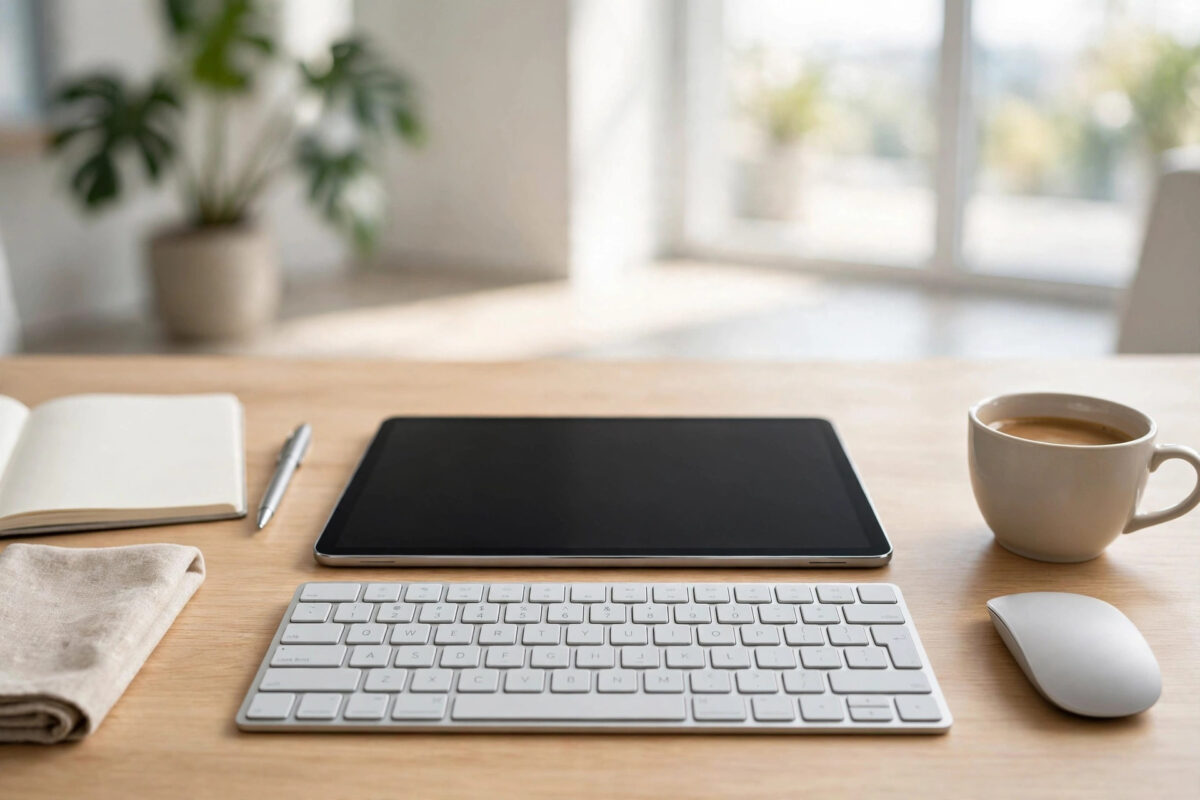
A tablet with a keyboard and mouse stops being just a media screen and becomes a genuine little laptop — for writing, email, spreadsheets, and remote work. Connecting them is quick once you know which of the three connection methods your accessories use: Bluetooth, a USB receiver, or a wired/dock setup. This guide covers all three for iPad and Android tablets, plus the fixes for the pairing problems people hit most.
Quick Answer
For Bluetooth accessories: turn the keyboard or mouse on, put it in pairing mode (usually hold a Bluetooth button until a light flashes), then on the tablet open Settings > Bluetooth, tap the device name, and confirm any pairing code. For accessories with a USB receiver, plug the receiver into the tablet’s USB-C port (or via an adapter) and it works instantly. Repeat the same process for the second accessory.
Before You Start: Know Your Connection Type
- Bluetooth: The most common for tablet accessories. No cables or dongles, works with iPad and Android. Logitech, Apple, Microsoft, and most tablet-specific keyboards use it.
- 2.4GHz USB receiver (“dongle”): Many desktop keyboard/mouse combos include a tiny USB receiver. Tablets with USB-C can use it through the port or a small hub; it needs no pairing and feels very responsive.
- Wired USB or a dock: A USB-C hub lets you connect wired accessories, a monitor, and power at once — the desk setup option.
Also check compatibility: iPads need accessories that support iOS/iPadOS (most Bluetooth ones do); “Windows-only” budget combos occasionally lack proper tablet support for special keys, though basic typing and pointing still work.
Connecting by Bluetooth: Step by Step
Step 1: Prepare the Accessory
Charge it or fit fresh batteries — weak batteries are the hidden cause of many “won’t pair” stories. Switch it on. If it has a device selector (many Logitech keyboards can pair with three devices), choose a free channel.
Step 2: Enter Pairing Mode
Hold the Bluetooth or Connect button until an LED blinks rapidly — that blinking means “discoverable”. Some keyboards enter pairing mode automatically the first time they are switched on. If yours was previously paired to a computer, it may reconnect there instead; switching the old device’s Bluetooth off during setup avoids a tug of war.
Step 3: Pair From the Tablet
- On iPad: Settings > Bluetooth, ensure Bluetooth is on, and look under “Other Devices”.
- On Android: Settings > Connected devices > Pair new device (wording varies slightly by brand).
- Tap the keyboard or mouse name when it appears.
- For keyboards, the tablet may show a short numeric code: type it on the new keyboard and press Enter. This confirms you are pairing with the right device.
- The device moves to “My Devices” / “Paired devices” and shows Connected.
Repeat for the second accessory; a keyboard and mouse pair independently and then work together. Apple’s support site has a short reference for pairing Bluetooth accessories with Apple devices if you want the iPad-specific screens confirmed.
Step 4: Adjust the Settings
On iPad, Settings > General > Trackpad & Mouse controls pointer speed and scrolling; Settings > General > Keyboard handles key repeat and shortcuts. On Android, look under Settings > System > Languages & input > Physical keyboard for layout (important if symbols land on the wrong keys — set the layout to your country) and pointer speed under Accessibility or Connected devices. Getting the keyboard layout right matters: a UK user with a US layout selected will hunt for the £ sign.
Connecting with a USB Receiver or Hub
- Plug the receiver into the tablet’s USB-C port. Older USB-A receivers need a USB-C adapter or hub — inexpensive and widely available.
- Switch the keyboard and mouse on. They connect to their receiver automatically, usually within seconds. No settings screens, no codes.
- For a full desk setup, use a USB-C hub or dock: receiver, wired keyboard, mouse, and charger all through one cable, and on supported tablets (Samsung DeX, iPad with Stage Manager) an external monitor too.
Troubleshooting Common Problems
- Device does not appear in the Bluetooth list: It is not in pairing mode (check for the fast-blinking LED), its battery is low, or it is already connected to another device nearby. Charge it, toggle the other device’s Bluetooth off, and try again.
- It pairs but types the wrong characters: The keyboard layout setting does not match the physical keyboard. Change the layout to match the printed keys.
- Laggy or stuttering mouse: Move closer, remove USB 3 hubs or SSDs sitting right next to the tablet (they can interfere with 2.4GHz and Bluetooth), and check battery level.
- It keeps disconnecting: Turn off battery optimisation for Bluetooth settings on Android if offered, keep the tablet’s software updated, and “forget” then re-pair the device to rebuild the connection cleanly.
- Mouse works but no pointer on iPad: iPad mouse support requires iPadOS 13.4 or later, and the pointer appears only when the mouse moves. Update the iPad if the option is missing.
Once your keyboard and mouse are working, the tablet becomes a comfortable control point for the whole room — the same idea behind turning a spare tablet into a fixed controller, which our article on using an old tablet as a home control panel takes further.
Common Mistakes to Avoid
- Skipping the pairing code step: If the tablet shows a code, type it on the new keyboard and press Enter — the pairing is waiting for exactly that.
- Trying to pair while the accessory is connected elsewhere: Most accessories connect to one host at a time per channel; free the channel first.
- Ignoring the layout setting: Wrong-layout frustration is a settings issue, not a faulty keyboard.
- Cheap unbranded adapters: A poor USB-C adapter causes intermittent dropouts that look like Bluetooth problems.
- Leaving batteries to die mid-work: Rechargeable accessories show low-battery warnings in the tablet’s battery widget — heed them.
Getting More From Your Tablet Keyboard and Mouse
A few habits turn a connected keyboard and mouse into a genuinely productive setup. Learn the main shortcuts: Cmd/Ctrl + C, V, and X for copy, paste, and cut; Cmd/Ctrl + Tab to switch apps; and on iPad, hold the Command key in any app to see its shortcut list. On Android tablets, manufacturer desktops like Samsung DeX add resizable windows that make a mouse feel essential rather than optional. Adjust pointer acceleration if the cursor feels twitchy or sluggish — precision work like spreadsheets rewards a slower, steadier pointer. If you type in two languages, set up the language switch shortcut on the physical keyboard rather than reaching for the screen. Finally, keep the accessories charged on a rhythm: a weekly top-up for rechargeable models prevents the mid-meeting disconnect that always seems to arrive at the worst moment.
Conclusion
Connecting a wireless keyboard and mouse to a tablet takes about two minutes per accessory: pairing mode on the device, tap its name in the tablet’s Bluetooth settings, confirm the code, and adjust layout and pointer speed. USB receivers are even simpler through USB-C. With both connected, your tablet handles proper work — and pairs nicely with the other Bluetooth skills in our guide on connecting headphones to two devices at once.
Frequently Asked Questions
Can I use the same keyboard with my tablet and computer?
Yes, if it supports multiple pairings. Multi-device keyboards (like Logitech’s Easy-Switch range) store three connections and swap with a key press. Single-connection keyboards must be unpaired and re-paired each time you change host.
Does any Bluetooth mouse work with an iPad?
Almost all standard Bluetooth mice work with iPads running iPadOS 13.4 or later, including Apple’s Magic Mouse and most Logitech and Microsoft models. A few gaming mice with proprietary drivers lose their extra buttons but still point and click normally.
Why does my Android tablet not show a mouse pointer?
Check that the mouse actually connected (Settings > Connected devices), try moving it — some tablets hide the pointer until it moves — and restart the tablet if the pointer never appears. Very old Android versions had limited mouse support.
Can I connect a keyboard and mouse at the same time?
Yes. Tablets happily maintain several Bluetooth connections at once: keyboard, mouse, headphones, and a watch can all be connected together. Each pairs separately in the same Bluetooth settings screen.
Is a keyboard case better than a separate keyboard?
For travel, a keyboard case protects the tablet and is always attached; for desk work, a separate full-size keyboard and mouse are more comfortable and ergonomic. Many people own both and use the case on the move, separates at home.



Leave a Reply