
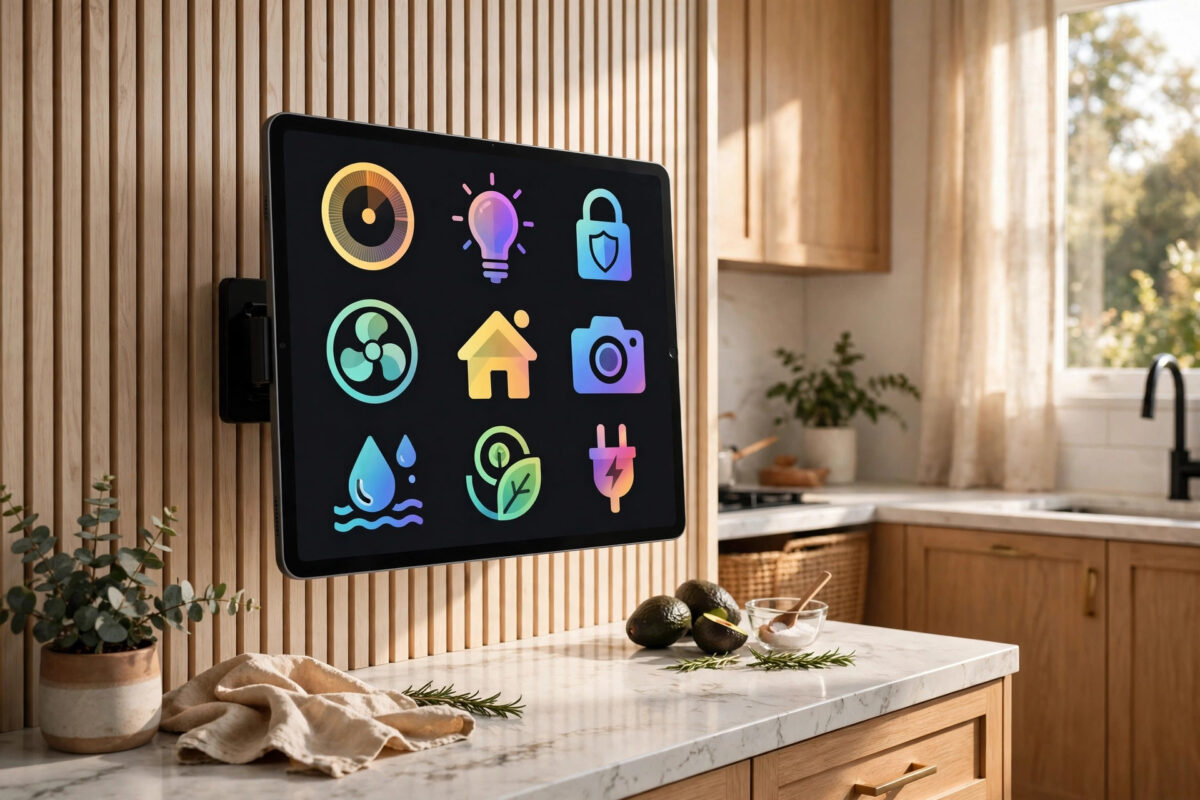
Almost every home has an old tablet sitting in a drawer — too slow for everyday use, but far too good to throw away. One of the smartest ways to reuse it is as a permanent smart home control panel. Mounted on a wall or standing on a kitchen counter, it gives everyone in the house one simple screen for lights, cameras, heating, music, and door locks, without needing to open apps on a phone.
Quick Answer
Factory reset the tablet, update it, and sign in with a dedicated smart home account. Install your smart home app (Google Home, Alexa, Apple Home, or SmartThings), pin it to the home screen or use a dashboard app, set the screen to stay on while plugged in, and mount the tablet near your entrance or in the kitchen with a constant power supply.
What an Old Tablet Needs for This Job
Not every forgotten tablet is suitable, but most from the last eight to ten years are. Check these basics before you start:
- A working Wi-Fi connection: The tablet must hold a stable connection to your home network all day.
- An app store that still works: Android tablets need a version of Android new enough for the Google Home or Alexa app; old iPads need an iOS version that Apple Home or the Alexa app still supports.
- A screen without serious burn-in: The display will be on for long hours, so heavy burn-in or a cracked digitiser makes it unpleasant to use.
- A healthy enough battery, or no battery worries at all: A panel that stays plugged in forever can stress an ageing battery. More on safe power below.
If the tablet is extremely old and the smart home apps no longer install, you can still use it as a web dashboard: most platforms, including Home Assistant and SmartThings, offer browser-based panels that run on almost anything with a web browser. The Google Home help centre lists which devices and Android versions the Google Home app currently supports, which is a quick way to check an old tablet before you begin.
Step-by-Step: Set Up Your Tablet Control Panel
Step 1: Factory Reset and Update
Start clean. Back up anything you still need, then factory reset the tablet. This removes years of clutter, frees storage, and makes an old device noticeably faster. After the reset, connect to Wi-Fi and install every system update available. An up-to-date system is both safer and more compatible with current smart home apps.
Step 2: Create a Dedicated Account
Do not use your personal Google, Apple, or Amazon account on a shared panel that guests and children will touch. Create a fresh account just for the panel and add it to your smart home as a household member with limited permissions. That way nobody can read your email, messages, or photos from the kitchen wall, and you can remove the panel’s access at any time without changing your own password.
Step 3: Install and Organise Your Smart Home App
- Install the app for your ecosystem: Google Home, Amazon Alexa, Apple Home, or Samsung SmartThings.
- Sign in with the dedicated account and accept the household invitation from your main account.
- Arrange favourites on the home screen: front door camera, hallway lights, thermostat, and the most-used plugs.
- Hide devices nobody should control from the panel, such as office equipment or the garage door, if the app allows per-device visibility.
Our guide on controlling your home lights with your phone explains how lighting groups and rooms are organised, and the same structure works beautifully on a wall panel.
Step 4: Keep the Screen Awake and Locked to the App
A control panel is useless if it is asleep or showing a lock screen full of notifications. In the display settings, set the screen timeout to the longest option, and enable the “stay awake while charging” option (in Developer Options on Android, or via Guided Access and auto-lock set to Never on iPad). Then pin the smart home app: Android’s app pinning and Apple’s Guided Access both keep the tablet locked to one app so visitors cannot wander into settings. Finally, turn off all notifications except smart home alerts, and set a simple PIN for the settings area if children will use it.
Step 5: Mount It and Power It Safely
The best spots are the hallway near the front door, the kitchen, or beside the main light switches. Use a removable adhesive wall mount or a simple countertop stand. For power, run a slim USB cable from the nearest socket. To protect the battery during 24/7 plugged-in use:
- Enable the battery protection or charge-limit feature if the tablet has one (many Samsung and newer Android tablets cap charging at 80–85%).
- Alternatively, use a smart plug on a timer schedule that powers the charger for a few hours, lets the battery drain a little, then charges again.
- Check the tablet monthly for a swollen battery — if the screen or back panel bulges, stop using it and recycle it safely.
Make It Even Better
Once the basics work, small touches turn a basic screen into a genuinely useful household hub. Set a photo frame screensaver with family pictures for idle hours. Add widgets for weather and a shared calendar next to the smart home controls. If your platform supports it, turn on voice control so the panel doubles as a voice assistant point — the setup mirrors what we describe in our walkthrough of setting up a smart speaker with Alexa or Google Home. Many households also add a browser shortcut to security camera feeds for a one-tap full-screen view.
Common Mistakes to Avoid
- Using your personal account: A shared panel with your email and messages signed in is a privacy risk.
- Skipping the factory reset: Old apps and accounts drain battery and slow everything down.
- Leaving screen brightness at maximum: It wastes power and shortens screen life; 50–70% is plenty indoors.
- Mounting it far from the router: Panels in Wi-Fi dead spots constantly drop offline. Test the signal first.
- Ignoring battery health: A permanently charging old battery needs the charge-limit or timer treatment described above.
Conclusion
An old tablet makes an excellent smart home control panel because the job needs patience, not power: a clean reset, a dedicated account, your smart home app pinned to the screen, and safe constant power. In under an hour you can turn drawer clutter into the screen your whole household uses every day for lights, cameras, and heating — no new hardware required.
Frequently Asked Questions
Will an old tablet be fast enough as a control panel?
Yes. Smart home apps mostly show switches, sliders, and camera thumbnails, which even a ten-year-old tablet handles fine after a factory reset. Live camera feeds are the only demanding part, and most play smoothly at standard quality.
Is it safe to leave a tablet plugged in all the time?
It is generally safe with precautions: use the original or a certified charger, enable any built-in charge limit, keep the tablet out of direct sunlight and heat, and inspect it occasionally for battery swelling. A timer smart plug that cycles power is an extra layer of protection.
Can I use an old iPad instead of an Android tablet?
Absolutely. Apple Home, Alexa, Google Home, and SmartThings all have iPad apps. Use Guided Access to lock the iPad to one app, set Auto-Lock to Never while it is on charge, and sign in with a household Apple ID rather than your personal one.
What if my smart home app no longer supports the tablet?
Use the web dashboard instead. Home Assistant, SmartThings, and most camera brands offer browser interfaces. Open the dashboard in the tablet’s browser, save it to the home screen, and it behaves almost like an app.
Where is the best place to mount a home control panel?
Near the front door or in the kitchen, at eye level for the adults in the house, close to a power socket and well inside your Wi-Fi coverage. Entrances are ideal because you can arm cameras and turn off lights as you leave.



[…] stay plugged in, and a real camera’s alerts are smarter. If you go this route, our article on reusing an old tablet as a control panel covers keeping an old device safely powered and awake around the clock — set the device up the […]