
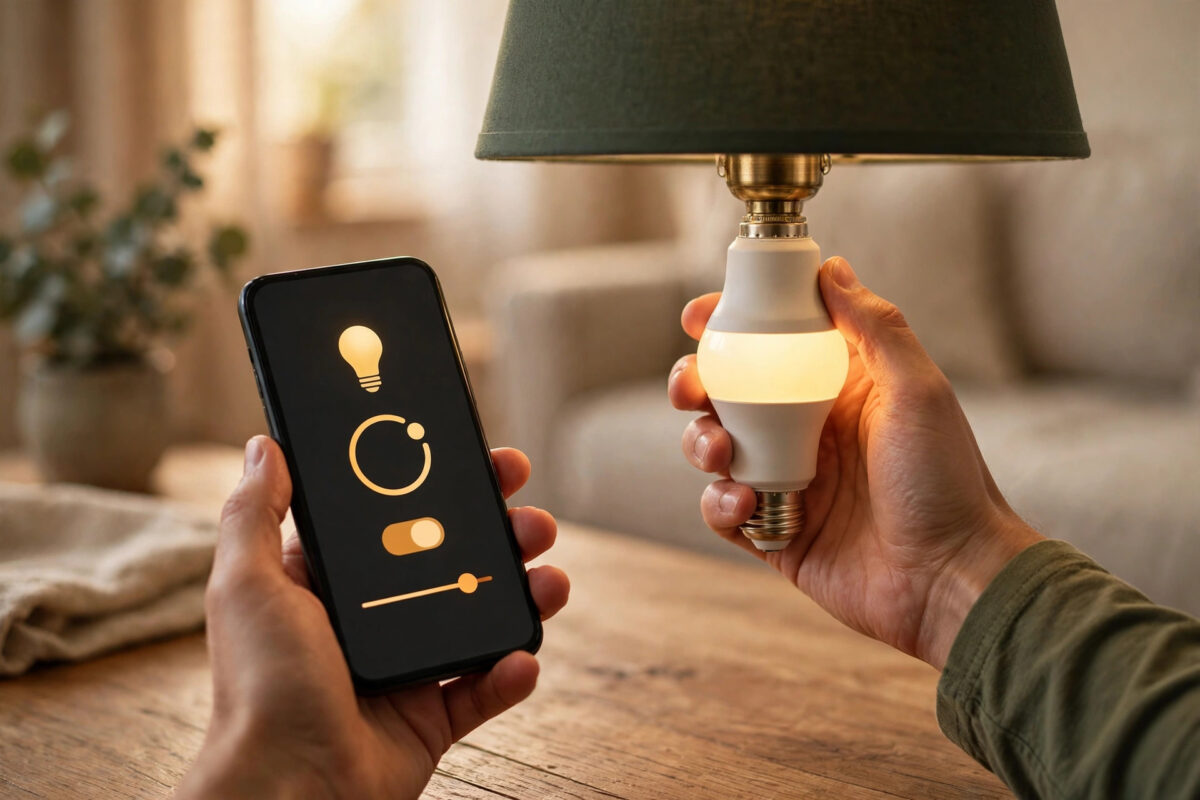
Smart bulbs used to mean buying a starter kit with a hub that plugged into your router. That is no longer true. Most modern bulbs connect directly to your home Wi-Fi or use Bluetooth and Matter, so a single bulb, your phone, and your existing router are all you need. This guide covers each hub-free connection method, step by step, plus the fixes for the problems people hit most often.
Quick Answer
Buy a Wi-Fi, Bluetooth, or Matter smart bulb (brands such as TP-Link Tapo, IKEA, Govee, Wiz, or any bulb labelled “no hub required”). Screw it in, turn the light on, open the bulb’s app or your smart home app, and add the bulb while your phone is connected to your 2.4GHz Wi-Fi network. The whole process takes about five minutes per bulb.
The Three Hub-Free Bulb Types
Wi-Fi Bulbs
The most common hub-free option. The bulb joins your router directly and can be controlled from anywhere. Examples: TP-Link Tapo and Kasa, Wiz (Philips’ sibling brand), Govee, and most store-brand bulbs. Downsides: each bulb takes a slot on your router, and very large numbers of bulbs (30+) can strain cheap routers.
Bluetooth Bulbs
These connect to your phone directly — or through a nearby smart speaker that acts as a Bluetooth gateway. They are simple and cheap but range is short, so they suit single rooms. Many “Bluetooth mesh” bulbs relay signals between each other to extend range.
Matter Bulbs (Wi-Fi or Thread)
Matter is the current standard designed to end compatibility headaches. A Matter-over-Wi-Fi bulb works with Google Home, Alexa, Apple Home, or SmartThings without any brand hub. Matter-over-Thread bulbs need a Thread border router — but that is often a device you already own, such as a recent Echo, Nest, HomePod, or Apple TV, rather than a separate bulb hub. Our overview of what you need to start a basic smart home explains where Matter fits in the bigger picture.
Step-by-Step: Connect a Wi-Fi Smart Bulb
- Install the app first. Download the bulb brand’s app (or be ready with Google Home / Alexa if the bulb is Matter). Create your account.
- Connect your phone to 2.4GHz Wi-Fi. Almost all Wi-Fi bulbs only support the 2.4GHz band. If your router merges both bands under one name, most bulbs still pair fine, but if pairing fails, temporarily separating the bands is the classic fix.
- Screw in the bulb and switch it on. Most bulbs blink or pulse after a few seconds to show pairing mode. If yours does not, switch it off and on three to five times to reset it into pairing mode (check the manual for your model’s exact rhythm).
- Add the device in the app. Tap “Add device” or the + icon, choose the bulb, and confirm your Wi-Fi name and password when asked.
- Wait for the connection. Pairing takes 30–90 seconds. Stay within a few metres of the bulb and keep the app open.
- Name it by its job. “Kitchen ceiling”, “Bedside lamp” — names you will say aloud to a voice assistant.
- Link your voice assistant. In the bulb app or the assistant app, enable the brand’s skill or service so Alexa or Google Assistant can control it, then assign it to a room.
- Update the firmware. Check the app for a bulb firmware update on day one; updates fix pairing bugs and add features.
Connecting a Matter Bulb
Matter bulbs carry a QR code on the bulb itself and in the box. Open your platform app (Google Home, Apple Home, Alexa, SmartThings), choose “Add device”, scan the code, and the app handles the rest over Wi-Fi or Thread. Keep the code safe — photograph it — because you need it again if you ever move the bulb to a different platform. The Google Home support pages on Matter walk through the scanning process for Android and iPhone in detail.
Troubleshooting: Bulb Will Not Connect
- Bulb not blinking / not in pairing mode: Reset it with the on-off sequence from its manual (commonly three or five cycles) until it pulses.
- “Network not found” or pairing times out: Your phone is probably on 5GHz. Move near the router, confirm the phone’s network, and check the password was typed correctly — Wi-Fi passwords are case-sensitive.
- Connects, then shows offline: The bulb is at the edge of coverage. Remember bulbs live inside metal shades and ceilings; a mesh node or repositioned router helps more than a new bulb.
- App cannot find the bulb at all: Some bulbs create their own temporary Wi-Fi hotspot during setup — join it when the app asks, and disable mobile data or VPN during pairing, as both can block local discovery.
- It worked until the router was replaced: New network name or password means re-pairing; using the same SSID and password as the old router avoids this entirely. A similar trap catches printers, as our guide on fixing a wireless printer that won’t connect to a new router explains.
Living With Hub-Free Bulbs: Good Habits
Leave the physical switch on — a smart bulb with no power is just a bulb. If family members keep switching it off, fit a cheap switch guard or use a wireless remote designed for smart bulbs. Set schedules and scenes in the app rather than switching by voice every time. Group bulbs by room so one command handles a whole space. Finally, enable automatic firmware updates so security fixes land without you thinking about them.
What About Voice Control and Automations?
Once a hub-free bulb is connected, everything else works the way it does with hub-based systems. Voice control arrives by linking the bulb’s account (or its Matter connection) to Alexa, Google Assistant, or Siri, after which “turn off the bedroom light” just works. Schedules and automations live in whichever app you standardised on: set bulbs to fade up gently as a morning alarm, switch on at sunset using your location, or blink when a camera detects motion if your platform supports cross-device routines. One practical tip for renters and families: create the automations in your main platform app (Google Home, Alexa, Apple Home) rather than each bulb brand’s own app. That keeps every routine in one place even when your bulbs come from three different makers, and it survives you replacing a bulb with a different brand later — the routine points at the room or bulb name, not the manufacturer.
Conclusion
Hubs are now optional for smart lighting. A Wi-Fi or Matter bulb, your phone on the 2.4GHz network, and five patient minutes are all it takes. Buy bulbs labelled “no hub required”, name them sensibly, keep firmware updated, and your first bulb becomes the start of a lighting setup you can grow room by room.
Frequently Asked Questions
Do all smart bulbs work without a hub?
No. Classic Philips Hue and IKEA bulbs use Zigbee and normally pair through their brand hub — although newer Hue bulbs can also connect by Bluetooth to the Hue app or pair via any Matter-compatible setup. Always check for “Wi-Fi” or “no hub required” on the box if you want hub-free operation.
Why does my smart bulb need 2.4GHz Wi-Fi?
Bulb makers choose 2.4GHz chips because they are cheap and the signal reaches further through walls. The trade-off is that your phone must be on the 2.4GHz band during pairing. Once paired, your phone can return to 5GHz.
How many Wi-Fi bulbs can my router handle?
A typical modern router handles 30–50 simple devices comfortably alongside your phones and laptops. If you plan whole-house lighting with dozens of bulbs plus many other gadgets, consider a mesh system or Matter-over-Thread bulbs, which keep traffic off Wi-Fi.
Can I control hub-free bulbs when away from home?
Wi-Fi and Matter bulbs, yes — control runs through your platform’s cloud or home hub from anywhere. Pure Bluetooth bulbs only work when your phone (or a home gateway speaker) is within Bluetooth range.
What happens to smart bulbs in a power cut?
They lose power like any bulb. When power returns, most default to switching on at full brightness; many apps offer a “power-on behaviour” setting to restore the previous state instead — worth setting for bedroom bulbs.



Leave a Reply