
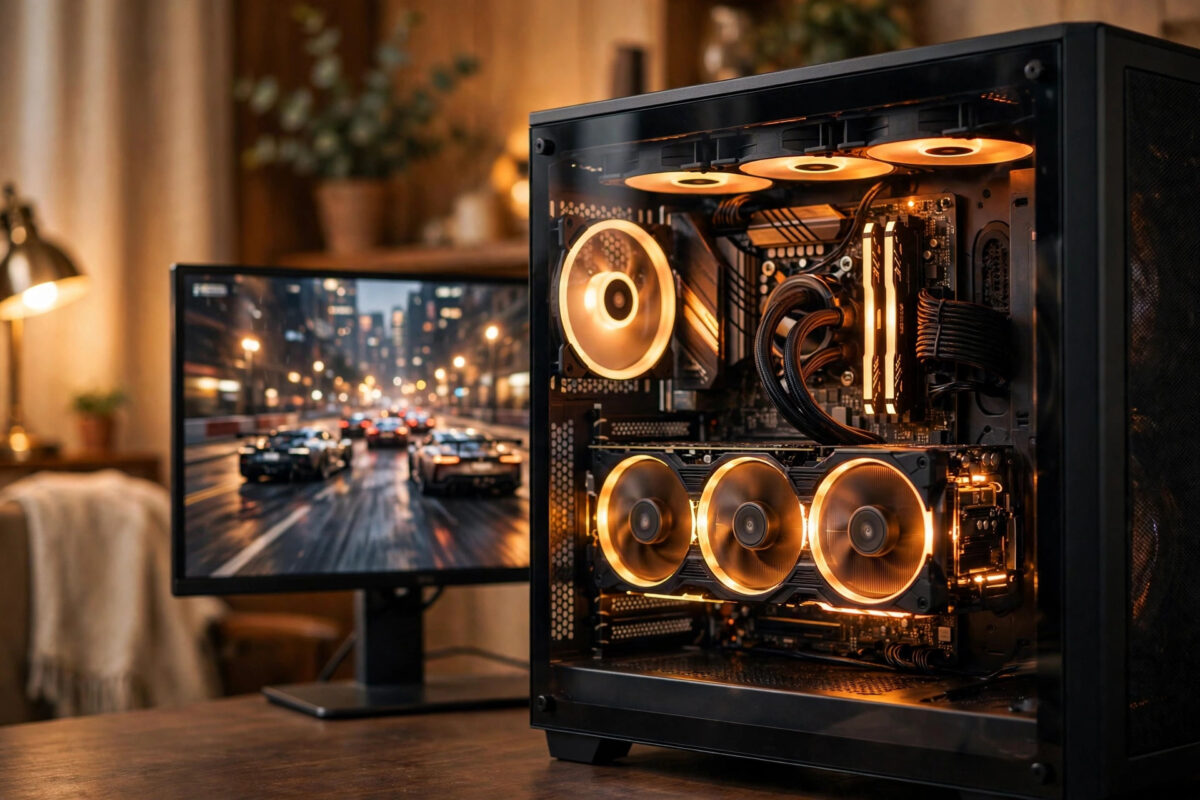
Your graphics card works hardest while you game, and heat is the price of that work. If a GPU runs too hot, it can slow itself down to stay safe, cause stutter and lower frame rates, crash games, or shut the whole PC off. Knowing your actual temperature while gaming takes the guesswork out of troubleshooting and helps you catch cooling problems early, before they damage anything.
The good news is that checking GPU temperature is easy and free. Windows has a basic reading built in, your graphics software shows more detail, and overlay tools can display the temperature on screen while you play. This guide explains each method, what temperatures are normal, and what to do if yours are too high.
Quick Answer
To check your GPU temperature while gaming, open Task Manager in Windows, go to the Performance tab, and select GPU to see its current temperature. For an on-screen reading while you play, use the performance overlay in your NVIDIA or AMD software, or a monitoring tool such as MSI Afterburner. Most GPUs are fine between 60 and 83 degrees Celsius under gaming load.
What GPU Temperature Is Normal While Gaming?
Numbers only help if you know what they mean. Graphics cards are designed to run warm under load, so a temperature that would worry you in a CPU is often completely normal for a GPU.
- Idle on the desktop: roughly 30 to 50 degrees Celsius, depending on room temperature and fan settings.
- Light gaming or older games: roughly 55 to 70 degrees.
- Demanding modern games: roughly 65 to 83 degrees is common and usually safe.
- Above 85 degrees: worth investigating, especially if fans are loud or performance drops.
- Near or above 90 degrees: too hot for regular use; the card will likely throttle or crash.
Exact limits vary by model. Many cards start reducing boost speeds in the low 80s and have a maximum safe temperature in the low 90s listed in their specifications. Check your card maker’s page for your model if you want the exact figure. Also remember hotspot readings, which measure the hottest point on the chip, normally run 10 to 20 degrees higher than the main GPU temperature. A hotspot under 100 degrees is common on many cards.
Method 1: Check Temperature in Windows Task Manager
Windows 10 and Windows 11 can show GPU temperature without any extra software. It is the fastest way to get a rough reading, though you must switch out of your game or run the game in a window to see it.
- Press Ctrl, Shift, and Esc together to open Task Manager.
- If you see the simple view, select More details.
- Open the Performance tab on the left or top of the window.
- Select GPU from the list of components.
- Read the temperature shown near the bottom of the GPU panel.
- Leave Task Manager open on a second monitor, or use windowed mode, to watch it during a game.
Microsoft describes these performance views in its official Windows support information for Task Manager and system performance. The limitation is simple: Task Manager shows the current value only, with no history graph for temperature and no on-screen overlay inside a full-screen game.
Method 2: Use Your NVIDIA or AMD Software Overlay
If you want the temperature visible while you play, the overlay built into your graphics software is the easiest option. It draws a small readout over the game, so you can watch temperature, usage, and frame rate together in real time.
For NVIDIA Cards
- Open the NVIDIA app or GeForce Experience on your PC.
- Open Settings and make sure the in-game overlay is turned on.
- Launch your game and press Alt and Z to open the overlay.
- Choose the performance or statistics view and enable GPU temperature.
- Alternatively, press Alt and R on supported versions to show performance statistics directly.
NVIDIA explains its overlay and monitoring features on its official GeForce graphics software pages, including which statistics you can display while gaming.
For AMD Cards
- Open AMD Software: Adrenalin Edition.
- Go to the Performance tab and then the Metrics section.
- Enable the metrics overlay and choose GPU temperature as one of the tracked items.
- Launch your game and check the overlay; the usual shortcut is Ctrl, Shift, and O.
- Use the logging option if you want a record of temperatures over a whole session.
Both overlays also show GPU usage. That pairing matters: 100 percent usage with a high temperature is expected in a demanding game, while a high temperature at low usage suggests a cooling or fan problem.
Method 3: Use a Dedicated Monitoring Tool
Free tools such as MSI Afterburner with RivaTuner, HWMonitor, or HWiNFO give the most detail. They work with most cards regardless of brand, show minimum and maximum values, and can log a full gaming session to a file.
- Download the tool from its official website only.
- Install it and open the monitoring or sensors window.
- Find GPU temperature, GPU hotspot, fan speed, and GPU usage in the list.
- Reset the minimum and maximum values before you start playing.
- Play for fifteen to twenty minutes, then check the maximum temperature recorded.
- For an in-game display, enable the on-screen display option for temperature and usage.
Maximum values are more useful than a single glance, because temperature climbs over a session as heat builds inside the case. Our broader guide on how to stop PC games from lagging and stuttering shows how temperature readings fit into wider performance troubleshooting when frame rates drop.
How to Test Temperature Properly
A quick check in a game menu tells you almost nothing, because menus often run at low load or unlimited frame rates. Test in a way that matches how you actually play.
- Play a demanding section of a real game for at least fifteen minutes.
- Note the room temperature; a hot room raises every reading.
- Record the average and maximum GPU temperature, plus fan speed.
- Repeat the test after any change, such as cleaning dust or adjusting fans, using the same game and area.
- Watch whether frame rates fall as temperature rises, which points to thermal throttling.
If your card is hot in one game but fine in others, that game may simply push it harder, or run with an uncapped frame rate in menus. Comparing two or three games gives a fairer picture of your cooling.
What to Do If Your GPU Runs Too Hot
High readings are a starting point, not a disaster. Work through the common causes from cheapest to most involved.
- Clean dust from GPU fans, heatsinks, and case filters with short bursts of compressed air.
- Check that all case fans spin and that cables are not blocking airflow.
- Improve case airflow by tidying cables and making sure intake and exhaust fans face the right way.
- Raise the GPU fan curve in your graphics software so fans spin up earlier.
- Cap your frame rate to your monitor’s refresh rate to stop needless extra work.
- Consider undervolting, which lowers heat while keeping most performance, if you are comfortable with advanced settings.
If temperatures stay high after cleaning and airflow fixes, the thermal paste or pads on an older card may have dried out. Replacing them can help a lot, but it can affect warranty, so check your card’s terms first or ask a repair shop.
Common Mistakes to Avoid
- Checking only at idle: idle temperatures say little about gaming cooling.
- Panicking at 75 degrees: that is a normal gaming temperature for many cards.
- Confusing hotspot with core temperature: hotspot readings are always higher and have higher safe limits.
- Closing the case side panel incorrectly or blocking vents: poor airflow raises temperatures fast.
- Running several monitoring tools at once: they can conflict and give odd readings; use one at a time.
- Ignoring a sudden change: a card that jumps 15 degrees in a week may have a failing fan or heavy dust build-up.
Conclusion
Checking GPU temperature while gaming takes a minute once you know where to look. Task Manager gives a quick reading, NVIDIA and AMD overlays show live figures in game, and dedicated tools add history and logging. Aim for the 60 to 83 degree range under load, test during real gameplay, and treat cleaning, airflow, and fan settings as your first fixes if readings climb too high.
Frequently Asked Questions
Is 80 degrees Celsius too hot for a GPU while gaming?
For most modern graphics cards, 80 degrees under heavy gaming load is acceptable, though it is near the point where some cards begin lowering boost speeds. If you see 80 degrees with quiet fans, a slightly stronger fan curve can bring it down. Sustained readings well above 85 deserve attention.
Why is my GPU temperature high even in game menus?
Many menus render at hundreds of frames per second because they have no frame rate cap. The card works flat out drawing a simple screen, so it gets hot. Capping the frame rate or enabling vertical sync usually fixes menu heat and the loud fan noise that comes with it.
Does a second monitor raise GPU temperature?
It can raise idle temperature slightly, because the card stays at a higher clock speed to drive two displays, especially at high refresh rates. Under gaming load the difference is small. The effect is normal and not a sign of a fault on its own.
How often should I check my GPU temperature?
Check when you build or upgrade the PC, when a new game performs badly, after cleaning or moving the case, and whenever you notice crashes or louder fans. A quick check every few months is a good habit, since dust builds up gradually and temperatures creep up with it.
Can high GPU temperature damage the card?
Modern cards protect themselves by slowing down and, if needed, shutting off before heat causes instant damage. Long periods at very high temperatures can still shorten the life of fans and thermal materials. Keeping load temperatures in the normal range is the simplest way to protect your card.



Leave a Reply