
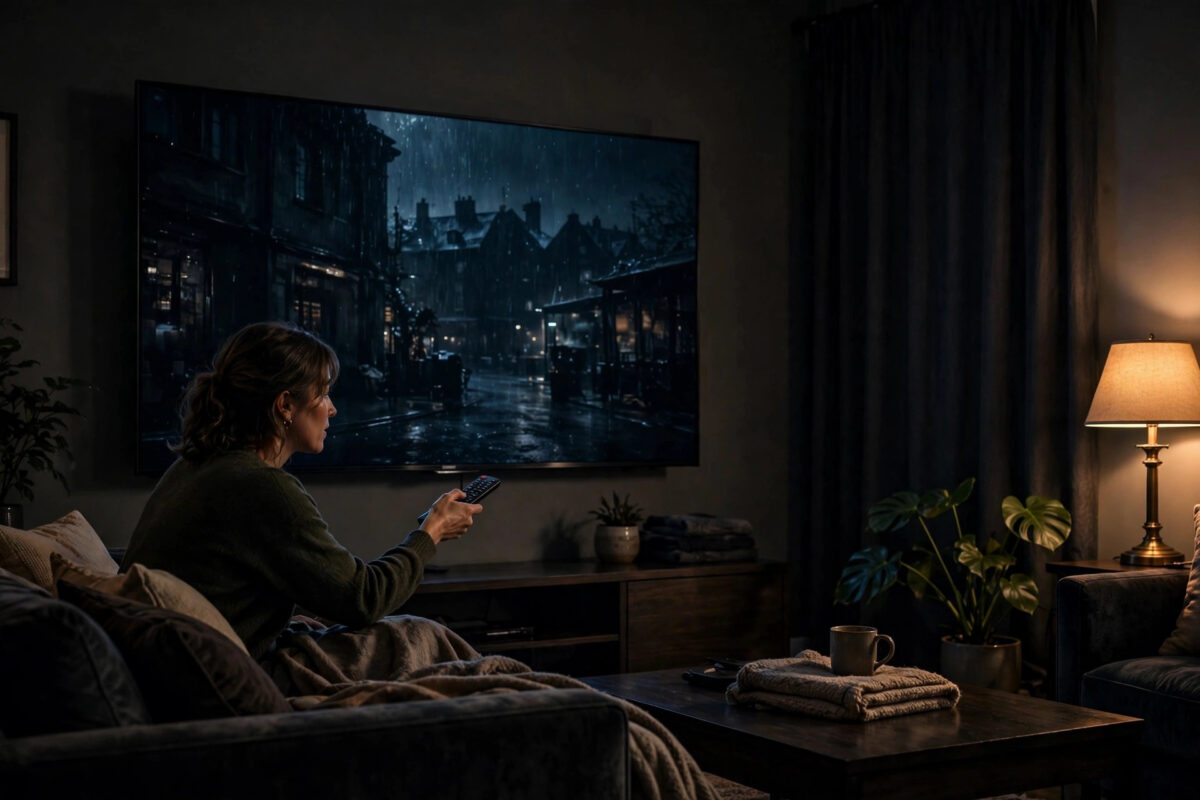
Watching a film at night should feel like a small cinema at home. Instead, many people get grey-looking blacks, orange faces, or subtitles that hurt their eyes. The problem is rarely the TV itself — factory settings are made to grab attention in a bright shop, not to look correct in a dark room.
You do not need professional tools or a paid calibrator. With a remote, a dark room, and twenty minutes, you can set brightness, contrast, colour, and sharpness sensibly. This guide explains what each control really does, in plain language, so your changes help instead of making things worse.
Quick Answer
At night, watch in your TV’s Cinema, Movie, or FILMMAKER MODE, turn off motion smoothing and dynamic contrast, and set the backlight or OLED light low enough that the room feels comfortable, usually around 30 to 50 percent. Set brightness so black bars are truly black without losing shadow detail, keep contrast near its default of 85 to 100, set colour around 50 with a Warm colour temperature, and keep sharpness low. Save separate settings for HDR, because HDR needs the backlight or OLED light at maximum to work properly.
Before You Start: Prepare the Room and the TV
Calibration only makes sense in the conditions you watch in. Set up the room first.
- Watch at night or close the curtains. Match the light level you use for real movie nights.
- Let the TV warm up for 20 to 30 minutes. Picture brightness settles after the panel has been on for a while.
- Turn off eco and light sensor modes. Look for Eco Mode, Energy Saving, or Ambient Light Sensor and switch them off, because they change brightness while you are trying to set it.
- Play a familiar film. Choose something with dark scenes, outdoor daylight scenes, and close-ups of faces. Pause on those scenes as you work.
- Find the right picture mode first. Work inside Cinema, Movie, or FILMMAKER MODE only. Do not try to fix Vivid or Dynamic mode; they are inaccurate by design.
SDR and HDR Need Separate Settings
Your TV stores standard dynamic range and HDR settings separately, even inside the same picture mode. When you play an HDR film on Netflix or Disney+, the TV switches automatically and your SDR changes do not apply. So calibrate once while playing a normal HD programme, then again while playing an HDR film. This explains why a TV can look perfect on one show and wrong on another.
Step-by-Step Picture Settings for Night Movies
Step 1: Backlight or OLED Light
This controls how much light the panel produces overall. It does not change the picture’s contrast; it is more like a dimmer switch. For a dark room, LED and LCD TVs usually feel right between 30 and 50 percent, while OLED TVs often suit an OLED Light setting around 30 to 45 for SDR films. If your eyes feel tired or subtitles glow painfully, it is too high. For HDR films, leave this control at maximum, because HDR uses the full range to create bright highlights.
Step 2: Brightness
Despite its name, brightness on most TVs controls black levels, not overall light. Set it too low and dark coats, hair, and night streets crush into one black blob. Set it too high and blacks turn washed-out grey.
- Pause on a very dark scene with some detail, such as a night street or a dim room.
- Lower brightness until shadow detail starts to disappear.
- Raise it slowly, one step at a time, until you can just see that detail again.
- Check the black bars above and below a widescreen film. They should look black, not dark grey.
Step 3: Contrast
Contrast controls the bright end of the picture: white shirts, lamps, snow, and explosions. Most modern TVs are already close to correct here. Keep it between 85 and 100 for most models, or near 45 on many LG OLED sets where the scale is different. If faces look bleached or bright clothing loses its folds and texture, contrast is too high. Lower it a few points until detail returns to the brightest areas.
Step 4: Colour and Colour Temperature
- Colour / Saturation: Keep it near the middle, usually 48 to 52. Too high makes grass neon and faces sunburnt.
- Tint: Leave it in the centre unless faces look clearly green or magenta. This control is rarely needed on modern sets.
- Colour Temperature: Choose Warm, Warm1, or Warm2. This is one of the most important choices for films. Cool settings add blue, which looks exciting in a shop but wrong at home. Warm matches the D65 standard that films are mastered to. It may look slightly yellow for the first evening; your eyes adjust quickly.
- Colour Space / Gamut: Set it to Auto. This lets the TV match the source instead of forcing wide, oversaturated colour onto everything.
Step 5: Sharpness and Picture Processing
Modern films from streaming apps and discs are already sharp. Extra sharpening adds white halos around edges and makes film grain look like crawling noise. Set sharpness low: zero on many OLED sets, or around 10 to 20 on TVs with a 0 to 100 scale. Then turn off edge enhancement, noise reduction, and MPEG noise reduction for high quality sources. You may want a little noise reduction for old, low quality broadcasts, but keep it off for films.
If dark HDR scenes are your main problem after this setup, our guide to fixing HDR content that looks too dark on your TV covers tone mapping and the HDR-only settings that sit on top of this basic calibration.
Menu names differ slightly between brands, so if a setting above is hard to find on your set, the official Samsung support pages on TV picture settings and the LG support guide to picture mode options show where each option sits on their current models.
Gamma and Local Dimming: The Two Settings People Miss
Gamma
Gamma changes how quickly the picture moves from black to bright mid-tones. For a dark room, a gamma of 2.4, or BT.1886 on OLED TVs, gives rich, cinema-like shadows. For a brighter room, 2.2 keeps shadow detail easier to see. If your night scenes feel flat and grey, try the darker gamma. If everything disappears into black, try the lighter one. Change gamma before touching brightness again, because they interact.
Local Dimming
On LED and Mini LED TVs, local dimming turns parts of the backlight down to make blacks deeper. For films at night, Medium or High usually gives the best contrast. Be aware that High can make subtitles bloom with a glowing halo and can dim small bright stars in space scenes. If subtitle blooming bothers you, step down to Medium and lower the backlight slightly instead. OLED TVs do not need this setting because every pixel makes its own light.
A Simple Test Routine After Calibrating
- Night scene: You should see detail in coats and hair, while true black areas stay black.
- Daylight scene: Sky should look natural, clouds should keep texture, and the picture should not look hazy.
- Faces: Skin should look like skin, not orange, pink plastic, or grey.
- Subtitles: White subtitles should be readable without glowing or hurting your eyes.
- A bright HDR highlight: Sun glints, torches, or headlights should sparkle clearly above the rest of the scene without washing out.
Common Mistakes to Avoid
- Calibrating in a bright room for night viewing. Settings that look right at noon will be far too bright at 10 p.m.
- Copying numbers from a forum exactly. Every panel differs slightly, even in the same model. Use shared settings as a starting point, then check with your own test scenes.
- Using Vivid or Dynamic mode as your base. These modes force cool colour, heavy sharpening, and motion processing that no amount of tweaking fully fixes.
- Confusing brightness with backlight. Raising brightness to make a dim picture brighter only washes out blacks. Use the backlight or OLED light control for overall brightness.
- Forgetting HDR settings are separate. If HDR films still look wrong, you probably calibrated SDR only. Play an HDR title and repeat the process.
- Leaving dynamic contrast on. It constantly changes brightness scene by scene, undoing your careful work and crushing detail at both ends.
Conclusion
Good night-time picture settings are mostly about restraint: a sensible movie mode, a modest backlight, blacks set just above crushing point, warm colour, and processing switched off. Do the SDR setup first, repeat it for HDR, and test with dark scenes, daylight, and faces before you change anything else. Your films will gain depth, your eyes will feel less tired, and dark scenes will finally show the detail that was always there.
Frequently Asked Questions
What is the best picture mode for movies at night?
FILMMAKER MODE is the most accurate choice if your TV has it, followed by Cinema or Movie mode. Both use warm colour and gentle processing suited to dark rooms, unlike Vivid or Standard modes made for bright shops and daytime TV.
Why does Warm colour temperature look yellow at first?
Because you are used to the blue-heavy Cool setting most TVs ship with. Warm matches the industry standard films are made for. Give your eyes one or two evenings and skin tones and whites will start to look natural instead of yellow.
Should backlight be high or low for HDR at night?
Keep it at maximum for HDR, even at night. HDR needs the full brightness range for highlights. If the overall picture feels too bright, use the TV’s HDR tone mapping or a dedicated dark-room HDR mode rather than lowering the backlight.
Do I need a calibration disc or professional calibrator?
Not for a strong everyday result. The steps in this guide fix the big errors. A professional calibration with measuring equipment can squeeze out the last few percent of accuracy, which mainly matters to enthusiasts with high-end sets.
Why do my settings change when I switch apps?
Most TVs save picture settings per input and sometimes per app, and HDR switches to its own saved values. Set up each source you use regularly, playing the same type of content you normally watch on it.



[…] you are setting up your picture from scratch, our step-by-step guide to calibrating TV picture settings for movies at night pairs perfectly with this one, covering brightness, contrast, and colour after motion is […]