
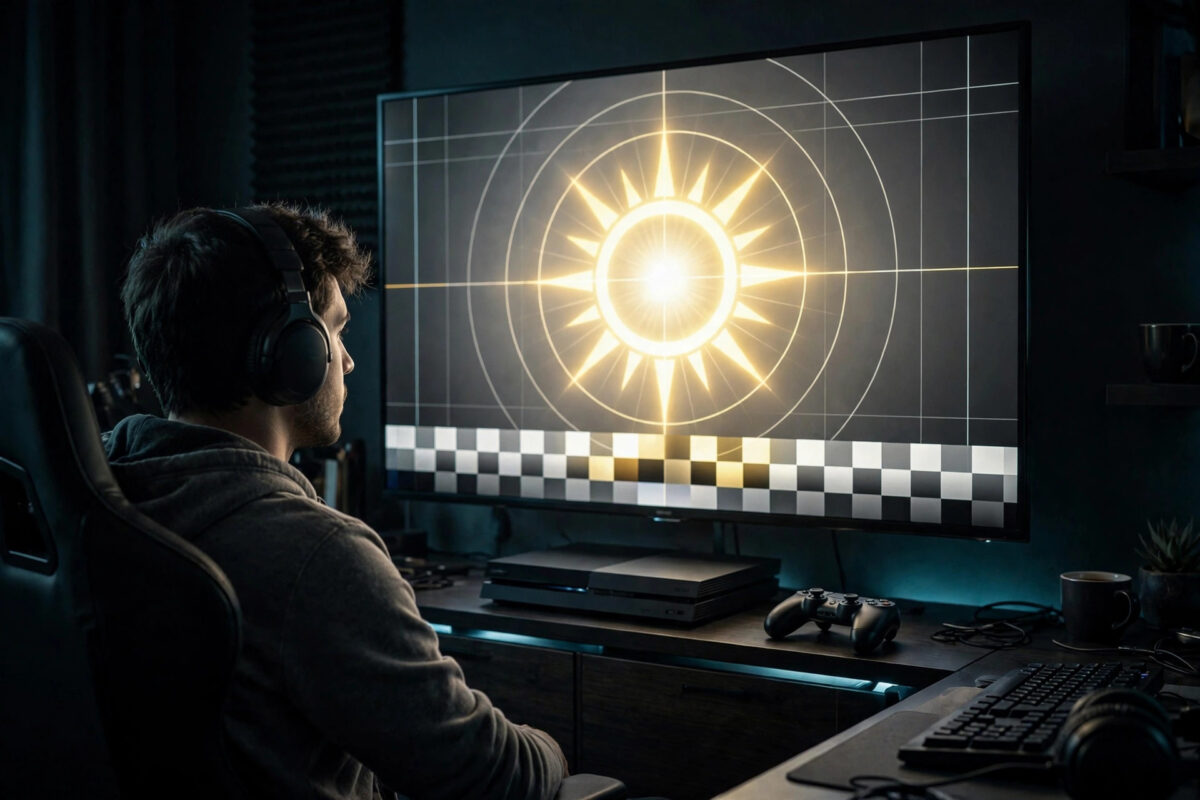
Most players set up HDR once, quickly, in a bright living room, and then wonder why games look dull, too dark, or strangely bright in the wrong places. HDR calibration is not a formality you rush through. It is the instruction you give your console about exactly how bright and how dark your TV can go, and every game you play follows it.
The process takes about ten careful minutes. This guide explains what each calibration screen really means, how to set it correctly on PS5 and Xbox, and how to handle the separate sliders many games add on top.
Quick Answer
To calibrate HDR brightness correctly for games, darken the room, make sure your TV is in its HDR game mode with full brightness and local dimming on, then use the console’s HDR calibration tool. On each bright test image, adjust until the symbol is just barely invisible, and on the dark test image, adjust until it just disappears into black. Afterwards, set any in-game peak brightness slider to match your TV’s real capability instead of guessing.
Prepare the Room and the TV First
Calibration done in the wrong conditions cannot be accurate, because your eyes judge the test symbols against the light in the room. Prepare before you open any calibration menu.
- Calibrate in the lighting you normally play in, ideally a dim or dark room for evening gaming.
- Put the TV in Game mode for the console’s input, so the settings you adjust are the ones games will actually use.
- While an HDR source is active, set the TV backlight or OLED pixel brightness to its HDR default, usually maximum.
- Turn local dimming on, to medium or high, and turn eco modes and automatic ambient brightness off.
- Let the TV warm up for fifteen to twenty minutes of normal use, because panel brightness shifts slightly as it warms.
Check Dynamic Tone Mapping
Some TVs offer dynamic tone mapping features that brighten HDR beyond the source values. For the most predictable calibration, many enthusiasts use the TV’s HGIG mode if it has one, because HGIG tells the console the TV will not add its own remapping on top. The HDR Gaming Interest Group guidelines explain this approach in detail. If your TV has no HGIG option, simply leave its tone mapping at the default and calibrate normally; consistency matters more than chasing perfection.
Calibrating HDR on PS5
On PS5, open Settings, then Screen and Video, then Video Output, then Adjust HDR. You will see three screens, and each one sets a different boundary.
Screen One and Two: The Bright Limits
The first two screens show a bright symbol against a very bright background. They measure the brightest detail your TV can show before everything clips to pure white. Press the adjustment control until the symbol is just barely invisible. This point matters. If you stop while the symbol is still clearly visible, you are telling the console your TV is dimmer than it is, and highlights will look muted. If you go far past the point where it disappears, you claim brightness your TV does not have, and bright detail will blow out to white.
Screen Three: The Black Limit
The final screen shows a dark symbol on a black background and measures your TV’s true black floor. Adjust until the symbol just disappears completely into the black. On an OLED TV, that point is very low because each pixel can turn fully off. On an LCD TV with a backlight, the symbol may remain faintly visible for longer, which is normal and honest information for the console to have.
- Move one step at a time and pause between steps.
- Judge from your normal seating position, not close to the screen.
- If you wear glasses or normally play with them, calibrate with them on.
The official PlayStation support page on HDR settings for PS5 confirms these steps and notes that you should readjust HDR after changing your TV or its major picture settings.
Calibrating HDR on Xbox Series X and S
Xbox uses a dedicated HDR Game Calibration app, found in Settings under General, TV and display options, then Calibrate HDR for games. It follows the same logic with its own test patterns.
- Work through the contrast and brightness patterns first, following the on-screen targets.
- For the minimum luminance screen, adjust until the pattern just disappears into black.
- For the two maximum luminance screens, adjust until the pattern just disappears into white.
- Save the result, then launch a game you know well and test a dark scene and a bright outdoor scene.
Xbox also shows numerical luminance values on some screens, which is useful if you know your TV’s measured peak brightness. Matching the console’s maximum value roughly to your TV’s real peak, often 600 to 1000 nits on mid-range sets and higher on premium ones, gives games honest information to work with. If your picture still looks grey after a careful calibration, our guide on fixing HDR that looks washed out on PS5 and TV covers the range and black-level mismatches that calibration alone cannot solve.
Understanding In-Game HDR Sliders
Many games add their own display menu on top of the system calibration. The labels differ, but the controls usually mean the following.
- Peak brightness or max luminance: Tell the game your TV’s brightest point. Set it close to your TV’s real capability, not to the highest value available.
- Paper white or UI brightness: This controls how bright menus, subtitles, and mid-tones appear. A moderate value around the default keeps interfaces readable without lifting the whole scene.
- Brightness or black level in game: Despite the name, this often acts like a gamma control. Leave it at default unless dark areas are clearly crushed or grey, then move it one small step at a time.
- Exposure: Found in some titles, this brightens or darkens the overall scene like a camera. Use it sparingly, because it affects everything equally.
If a game ignores the system calibration entirely, its own menu becomes your calibration. Reset it to defaults first, then adjust peak brightness in a scene with strong sunlight or bright lights, and check a cave or night scene before you finish.
How to Test Your Calibration
Do not judge the result from a menu screen. Test with real gameplay that contains extremes.
- Load a night scene or a dark interior. You should see detail in shadows without the black areas looking grey or milky.
- Load a bright daytime scene with sky and sunlight. Clouds should keep some texture instead of becoming one flat white sheet.
- Look at faces and skin under mixed light. They are a sensitive test of mid-tones; if faces look dull or waxy, the mid-range is probably set too low.
- Play for at least fifteen minutes. Eyes adapt, and a setting that looked extreme at first may settle, or a subtle problem may become obvious.
Common Mistakes to Avoid
- Stopping when the symbol is clearly visible: The instruction is just barely invisible. Clearly visible means you left brightness on the table.
- Calibrating in daylight for night gaming: Your eyes misjudge both ends of the scale in a bright room.
- Changing TV settings after calibrating: Calibration and TV settings work as a pair. If you change tone mapping, brightness, or local dimming later, recalibrate.
- Maxing every in-game slider: Higher numbers are not better picture quality. They are claims about your TV that may not be true.
- Using brightness to fix a dark game: Raising general brightness lifts blacks and washes the image out. Adjust the game’s own exposure or gamma slightly instead.
- Copying someone else’s numbers: Their TV, room, and eyes are different. The test patterns exist so your setup describes itself.
Conclusion
Correct HDR calibration is a short, careful conversation between your console and your TV. Prepare the room and the TV first, set each test symbol to the point where it just disappears, and treat in-game sliders as fine-tuning rather than a second calibration. Done properly once, it lifts every HDR game you own, giving you deep shadows, clean highlights, and the picture you thought you were buying.
Frequently Asked Questions
How often should I recalibrate HDR?
Recalibrate whenever you change TVs, move the console to a different input with different settings, update to a very different picture mode, or change your usual room lighting. Otherwise, a good calibration can stay in place for a long time.
What does just barely invisible actually mean?
It means the point where you can no longer pick the symbol out from its background, even though you know where it is. One step back and it is faintly visible; one step forward and it is gone. That boundary is the honest limit of your TV.
Should I use HGIG or dynamic tone mapping?
If your TV offers HGIG and you calibrate carefully, it usually gives the most accurate result because the console does the tone mapping alone. If not, the TV’s default tone mapping with a careful calibration still looks very good.
Why do games still ask for HDR settings after system calibration?
Some games read the system values and add nothing, while others include their own sliders for creative control or because they were designed to work across many platforms. Set the system calibration first, then treat game sliders as small refinements.
My TV’s peak brightness is unknown. How do I set peak values?
Follow the visual test patterns and trust the just-disappearing method, which does not require knowing any numbers. For in-game numeric sliders, start near 800 to 1000 nits on a typical mid-range TV and judge bright scenes for lost detail.



Leave a Reply