
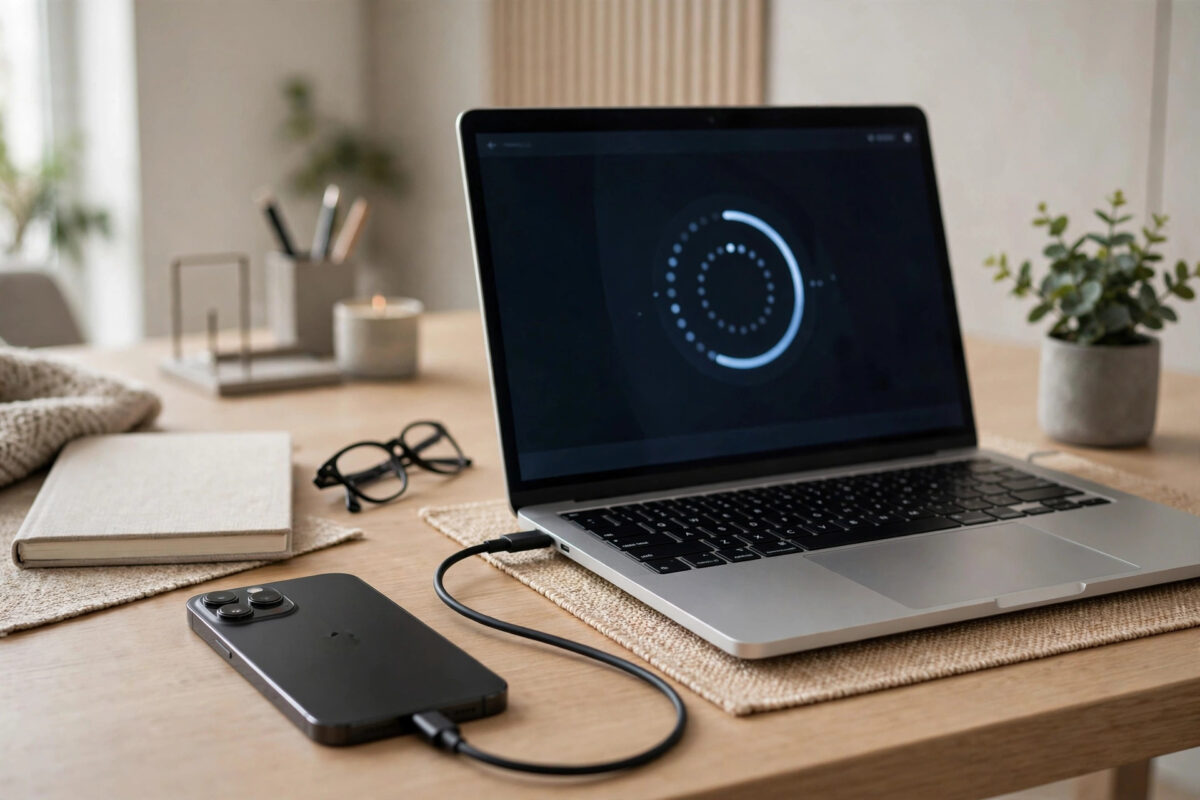
For years, backing up an iPhone to a computer meant wrestling with iTunes, a program many people found slow and confusing. The good news is that iTunes is no longer the only option. On modern Macs the job moved into Finder, and on Windows there is now a dedicated Apple Devices app that does the same job without the iTunes bloat. Here is how to make a full, free computer backup either way.
Quick Answer
On a Mac running macOS Catalina or later, connect your iPhone with a cable, open Finder, select the phone in the sidebar, choose “Back up all of the data on your iPhone to this Mac”, and click Back Up Now. On Windows, install Apple’s free Apple Devices app, connect the phone, and use its backup option instead. No iTunes is required on either platform.
Why Back Up to a Computer at All?
iCloud Backup is convenient, but a computer backup has real advantages. It is completely free no matter how large your phone is, so the 5 GB free iCloud limit stops mattering. It is faster for huge libraries because the data moves over a cable, not your internet connection. And an encrypted computer backup can include saved passwords, Wi-Fi credentials, Health data and other sensitive items that an unencrypted backup leaves out, making a restore to a new phone nearly seamless.
Step-by-Step: Back Up Using Finder on a Mac
- Connect your iPhone to the Mac with a USB-C or Lightning cable.
- Unlock the iPhone and tap Trust if asked, then enter your passcode.
- Open Finder and click your iPhone under Locations in the sidebar.
- On the General tab, under Backups, select “Back up all of the data on your iPhone to this Mac”.
- Tick Encrypt local backup and set a password you will remember. This is strongly recommended so passwords and Health data are included.
- Click Back Up Now and wait for the progress bar to finish.
Step-by-Step: Back Up Using Apple Devices on Windows
- Install the free Apple Devices app from the Microsoft Store if it is not already on your PC.
- Connect the iPhone with a cable and unlock it, tapping Trust when prompted.
- Open Apple Devices and select your iPhone from the sidebar.
- Under the backup settings, choose to back up to this computer, and enable the encryption option with a memorable password.
- Click Back Up Now and let it complete without unplugging.
If your Windows PC still has an old iTunes installation, the two can coexist, but the Apple Devices app is the modern route and the one Apple now supports for backups and restores. You can find both tools described on Apple’s official iPhone support pages.
Where the Backup Lives and How to Check It
Backups are stored in a system folder on the computer and are not meant to be opened by hand; you manage them from the same Finder or Apple Devices screen, where you can see the date of the latest backup and delete old ones you no longer need. A healthy routine is to keep at least the most recent backup for each phone you own. If you back up several family iPhones to one computer, encrypted backups keep everyone’s data separate and protected by their own passwords.
Computer Backup or iCloud: Which Should You Use?
They solve slightly different problems. iCloud protects you automatically every night with no effort, including when you are away from home. A computer backup is bigger, free and complete, but only exists when you remember to plug in. The strongest setup uses both: iCloud for daily safety and a fresh computer backup before a major iOS update, a repair, or switching to a new phone. If you are moving to a new device, our guide on transferring everything from an old iPhone to a new iPhone compares the migration options.
Mistakes to Avoid
The classic disaster is forgetting the encryption password. Without it, an encrypted backup cannot be restored, ever, so store the password somewhere safe like a password manager. Another mistake is unplugging mid-backup, which can corrupt the file; if you must stop, cancel the backup in the app first. Finally, do not assume a backup exists just because you connected the phone to charge; check the date of the latest backup on screen before you rely on it.
Managing Old Backups So They Do Not Eat Your Disk
Computer backups are generous with your disk space: each full backup of a well-filled phone can run to tens of gigabytes, and if you back up several devices or keep many generations, the total creeps up silently. Open the backup list in Finder or the Apple Devices app every few months and prune it deliberately. Keep the newest backup for every device you still own, plus perhaps one older backup as a fallback if the newest was made while the phone had a problem. Delete backups of phones you have sold or replaced and already restored successfully.
One caution: never delete your only backup of a device in the same session you plan to erase or repair that device. Make a fresh backup first, confirm its date on screen, and only then tidy the old ones. It also helps to know that a backup is not an archive of individual files you can browse; you cannot pull a single photo out of it by hand. Its job is restoring a device to a moment in time, and judged on that job, it is excellent. For browsing individual files on the computer, copy them separately using the Files app or a photo import alongside your backup routine.
Conclusion
You do not need iTunes to back up an iPhone to a computer any more. Finder handles it on modern Macs and the free Apple Devices app handles it on Windows. Choose the encrypted option, write the password down safely, and you will have a complete, free backup ready for updates, repairs and your next phone.
How Often Should You Back Up to a Computer?
Because a computer backup only happens when you plug in, give it a rhythm. Once a month suits most people and pairs naturally with checking for updates. Add an extra backup on three specific occasions: before installing a major iOS release, before handing the phone over for any repair, and before switching to a new device. Those are the moments where a complete, local, encrypted copy earns its keep. If your phone holds work documents or irreplaceable recordings, tighten the rhythm to weekly; the backup is incremental in effort even though each file is complete, and a habit attached to something you already do, like charging at your desk on a Monday, is the habit that survives.
Frequently Asked Questions
Is the Apple Devices app for Windows free?
Yes. Apple publishes it free in the Microsoft Store, and it handles backups, restores, software updates and syncing for iPhone, iPad and iPod touch without needing iTunes at all.
What is the difference between an encrypted and unencrypted backup?
An encrypted backup includes saved passwords, Wi-Fi settings, website history, Health data and HomeKit data, and the file itself is protected by a password. An unencrypted backup leaves those items out and anyone with the computer could restore it.
How big is a computer backup?
Roughly the size of the data on your phone, so a well-filled 128 GB iPhone can produce a backup of many tens of gigabytes. Make sure the computer has enough free disk space before starting.
Can I back up two iPhones to the same computer?
Yes. Finder and Apple Devices keep each device’s backups separate and labelled by device. Using different encryption passwords for each keeps family members’ backups private from one another.
My computer does not recognise the iPhone. What should I try?
Unlock the phone first, try a different cable (cheap cables are a common cause), plug directly into the computer rather than a hub, and tap Trust when the prompt appears. Restarting both devices fixes most remaining cases.



[…] route you pick, the habit that matters is having your photos exist in two places. Our guide on backing up an iPhone to a computer covers full-device backups, which protect far more than photos alone. Apple also describes the […]