
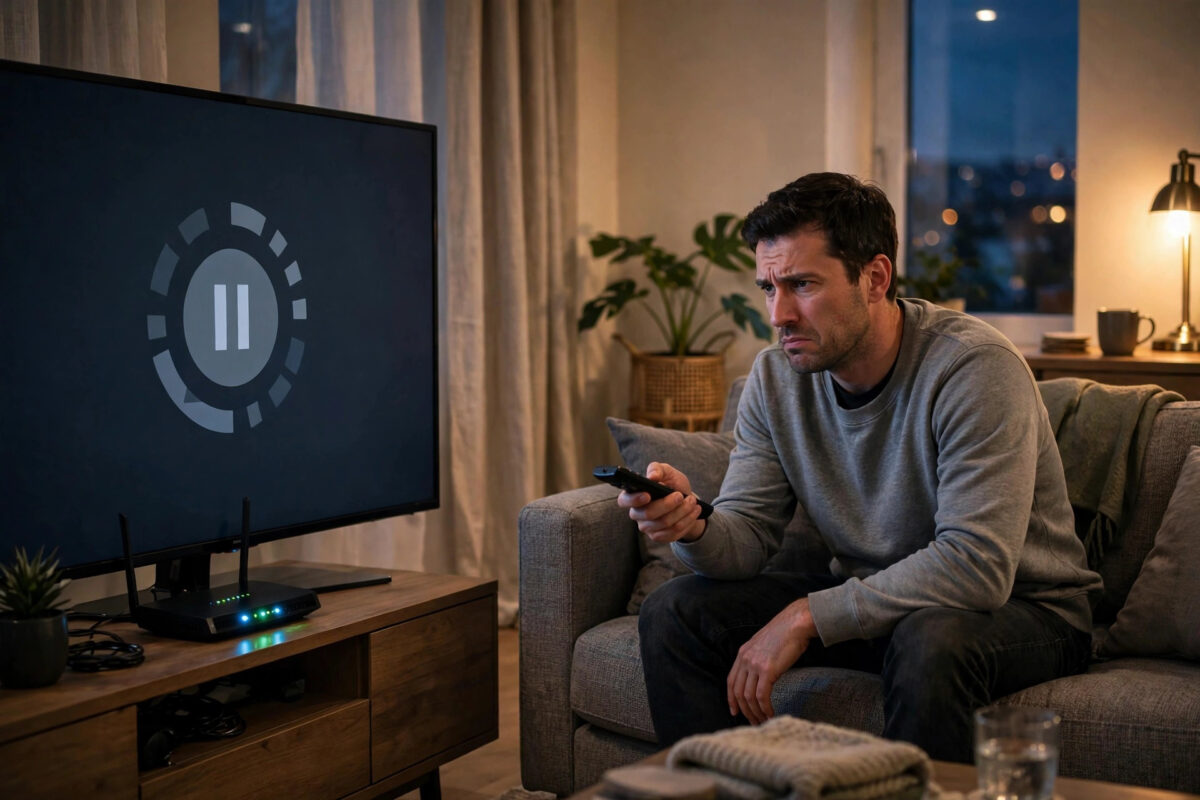
You press play on a film you have been looking forward to all day, and instead of the opening scene you get a short message: error 5004. Or the picture freezes, the sound drops out, or Prime Video simply refuses to load at all. These errors feel random, but most of them have simple causes that you can fix at home in a few minutes.
Error 5004 is mainly a sign-in and connection problem. Prime Video cannot confirm your account properly, so it blocks playback. Other common playback errors are usually caused by a weak internet connection, an old app version, a full cache, or a temporary problem with your device. This guide works through the fixes in the right order, from the fastest checks to the deeper resets.
Quick Answer
To fix Prime Video error 5004, sign out of Prime Video completely, close the app, restart your TV or streaming device and your router, then sign back in with the correct Amazon account. If playback errors continue, clear the app cache, update Prime Video and your device software, and test your internet speed, because most playback failures are caused by a stale login, a glitch in the app, or a connection that is too slow or unstable for streaming.
What Error 5004 and Other Playback Errors Mean
Understanding the type of error helps you avoid wasting time on the wrong fix. Error 5004 appears when Prime Video tries to sign you in or verify your account and that check fails. It can happen after a password change, after switching Amazon accounts, or when the app holds old login data that no longer matches Amazon’s servers.
Other playback problems share similar roots. A spinning circle usually points to the network. A black screen with sound often points to an HDMI setting. An error on only one title may be that title or a corrupted download. An error on every title, on every device, is more likely an account, payment, or service problem.
Check if Prime Video Is Down
Before you change any settings, rule out a wider outage. Try Prime Video on a second device, such as your phone on mobile data. If it fails everywhere in the same way, wait and try again later. You can also check the guidance on the official Prime Video help pages for current advice on playback problems. If the service works on your phone but not on your TV, the problem is local to that TV or its connection, and the steps below should solve it.
Step 1: Restart Everything Properly
A proper restart clears temporary memory and forces a fresh connection. Simply putting the TV into standby is not the same thing.
- Close Prime Video completely, do not just return to the home screen.
- Turn off your TV, Firestick, or streaming box and unplug it from the wall for at least 60 seconds.
- Unplug your router and modem for 60 seconds as well, then plug the modem back in first.
- Wait until your internet light is stable, then plug the router back in and let it fully start.
- Plug your TV or streaming device back in, open Prime Video, and try the same title again.
This routine fixes many cases, because the app and router can get stuck with old session data. If error 5004 still appears, move on to the login fix.
Step 2: Fix the Sign-In Problem Behind Error 5004
Because error 5004 is tied to authentication, signing out and back in cleanly is the most important step.
- Open Prime Video and go to Settings, then look for Sign Out, Deregister, or Account options. The wording varies by device.
- Sign out completely and confirm the action.
- Close the app, restart the device once more, and reopen Prime Video.
- Sign in slowly and carefully with the exact email address and password linked to your Prime membership.
- If you use a code shown on the TV screen, enter it promptly on the Amazon page shown, before the code expires.
Double-check common traps. Many households have more than one Amazon account, and signing in with the wrong one can look like an error or a missing subscription. Check capitals and special characters in your password carefully, especially with a TV remote. If you recently changed your password, every device needs the new one. You can also review devices registered to Prime Video in your Amazon account and remove ones you no longer use, then sign in again on the device you watch on.
Step 3: Fix Your Internet Connection for Streaming
Prime Video needs a steady connection, not just a fast one on a speed test. A connection that drops for a few seconds can break playback or trigger errors mid-film.
- For standard definition you need roughly 1 Mbps, for HD around 5 Mbps, and for 4K at least 15 to 25 Mbps of real, stable speed at the TV.
- Move the router closer to the TV if possible, or remove obstacles such as thick walls and metal cabinets between them.
- If your router offers both 2.4 GHz and 5 GHz networks, the 5 GHz band is usually faster at short range, while 2.4 GHz reaches further through walls.
- Pause large downloads, game updates, and cloud backups on other devices while you test.
- Where possible, test with a wired Ethernet connection. If playback becomes perfect when wired, the issue is Wi-Fi strength, not Prime Video.
If your home network struggles generally, our guide on how to fix buffering on a smart TV and improve streaming speed explains router placement, band choice, and extender options in more detail.
Step 4: Clear the Cache and Update the App
Apps store temporary files to load faster, but those files can become outdated or corrupted. Clearing them forces Prime Video to build fresh data.
On Fire TV and Android TV
- Go to Settings, then Applications, then Manage Installed Applications.
- Select Prime Video, choose Clear Cache first, and try the app again.
- If the error remains, choose Clear Data as well. You will need to sign in again afterwards.
- Check for an app update in the app store and install it if one is available.
- Also check for a system update for the device itself and install it, then restart.
On Smart TVs and Other Devices
Some TVs do not offer a clear-cache button. In that case, uninstalling and reinstalling Prime Video does the same job. Remove the app, restart the TV, install it fresh from the official app store, and sign in again. Always install from the official store, never from unknown download sites.
Step 5: Check Account, Payment, and Title-Specific Issues
If you can browse, but certain titles will not play, look beyond the device. A rental may have expired, a title included in one country may not be included abroad, and a failed payment method can limit access. Play a different, popular title to check if the problem is title-specific. Remove and re-download any failed download. Turn off any VPN or proxy, confirm your Prime membership is active, and set your TV date and time to automatic, because a wrong clock can break sign-in checks.
Common Mistakes to Avoid
- Only closing the app: Returning to the home screen leaves the faulty session running. Force close, sign out, or restart properly.
- Using the wrong Amazon account: This is one of the top causes of error 5004 and of missing purchases.
- Skipping the router restart: Restarting only the TV leaves a stale network session in place.
- Testing on a weak Wi-Fi signal: One bar in a far bedroom will keep producing errors no matter how often you reinstall.
- Changing many settings at once: Work through one fix at a time so you know what actually solved it.
- Ignoring device updates: Old TV firmware can be incompatible with newer app versions.
Conclusion
Error 5004 is rarely a sign of a broken TV or a lost account. In most homes it comes down to a stale sign-in, an app that needs clearing or updating, or an unsteady connection. Restart the device and router, sign out and back in with the correct account, clear the cache, and test your connection. If every device fails in the same way after this, the problem is most likely on Amazon’s side or with your account, and waiting or contacting support is the sensible next step.
Frequently Asked Questions
What exactly causes Prime Video error 5004?
Error 5004 happens when Prime Video cannot complete a sign-in or account verification check. Common triggers are old saved login details, a recent password change, signing in with the wrong Amazon account, a wrong date and time on the device, or a temporary connection failure during the check.
Will clearing data delete my watchlist and purchases?
No. Your watchlist, purchases, and viewing history are stored in your Amazon account, not only on the device. Clearing data removes local login and temporary files, so you will need to sign in again, but your library returns once you do.
Why does Prime Video work on my phone but not my TV?
That pattern points to the TV or its connection. The TV app may need updating or clearing, the TV may be on a weak Wi-Fi signal, or its saved login may be stale. Restart the TV by unplugging it, update the app, and sign out and back in on that device.
How fast does my internet need to be for Prime Video?
Around 5 Mbps of stable speed is enough for HD, and 15 to 25 Mbps is safer for 4K. Stability matters as much as speed, so a wired connection or stronger Wi-Fi often helps more than a faster package.
What should I do if no fix works?
Confirm the problem on a second device and check whether your Prime membership and payment method are active. If everything fails everywhere, it is likely an account or service issue, so contact Amazon support with the exact error code, your device model, and the steps you have already tried.



Leave a Reply