
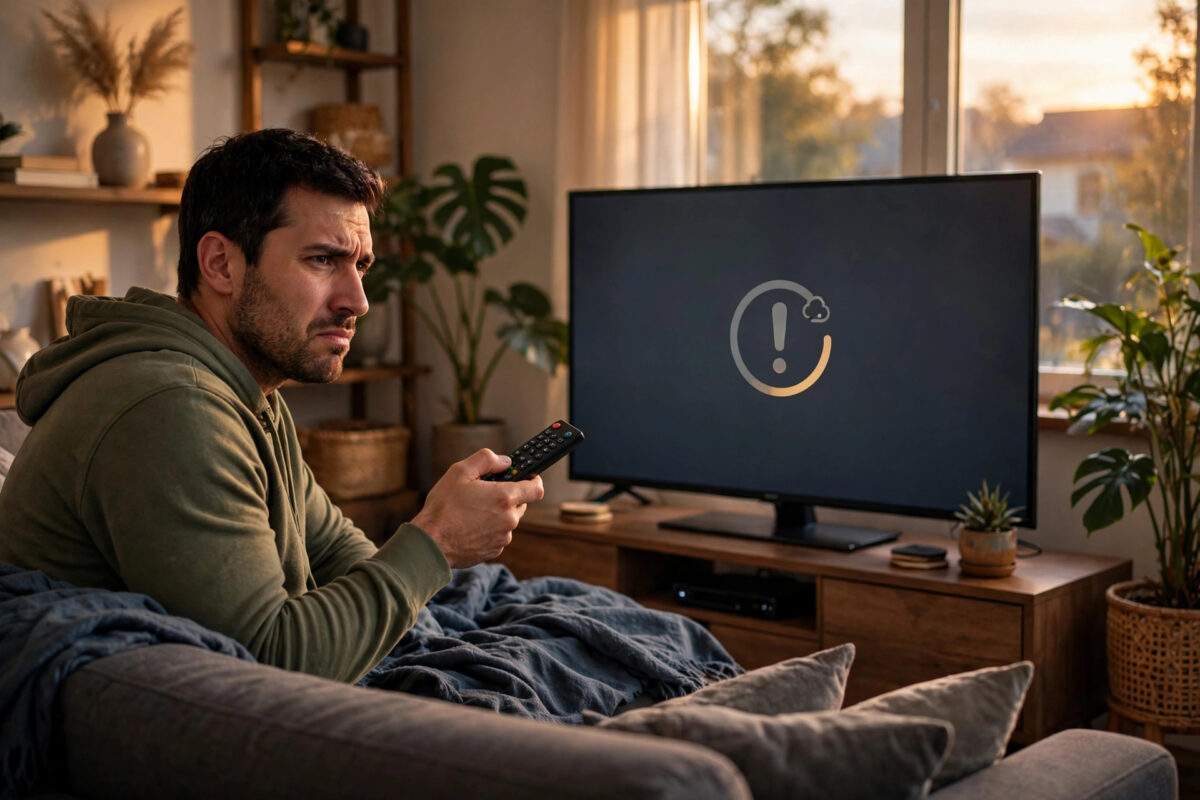
You press play, the Netflix logo spins, and then everything stops with error code tvq-pb-101. It is one of the most common playback errors on smart TVs.
The good news is that this error is rarely a sign that your TV is broken. In most homes it points to a small problem with stored app data, a weak connection, or an outdated version of the Netflix app. You can work through the fixes in order, and most people get Netflix playing again within ten to fifteen minutes without calling anyone for help.
Quick Answer
Netflix error code tvq-pb-101 means your smart TV cannot play the title because of a problem with data stored on the device or a connection issue. Restart your TV by unplugging it for at least one minute, check your internet connection, and then try Netflix again. If the error stays, clear the Netflix app data or reinstall the app, and make sure your TV software is fully up to date.
What Does Error Code tvq-pb-101 Actually Mean?
Netflix uses error codes to tell you which part of the playback process failed. The tvq-pb-101 code is a playback error. It normally means the app tried to load a title but something on the TV blocked it. That something is often old or damaged data saved inside the app, such as a half-finished download of information about a show, a broken sign-in token, or cached files that no longer match the current version of Netflix.
Common Reasons This Error Shows Up
- Old or corrupted data stored inside the Netflix app on your TV.
- A temporary glitch in the TV software after it has been on standby for many days.
- A weak, slow, or unstable Wi-Fi signal reaching the TV.
- An outdated Netflix app or outdated TV firmware.
- A problem with the HDMI connection if you use an external streaming device.
- Netflix account or device activation data that needs to be refreshed by signing out and back in.
Step 1: Restart Your Smart TV Properly
A simple restart clears more problems than any other step, but it has to be a proper restart. Pressing the power button on the remote usually only puts the TV into standby. The apps keep running in the background, and the faulty data stays exactly where it was.
Follow these steps instead:
- Close Netflix and go back to your TV home screen.
- Turn the TV off with the remote.
- Unplug the TV power cable from the wall socket.
- Wait at least one full minute. This allows the TV to fully discharge and clear its temporary memory.
- While you wait, press the power button on the TV itself once or twice to drain any remaining power.
- Plug the TV back in and turn it on.
- Open Netflix and try playing the same title again.
If Netflix now plays, the problem was a temporary glitch and no further action is needed.
Step 2: Check Your Internet Connection
If a restart did not help, test the connection next. Netflix needs at least 3 Mbps for standard definition, 5 Mbps for high definition, and around 15 Mbps for 4K streaming. Speed is only part of the story, though. A fast but unstable connection that keeps dropping will still cause playback errors.
Start by running the network test inside the Netflix app. On most TVs you can find it by opening Netflix, going to the side menu, and choosing Get Help or Settings, then Check Your Network. Netflix will test its own servers and show you the result.
You should also restart your router, even if other devices seem fine. Unplug the router for 30 seconds, plug it back in, and wait two to three minutes until the lights settle. Then test Netflix again. If your TV is far from the router, try moving the router higher, removing obstacles, or connecting the TV with an Ethernet cable for a quick test. A wired test tells you straight away whether Wi-Fi is the problem.
Our detailed guide on how to fix slow Wi-Fi at home and improve your streaming speed explains simple ways to strengthen the signal in the room where your TV sits.
Step 3: Sign Out of Netflix and Sign Back In
Signing out refreshes your account connection and clears the saved activation data that sometimes causes tvq-pb-101. It takes two minutes and you only need your Netflix email and password ready.
- Open Netflix on your TV.
- Move to the left side menu and select Get Help. On some TVs you need to go to Settings or the profile icon instead.
- Select Sign Out and confirm with Yes.
- Wait for the Netflix welcome screen to appear.
- Sign in again with your email and password.
- Try playing a title.
If the menu is hard to reach, press Up, Up, Down, Down, Left, Right, Left, Right, Up, Up, Up, Up on the remote to open a screen with a sign-out option on many models.
Step 4: Clear the Netflix App Cache and Data
If you use an Android TV or Google TV from brands like Sony, TCL, or Hisense, you can clear the stored data that causes this error. Clearing data removes damaged files and forces the app to build fresh ones. You will need to sign in again afterwards, so keep your password handy.
- Go to your TV Settings and open Apps.
- Find Netflix in the list of installed apps.
- Select Storage or Storage and Cache, depending on your model.
- Choose Clear Cache first and test Netflix.
- If the error remains, return to the same screen and choose Clear Data or Clear Storage.
- Open Netflix, sign in, and test playback.
On Samsung TVs, the steps are slightly different. Go to Settings, then Support, then Device Care, and choose Manage Storage. Find Netflix and use the option to clear its cache. On LG TVs there is no direct clear-cache button for most apps, so reinstalling the app, covered in the next step, is the better option.
Step 5: Reinstall the Netflix App and Update Your TV
Reinstalling gives you a completely fresh copy of Netflix and removes every damaged file in one go. First uninstall the app from your TV app store or apps menu. On some TVs Netflix is built in and cannot be removed. In that case, look for an option to disable updates or revert to the factory version, then update it again.
After reinstalling, check for TV software updates before you test. Go to Settings, then Support or About, and choose Software Update. Install any available update and let the TV restart. Outdated firmware is a quiet cause of many Netflix errors because the app expects newer system features. The official Netflix Help Center guide for error tvq-pb-101 also recommends keeping both the app and the device software current, so this step is worth doing even if reinstalling alone seems to work.
Common Mistakes to Avoid
- Only using standby: Turning the TV off with the remote does not clear app memory. Always unplug it for a full restart.
- Skipping the router: Many people blame the TV while the real problem is a router that has not been restarted in months.
- Factory resetting the TV first: A full factory reset should be your last resort, not your first step. It deletes all your settings and apps.
- Ignoring updates: Postponing TV software updates for months often leads to app errors like this one.
- Testing with only one title: Always test two or three different shows. If only one title fails, the issue may be with that title rather than your TV.
- Using a VPN on the router: VPNs can confuse Netflix playback checks. Test once with the VPN off if you use one.
When to Contact Netflix Support
If every step fails and the code appears on every title, check the Netflix Help Center home page for service and account support to rule out an outage. If Netflix is working for others, contact Netflix support with your TV brand, model, software version, and the full error code. If other streaming apps also fail, contact your TV manufacturer instead, as that points to a TV problem rather than a Netflix one.
Conclusion
Error code tvq-pb-101 looks worrying, but it almost always comes down to stored app data, a tired TV that needs a proper restart, or a connection hiccup. Work through the steps in order: unplug the TV, check the internet, sign out and back in, clear the app data, and reinstall Netflix with your TV software up to date. Most viewers fix it within the first two or three steps and never see the code again for months. Keep your TV updated and restart it properly once in a while, and you will prevent most playback errors before they start.
Frequently Asked Questions
Does tvq-pb-101 mean my Netflix account has a problem?
Almost never. This code is about playback on the device, not your account or payment. If you can watch Netflix on your phone with the same account, your account is fine and the TV is where the problem sits.
Will clearing Netflix data delete my profiles and watch history?
No. Your profiles, lists, and viewing history are saved on Netflix servers, not on your TV. Clearing data only removes local files on the device. You will simply need to sign in again and choose your profile.
Why does the error keep coming back after a few days?
If it returns often, your TV software or Netflix app is probably outdated, or your Wi-Fi signal is unstable. Update everything, restart your router, and consider a wired connection or a Wi-Fi extender for the TV room.
Is tvq-pb-101 the same on Samsung, LG, and Sony TVs?
Yes, the meaning is the same on all brands: a playback problem linked to device data or the connection. Only the menu names for clearing cache and updating software differ slightly between brands.
Can a slow internet speed alone cause tvq-pb-101?
Yes. If the connection drops or slows sharply at the moment Netflix verifies playback, the app can stop and show this code. A stable connection matters more than raw speed for avoiding it.



Leave a Reply